TR7500_Series_Software_v29_En.pdf - 第113页
Test Research Inc. TR7500 Series User Guide – Software v.2.9.0 91 3.8 Insp ection Tab Figure 153 : Inspection Tab 3.8.1 Inspect Pa n el Start to inspect the PCB with standard p rocedure. 3.8.2 Debug for Si ngle Board S e…
Test Research Inc.
90 TR7500 Series User Guide –Software v.2.9.0
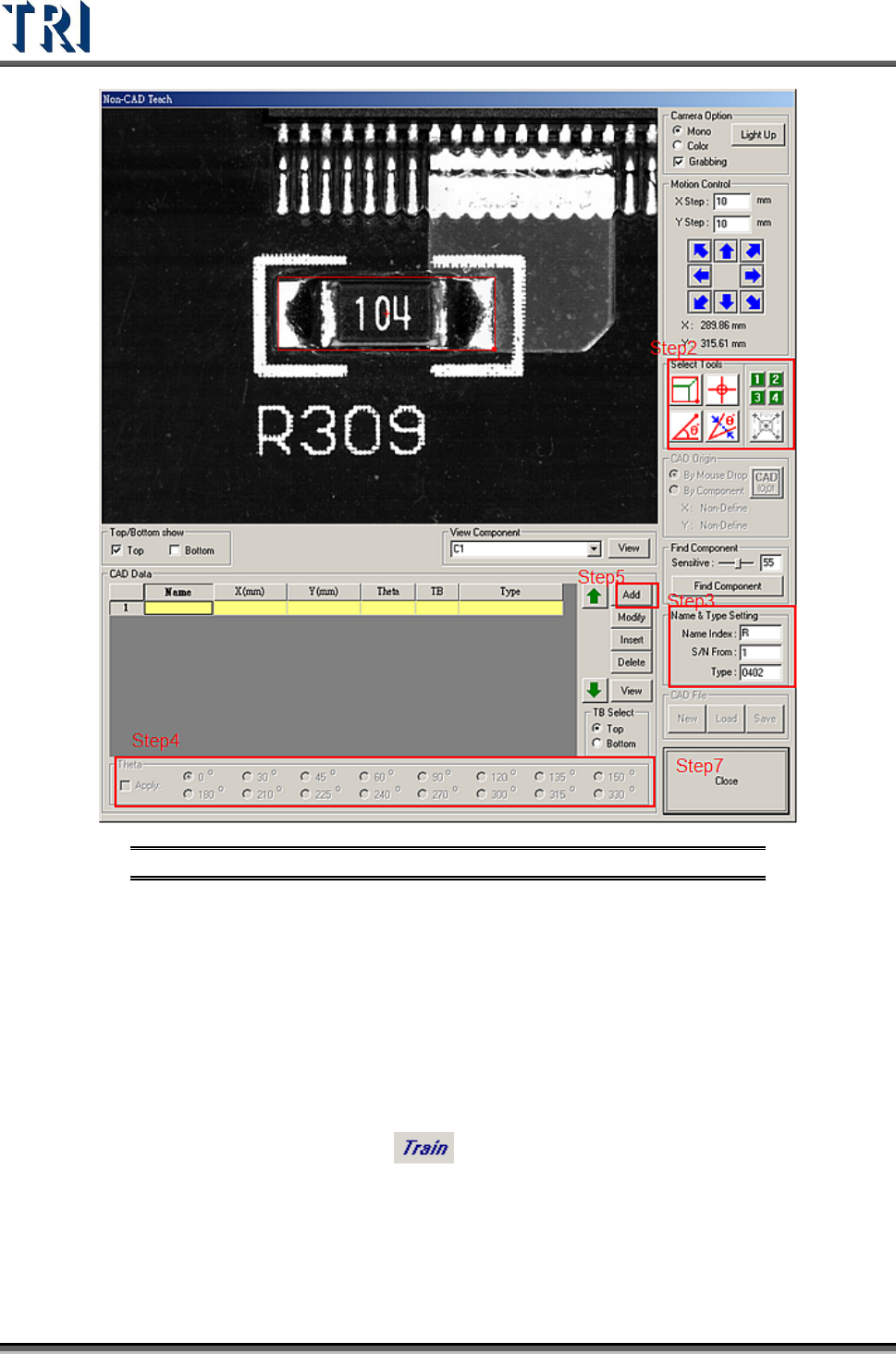
Figure 152: Procedure to Add Component in Project
2. Move selecting tools to the object component center. The component has to be
on board 1.
3. Input data at [Name &Type Setting] field
4. Check [Apply] and select an angle.
5. Press [CAD Data/Add] to create the component data.
6. Add the other components on board 1.
7. Press [Close] to exit.
8. Press [P
ROGRAM
>
T
RAIN
] or [ ] to enter the train dialog.
9. Use [Merge] button to merge the component library.
10. Press [U
TILITIES
>
C
APTURE
FOV
I
MAGES
] to get the FOV images again.
Test Research Inc.
TR7500 Series User Guide –Software v.2.9.0 91
3.8 Inspection Tab
Figure 153: Inspection Tab
3.8.1 Inspect Panel
Start to inspect the PCB with standard procedure.
3.8.2 Debug for Single Board Set
Start to inspect, but it shows only the result of one set.
3.8.3 Inspect FOV Images
Inspect the FOV images that are saved in hard disk.
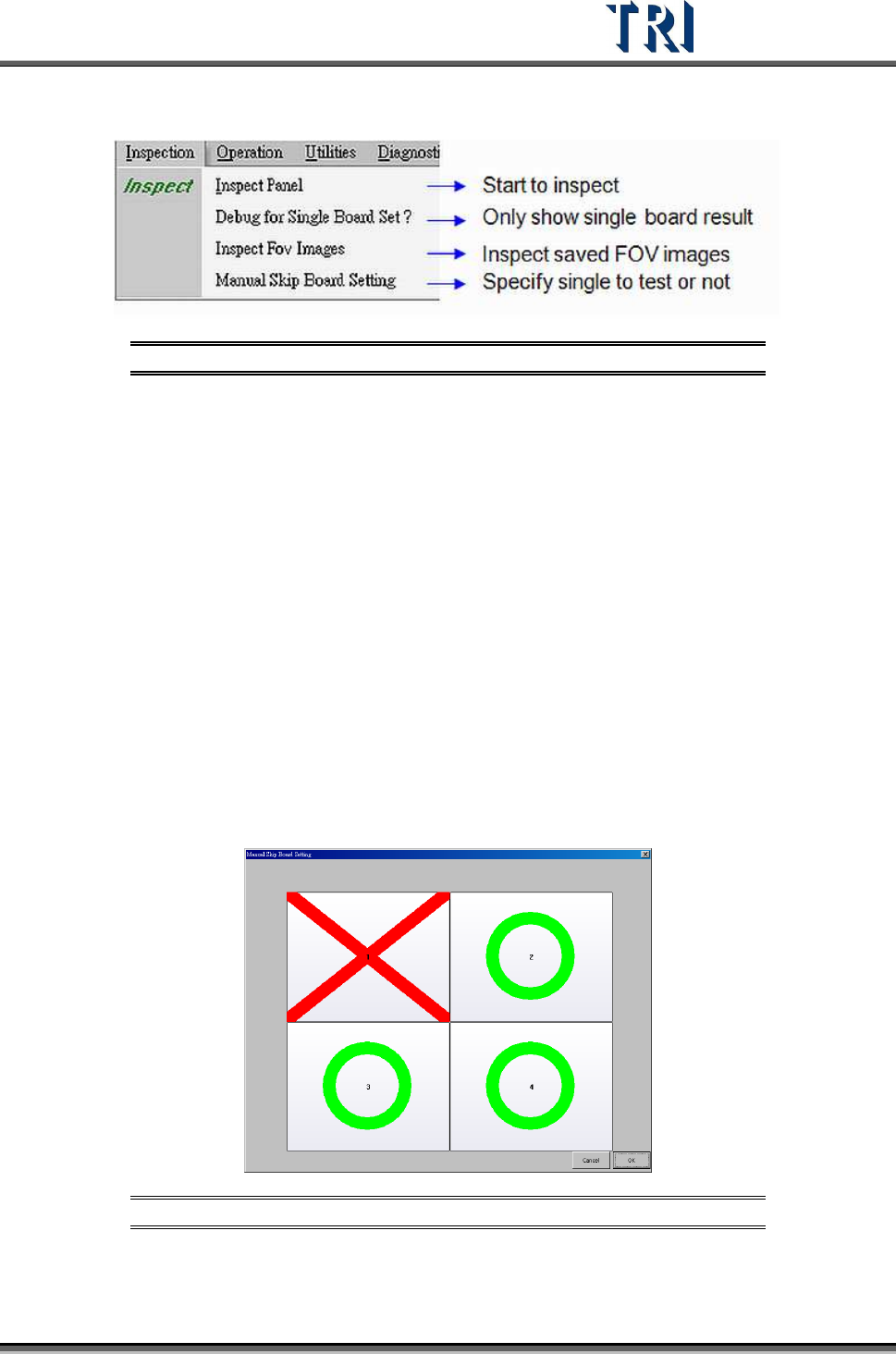
3.8.4 Manual Skip Board Setting
Use this function to specify whether each board is to be tested or not.
As per the image below, click on the board directly. The green O means that the single board
has to be inspected and the red X means that the single board does not have to be inspected.
Then press [OK] to finish setting.
Figure 154: Manual Skip Board Setting Window
Test Research Inc.
92 TR7500 Series User Guide –Software v.2.9.0
3.9 Operation Tab
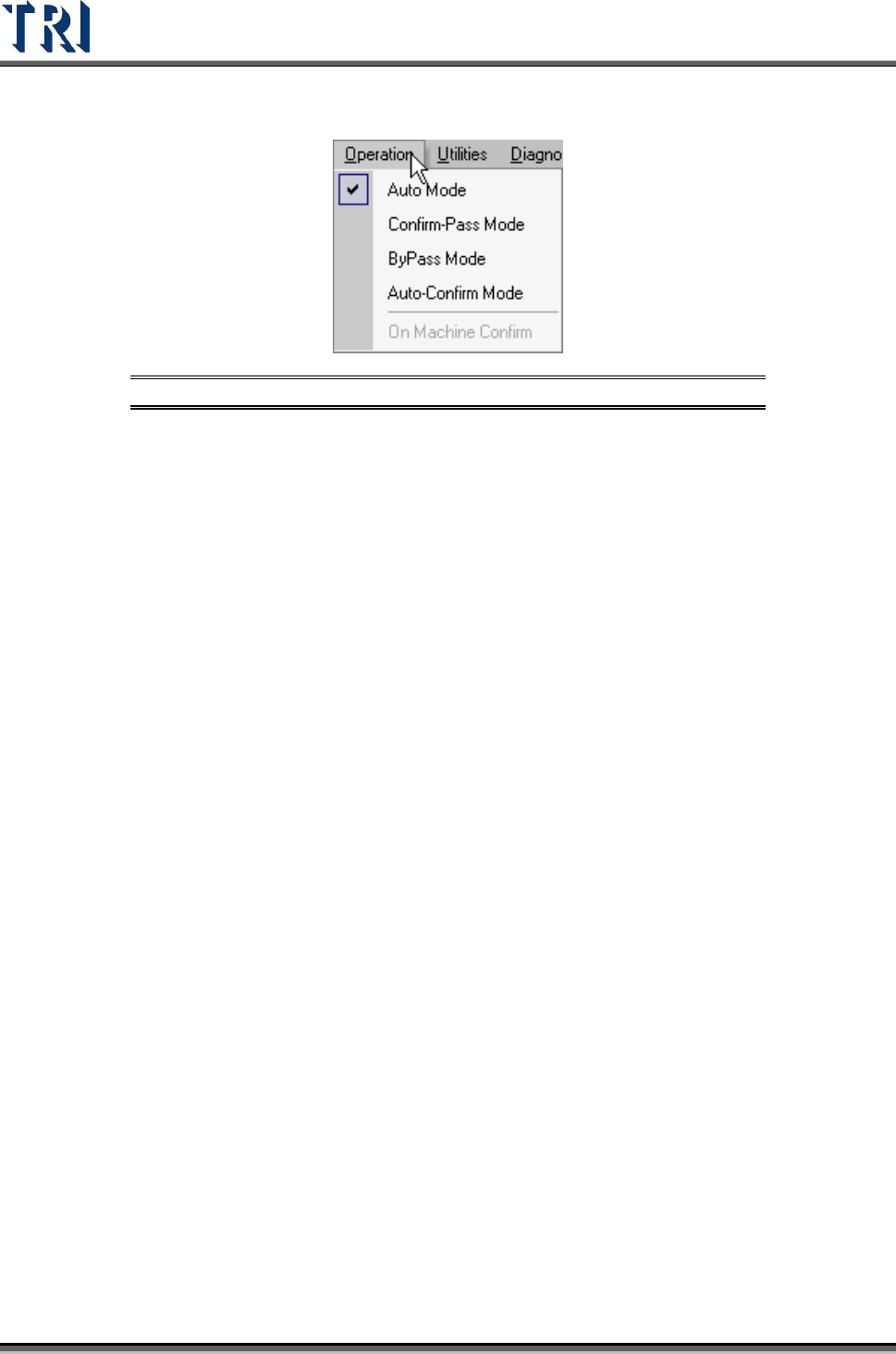
Figure 155: Operation Tab Functions
3.9.1 Auto Mode
After inspection the system outputs the result and starts to inspect the next PCB directly.
3.9.2 Confirm-Pass Mode
After inspection, the system outputs the result. The next PCB will not be inspected until
operator confirm.
3.9.3 ByPass Mode
The output is always “Pass”
3.9.4 Auto-Confirm Mode
After inspection, the system outputs the result and starts to inspect the next PCB directly.
The defect map will be shown as double size: this makes it easy for an operator to confirm
the defects on the AOI machine.
3.9.5 On Machine Confirm
This function is only for [Confirm Pass Mode]. When this function is selected, there must be
an operator to confirm the PCB on the AOI Machine. The data transfer to the repair station is
confirmed and doesn’t have to be confirmed again.
Right click on defect tree and confirm the defect is Pass, Fail or No Confirm. You also can
use keyboard to select, [F8] means [Confirm Pass], [F7] means [Confirm Fail] and [F6]
means [No Confirm]. [No Confirm] means the result is the same as the result of whole board.
If you select [Pass] for whole board the result for every defect will be set as [Pass]
automatically no matter what you confirmed respectively.