TR7500_Series_Software_v29_En.pdf - 第63页
Test Research Inc. TR7500 Series User Guide – Software v.2.9.0 41 2.13 Fine Tuning 1. Choose [I NSPECTION > I NSPECT F OV I MAGES ] Figure 71: Sel ect Inspect FOV Images 2. The result will be shown as per the follow i…
Test Research Inc.
40 TR7500 Series User Guide –Software v.2.9.0
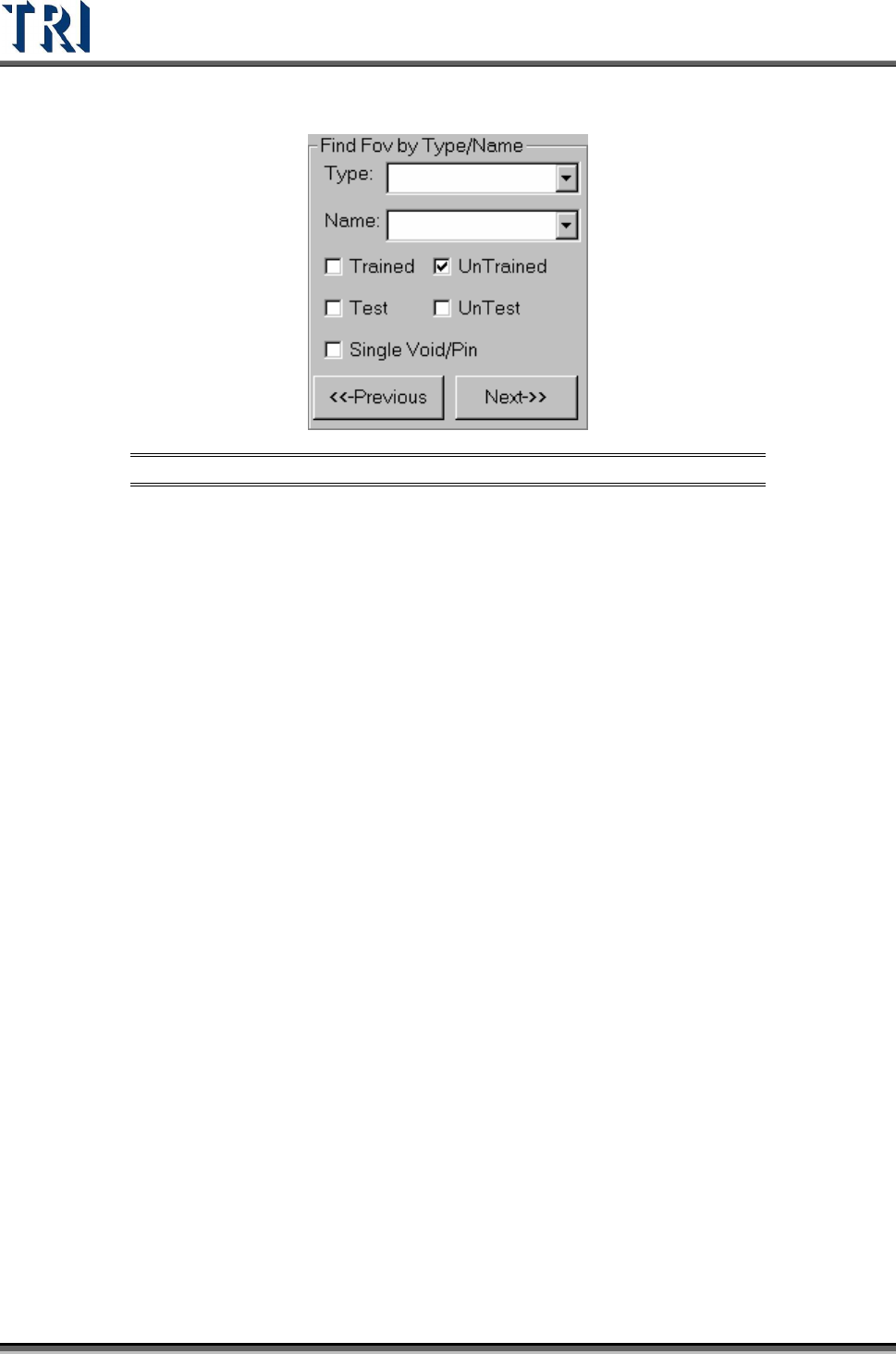
4. Find the Untrained boxes to confirm the FOVs in the camera.
Figure 70: Find FOV by Type
5. After FOVs are all confirmed, press [OK] to close the [Train] dialog.
Test Research Inc.
TR7500 Series User Guide –Software v.2.9.0 41
2.13 Fine Tuning
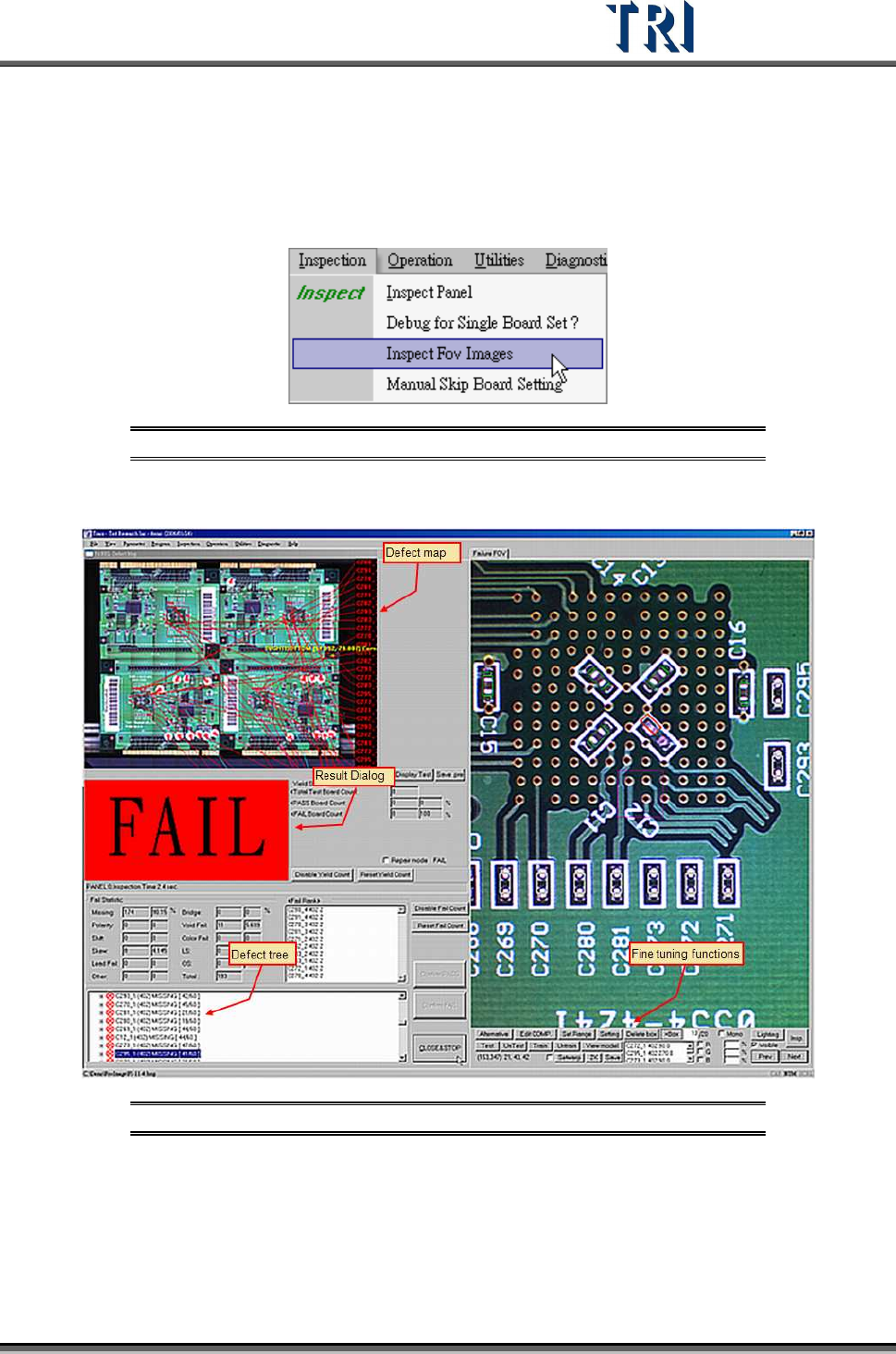
1. Choose [I
NSPECTION
>
I
NSPECT
F
OV
I
MAGES
]
Figure 71: Select Inspect FOV Images
2. The result will be shown as per the following figure.
Figure 72: Inspect FOV Images Window
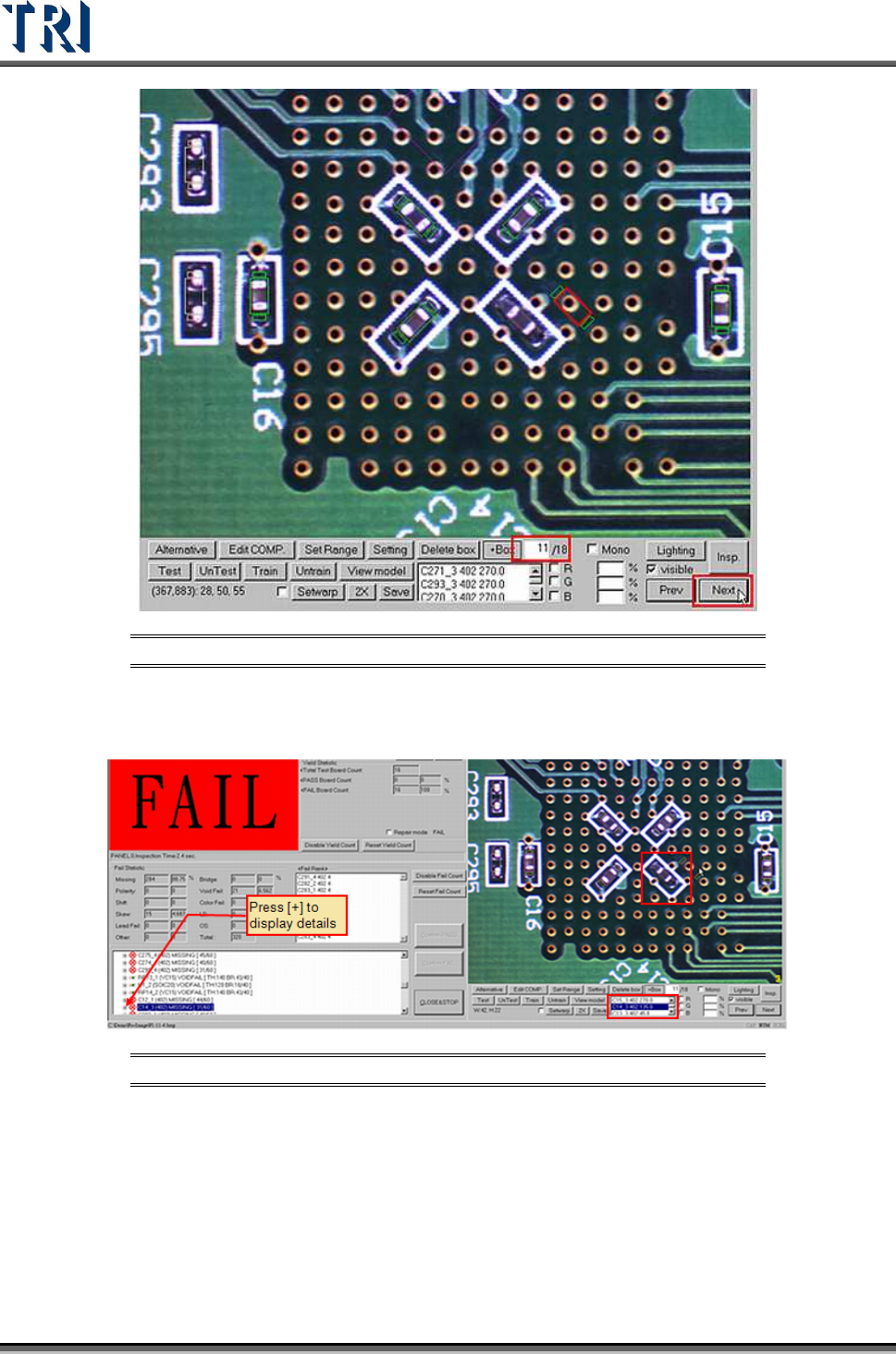
3. Press [Next] to review the failed images in sequence or input the number to see the
specified image.
Test Research Inc.
42 TR7500 Series User Guide –Software v.2.9.0
Figure 73: Review Failed Images by Number
4. Clicking on the failed component in the image or in the component list, the defect tree
will highlight the failed details of the component. Confirm the failed boxes here.
Figure 74: Confirm Failed Components
5. Use the functions to do fine tuning.