TR7500_Series_Software_v29_En.pdf - 第300页
Test Research Inc. 278 TR7500 Series User Guid e –Softwa re v.2.9.0 [Mask Zone] – Use 1 as an exampl e. Next to the edge poin ts the adjacent 1 pix el point is masked as un t est. [Inspection Par am eter] – Set the p…
Test Research Inc.
TR7500 Series User Guide –Software v.2.9.0 277
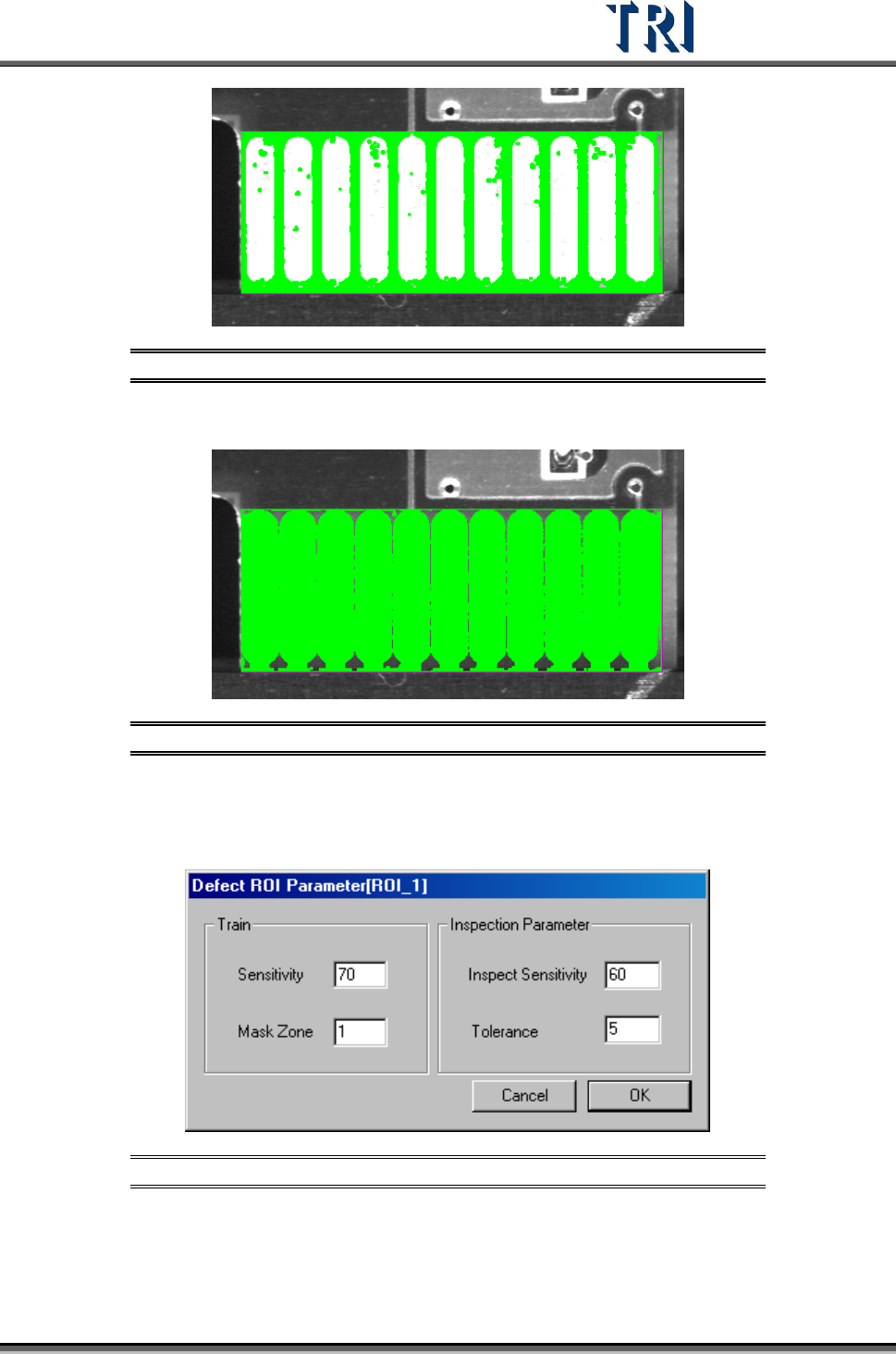
Figure 468: Mask Dark Zone
Mask Bright Zone
Figure 469: Mask Bright Zone
11.9.5.2 ROI Parameter
Set the ROI parameters.
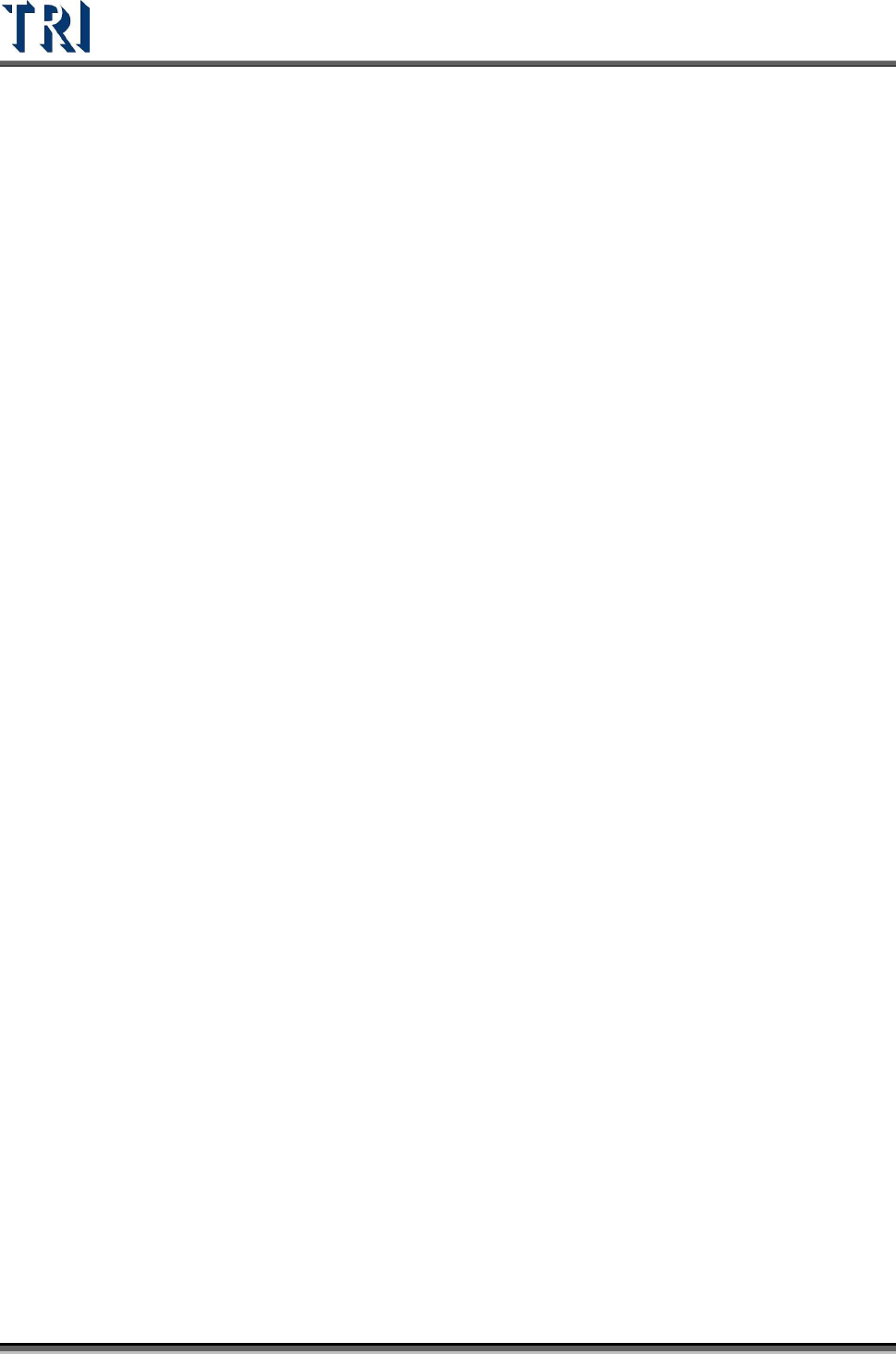
Figure 470: ROI Parameters Dialog
[Train] –Set the parameter for training.
[Sensitivity] – Use 70 as an example. If the difference of the gray level between
neighboring pixels is larger than 30 (100-70) the two pixels will be regarded as
edges.
Test Research Inc.
278 TR7500 Series User Guide –Software v.2.9.0
[Mask Zone] – Use 1 as an example. Next to the edge points the adjacent 1 pixel
point is masked as untest.
[Inspection Parameter] – Set the parameters for inspection. The system only
inspects the area that is in the ROI box and not masked.
[Inspect Sensitivity] – Use 60 as an example. If the difference of gray level
between neighboring pixels is larger than 40 (100-60) the two pixels will be
regarded as edges.
[Tolerance] – Use 5 as an example. If a group size of edges is more than 5 the
inspection window will be regarded as failed.
The [Train Sensitivity] value must be bigger than [Inspect Sensitivity] or it will result
in more false alarms.
11.9.5.3 Delete ROI
Press the button to delete all ROI windows in the FOV.
Test Research Inc.
TR7500 Series User Guide –Software v.2.9.0 279
11.9.6 Tool
11.9.6.1 Enhance
Enhances the brightness and contrast in the multi-function window.
11.9.6.2 Enable
Unselect the check box to cancel the [Enhance] function.
11.9.6.3 Angle
Input the angle and press [Rotate] to rotate the multi-function window.
11.9.6.4 Rotate
Press the button to rotate the multi-function window.
11.9.6.5 2X
Show a double-sized FOV image. The display area is the multi-function location and the
image is reviewed for test.
11.9.6.6 Load
Load a saved FOV image for review or test. The image is not saved in the project.
11.9.6.7 INSPECT
Inspect the current FOV and display the result.
11.9.7 Switch FOV
Figure 471: Switch FOV Panel
[Panel/Set] – [Panel] means to review all the FOVs in one PCB; [Set] means to
review the set of FOVs for a multi-board panel.
Top Camera – [ON] means to review the FOVs. The FOVs display as red boxes;
[OFF] means not to review and the red boxes disappear.