TR7500_Series_Software_v29_En.pdf - 第46页
Test Research Inc. 24 TR7500 Series User Guide – Software v.2.9.0 5. Set the lighting for the first fiducial mark. W hen t he shape o f fiducial mar k is not clear under the current li g hting, adjust the li g hting manu…
Test Research Inc.
TR7500 Series User Guide –Software v.2.9.0 23
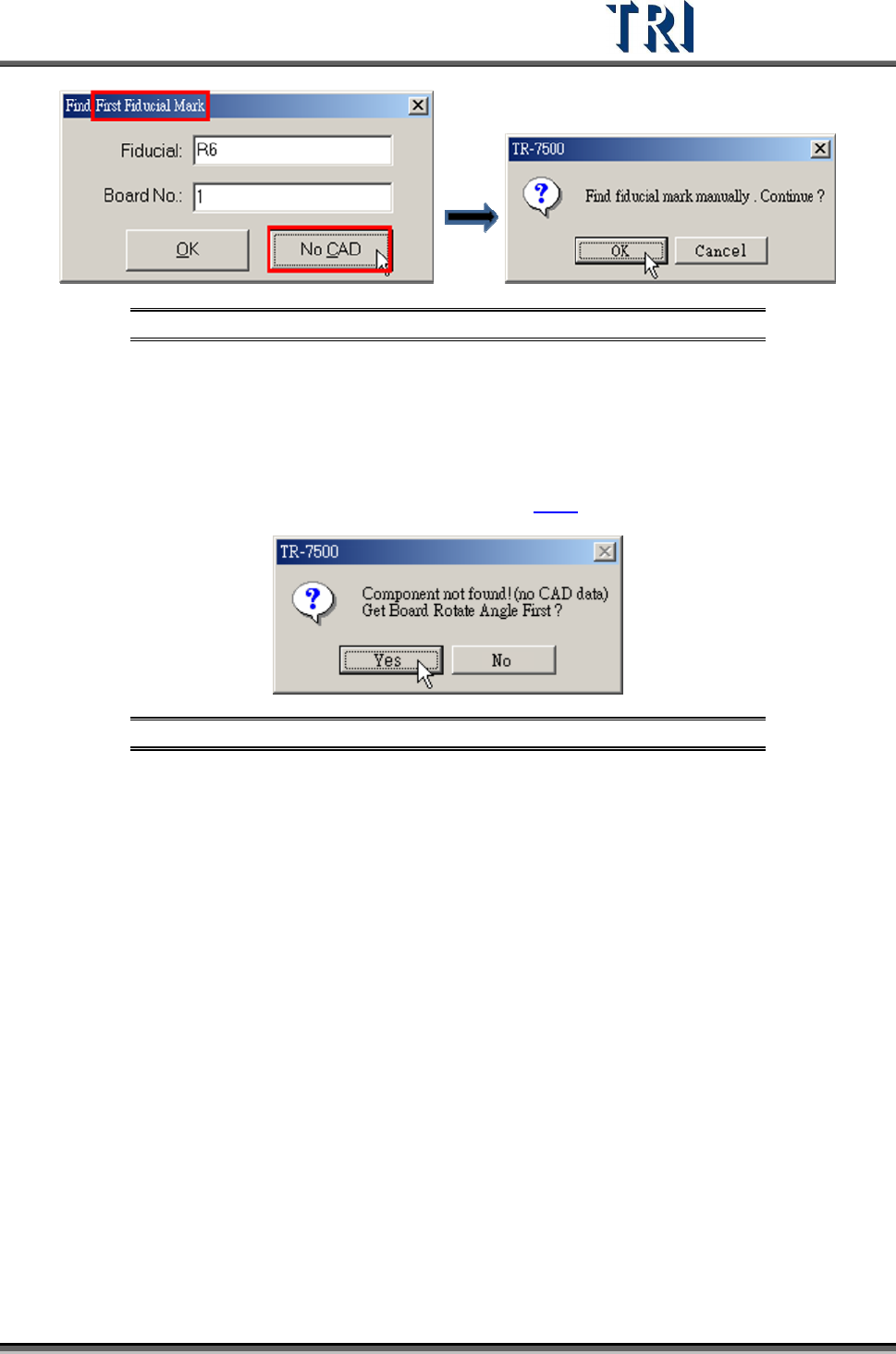
Figure 34: Find Fiducial Mark Manually Steps 1 & 2
Step2. Press [OK].
Step3. Use the [Motion Control Panel] or click on the image to move the camera to
the correct position.
If the PCB is a single board and [No CAD] is selected here, the system asks to find rotation
angle first. The procedure for getting rotation angle is in
2.5.2
Figure 35: Confirm Get Rotation Angle
If the PCB is a single board and [OK] is selected to use fiducial name to set fiducial mark, the
system calculates the rotation angle according to the fiducial mark coordinates. It is not
necessary to get the rotation angle.
Test Research Inc.
24 TR7500 Series User Guide –Software v.2.9.0
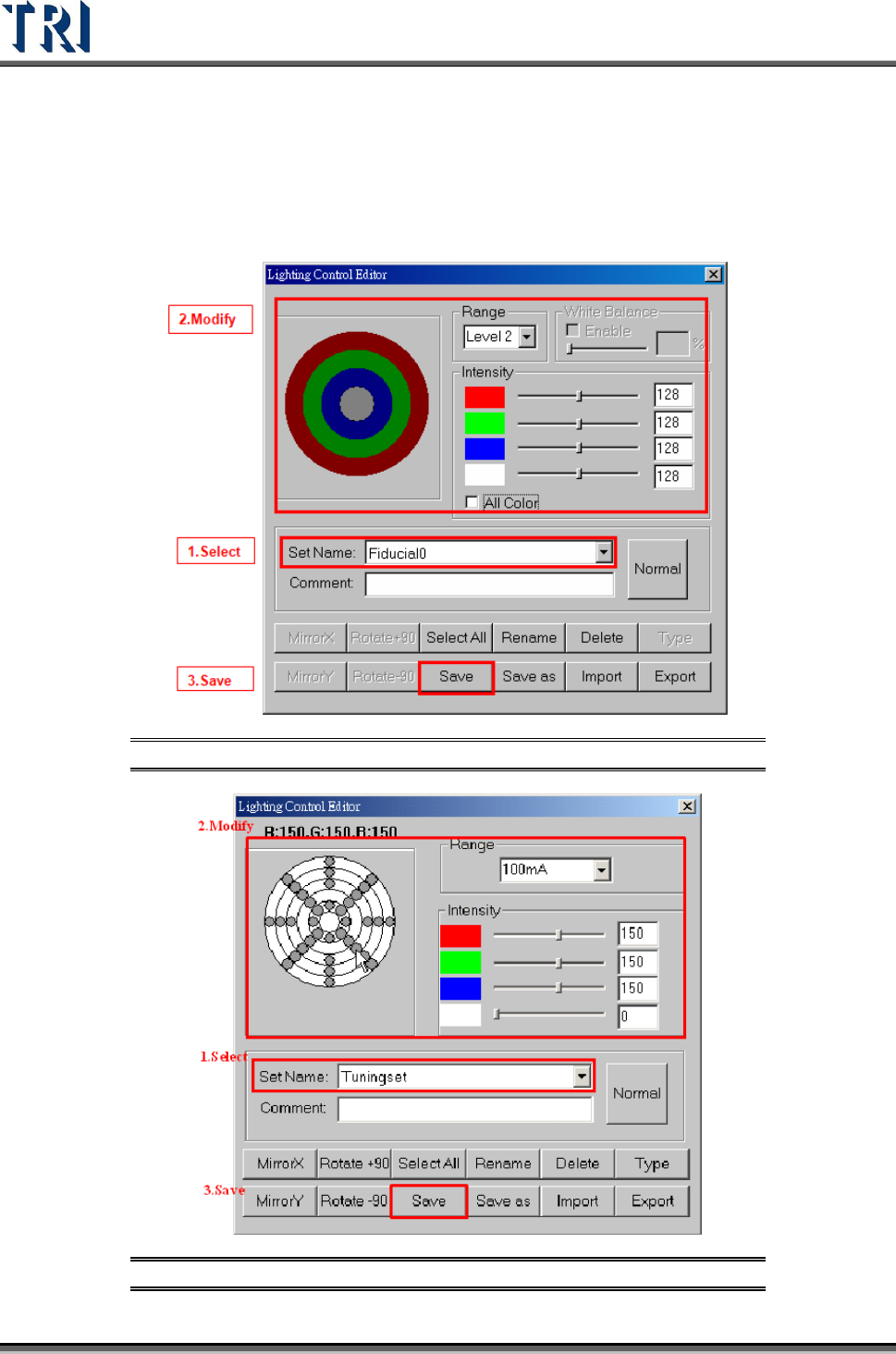
5. Set the lighting for the first fiducial mark. When the shape of fiducial mark is not clear
under the current lighting, adjust the lighting manually. Press the [Light] button, and
the [Lighting Control Editor] window appears. Select the [Fiducial0] lighting set item,
adjust the lighting, then press [Save] to finish the setting.
Figure 36: Set Lighting for First Fiducial Mark 1
Figure 37: Set Lighting for First Fiducial Mark 2
Test Research Inc.
TR7500 Series User Guide –Software v.2.9.0 25
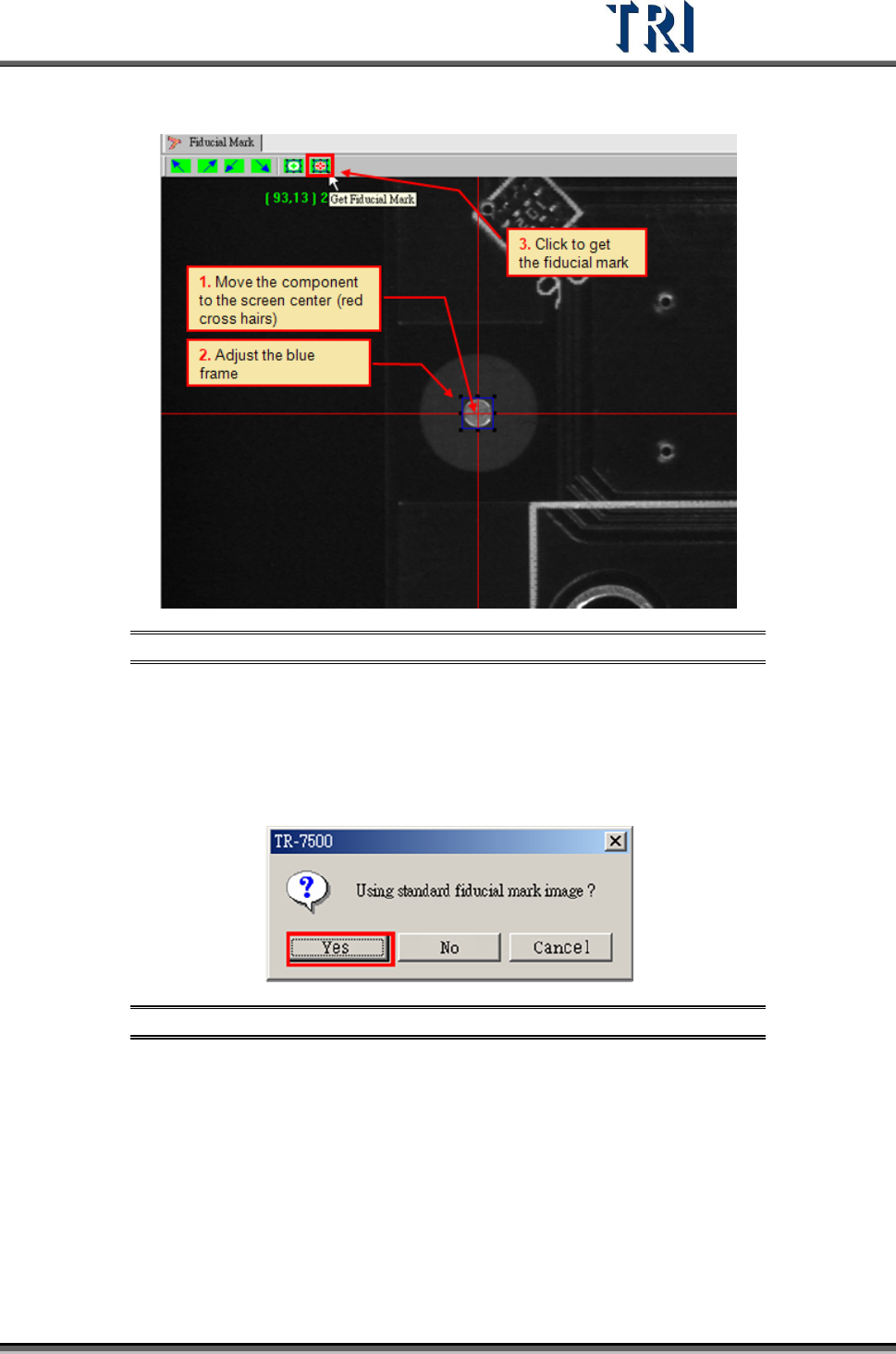
6. Press [Get Fiducial Mark] icon.
Figure 38: Get Fiducial Mark Process
7. Select to use the standard image. If the fiducial mark image that was gotten is not
clear enough, select the standard image saved in the computer.
Use the standard image.
Step1. Select [Yes]
Figure 39: Confirm Using Standard Fiducial Mark Image
Step2. [Select Standard Fiducial Mark] dialog appears. Select a suitable image
then press [OK].