TR7500_Series_Software_v29_En.pdf - 第121页
Test Research Inc. TR7500 Series User Guide – Software v.2.9.0 99 Figure 164 : Confirm Fiduci al Search Ran ge [Set Fiducial 1 Search R ang e] – Adjust the g reen box to mee t the search range that you w ant to set the…
Test Research Inc.
98 TR7500 Series User Guide –Software v.2.9.0
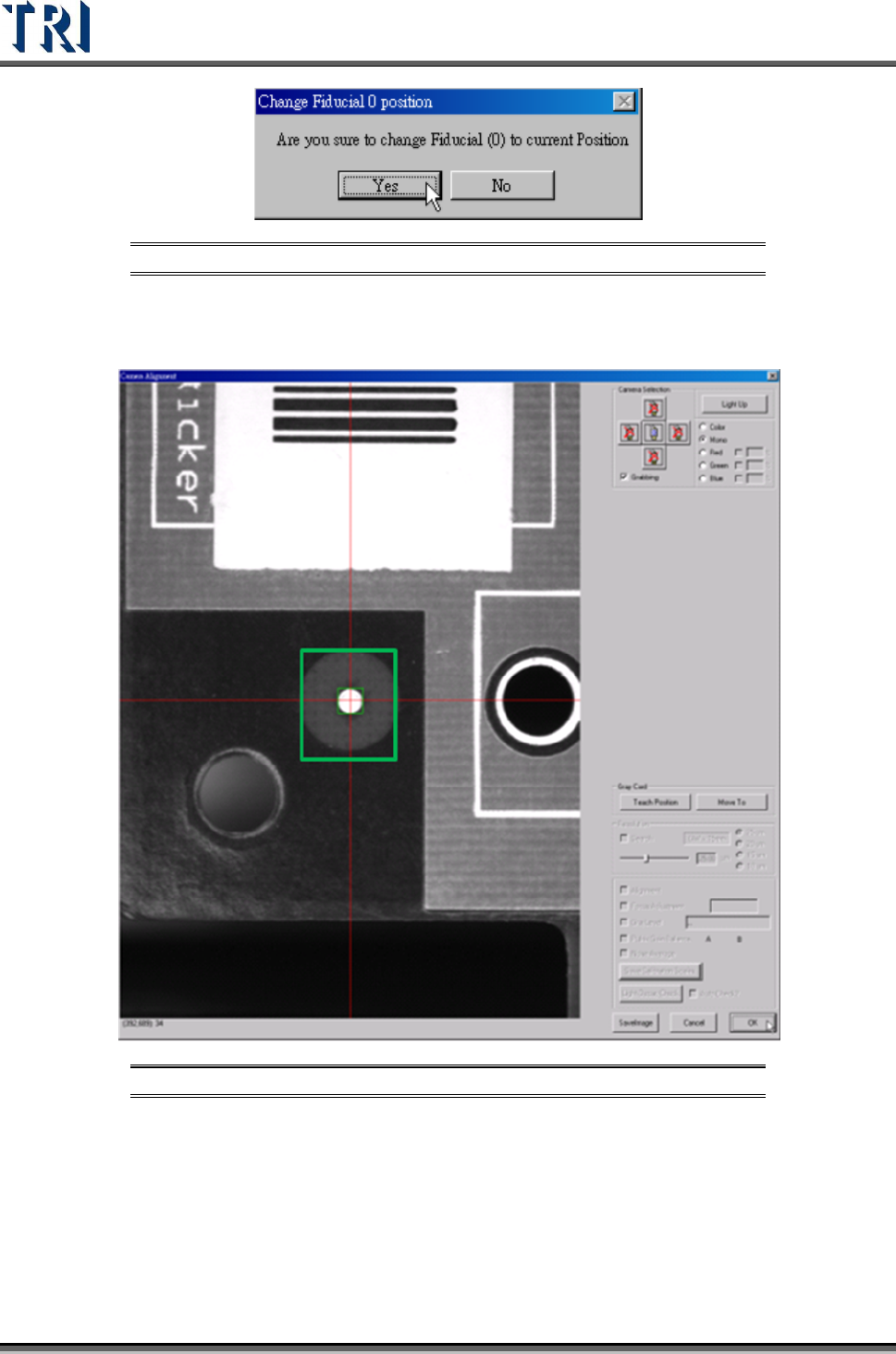
Figure 162: Confirm Change Fiducial Mark Position
[Set Fiducial 0 Search Range] – Adjust the green box in the center of the image to
meet the search range, then press [OK].
Figure 163: Adjust Fiducial Mark Search Range
Click on [DONE].
Test Research Inc.
TR7500 Series User Guide –Software v.2.9.0 99
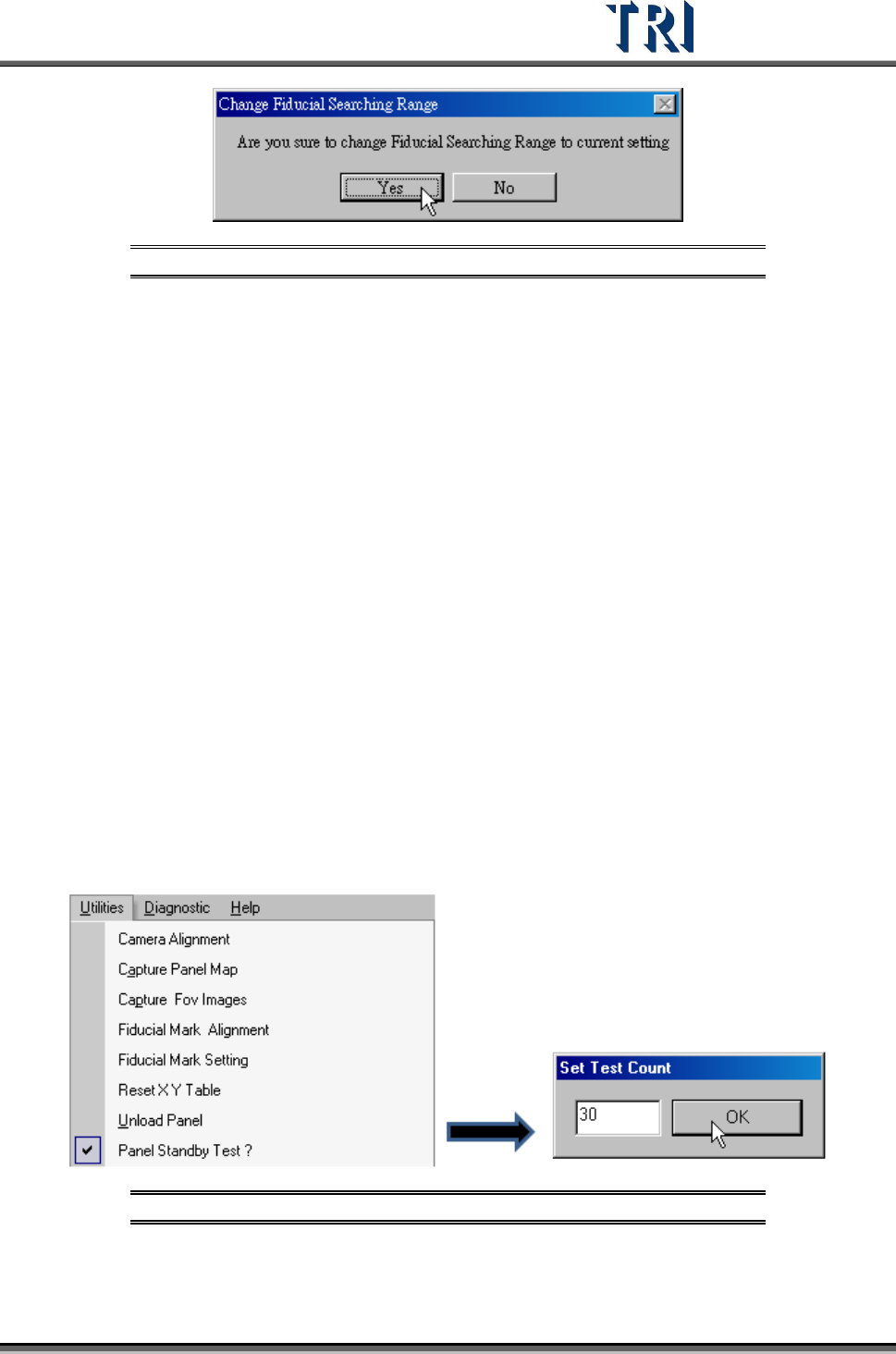
Figure 164: Confirm Fiducial Search Range
[Set Fiducial 1 Search Range] – Adjust the green box to meet the search range that
you want to set then press [OK].
In both [Set Fiducial 0] and [Set Fiducial 1], if the user types “fid” two options
will appear: [Search] and [Apply Weighting].
[Search] – clicking on [Search] will display the actual search scores. For
example, “91/61 means the search result is 91 and the sensitivity is 61.
[Apply Weighting]-applies the current weighting into the [Fid-Searching]
inspection box.
[Sensitive] – Set the sensitivity of the fiducial mark. For example, if the setting is 40;
when an object in search range and the similarity is higher than 40, that object will
be regarded as the fiducial mark.
3.10.7 Reset X Y Table
Press to move camera to original position.
3.10.8 Unload Panel
Press the item to send the board to the board-out side.
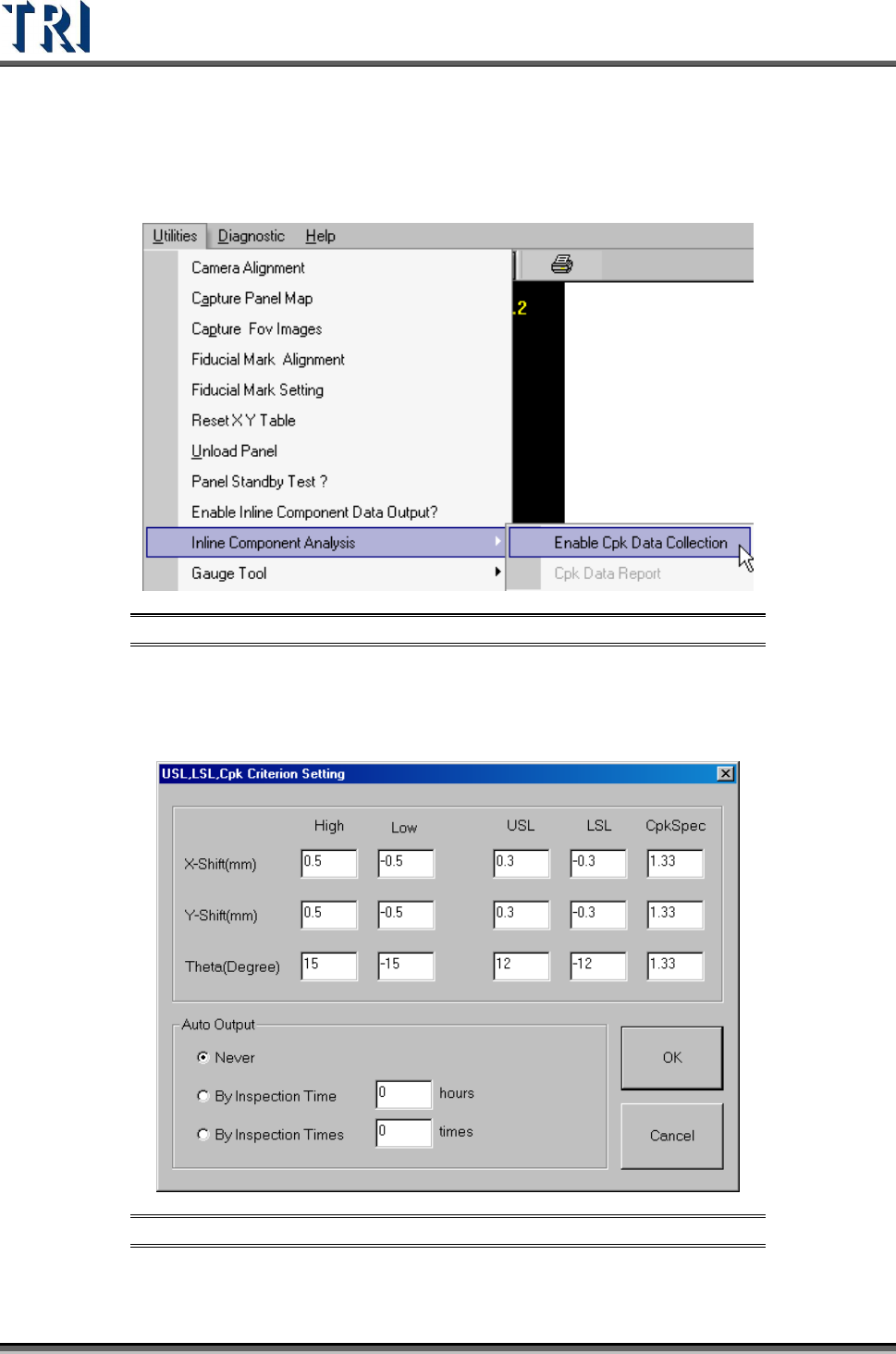
3.10.9 Panel Standby Test
Select to test the PCB multiple times without ejecting it. Select the number of test times.
Figure 165: Panel Standby Test & Set Test Count
Test Research Inc.
100 TR7500 Series User Guide –Software v.2.9.0
3.10.10 Inline Component Analysis
Collects inspection results and displays results on the system.
Figure 166: Inline Component Analysis
3.10.10.1 Enable Cpk Data Collection
Selecting this item presents the following window. Select the collection rules here.
Figure 167: Cpk Criterion Setting Dialog