TR7500_Series_Software_v29_En.pdf - 第35页
Test Research Inc. TR7500 Series User Guide – Software v.2.9.0 13 Figure 20: Use C amera to S et the First Com ponent (4) Press [Set Componen t 1] to get the posi t ion of first compone nt. Figure 21: Conf irm CAD Coo rd…
Test Research Inc.
12 TR7500 Series User Guide –Software v.2.9.0
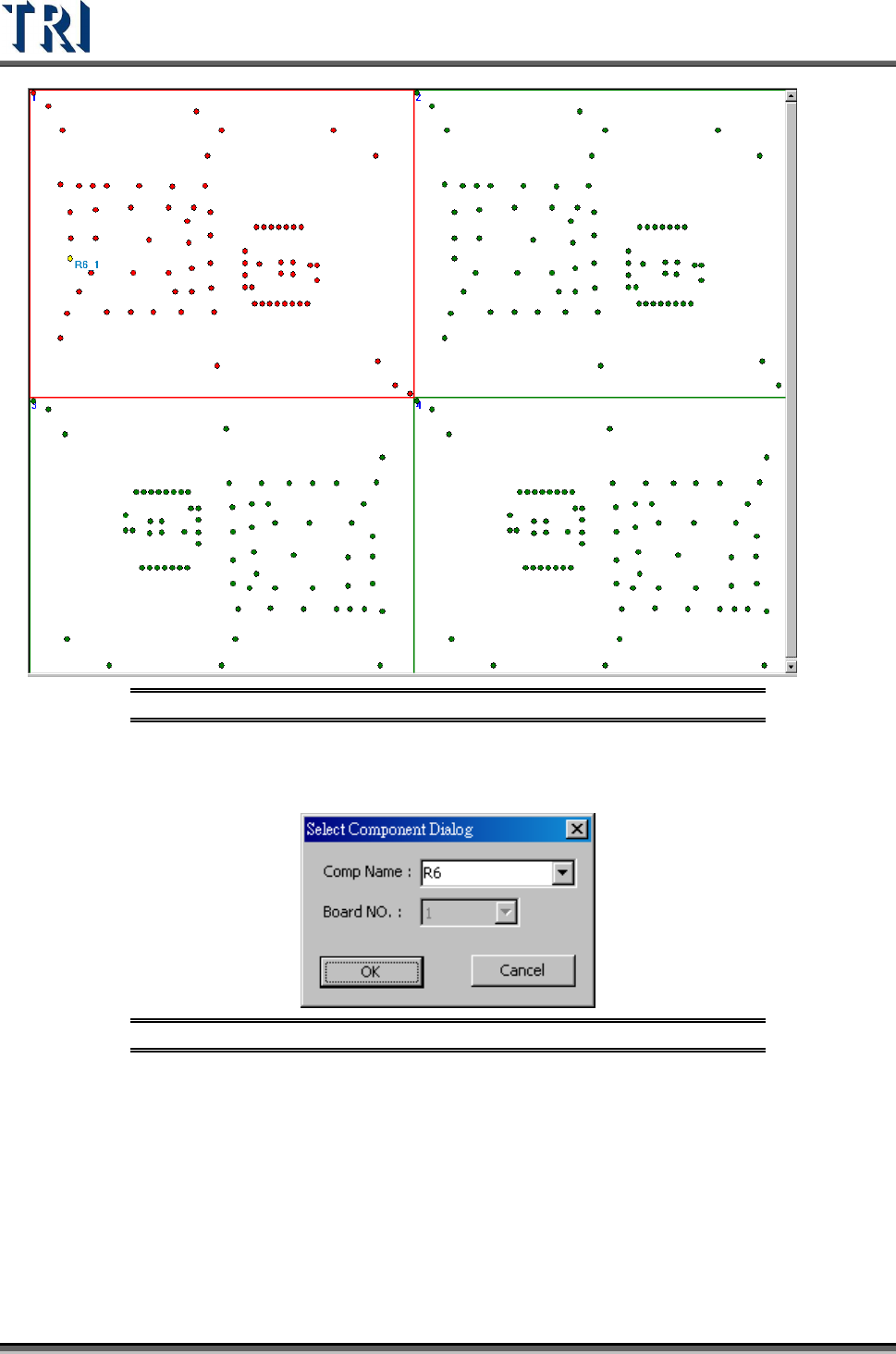
Figure 18: Set First Component in Board 1
(2) Input the objective component name.
Figure 19: Select a Component Name
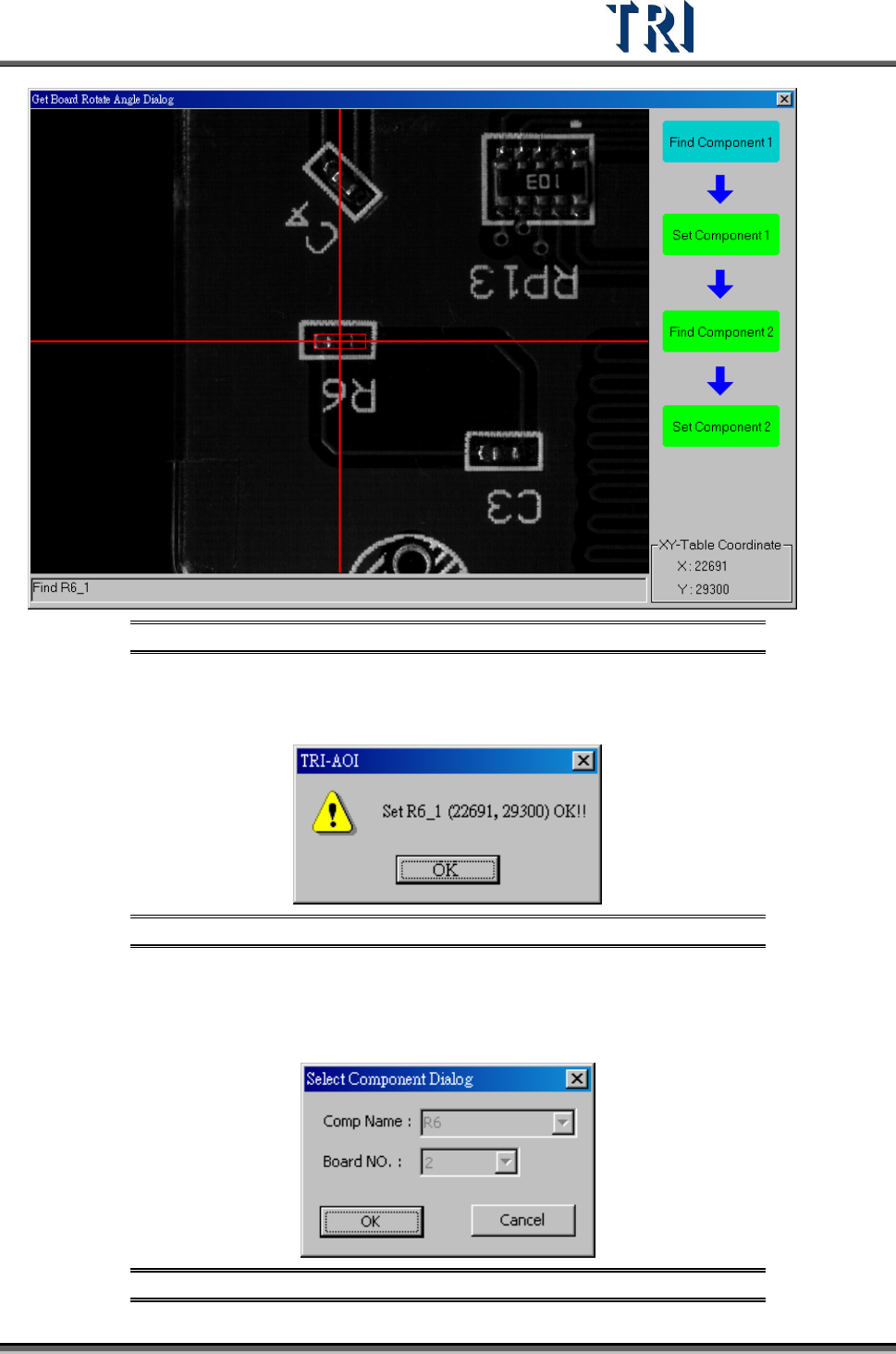
(3) Locate the specified component. Move camera to center of the component. Use
[Motion Control] function to move camera to specific direction and distance or click right
button of mouse on image zone to move the camera to the mouse position. Adjust the
size of red frame to suit the specific component. The center can easily be found.
Test Research Inc.
TR7500 Series User Guide –Software v.2.9.0 13
Figure 20: Use Camera to Set the First Component
(4) Press [Set Component 1] to get the position of first component.
Figure 21: Confirm CAD Coordinates
(5) System will specify the corresponding second component (R2). If system doesn’t
specify, user has to find the second component on Board 1.
Figure 22: Select Second Component
Test Research Inc.
14 TR7500 Series User Guide –Software v.2.9.0
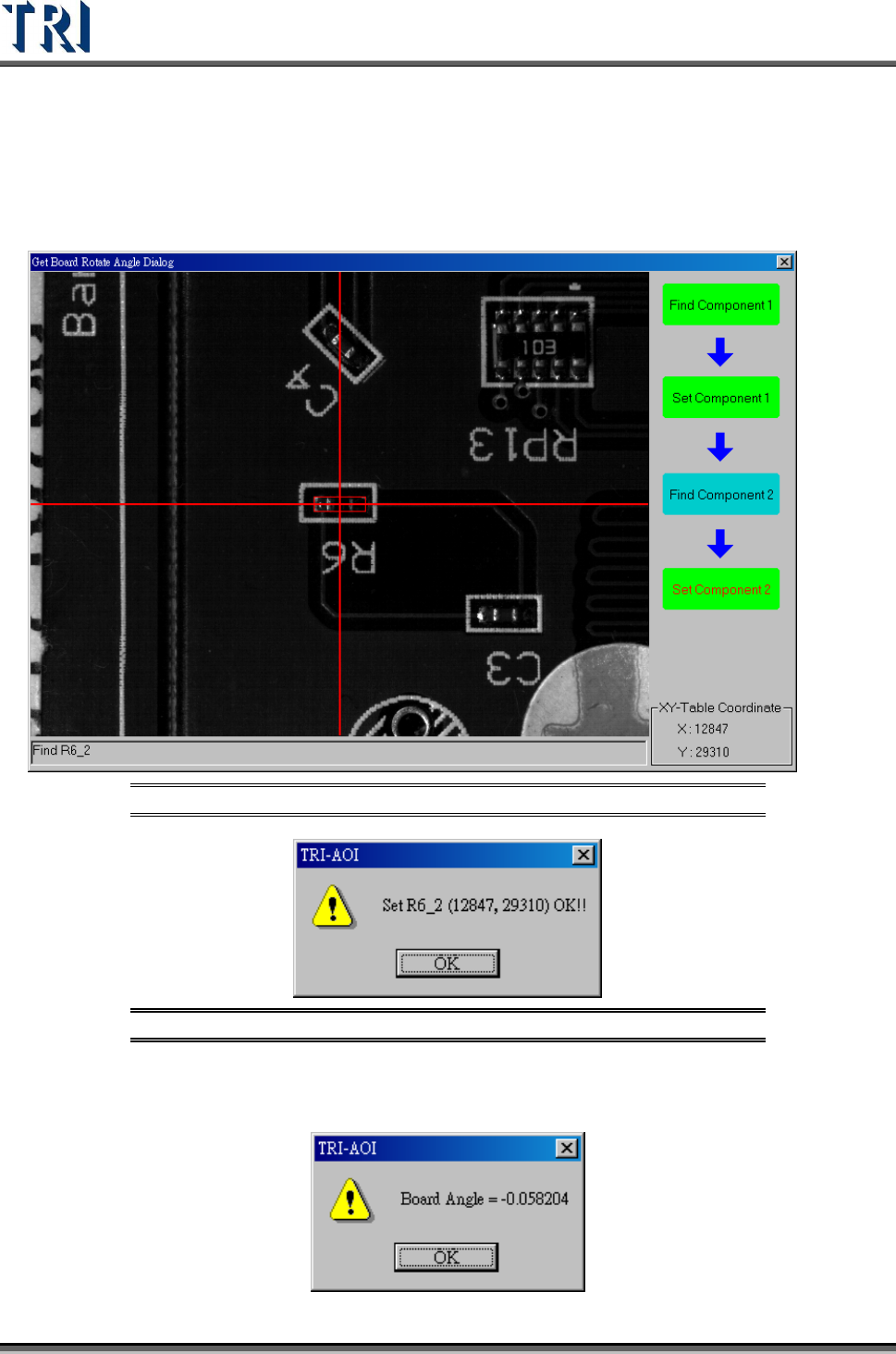
(6) Locate the second component. Move camera to center of the component. Use [Motion
Control] function to move camera to specific direction and distance or click right button
of mouse on image zone to move the camera to the mouse position. Adjust the size of
red frame to suit the specific component. The center can easily be found. Press [Set
Component 2] to get the position of first component.
Figure 23: Use Camera to Set the Second Component
Figure 24: Confirm CAD Coordinates
(7) It displays the rotate angle of the panel. Press [OK].