TR7500_Series_Software_v29_En.pdf - 第139页
Test Research Inc. TR7500 Series User Guide – Software v.2.9.0 117 NA means not being ins pected Clicking each inspectio n box wi ll move to the correspond ing FOV under [T rain] dialog Pressing [Inspect] can test …
Test Research Inc.
116 TR7500 Series User Guide –Software v.2.9.0
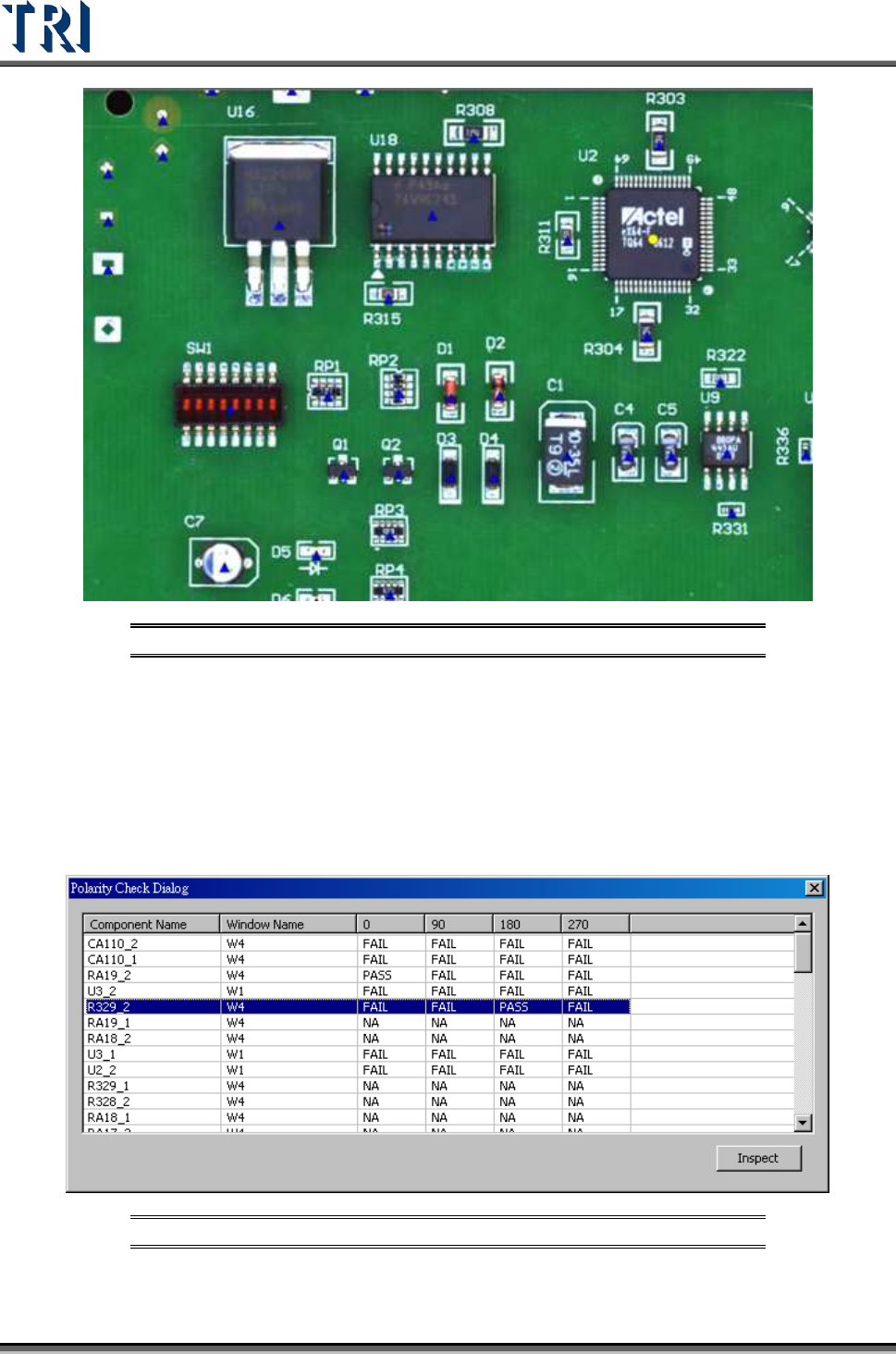
Figure 191: Result of CAD Check
[Polarity Check] – Users can check those inspection boxes with polarity function.
1. Select [U
TILITIES
>
F
IRST
B
OARD
C
HECK
>
C
HECK
P
OLARITY
].
2. Program will inspect those [MISSING POLARITY] or those fail string assigned
as [POLARITY] in 0, 90, 180, and 270 degrees. It will also capture images if
necessary.
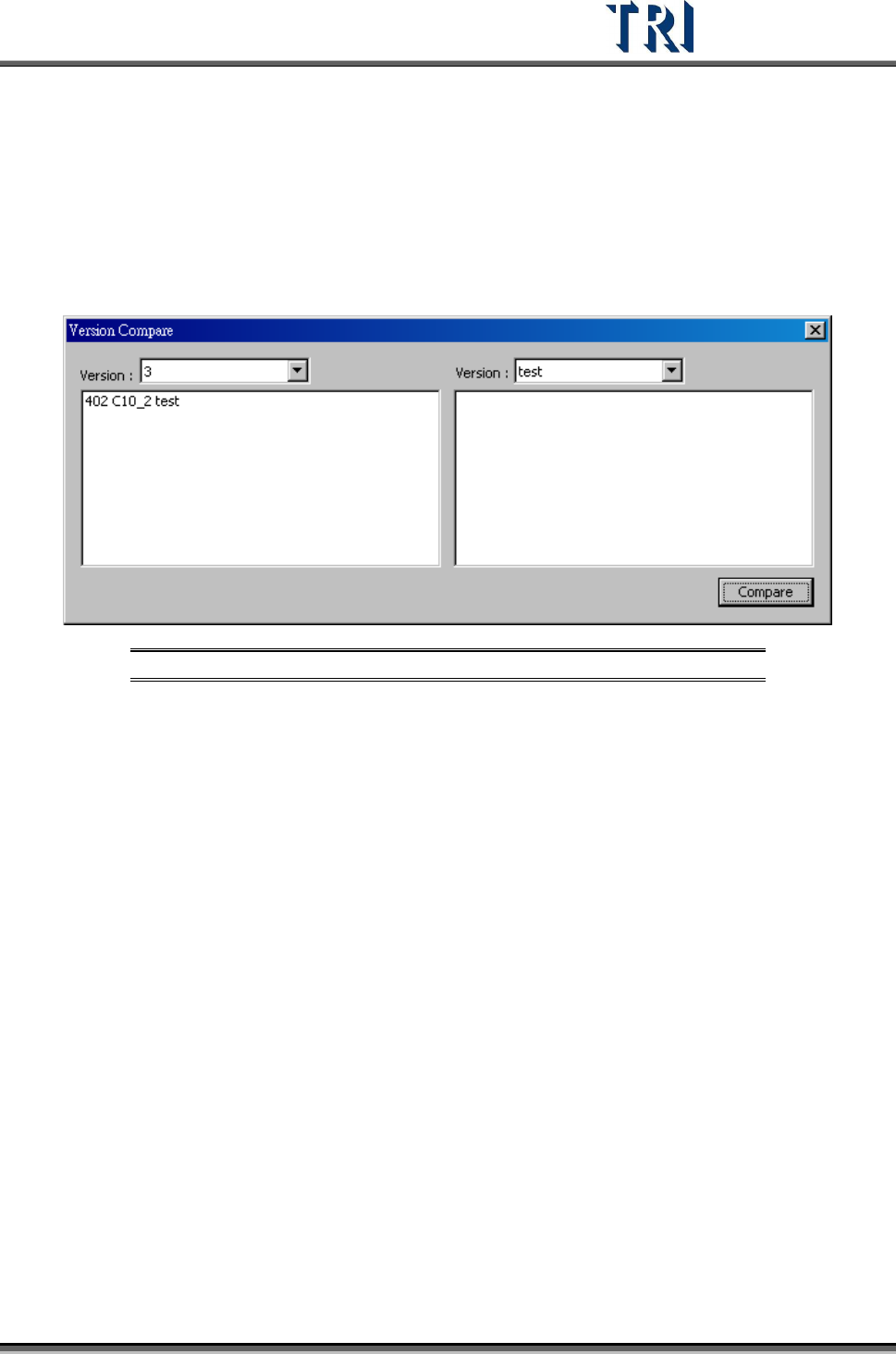
3. The inspection result will be shown as in the following picture.
Figure 192: Polarity Check Result
Rows 0, 90, 180, and 270 will display the result as [PASS] or [FAIL]
Test Research Inc.
TR7500 Series User Guide –Software v.2.9.0 117
NA means not being inspected
Clicking each inspection box will move to the corresponding FOV under [Train]
dialog
Pressing [Inspect] can test the selected inspection box individually.
3.10.30 Version Compare
In a project, use this function to list the difference between different versions.
Figure 193: Version Compare Screen
After selecting the version to compare and pressing [Compare], the window will display the
differences. For example, in the figure above, C10_2 is tested in [Version: 3], but it’s not
tested in [Version: Test].
3.10.31 Offline Tune Mode
Users can use the [Offline Tune Mode] to collect and analyze the multi-panel boards offline
data. Under [Offline Tune Mode], the images will be saved into a file which is named by the
time of scanning. System will automatically collect inspection boxes’ dates during the [Offline
Tune Mode]. Otherwise, the system will show the [Statistics Chart] dialog.
3.10.32 Set Board No to RS
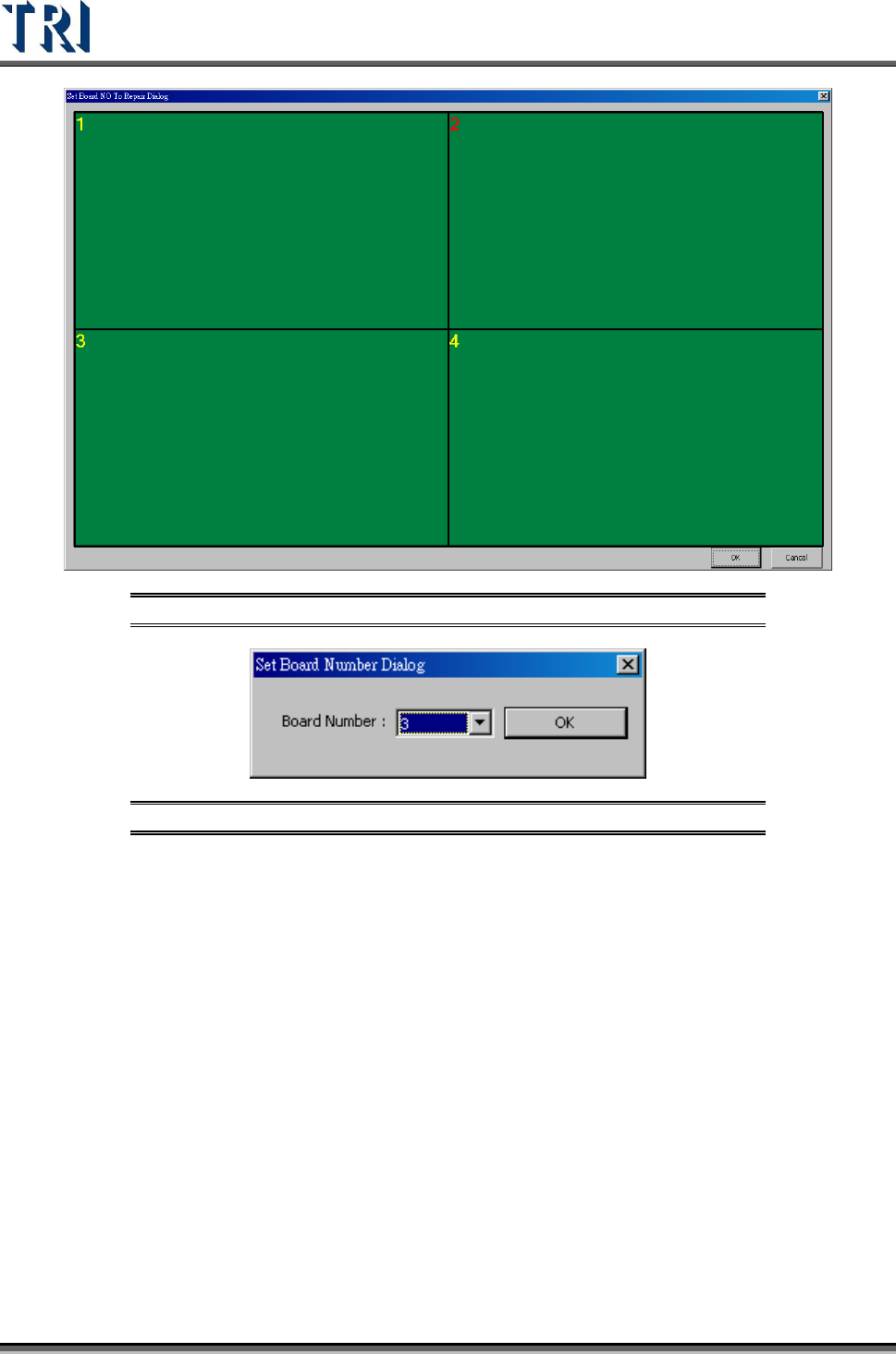
This function is to modify the board number sent to [Repair Station]. Double click on the
board, then a dialog appears to let the user assign the number.
Test Research Inc.
118 TR7500 Series User Guide –Software v.2.9.0
Figure 194: Set Board Number to Repair Station
Figure 195: Set Board Number Dialog
3.10.33 Multiboard Copy
The function is enabled only under [Train] dialog. After selecting this function, the system will
copy the parameters and position of all components on board 1 to the other multi-panel
boards.
3.10.34 Report to Hitachi Eyes Checker
Output the inspection result to Hitachi Eyes Checker.
3.10.35 Enable Barcode Pre-Check
System can decide if the panel has to be inspected according to the file that user has
provided after scanning the barcode.