TR7500_Series_Software_v29_En.pdf - 第216页
Test Research Inc. 194 TR7500 Series User Guid e –Softwa re v.2.9.0 Figure 328 : Select Default Model 5. The system then wi ll app ly the saved inspection boxes on to those [Body] and [Pin] boxes. The locations and siz e…
Test Research Inc.
TR7500 Series User Guide –Software v.2.9.0 193
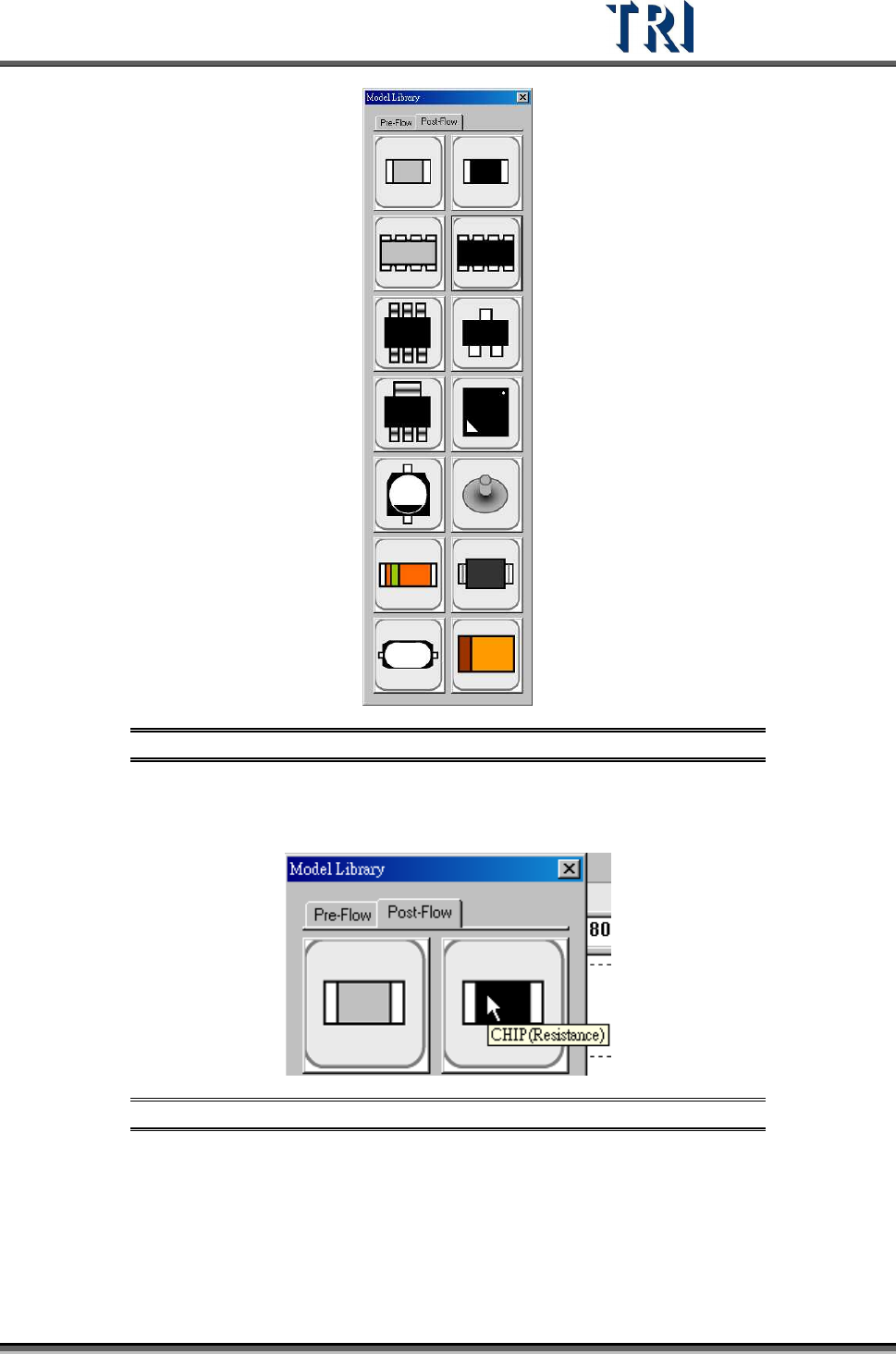
Figure 326: Model Library Dialog
3. When the mouse cursor is rolled over an icon, a label appears with component type
and kind. Refer to the figure below.
Figure 327: Example – Icon Label
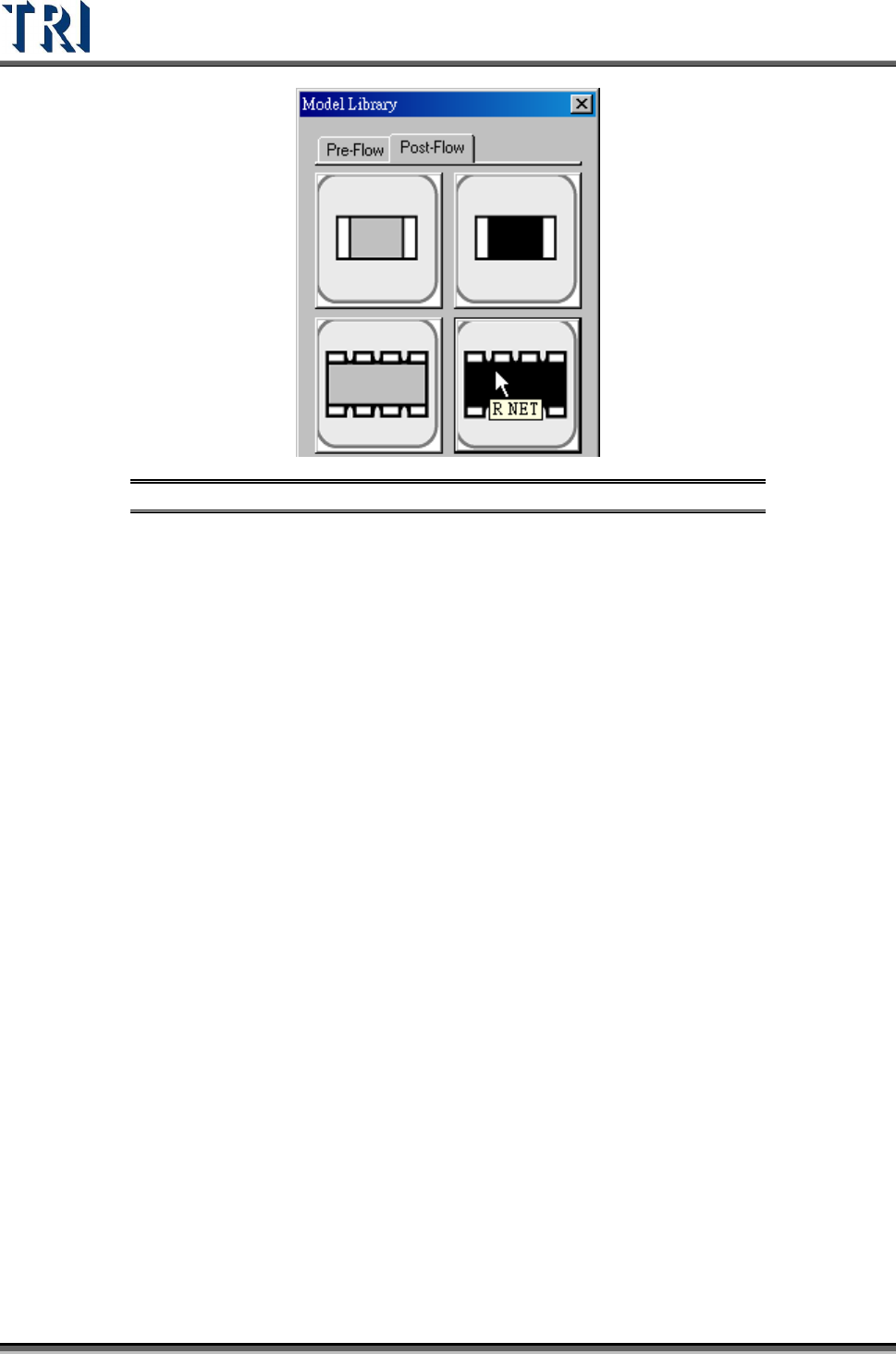
4. Select the default model. Use [R NET] for this example.
Test Research Inc.
194 TR7500 Series User Guide –Software v.2.9.0
Figure 328: Select Default Model
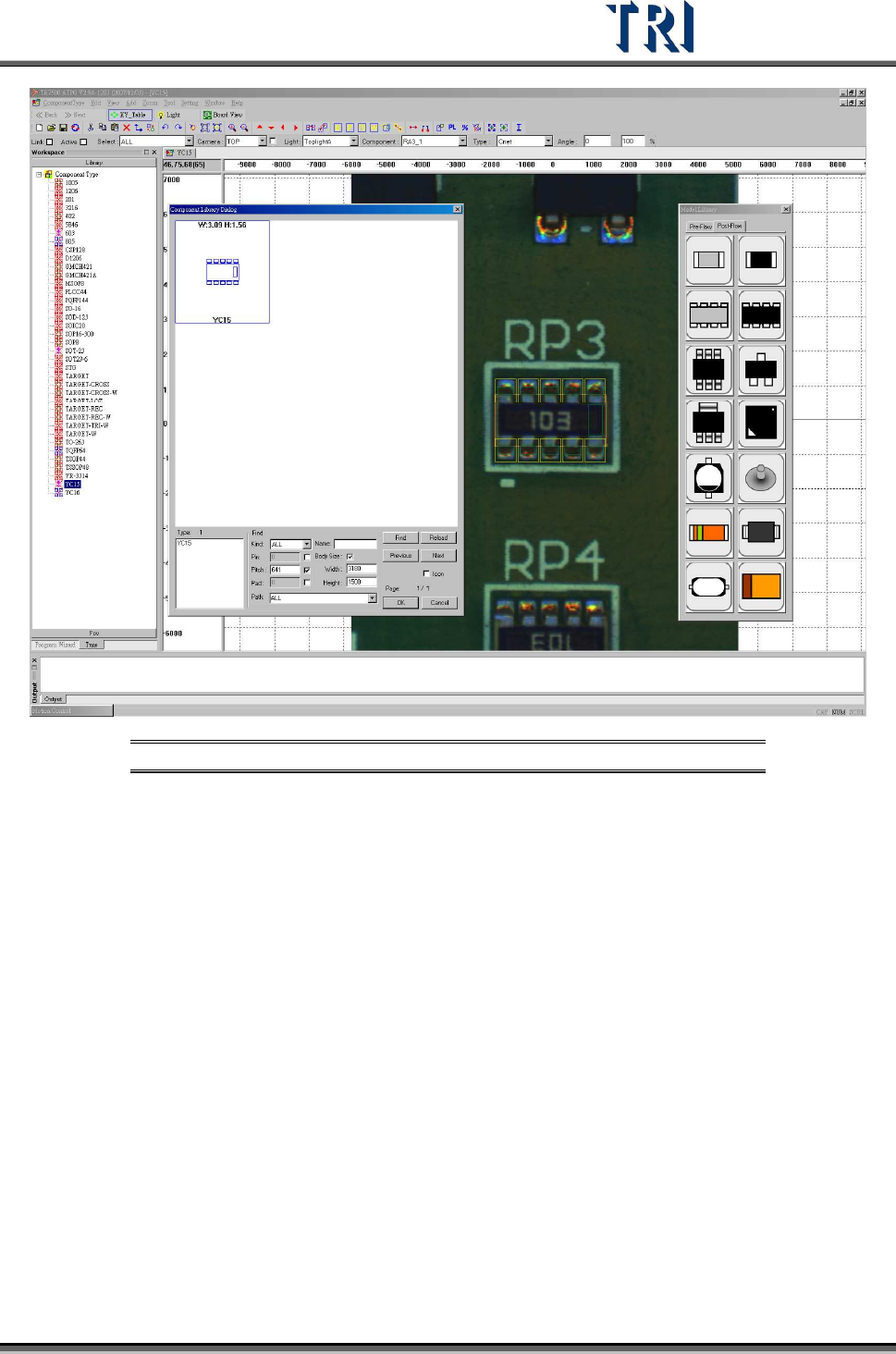
5. The system then will apply the saved inspection boxes on to those [Body] and [Pin]
boxes. The locations and sizes are determined by [Body] and [Pin] settings.
6. While applying those boxes, the system will use [Body Size] as a condition and search
in the [Library] for matches. The system will open a [Component Library Dialog] when
it finds a matching size. Users may decide to apply the existing model under the
[Component Library] or use the [Model Library] to create a new one.
Test Research Inc.
TR7500 Series User Guide –Software v.2.9.0 195
Figure 329: Create Model Library Result
7. Users may need to adjust the location and size of each inspection box after complete
the [Model Library].
8. Users may need to capture some images for [Missing] or [Lead].