TR7500_Series_Software_v29_En.pdf - 第183页
Test Research Inc. TR7500 Series User Guide – Software v.2.9.0 161 6.8 Motion C ontrolle r 1 2 3 4 5 6 7 Figure 268 : Motion Control Ou tlook & Func tions (1). [Distance Scalin g] – Choose the moving ma gnification o…
Test Research Inc.
160 TR7500 Series User Guide –Software v.2.9.0
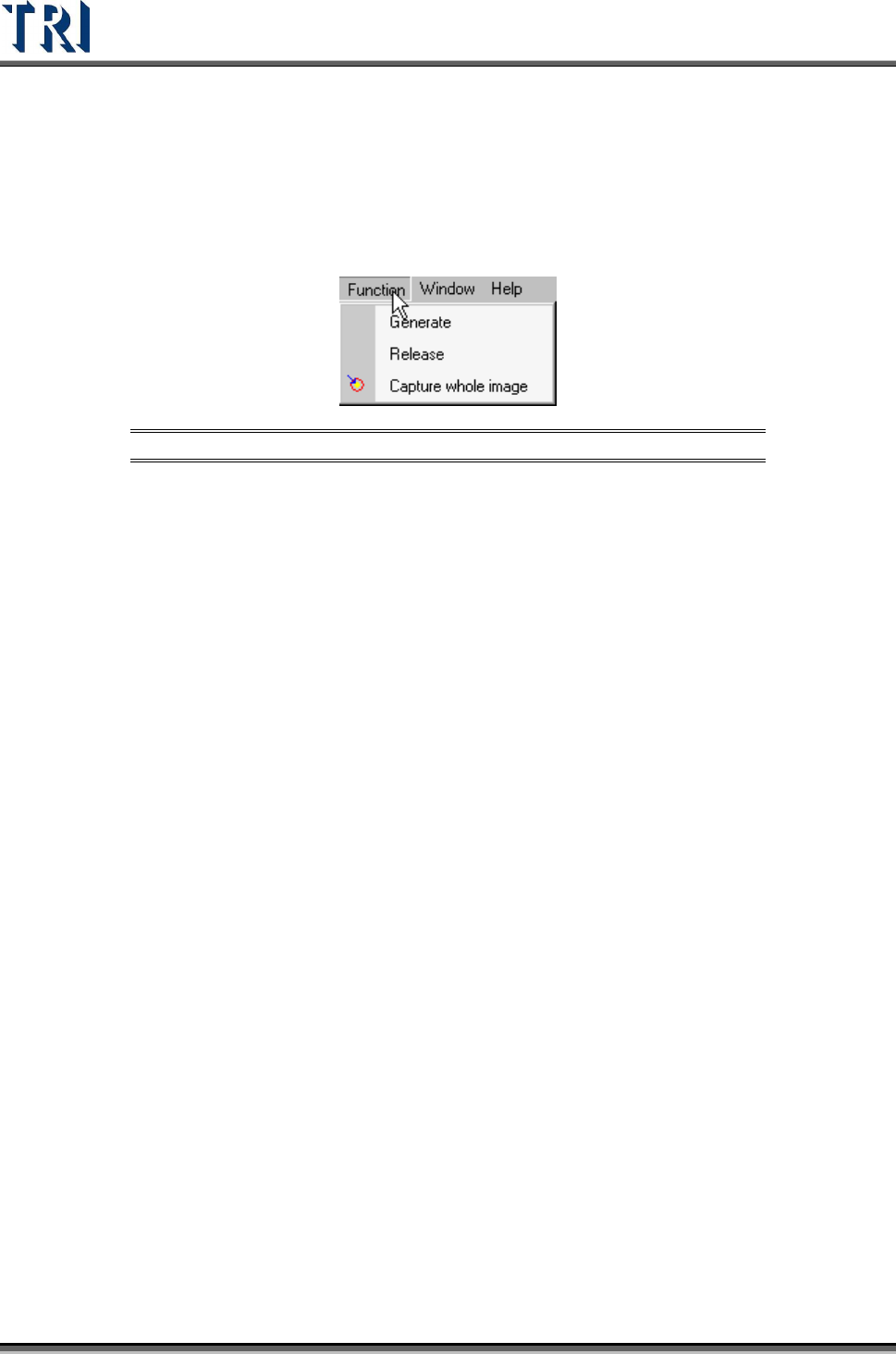
6.7 FOV Generate
Fields of View [FOVs] are used to define inspection areas. One component may have many
FOVs; e.g. one for each pin. Each FOV may have many different inspection functions.
Figure 267: FOV Function Tab
6.7.1 Generate
Press [Generate] then the system will recalculate the deployment of FOVs.
6.7.2 Release
Clear the data calculated previously..
6.7.3 Capture Whole Image
Press to capture FOV images according to the calculation.
Test Research Inc.
TR7500 Series User Guide –Software v.2.9.0 161
6.8 Motion Controller
1
2
3
4
5
6
7
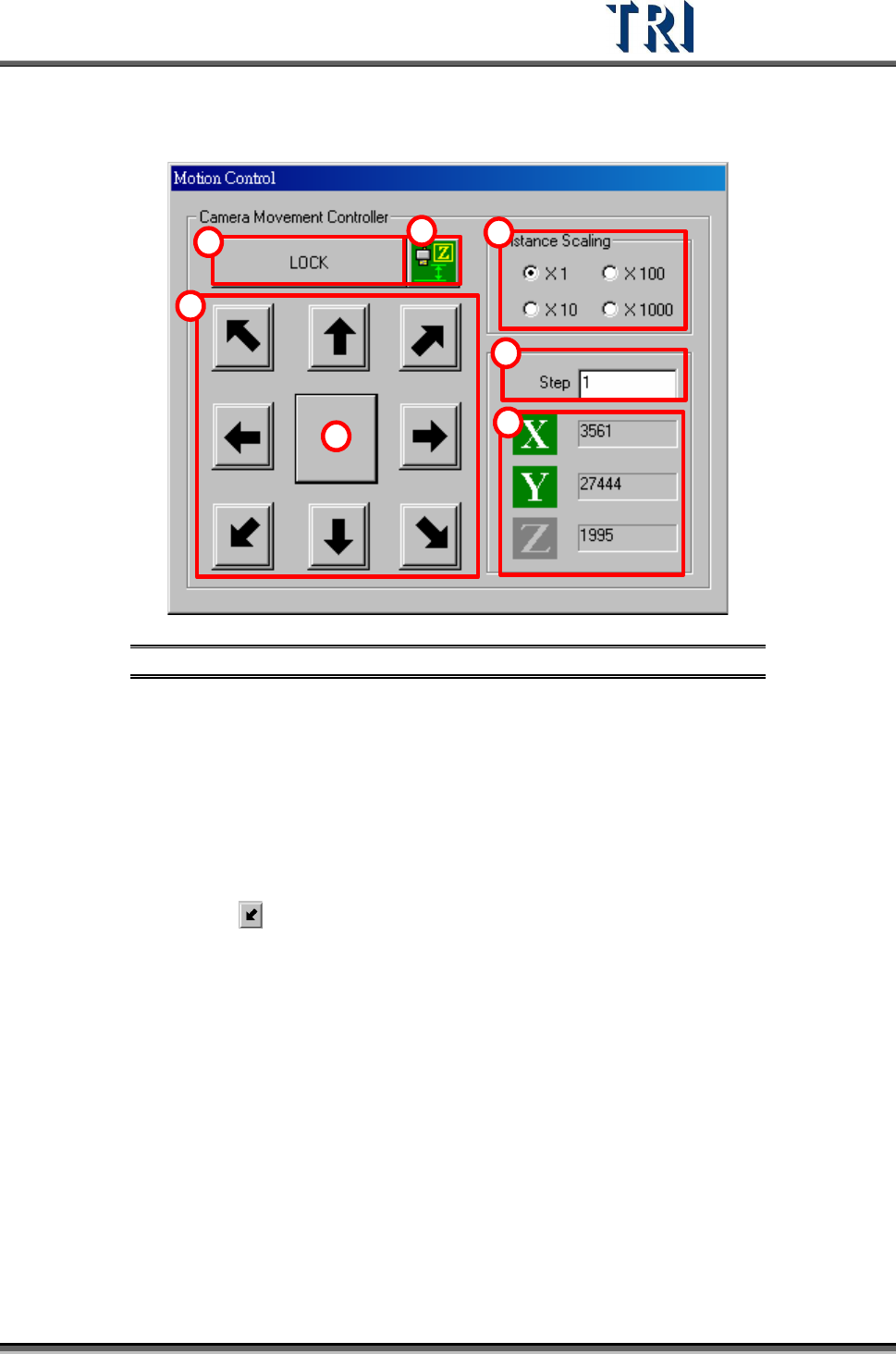
Figure 268: Motion Control Outlook & Functions
(1). [Distance Scaling]–Choose the moving magnification of step.
(2). [Step]–Input the moving scale (pulse) of X-Y Table.
(3). [X, Y]– Refers to the coordinates of the camera on X-axis and Y-axis.
(4). [Lock/Unlock]– Press to toggle lock/unlock of X-Y Table motion.
(5). Direction Arrows– Press to move Table in the corresponding direction. For
example, press
to move the camera to the front-left side with a specific pulse
([Step] multiplied by [Scaling]).
(6). Central Block– Press to minimize the motion control box window. Double-click the
minimized tab to maximize the window.
(7). [Z] – Used only on specially modified systems.
Test Research Inc.
162 TR7500 Series User Guide –Software v.2.9.0
7 L
IGHT
A
DJUSTMENT
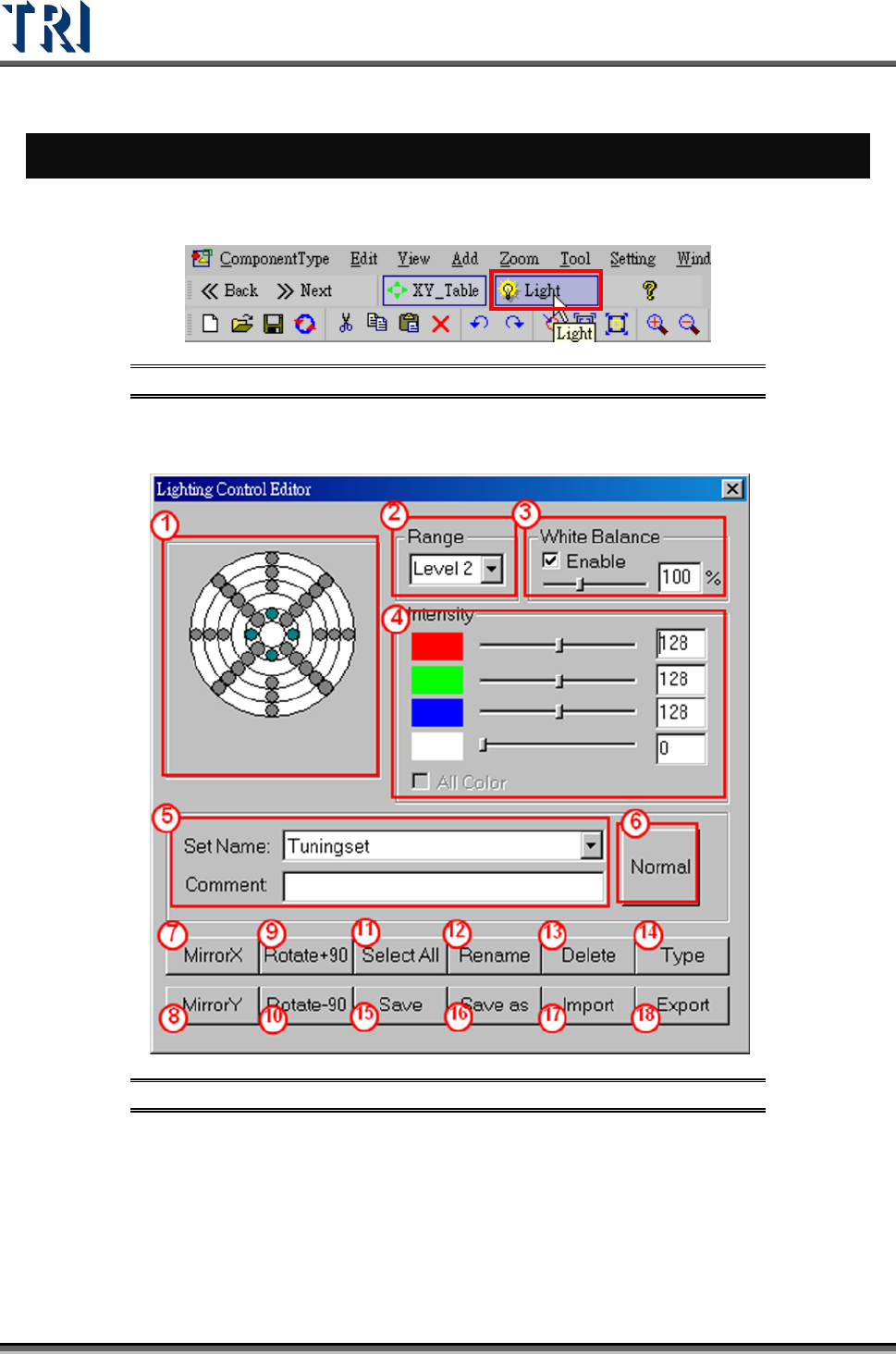
Push the [LIGHT] setting button to edit lighting control.
Figure 269: Light Button for Lighting Control Editor
7.1 Lighting Control Editor
Figure 270: Lighting Control Editor