TR7500_Series_Software_v29_En.pdf - 第212页
Test Research Inc. 190 TR7500 Series User Guid e –Softwa re v.2.9.0 Figure 321 : Capture Offlin e Image Process If the component is lar g er than an FOV image, users can enlar g e the [Body Box] to f it the component. Th…
Test Research Inc.
TR7500 Series User Guide –Software v.2.9.0 189
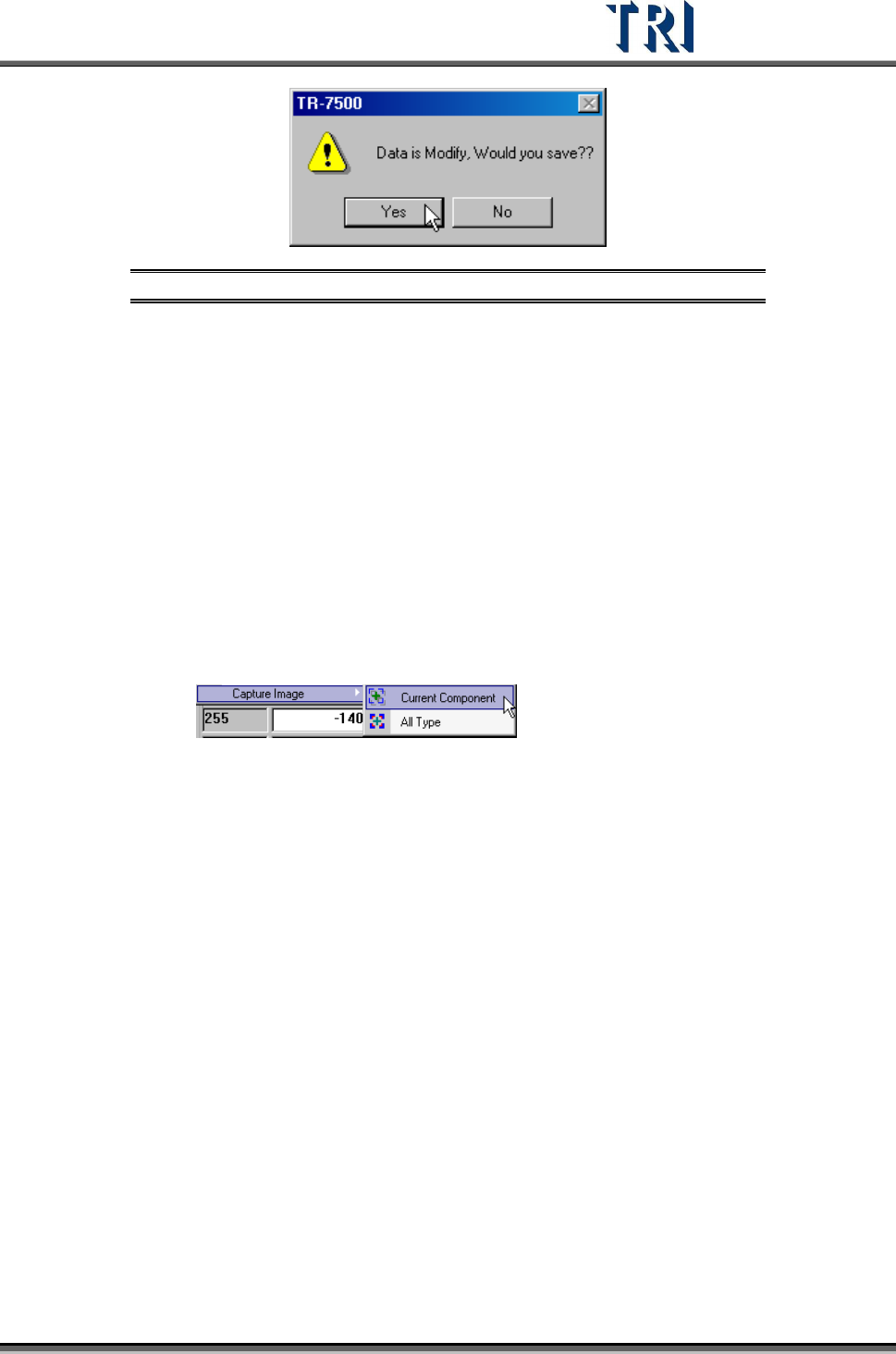
Figure 320: Confirm Name Index Data Save
8.6.2 Original Size
Press [Original Size] to go back to the original size and image frame.
8.6.3 Suit Size
Press [Suit Size] to show all windows with suit size in drawing frame.
8.6.4 Move Center
In image frame, press [Move Center] to move the camera to component center.
8.6.5 Capture Image
Capture images for offline editor to edit project. System will create a new folder named
[OfflineImage] in the folder that the project file is in. The images are named by type and
component name.
[Current Component] – Capture the component currently being edited. A total of
10 images will be captured: two by top camera [ToplightA/B], two by front
camera [FrontlightA/B], two by rear camera [RearlightA/B], two by left camera
[LeftlightA/B] and two by right camera [RightlightA/B].
[All Type] – For all types capture 10 images (as explained above) for the first
component (ranked by name).
Test Research Inc.
190 TR7500 Series User Guide –Software v.2.9.0
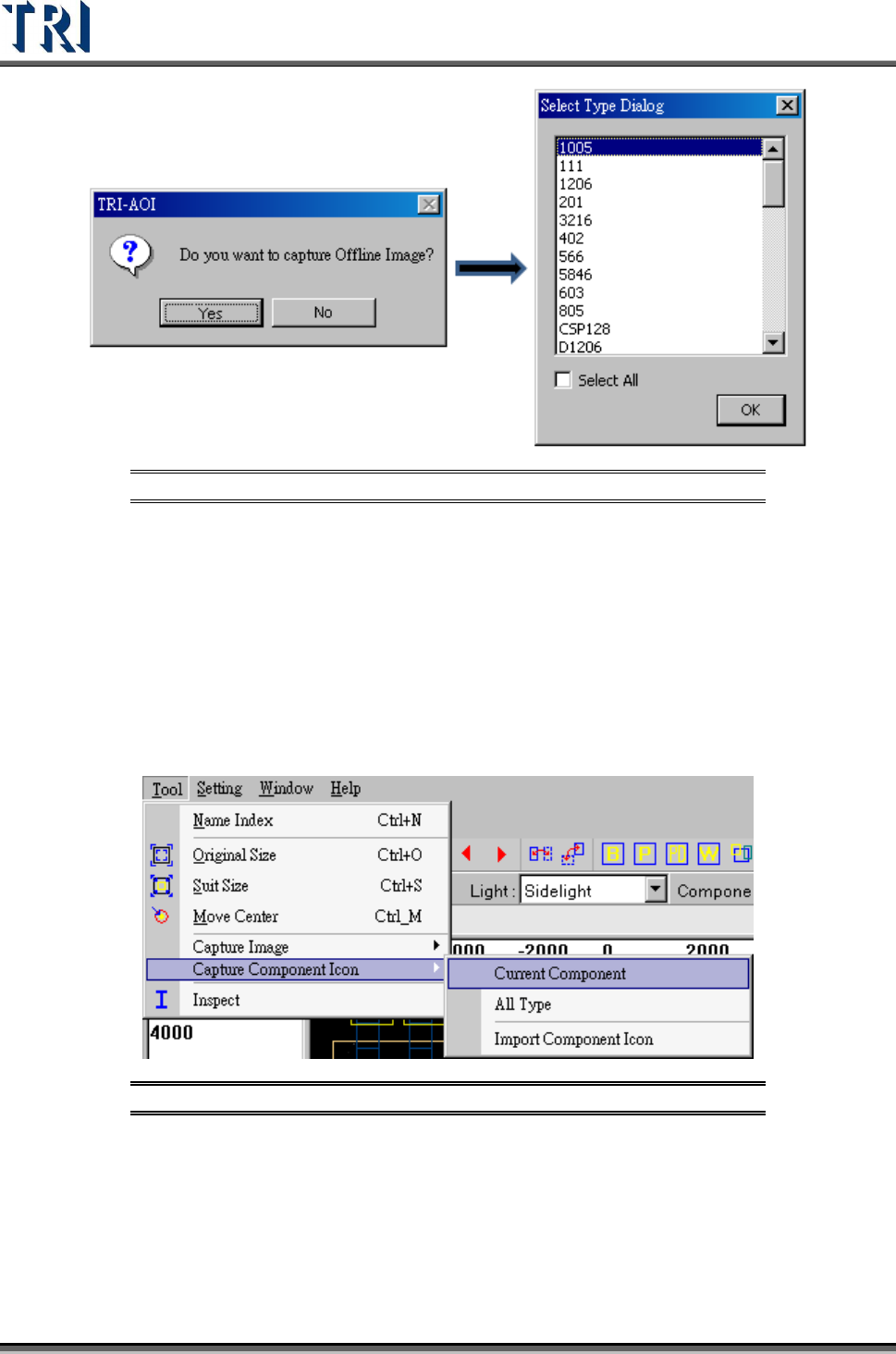
Figure 321: Capture Offline Image Process
If the component is larger than an FOV image, users can enlarge the [Body Box] to fit the
component. The system will then capture the images in the boundary of the [Body Box] and
combine them to be a complete image. The angle camera can still capture a single FOV
image.
8.6.6 Capture Component Icon
[Capture Component Icon] allows users to capture a real image and save it as a component
icon. When users load the [Component Library] and click [Icon]. they will see the icon
instead of the original inspection box layout.
Figure 322: Capture Component Icon Command
[Current Component] – Selecting this will capture and save the real image only for the
current component icon.
[All Type] – This will capture and save all types’ real images as icons.
[Import Component Icon] – Import a saved image as a new component icon
Test Research Inc.
TR7500 Series User Guide –Software v.2.9.0 191
8.6.7 Inspect
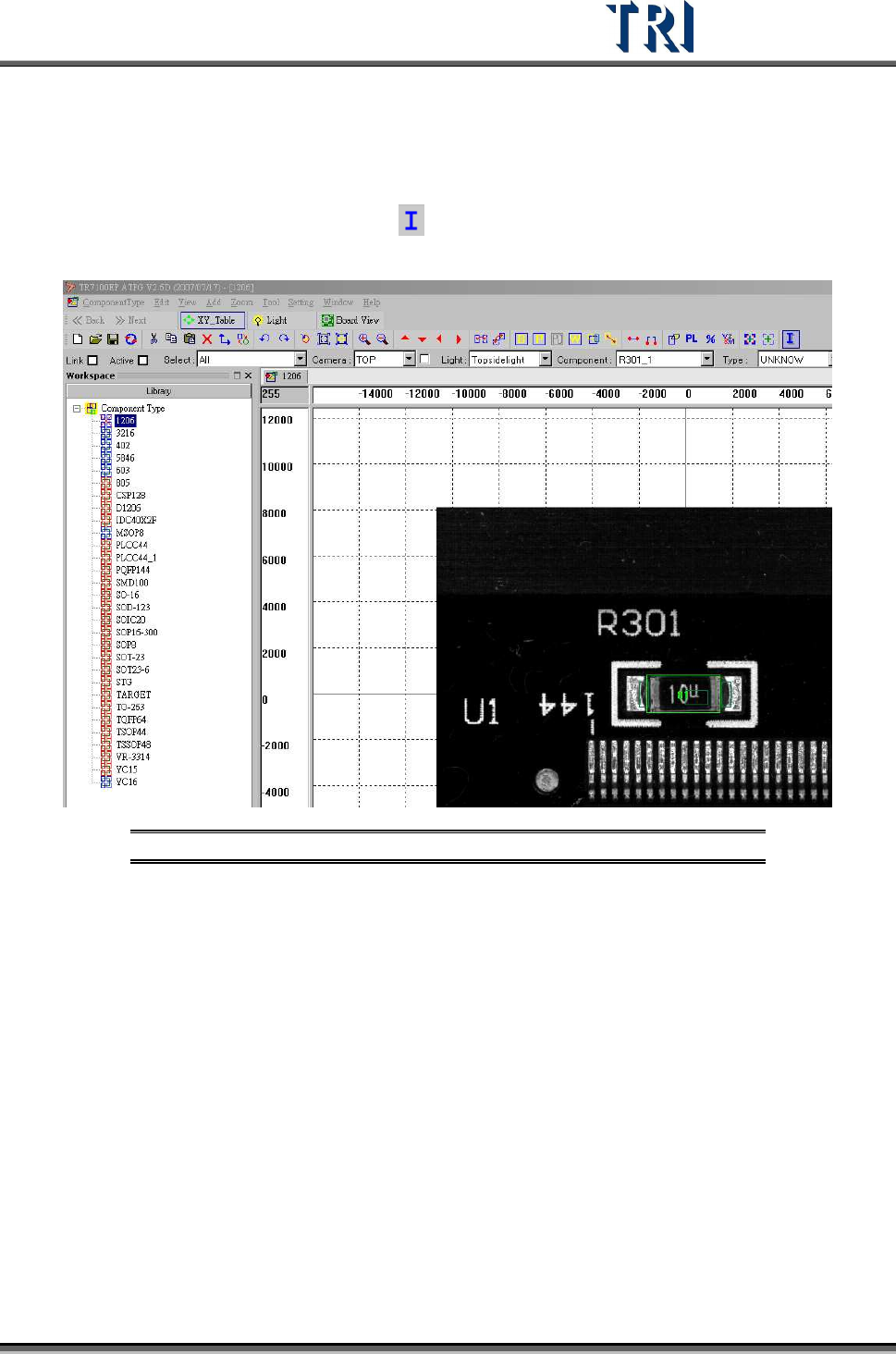
The [Inspect] function tests a single inspection box to make parameter tuning easier. Users
can only test one inspection box once.
Select an inspection box first then press [
], The system will inspect the selected inspection
box and display the result.
Figure 323: Inspect Single Inspection Box
8.6.8 Model Library
Users may use the pre-built [Model Library] to reduce programming time when creating the
inspection boxes for each component type.
8.6.8.1 Model Library Creation
The TR7500 will separate the saved [Model Library] into two paths. [Post-Flow] data will be
saved under [C:\ AOI\ ModelSuite \PostFlow]; [Pre-Flow] data will be saved under [C:\ AOI\
ModelSuite \PreFlow]
There are two model-related files types saved under these categories: .XML and .BMP files.
They share the same model name. .XML is to define the inspection boxes’ type, variable,
location, size, location of the [Model Library] and the Hint. .BMP is the icon file.
The [Model Library] file is provided by TRI and is proprietary. Customers can not modify the
file.