TR7500_Series_Software_v29_En.pdf - 第267页
Test Research Inc. TR7500 Series User Guide – Software v.2.9.0 245 11 T RAIN D IALO G F UNCTI ON 11.1 Main Fra me After completin g all ATPG steps, close t he ATPG dia log to see the foll owing frame. Clic k ing on the p…
Test Research Inc.
244 TR7500 Series User Guide –Software v.2.9.0
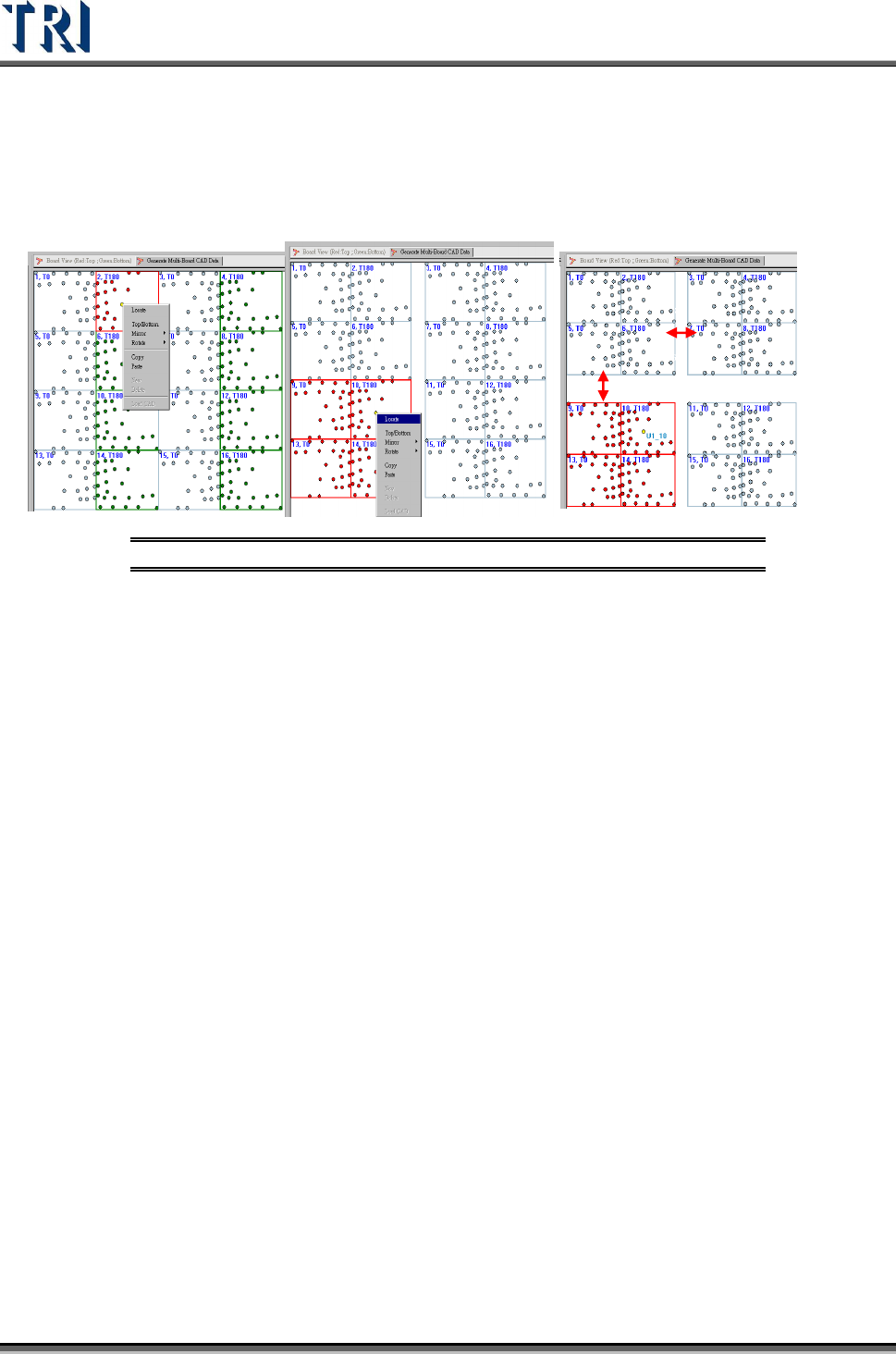
Type 2 and 3
(1) Locate Board 2 and Board 5 to get the X and Y direction gaps.
(2) Select the multi-boards in Block 2 by [Shift], then locate a component in Block 2 to get
the Y direction gap between Blocks.
(3) Select the multi-boards in Block 3 by [Shift], then locate a component in Block 3 to get
the Y direction gap between Blocks.
Figure 408:Type 2 and Type 3
Test Research Inc.
TR7500 Series User Guide –Software v.2.9.0 245
11 T
RAIN
D
IALOG
F
UNCTION
11.1 Main Frame
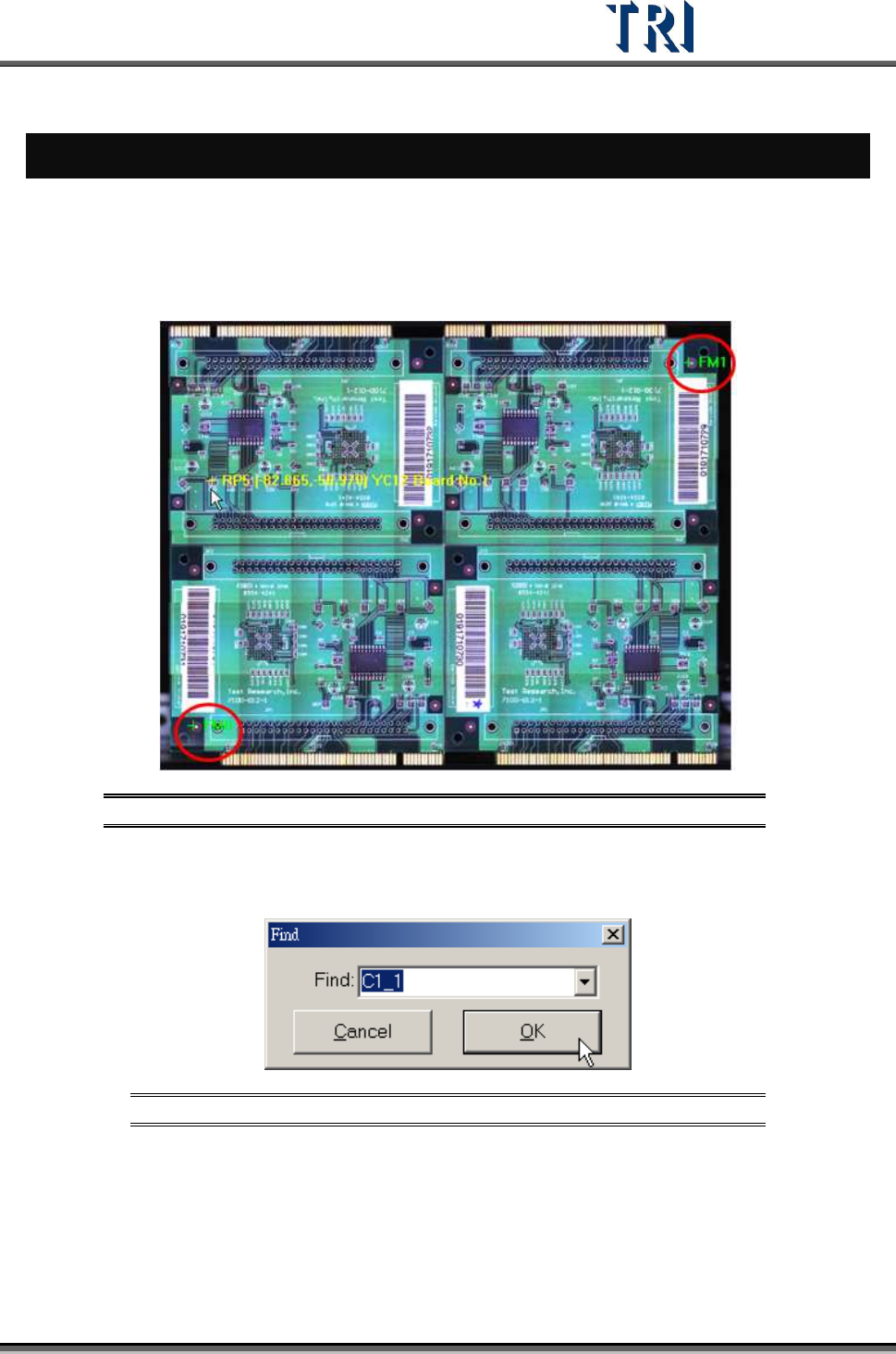
After completing all ATPG steps, close the ATPG dialog to see the following frame. Clicking
on the panel map will show the position of the fiducial marks.
Figure 409: Click on Panel to Show Fiducial Marks
After right clicking on this window, it is possible to select a specific component to be marked
on the panel. Click on the window again and the system returns to the original display.
Figure 410: Find Component Dialog
Finish the ATPG flow then enter the [Train] dialog.
Test Research Inc.
246 TR7500 Series User Guide –Software v.2.9.0
11.2 Train Dialog
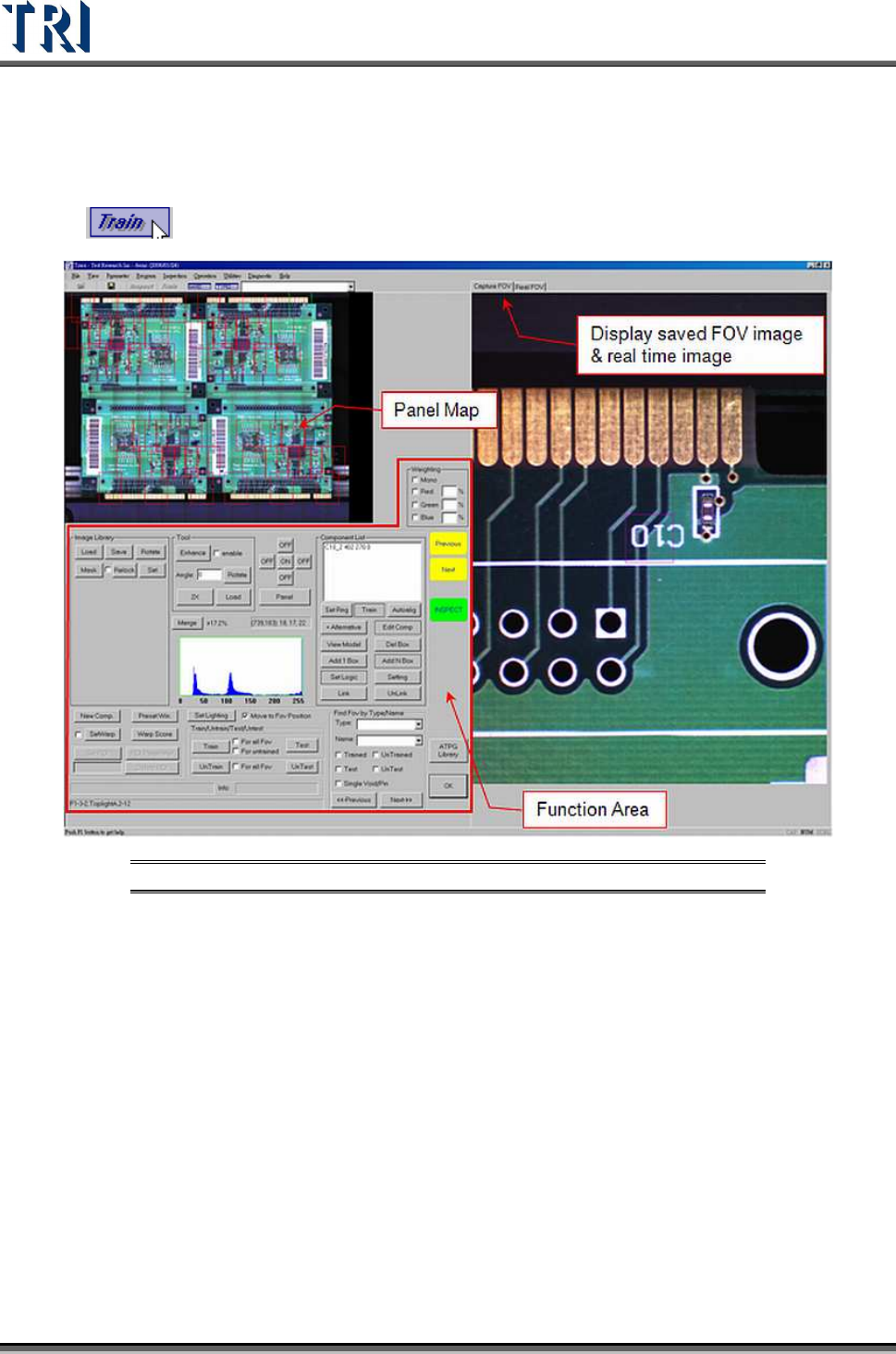
Press
to enter the [Train] dialog. The screen shown below will appear.
Figure 411: Train Dialog Screen
11.3 Board View
The positions of FOVs (fields of view) are displayed here. Select the camera position to
review.
Red boxes refer to the top camera FOVs. Yellow boxes signify the front camera FOVs.
Orange boxes are for the rear camera FOVs. Purple boxes mean The left and right camera
FOVs are shown in purple and blue, respectively. The green box is the current FOV.
Click on the FOV area and the [Real-Time Image] and [Saved FOV Image] will change to the
selected FOV.
11.4 Real FOV
Select [Real FOV] page then it displays the real time image. Click on the panel map or right
click on the image to move the camera to capture the image.