TR7500_Series_Software_v29_En.pdf - 第145页
Test Research Inc. TR7500 Series User Guide – Software v.2.9.0 123 Figure 204 : Select BOM Fil e (left) & BOM File Form at b. Translate BOM f ile. c. Display the function. i. Load AOI file with BOM file Figure 205 : …
Test Research Inc.
122 TR7500 Series User Guide –Software v.2.9.0
4 AOI
ATPG
F
UNCTION
I
NSTRUCTION
4.1 CAD File Translator for AOI Files
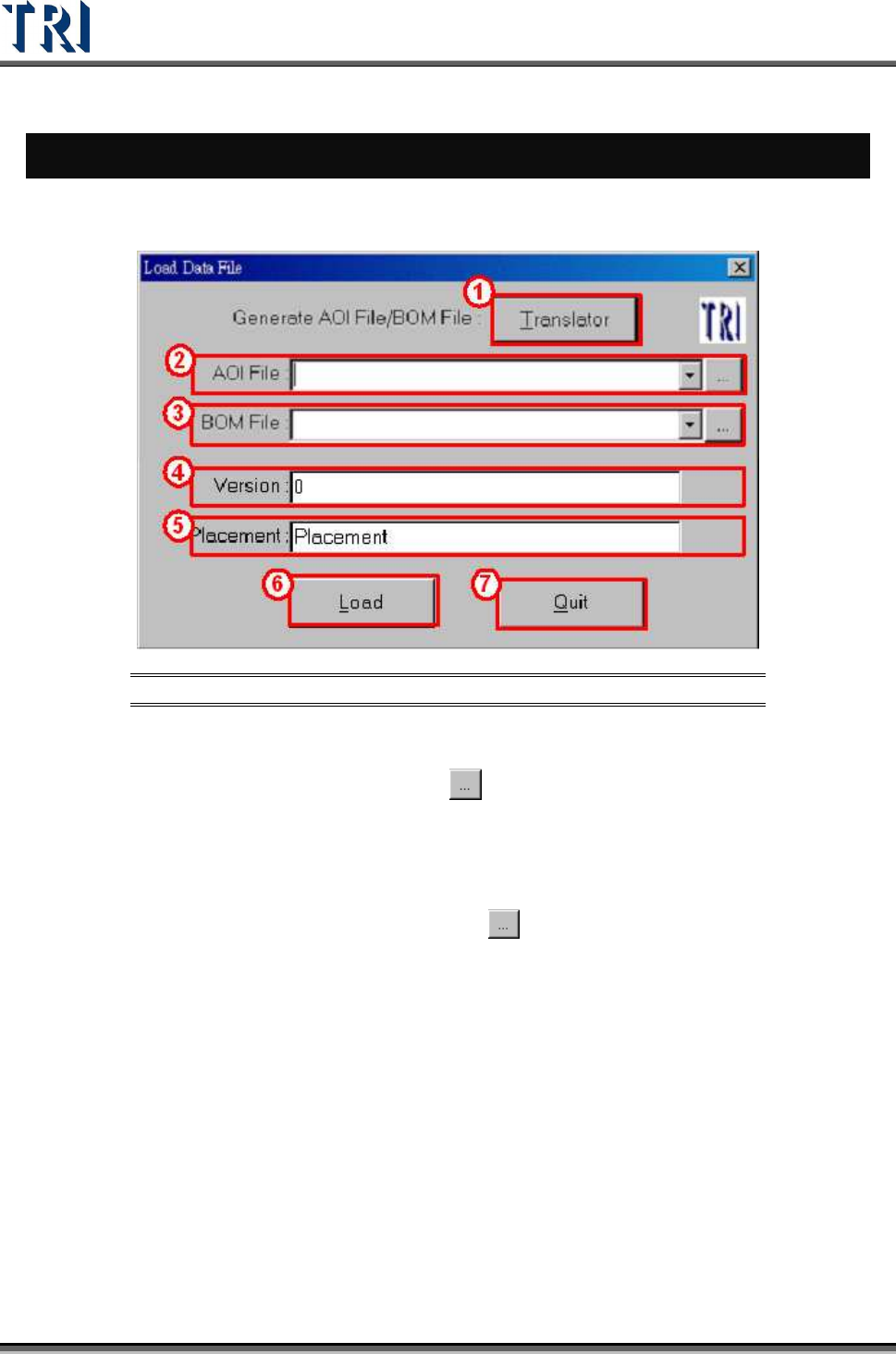
Figure 203: Load Data File Screen
[Translator] – CAD file translator. Use this function to translate CAD file to AOI file.
[AOI File] – Input the path of AOI file or use
button to browse. When loading an AOI
file, the system will copy all the original [Type] columns into [Hidden] columns and
save as non-modified data. Users may change the [Type] during programming, and,
the saved original type will not be affected. The user can use [P
ARAMETER
>
P
ANEL
>
R
EPAIR STATION
] to retrieve the original type for data collection.
[BOM File] – Input the path of BOM file or press
button to browse. If the BOM file is
loaded, the system will set the components which are not included in the BOM file as
“UNTEST”. Edit the BOM file by using the “Translator” function or by using the
TR7500’s built-in function.
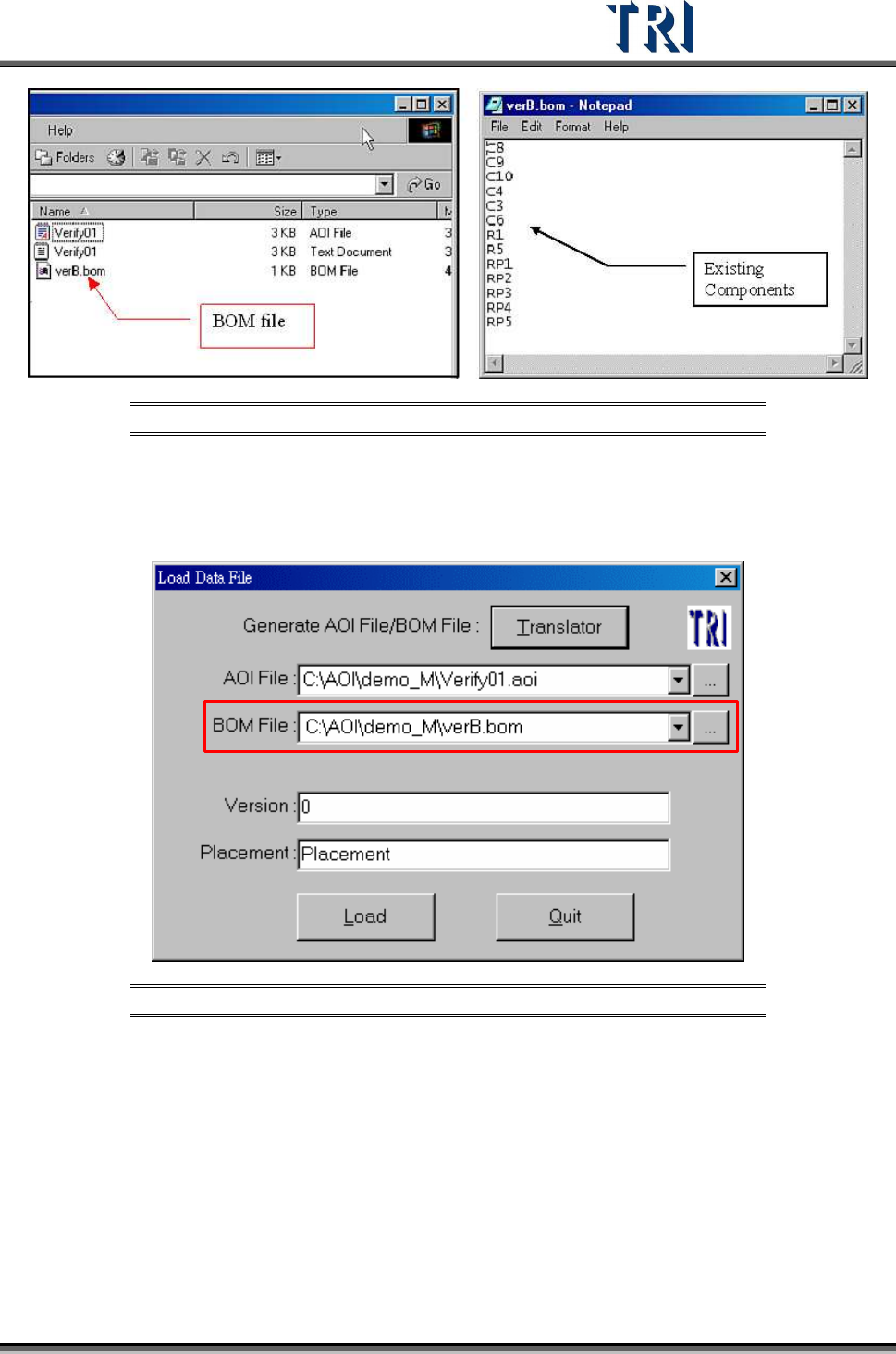
a. Create BOM file by the TR7500.
Test Research Inc.
TR7500 Series User Guide –Software v.2.9.0 123
Figure 204: Select BOM File (left) & BOM File Format
b. Translate BOM file.
c. Display the function.
i. Load AOI file with BOM file
Figure 205: Load Data File Dialog
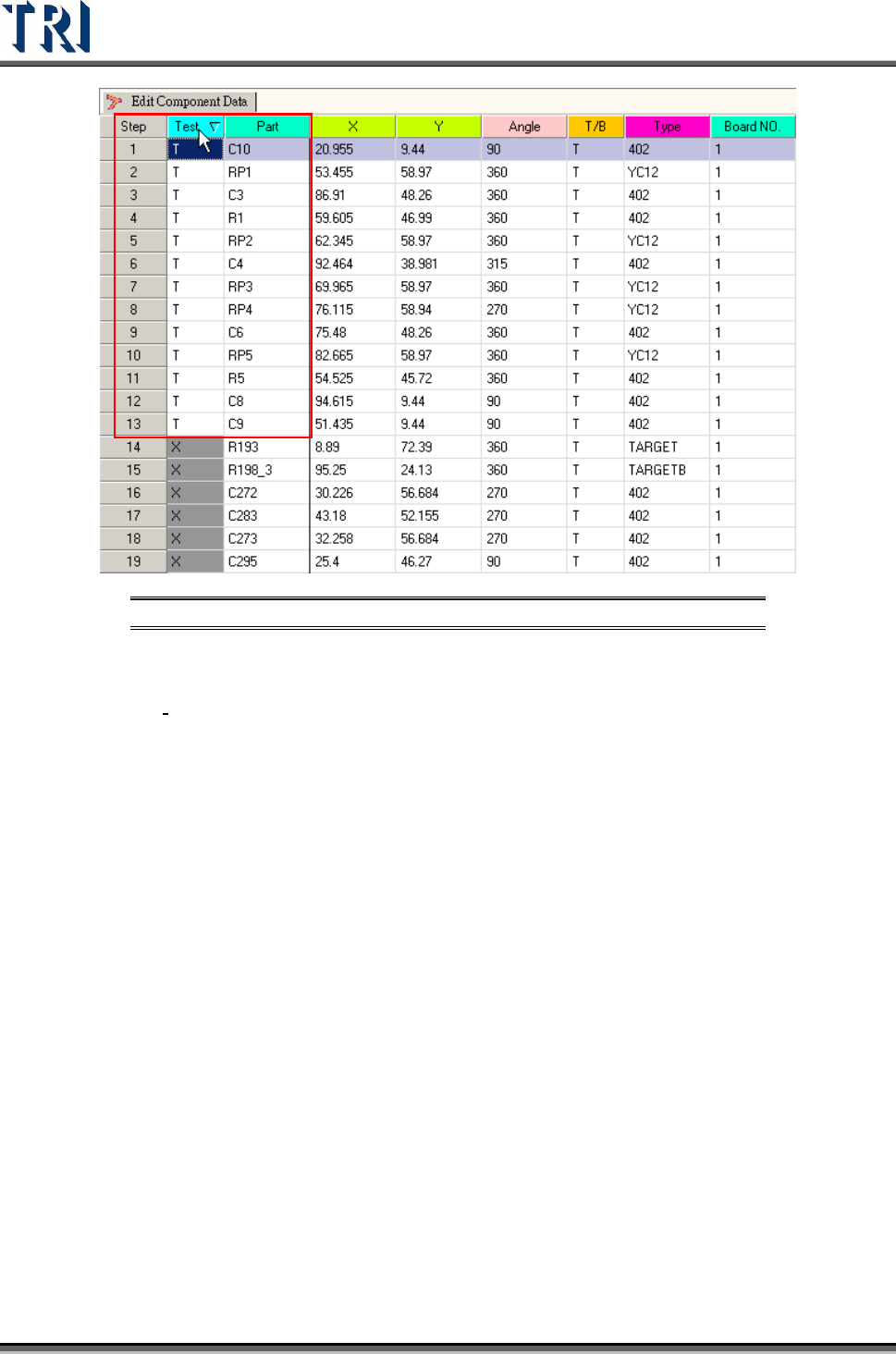
ii. The components from the BOM file are set as “Test” in the Component Data list.
Test Research Inc.
124 TR7500 Series User Guide –Software v.2.9.0
Figure 206: BOM File Components Set to ‘Test’
[Version] – Define the current input component version.
[Placement]
– Input the placement machine name.
[Load] – Load AOI (BOM) data file and enter the next step.
[Quit] – Exit load AOI (BOM) data file.