TR7500_Series_Software_v29_En.pdf - 第52页
Test Research Inc. 30 TR7500 Series User Guide – Software v.2.9.0 Figure 49: Display Fiducial Mark Imag es 15. Press [Next] 16. Displays [Confirm Close Window ] message. Pres s [OK]. 17. Select [Yes] to start to se t boa…
Test Research Inc.
TR7500 Series User Guide –Software v.2.9.0 29
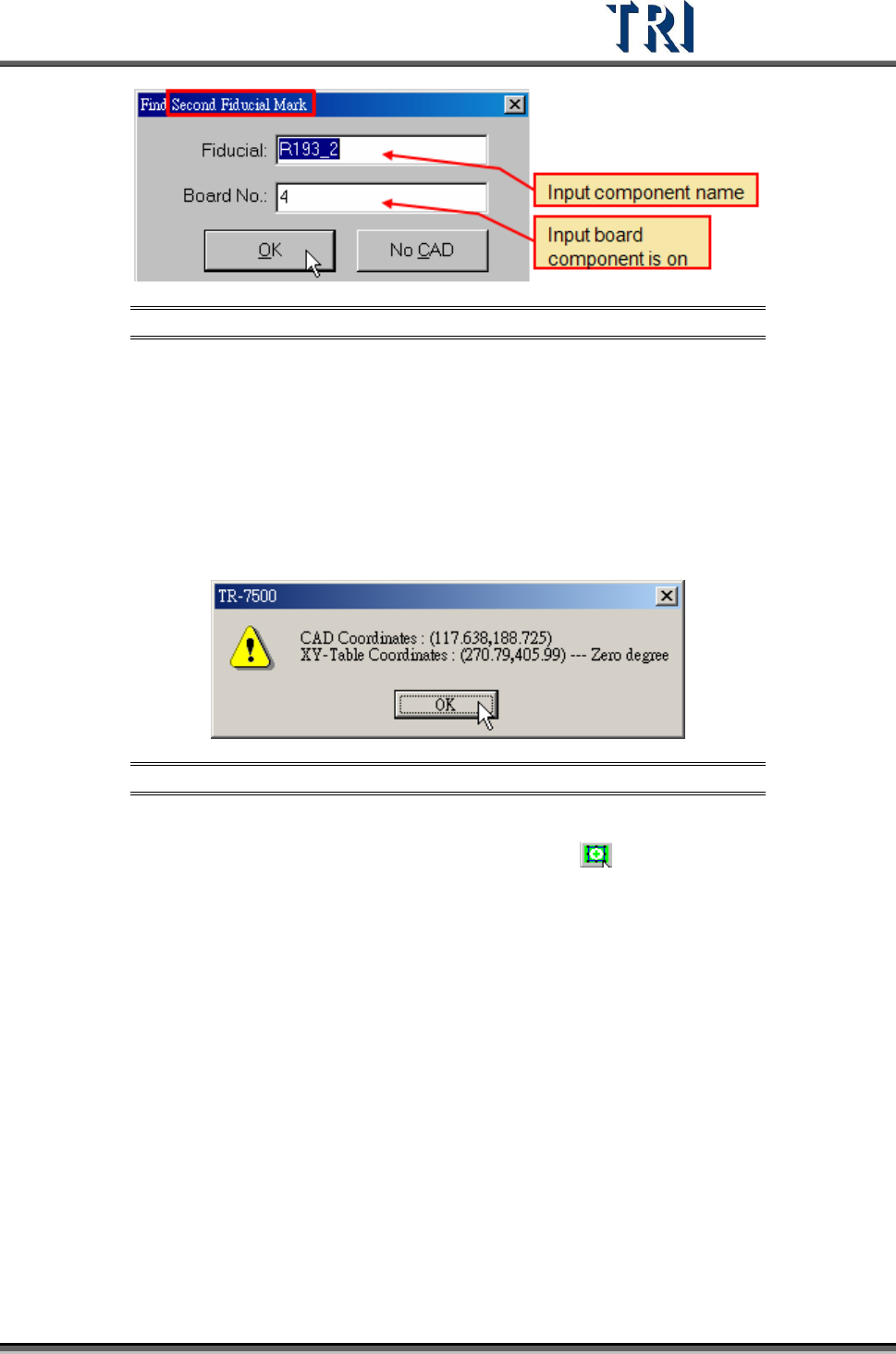
Figure 47: Input Second Fiducial Mark Name
10. Set the lighting for the second fiducial mark. When the shape of fiducial mark is not
clear under the current lighting, you can adjust the lighting manually. Press the [Light]
button then the [Lighting Control Editor] window appears. Select the [Fiducial1] item
and adjust the lighting then press [Save] to finish the setting.
11. Press [Get Fiducial Mark] icon to get the second fiducial mark coordinates.
12. Choose if you want to use the standard fiducial mark image.
13. Display second fiducial mark coordinates.
Figure 48: Display Second Fiducial Mark Coordinates
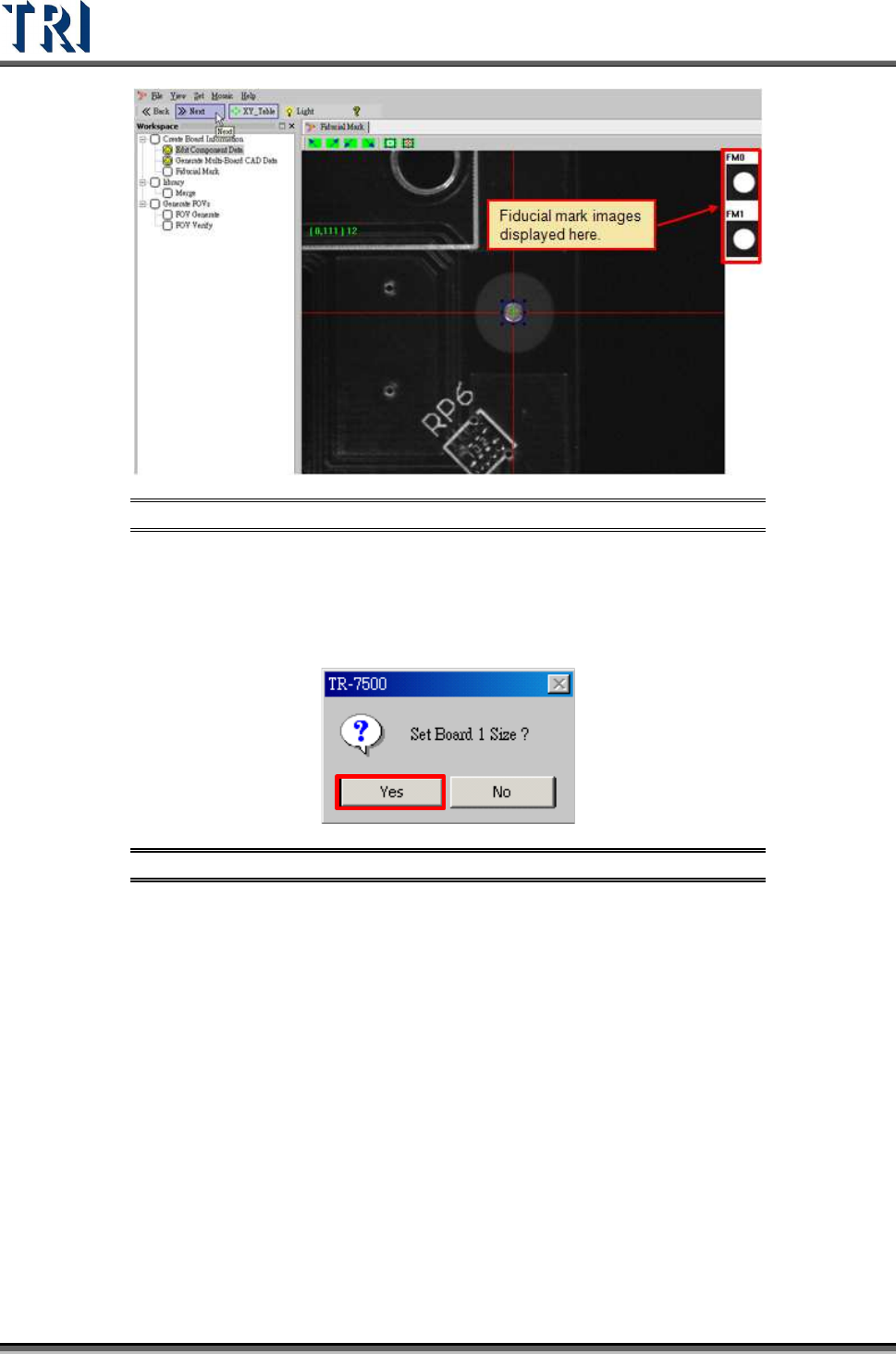
14. The finished images of two fiducial marks are shown at the right side of the active
window. If you are not satisfied with the images, press
[Set Fiducial Mark] to train
the images again.
Test Research Inc.
30 TR7500 Series User Guide –Software v.2.9.0
Figure 49: Display Fiducial Mark Images
15. Press [Next]
16. Displays [Confirm Close Window] message. Press [OK].
17. Select [Yes] to start to set board 1 size.
Figure 50: Confirm Advance to Set Board 1 Size Function
Test Research Inc.
TR7500 Series User Guide –Software v.2.9.0 31
2.7 Board Size Setting
Board size setting detects for golden pins in the panel’s outside edge.
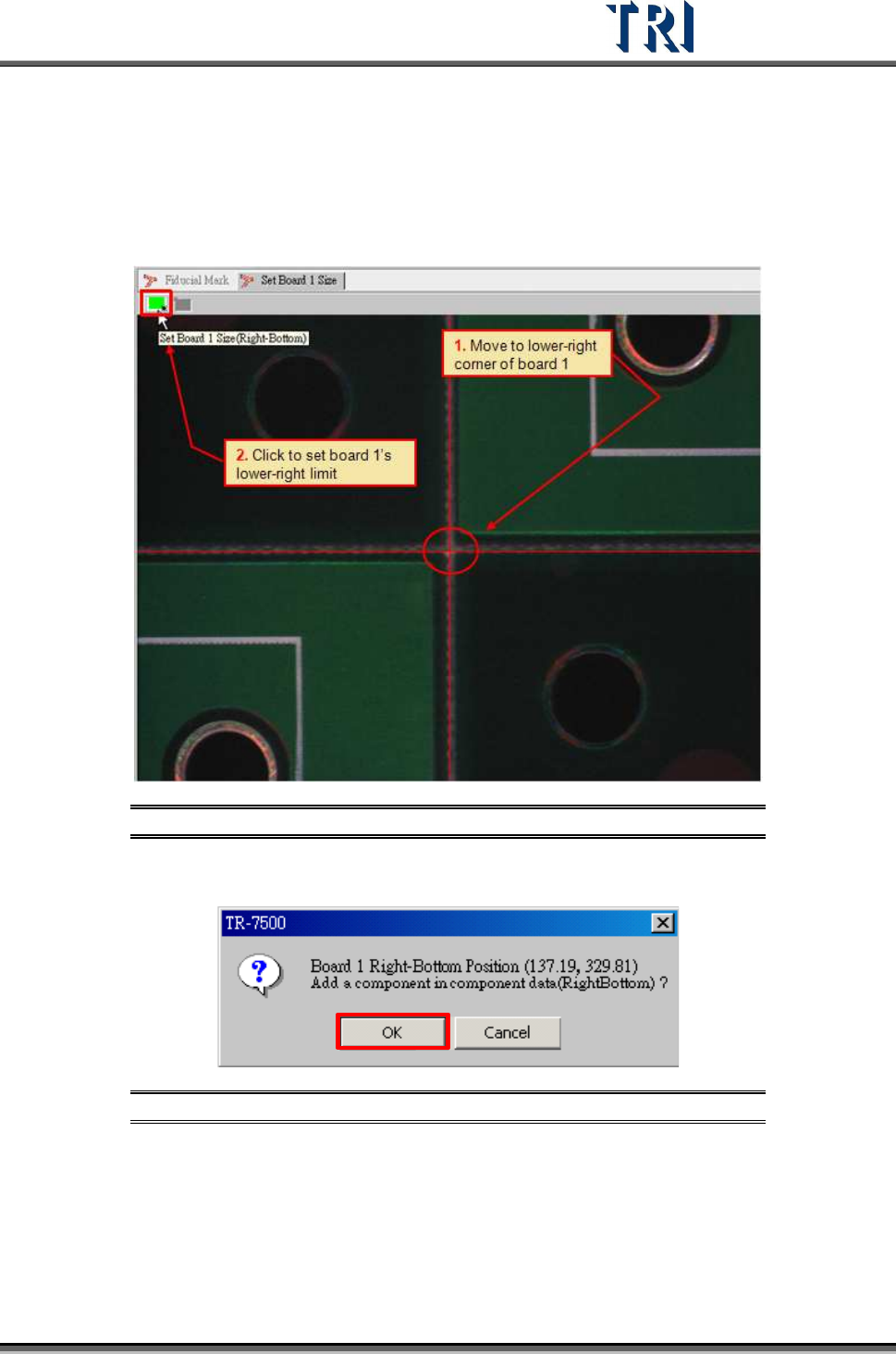
1. Move the screen center to lower-right corner of board 1 and press the [SET] button.
Figure 51: Move to Lower Right Corner & Set Limit
2. Confirm the lower-right position of board 1.
Figure 52: Confirm Lower Right Corner Position
3. Move the screen center to the top-left corner of board 1 and press the [SET] button.