TR7500_Series_Software_v29_En.pdf - 第324页
Test Research Inc. 302 TR7500 Series User Guid e –Softwa re v.2.9.0 15.4 Auto Fee dback Fu nction 15.4.1 Objective The TR7500 wi ll send the test results to the Offline Editor so f tware progra m located on a PC. The res…
Test Research Inc.
TR7500 Series User Guide –Software v.2.9.0 301
8. When the size of the component goes beyond the range of one FOV, you still have to edit
this type on TR7500.
9. Save the component library (*.pgl).
10. Copy the [PackageLibrary] and [ImageLibrary] folders back to the TR7500. The default
path is [C:\AOI\packagelibrary] and [C:\AOI\imagelibrary].
11. Continue the ATPG process to finish: [Merge][FOV Generate][FOV Verify].
12. Save the *.pre file.
15.3.2 Train Dialog
1. Copy the entire folder where the project is saved to the offline editor.
2. Execute the main program on the offline editor and open the *.pre file.
3. Train the inspection boxes according to Section
2.12 Because images cannot be grabbed
on the offline editor, only existing images can be edited and the lighting cannot be
changed.
4. Trying to perform [Merge] when editing results in the system displaying a dialog
reminding you that the system cannot get images. So you have to get FOV images again
when returning to the TR7500.
5. Save the project and copy the project back to the TR7500 system. Inspection or fine
tuning can be performed there.
Test Research Inc.
302 TR7500 Series User Guide –Software v.2.9.0
15.4 Auto Feedback Function
15.4.1 Objective
The TR7500 will send the test results to the Offline Editor software program located on a PC.
The result can be edited and compared with [Pass Level] parameters and sent back to the
TR7500 for further inspection. This function allows use of one Offline Editor to access
multiple AOI machines.
15.4.2 Settings
15.4.2.1 Hardware
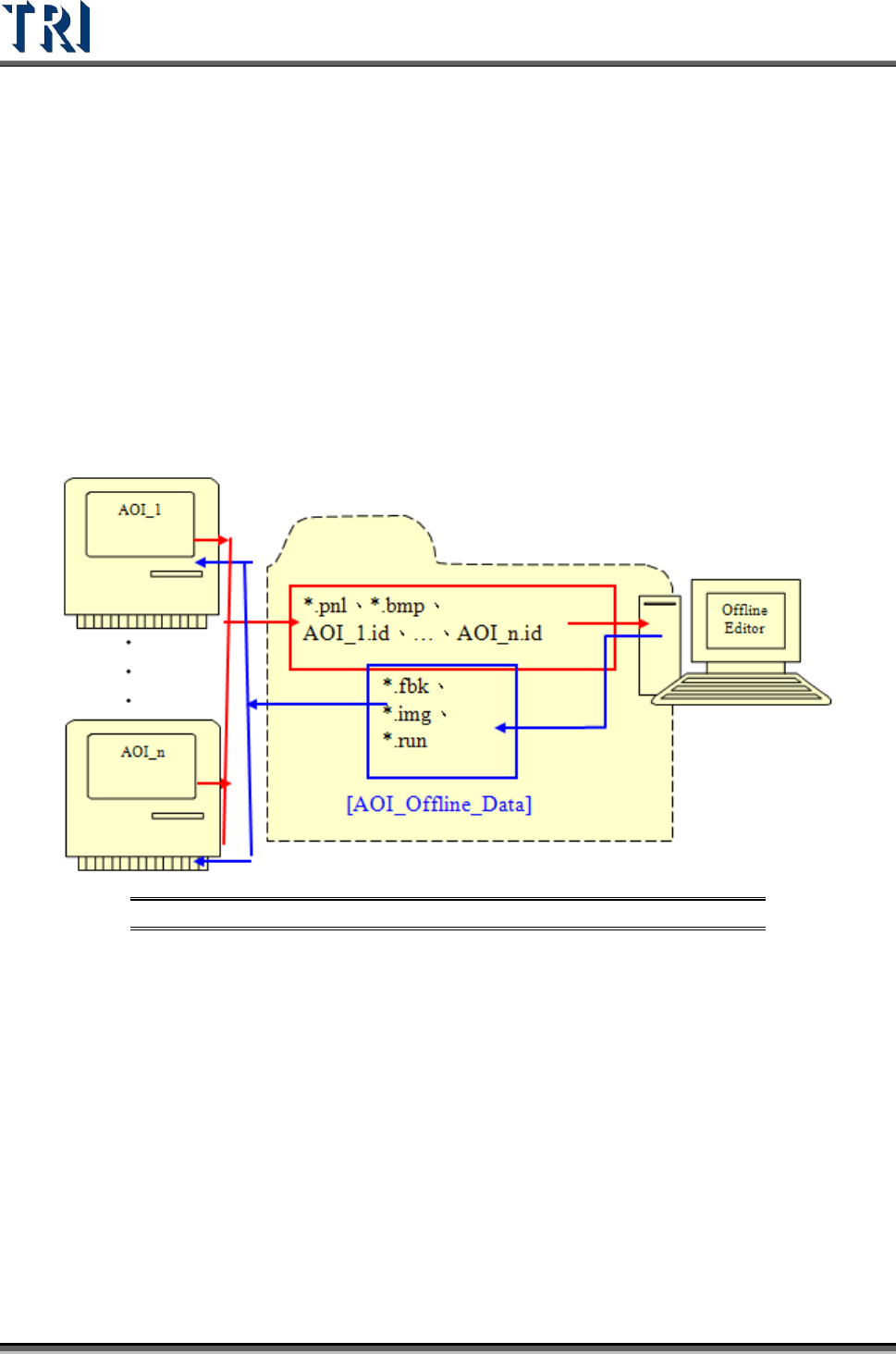
Connect the TR7500 AOI machine and the Offline Editor with a crossover cable.
Figure 497: Connect TR7500 with Offline Editor PC
15.4.2.2 Offline Editor
1. Be sure to use the same version of the TR7500 software on both the AOI system and the
PC.
2. Create a directory [AOI_Offline_Data] on the PC’s C:\ drive.
3. Select [P
ARAMETER
>
U
SER
M
ODE
>
L
INK
T
O
M
ACHINE
].
4. Select [P
ARAMETER
>
P
ANEL
>
O
FFLINE
S
TATION
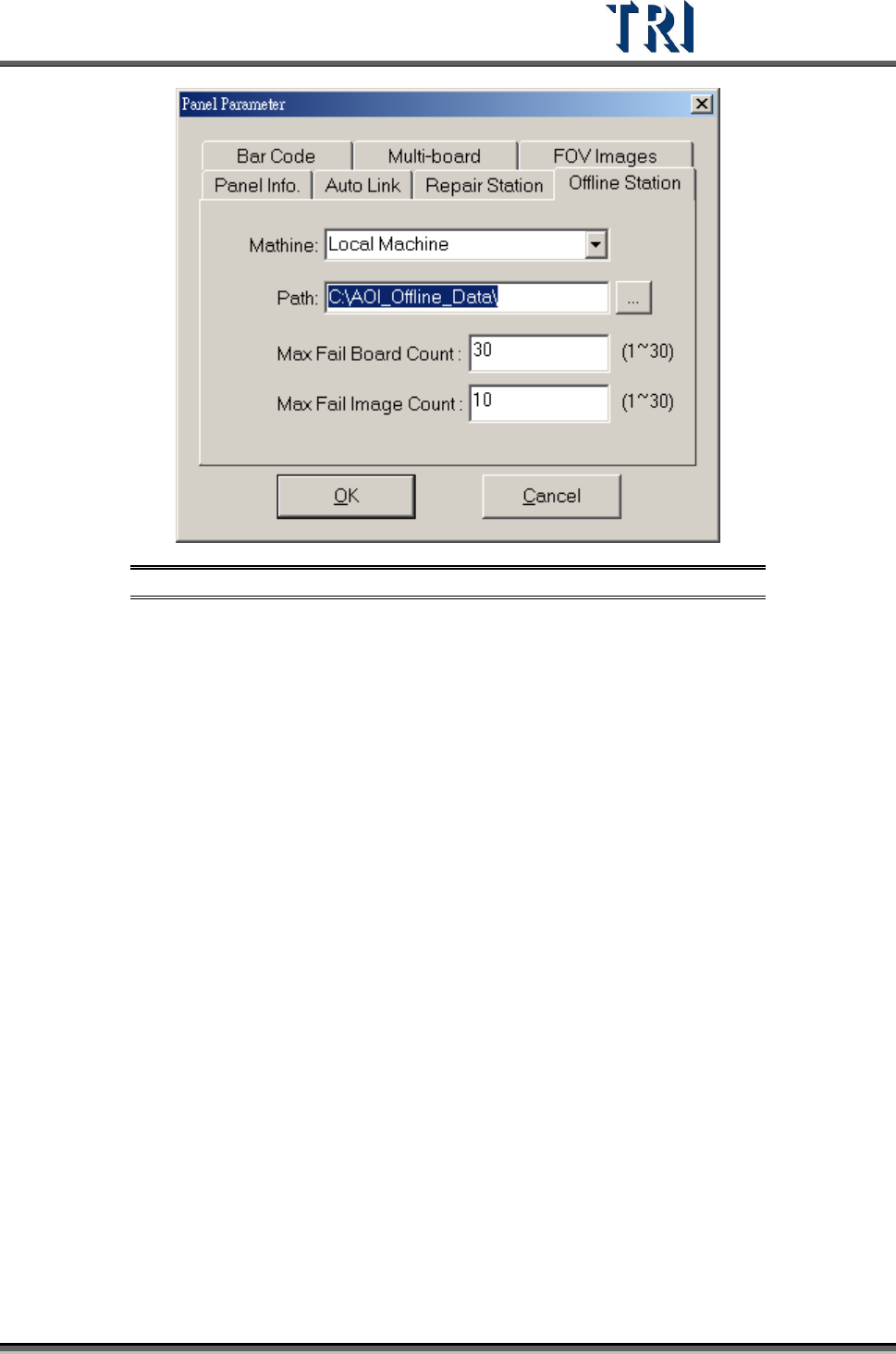
] and set the directory path to the target
folder. For example, to save the offline data in the repair station, the path has to be to a
folder in the repair station PC.
Test Research Inc.
TR7500 Series User Guide –Software v.2.9.0 303
Figure 498: Offline Station Dialog
The [Machine] option will have a list of AOI machines. Users may link to any machine by
using the drop-down menu. If the connection cannot be completed, check and complete the
connection between AOI and Offline Editor in order to select another AOI machine.
15.4.2.3 TR7500 Machine
1. Refer to the figure above. Select [P
ARAMETER
>
U
SER
M
ODE
>
L
INK
T
O
O
FFLINE
S
TATION
]
2. Select [P
ARAMETER
>
P
ANEL
>
O
FFLINE
S
TATION
] and set the path link to the specified
folder. This path must link to the folder that is the same as what the offline editor is set to.
3. Input [Max Fail Board Count] and [Max Fail Image Count].
15.4.3 Operation Instructions
15.4.3.1 Result Dialog
1. Copy the testing project file and the [FOV Image] folder to the Offline Editor.
2. When the TR7500 has tested one time, the failed images and [*.pnl] file are transferred to
the [AOI_Offline_Data] folder of the Offline Editor.
3. Open the main program and load the [*.pre] file that is the same as the inspection project
on the TR7500 main machine.
4. The software will create an authorized flag called [AOI ID.run] to set a flag to the other
TR7500 machines in order to avoid jammed communication. The authorized flag will
control the connection traffic of all systems and save unsent data back to the original
machines for the next available connection to [Offline Editor].
5. Press [I
NSPECTION
>
I
NSPECT
FOV
I
MAGES
] then the system starts to inspect the saved
FOV images. If the TR7500 has sent a failed image, the system uses these failed images
in place of the saved images and inspects them. Set the search range, pass level or add
alternative images according to the inspection result.