2OM-1088-002.pdf - 第129页
Tg0699-PM-D2 0207-001 Chapter 1 3-12 2.4 "Sub-System Error" T ab *1 *2 *3 *4 2.4 "Sub-System Error" T ab This indicates the error data on each individual units. • • • • • Sheet Layout When the "S…
Tg0699-PM-D2
0207-001 Chapter 1 3-11
2.3 "Recog. Error" Tab
*2
*1
*3
2.3 "Recog. Error" Tab
This indicates the data related to the recognition errors.
••
••
• Sheet Layout
When the "Recog. Error" tab is pressed in the "MANAGE. DATA 1"
window (submenu), the following tab sheet appears.
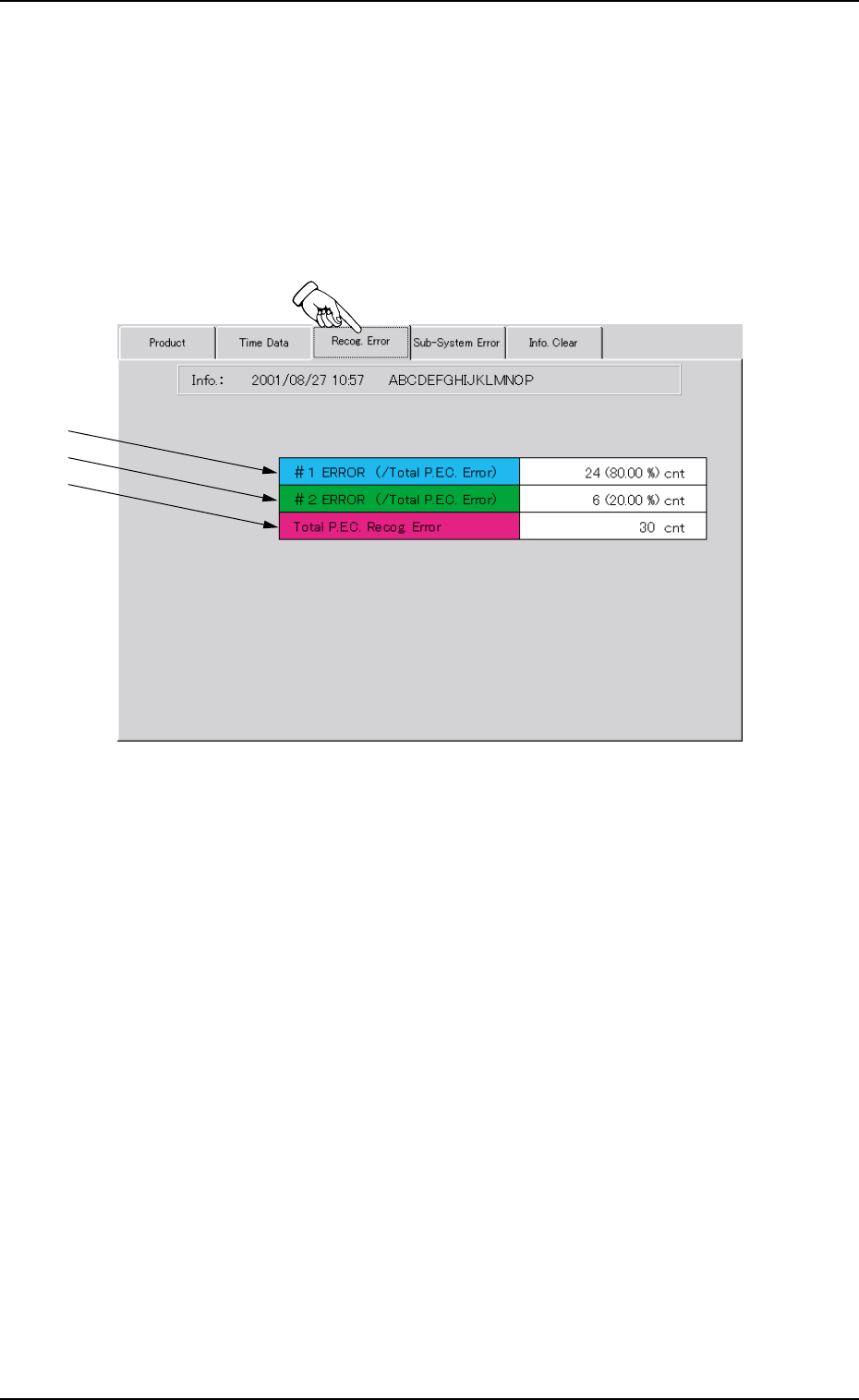
Fgi. 3C6 "Recog. Error" Tab Sheet
••
••
• Sheet Composition
*1 #1 ERROR (/Total P.E.C. Error)
This indicates the total number of errors on the first fiducial mark
and the ratio based on the total number of P.E.C. recognition
errors.
*2 #2 ERROR (/Total P.E.C. Error)
This indicates the total number of errors on the second fiducial
mark and the ratio based on the total number of P.E.C. recogni-
tion errors.
*3 Total P.E.C. Recog. Error
This indicates the total number of errors that were detected in
P.E.C. recognition processing.
Tg0699-PM-D2
0207-001 Chapter 1 3-12
2.4 "Sub-System Error" Tab
*1
*2 *3
*4
2.4 "Sub-System Error" Tab
This indicates the error data on each individual units.
••
••
• Sheet Layout
When the "Sub-System Error" tab is pressed in the "MANAGE.
DATA 1" window (submenu), the following tab sheet appears.
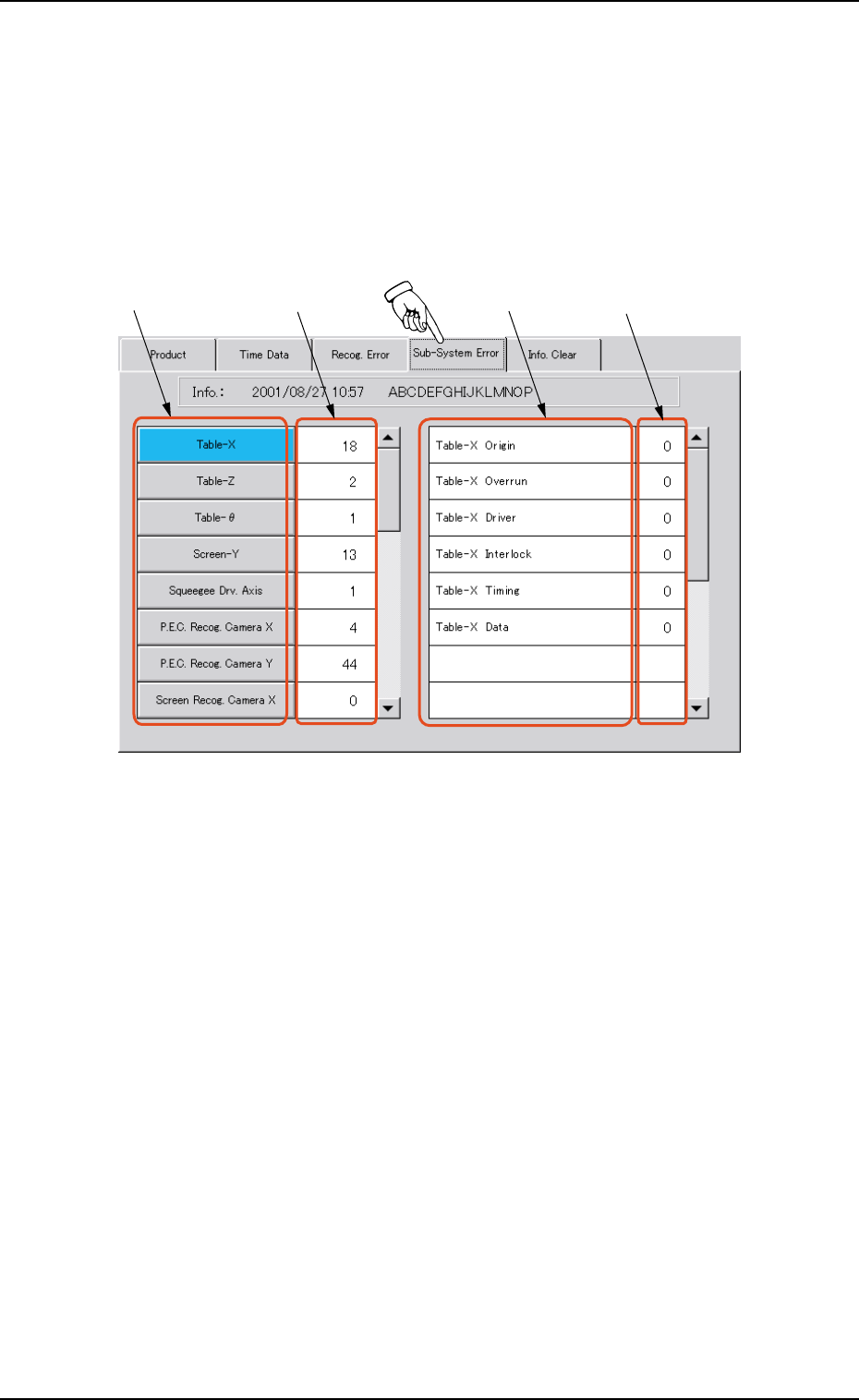
Fig. 3C7 "Sub-System Error" Tab Sheet
••
••
• Sheet Composition
*1 Unit Selection Buttons
These buttons are used to select the units.
When a button is pressed, the indications in "*3 Contents of
Errors" change.
*2 Total Numbers of Errors on Each Individual Units
The indicated values represent the total numbers of errors on
each individual units.
*3 Contents of Errors
Displayed are the contents of errors on each individual units.
*4 Total Numbers of Errors
The indicated values represent the numbers of errors classified
according to the contents of errors on each individual units.
Tg0699-PM-D2
0207-001 Chapter 1 3-13
2.5 "Info. Clear" Tab
*1
*2
*3
2.5 "Info. Clear" Tab
This tab sheet is provided with two buttons and each button is used
to clear the management data stored in memory.
••
••
• Sheet Layout
When "Info. Clear" tab is pressed in the "MANAGE. DATA 1"
window (submenu), the following tab sheet appears.
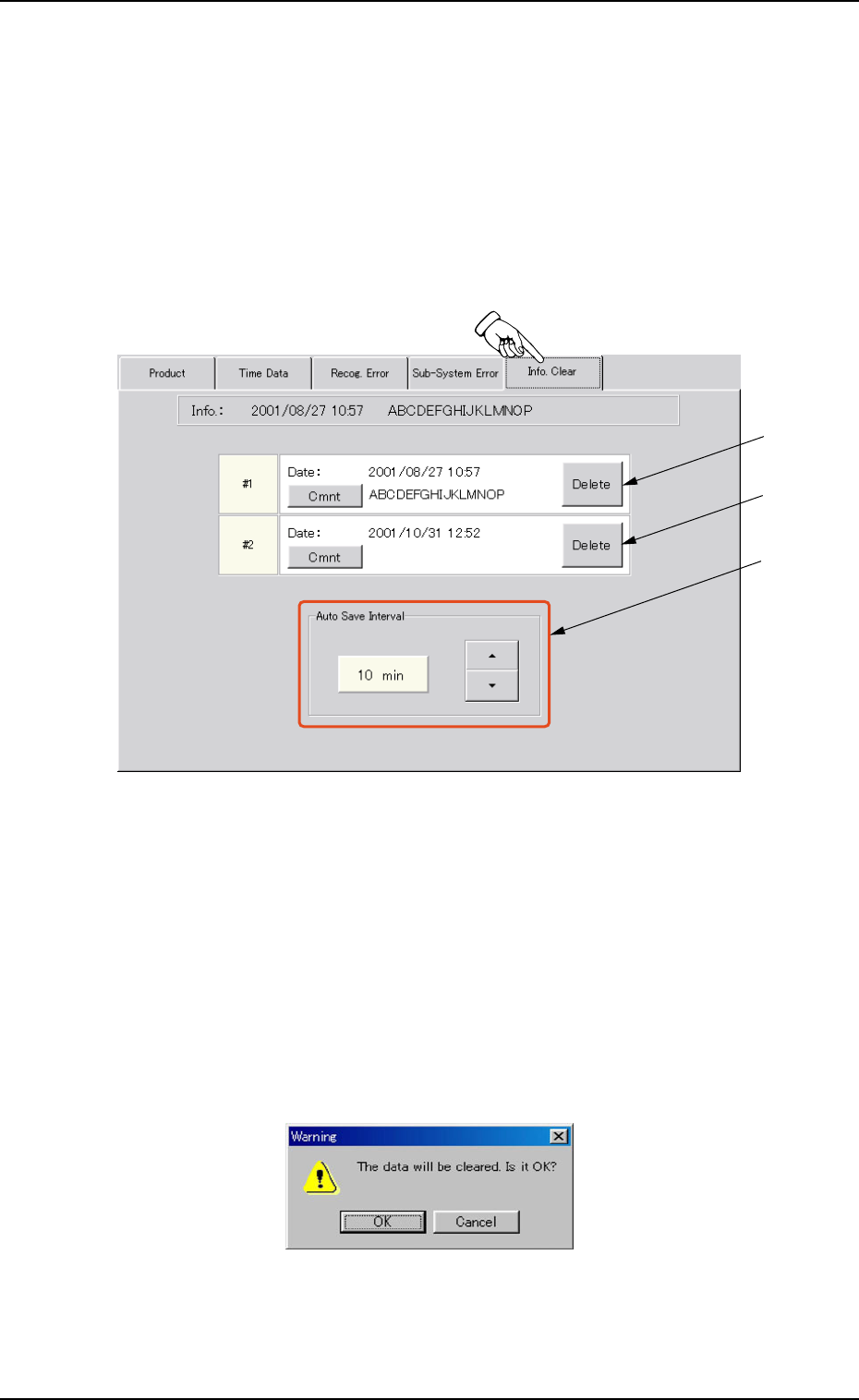
Fig. 3C8 "Info. Clear" Tab Sheet
••
••
• Sheet Composition
*1 [Management Data 1 Clear] Button
When the button is pressed, the following "Warning" dialog box
opens.
When the [OK] button is pressed, the contents of "Management
Data 1" are cleared and the date and time of the clear operation
are updated.
Fig. 3C9