2OM-1088-002.pdf - 第91页
Tg0699-PM-D2 *1 Menu Bar The menu bar displays the names of all available operation menus. *2 T oolbar A collection of icons that typically make the more common tools for an application easily accessible. *3 Extended T o…
Tg0699-PM-D2
0207-001 Chapter 1 2-31
2.1 Navigations in Window
(4) Select the desired program name from the list box in the "Open"
window or enter the name of the program to be opened in the
text box, using the virtual keyboard and press the [OK] button.
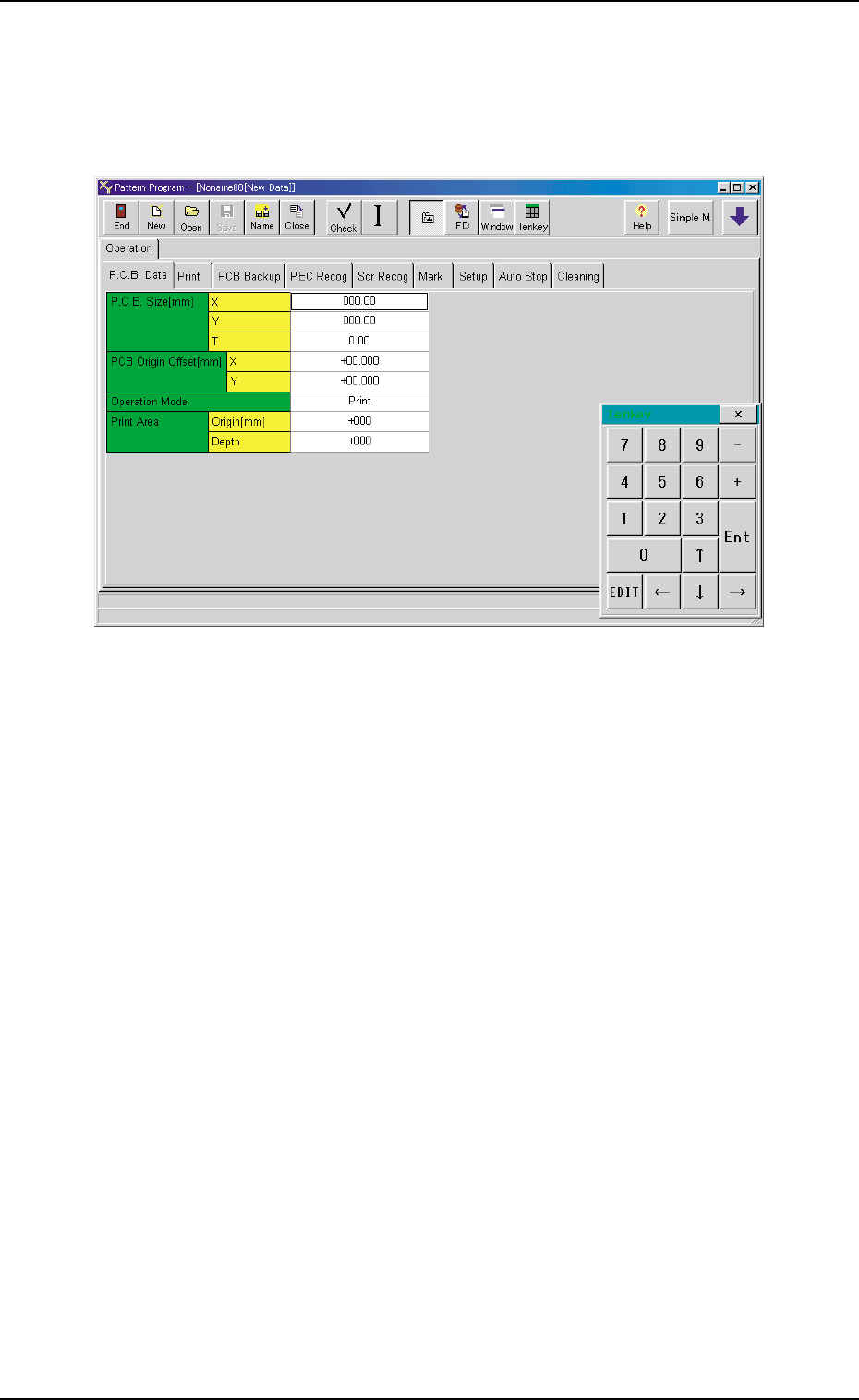
The following "Pattern Program" edit window opens.
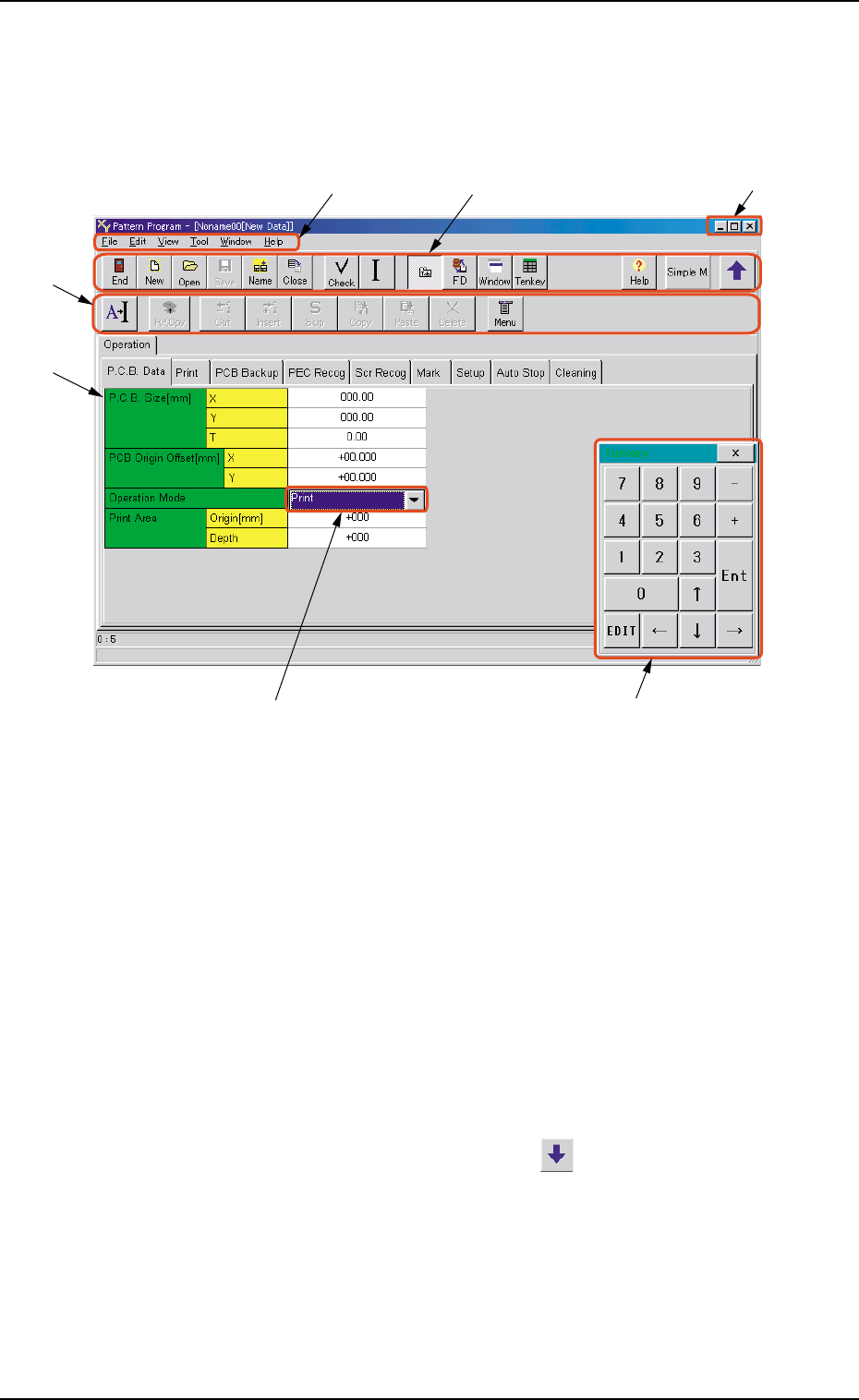
Fig. 3B76 "Pattern Program" Edit Window
Tg0699-PM-D2
*1 Menu Bar
The menu bar displays the names of all available operation
menus.
*2 Toolbar
A collection of icons that typically make the more common tools
for an application easily accessible.
*3 Extended Tool Bar
Part of the frequently used operation menus are indicated by
icons. When they are displayed, press on the tool bar.
0207-001 Chapter 1 2-32
2.1.2 Menu Bar and Toolbar
This session describes how to use the menu and tool bars of the
"Pat-tern Program" edit window.
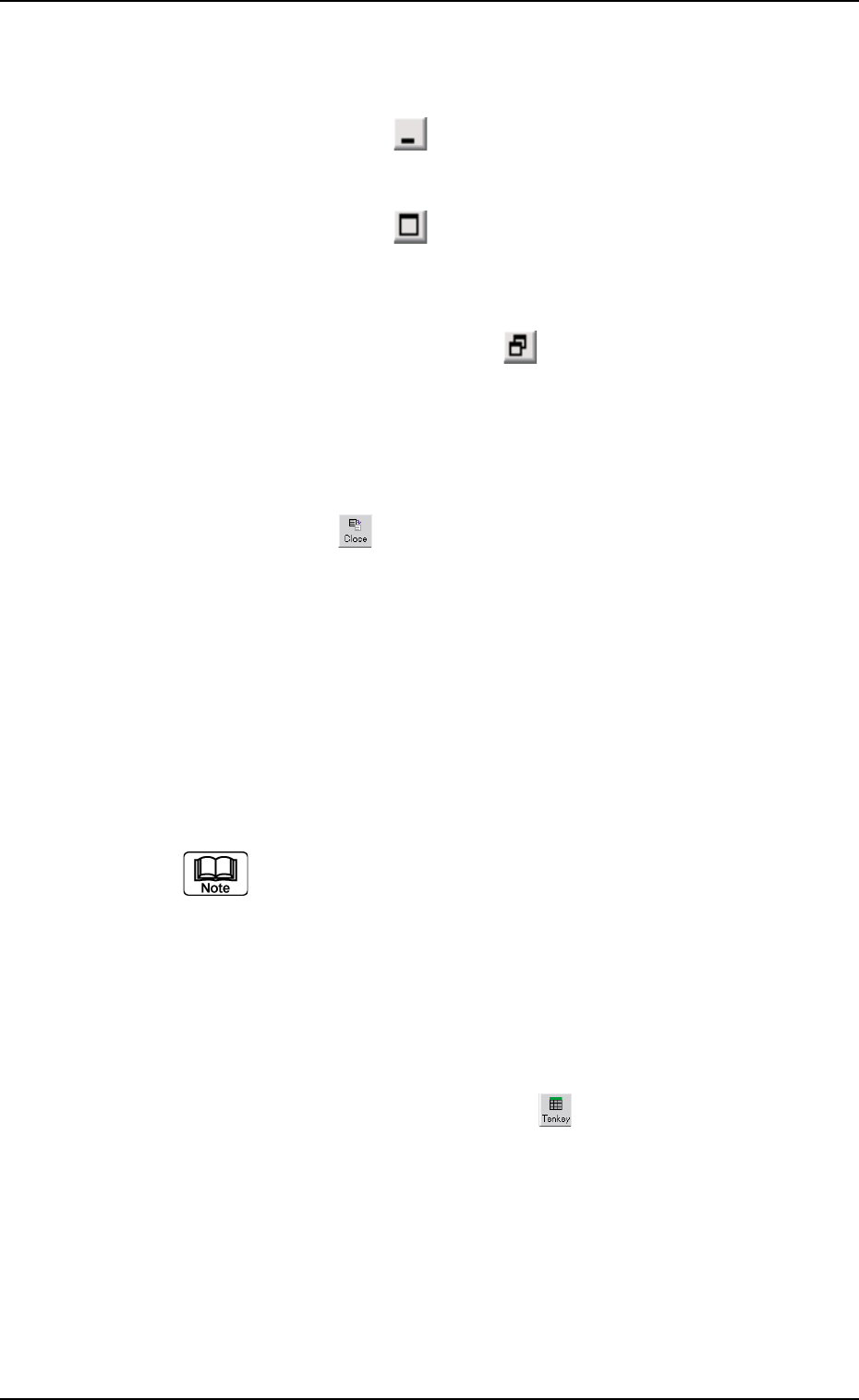
Fig. 3B77 "Pattern Program" Edit Window
2.1 Navigations in Window
*1 *2
*4
*3
*5
*6 *7
Tg0699-PM-D2
*4 [Minimizing] Button, [Maximizing] Button, [Return to Origi-
nal Size] Button and [Close] Button
[Mimimizing] button ( )
This button puts the edit sheet out of sight in the window.
[Maximizing] button ( )
When the edit sheet is not maximized, the [Maximizing] button
appears. This button maximizes the edit sheet.
[Return to Original Size] button ( )
When the edit sheet is maximized, the [Return to Original Size]
button appears.
This button returns the edit sheet to the size before the maximiz-
ing.
[Close] button ( )
This button closes the edit sheet.
*5 "Pattern Program" Edit Sheet
This window enables the operator to edit the pattern program.
*6 Drop Down List
When the down arrow on the right of the text box is pressed, the
drop down list is indicated.
Select one of them and input the data.
If there are many items then, sometimes, a scroll bar is
indicated on the drop down list.
*7 Ten-key Window
This window can be used to enter numerical values.
The position of the window can be changed freely.
To make the tenkey window disappear, press the [x] located at
the top-right corner of the window.
To make the window appear, press the icon on the toolbar.
0207-001 Chapter 1 2-33
2.1 Navigations in Window