2OM-1088-002.pdf - 第160页
Tg0699-PM-D2 0207-001 Chapter 1 4-13 2.2 "T ower Lamp/Buzzer" T ab *2 T ower Light Mode Buttons These buttons can be classified by colors, indicating that the tower lights can illuminate in the specified colors…
Tg0699-PM-D2
0207-001 Chapter 1 4-12
2.2 "Tower Lamp/Buzzer" Tab
*1
*4
*2
*3
*5 *6
2.2 "Tower Lamp/Buzzer" Tab
This tab sheet enables the operator to allocate the colors (red, yel-
low, and green) of the tower lights and set alarm modes according to
the machine status.
••
••
• Sheet Layout
When the "Tower Lamp/Buzzer" tab is pressed in the "MAC. SET-
UP" window (submenu), the following tab sheet appears.
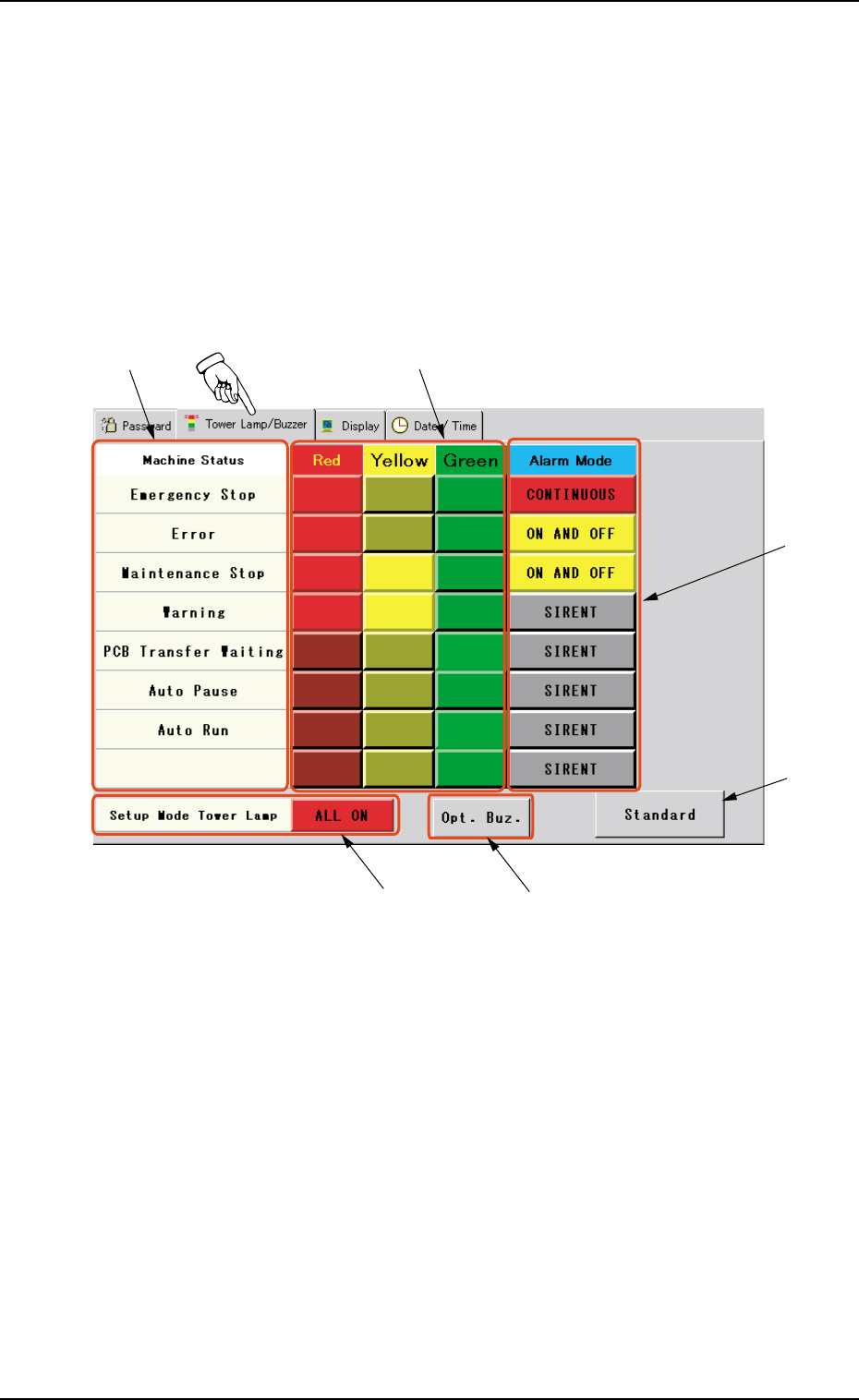
Fig. 3D8 "Tower Lamp/Buzzer" Tab Sheet
••
••
• Sheet Composition
*1 Classification of Machine Status
Each label indicates the condition of the machine in which the
corresponding tower light illuminates and the buzzer sounds.
The labels are displayed in high order of emergency according
to the degree of danger.
Tg0699-PM-D2
0207-001 Chapter 1 4-13
2.2 "Tower Lamp/Buzzer" Tab
*2 Tower Light Mode Buttons
These buttons can be classified by colors, indicating that the
tower lights can illuminate in the specified colors in accordance
with each machine status.
Every time a button is pressed, it is set in the order - "OFF" →
"ON" → "ON and OFF".
When "ON and OFF" is set, the light flashes in the cycle
of 1 second (ON and OFF each for 0.5 seconds).
*3 Alarm Mode Buttons
These buttons are used to set alarm modes in accordance with
each machine status.
Every time a button is pressed, the label changes in the order -
"SILENT" → "CONTINUOUS" → "ON AND OFF". The back-
ground color also changes in the order - "Gray" → "Red" →
"Yellow".
*4 [Standard] Button
When this button is pressed, the standard modes are set for
each tower light and buzzer sound.
*5 [Setup Mode Tower Lamp] Button
This button specifies the lighting mode of the tower lamps when
the [OPERATION/SET UP] switch set to the "SET UP" side.
Every time this button is pressed, the label "ALL ON" is changed
to "ALL OFF" or vice versa.
ALL ON : All lamps are turned ON.
ALL OFF : All lamps are turned OFF.
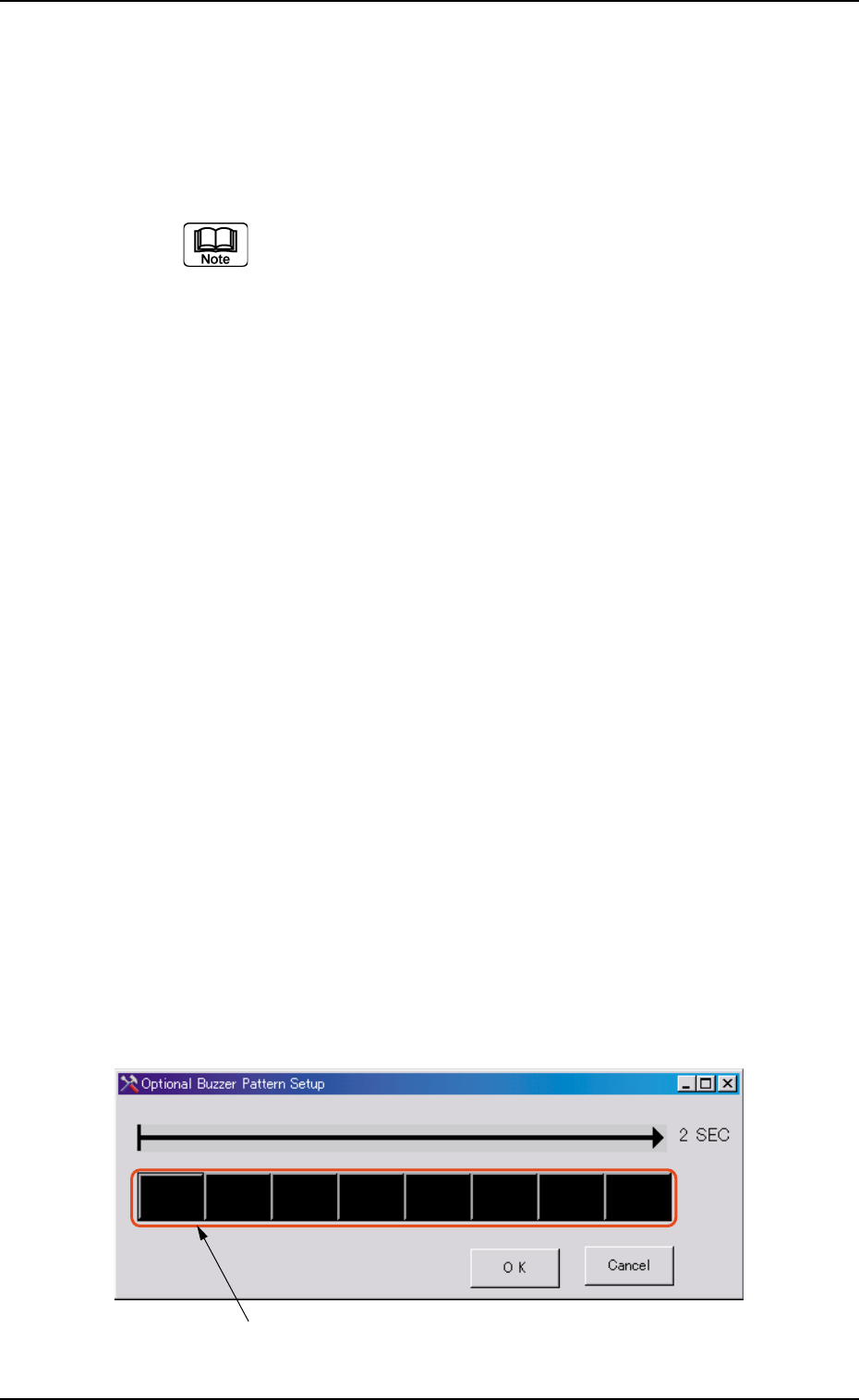
*6 [Opt. Buz.] Button
When pressed, this button opens the window for designation of
optional buzzer sounds.
"ON" and "OFF" can be specified in a cycle of two seconds as a
buzzer sound.
"ON" can be changed over to "OFF" or vice versa by pressing
one block (unit: 0.25 seconds).
Block
Fig. 3D9 "Optional Buzzer Pattern Setup" Window
Tg0699-PM-D2
0207-001 Chapter 1 4-14
2.3 "Display" Tab
*1
*2
*3
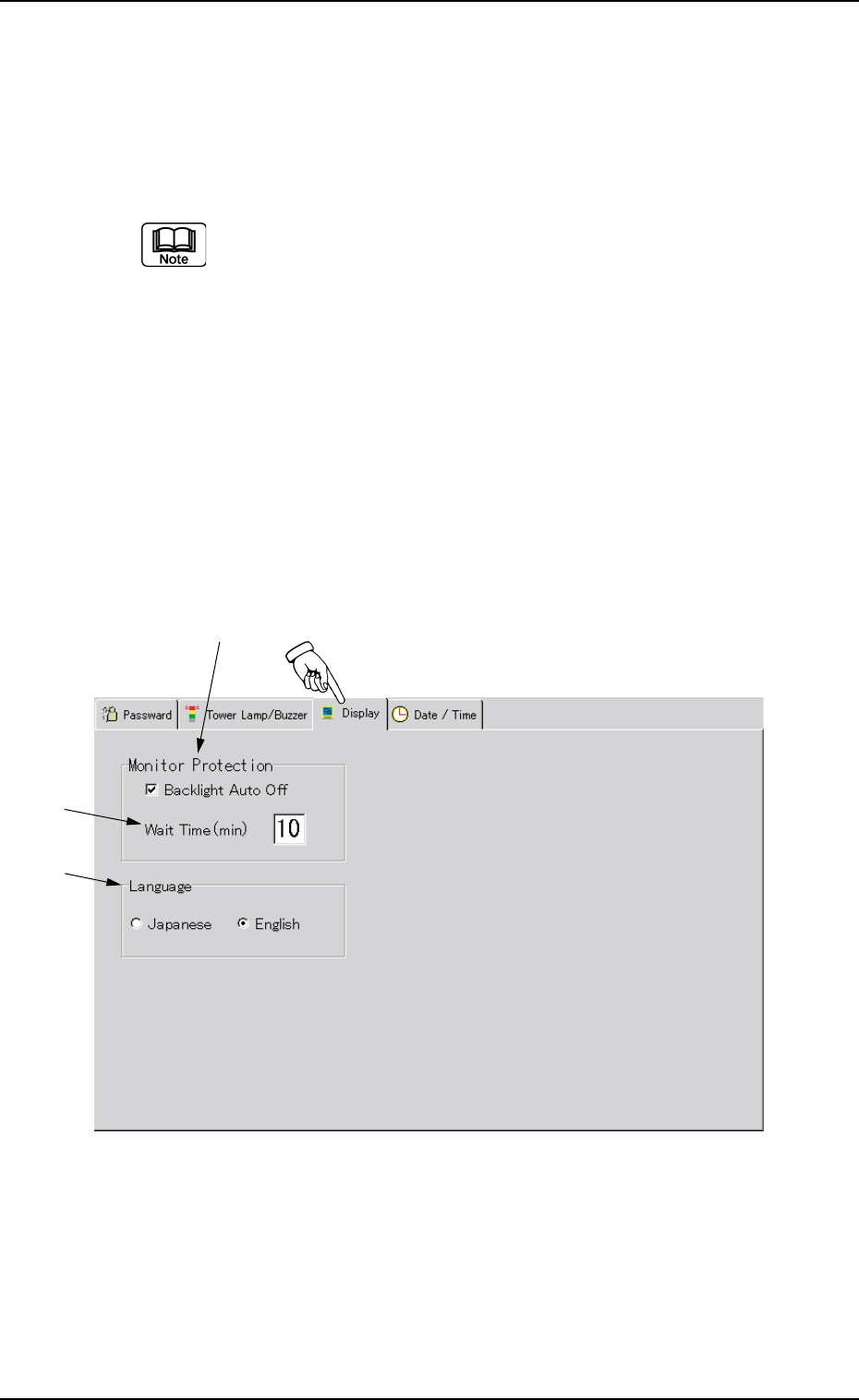
2.3 "Display" Tab
When no operation on the touch screen is needed for a long period
of time, the monitor protection function can be activated to avoid
burning the screen.
(a) When you touch the surface of the touch screen or
press the [POWER OFF] button on the front operation
panel, the monitor protection mode is canceled and a
window appears on the screen.
(b) When an error occurs or a management information
message should be issued, the monitor protection mode
is automatically canceled and a window appears on the
screen.
••
••
• Sheet Layout
When the "Display" tab is pressed in the "MAC. SET-UP" window
(submenu), the following tab sheet appears.
Fig. 3D10 "Display" Tab Sheet