2OM-1088-002.pdf - 第94页
Tg0699-PM-D2 0207-001 Chapter 1 2-35 2.1 Navigations in Window "V iew" Menu T able 3B6 Command Menus Functions Icons View PCB Image Not Available T ree Data Select A pane opens on the left side of the editing s…
Tg0699-PM-D2
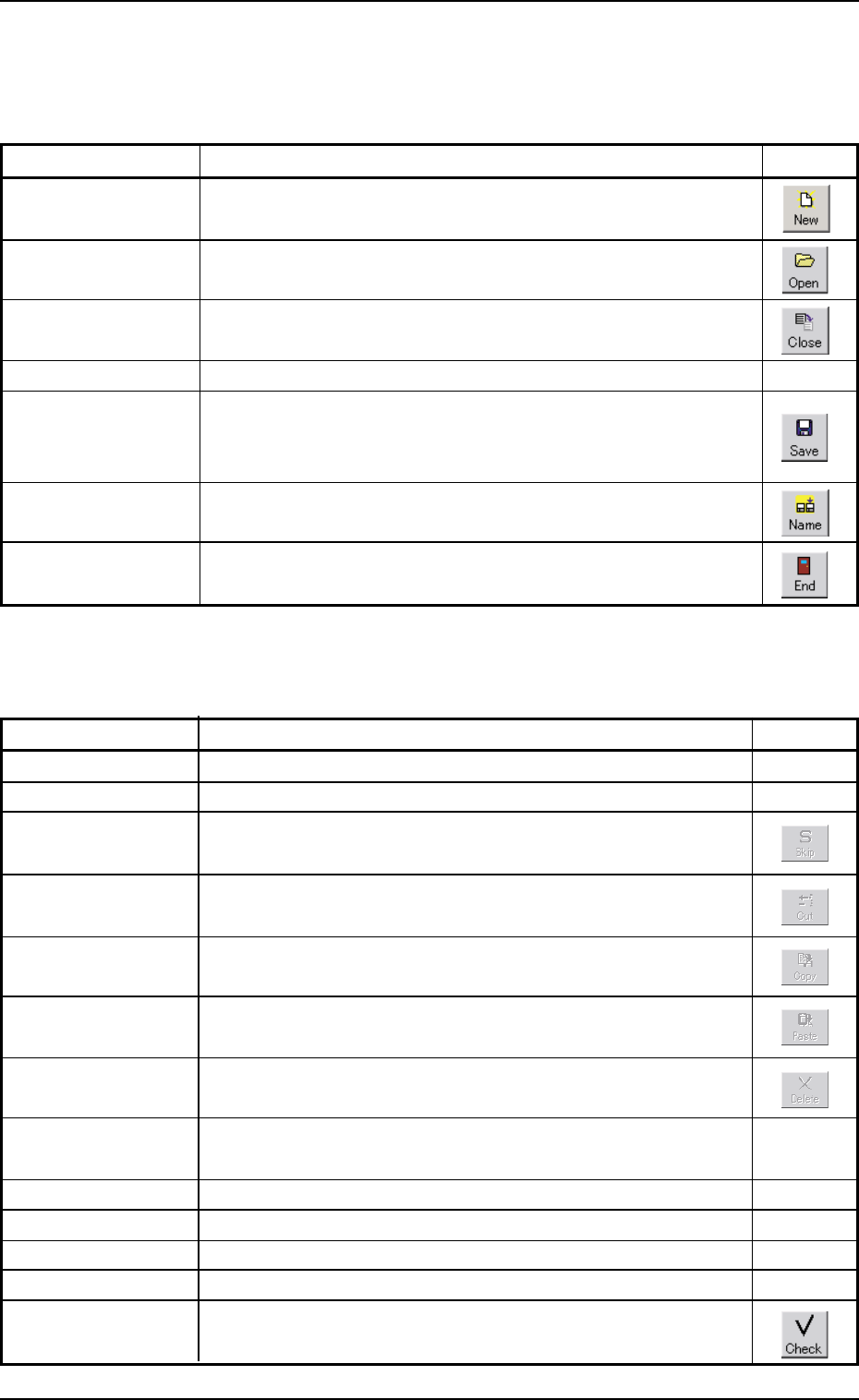
(1) Functions of Menu Bar and Toolbar
"File" Menu
Table 3B4
Command Menus Functions Icons
New Prgm. This makes it possible to newly create a pattern program.
Open... This displays a saved "Pattern Program" on the edit window.
Close This closes an active "Pattern Program" window.
All Close This closes all "Pattern Program" windows.
Save This saves an active "Pattern Program" window with the
same program name as the existing one. That is, the ex-
isting program is replaced with a new one.
Save As... This saves an active "Pattern Program" window with a new
name.
Exit This closes the current "Pattern Program" edit window and
allows the operator to exit from the pattern program editing.
"Edit" Menu
Table 3B5
Command Menus Functions Icons
Undo Not Available
Repeat Not Available
Skip This button is used in Printing Inspection (Option).
Cut This button is used in Printing Inspection (Option).
Copy This button is used in Printing Inspection (Option).
Paste This button is used in Printing Inspection (Option).
Delete This button is used in Printing Inspection (Option).
Clear Not Available
All Select This selects all items in the specific area.
Find... This searches a string of characters.
Replace Not Available
Go To... Not Available
Check... This checks the contents of the active "Pattern Program"
window.
0207-001 Chapter 1 2-34
2.1 Navigations in Window
Tg0699-PM-D2
0207-001 Chapter 1 2-35
2.1 Navigations in Window
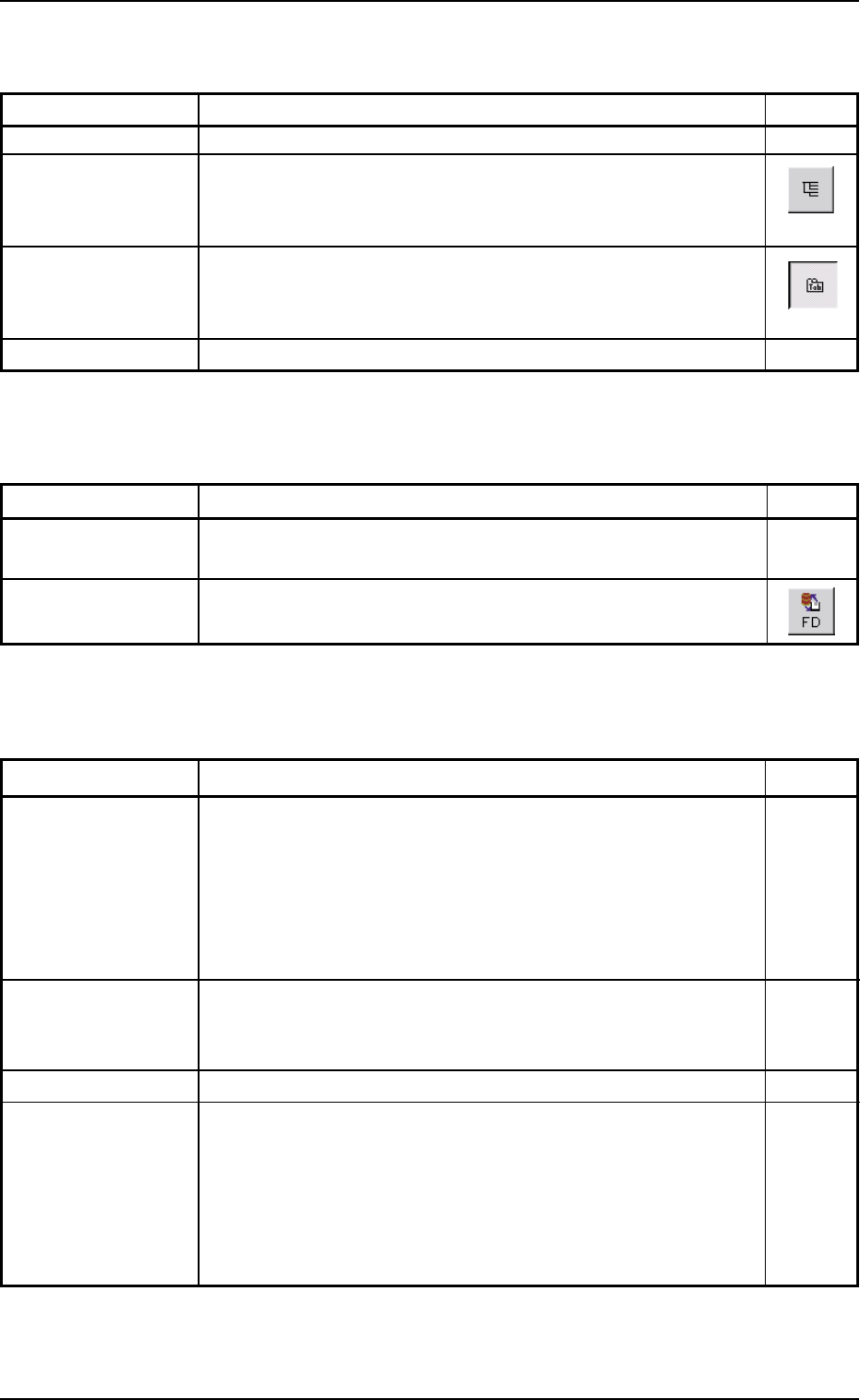
"View" Menu
Table 3B6
Command Menus Functions Icons
View PCB Image Not Available
Tree Data Select A pane opens on the left side of the editing sheet and dis-
plays the tree view of the data names as a group of data
that can be edited.
Tab Data Select This classifies the data to be edited into each tab sheet.
At least, either "Tree View Select" or "Tab Data Select" must
be selected.
Image Zoom... Not Available
"Window" Menu
"Tool" Menu
Table 3B7
Command Menus Functions Icons
User Option... This changes the display mode of the sheets and the direc-
tion of the cursor movement.
FD Backup... This saves the currently displayed pattern program on a
floppy disk.
Table 3B8
Command Menus Functions Icons
Cascade When several "Pattern Program" windows are opened at the
same time, cascading the windows overlays them so that
you can see each title bar.
The pattern program to be edited can be selected from "List
of Displayed Windows" located at the bottom of the pull-down
menu.
Tile When several "Pattern Program" windows are opened at the
same time, each window is re-arranged and the programs
appear in adjacent windows.
Separate This splits one sheet into two areas.
List of Displayed This lists the names (pattern program names) of all displayed
Windows windows.
In the case of "Cascade", the pattern program to be edited
can be selected from "List of Displayed Window". A check
mark (
9) appears next to the name of the currently active
window.
Tg0699-PM-D2
0207-001 Chapter 1 2-36
2.1 Navigations in Window
"Help" Menu Table 3B9
Command Menus Functions Icons
Contents... Not Available
Help Topics... Not Available
About... This displays the version of the current application
(software).
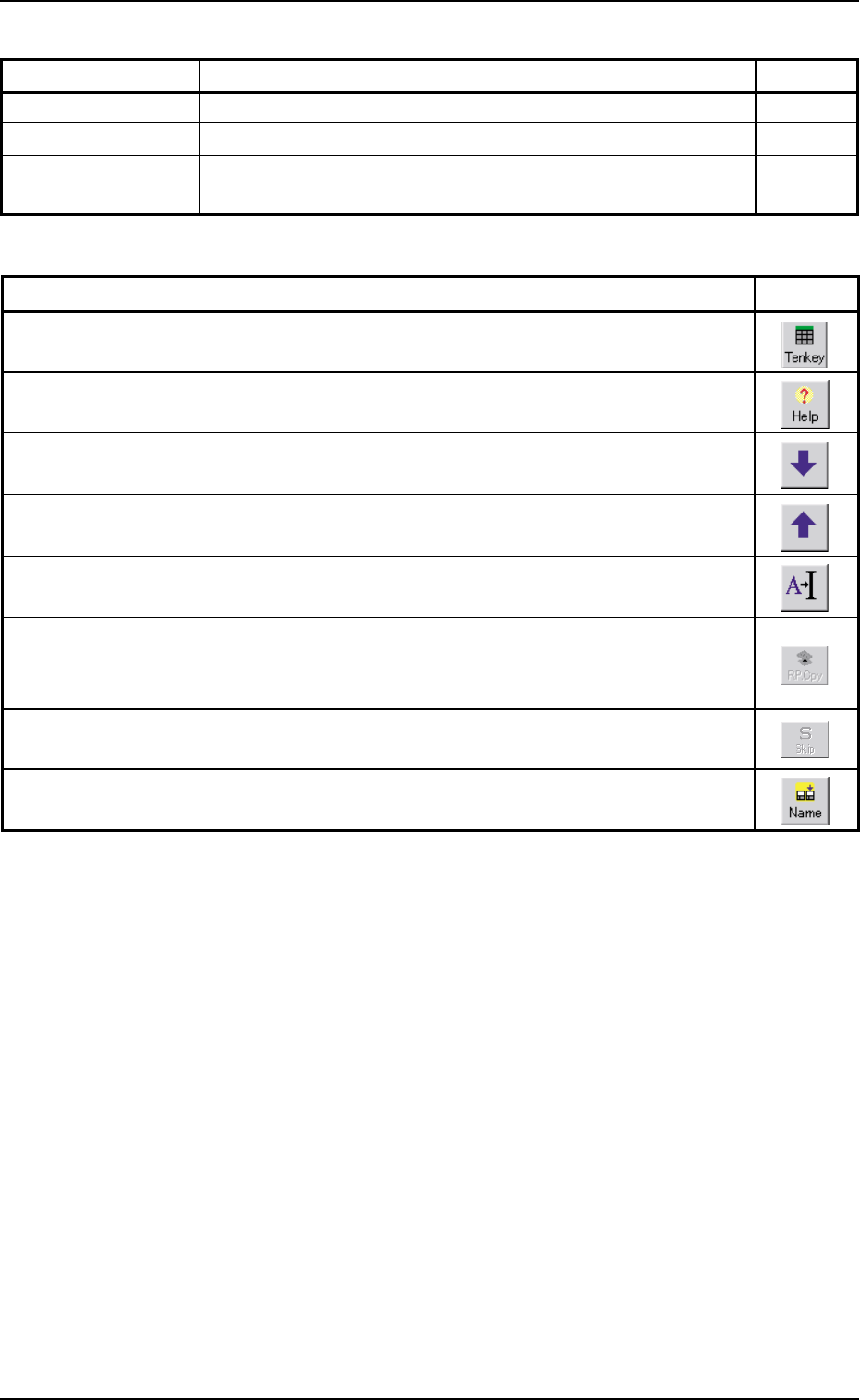
"Others" Menu Table 3B10
Command Menus Functions Icons
The
"Ten-Key" window is displayed.
The simple explanation about the data item is indicated.
The tool bar is extended.
The extended tool bar is closed.
The value of the selected data is set to the initial value.
The PCB recognition coordinates (1st Point and 2nd Point)
are copied on the screen. This is used when the same rec-
ognition mark is used on the PCB and screen.
This button is used in Printing Inspection (Option).
This indicates the menu bar.