2OM-1088-002.pdf - 第163页
Tg0699-PM-D2 0207-001 Chapter 1 4-16 2.4 "Date/T ime" T ab *3 *2 *1 *4 2.4 "Date/Time" T ab The corresponding tab sheet enables the operator to set the current date and time. • • • • • Sheet Layout Wh…
Tg0699-PM-D2
0207-001 Chapter 1 4-15
2.3 "Display" Tab
••
••
• Sheet Composition
*1 Monitor Protection
The monitor protection function can be activated to avoid burn-
ing the screen. The screen is automatically blanked.
When you turn on the check box, the check mark (;) appears
inside the box, indicating that the touch screen is set in the
monitor protection mode.
*2 Wait Time (min)
When the touch screen is set in the monitor protection mode,
enter the period of time during which the ten-key window or the
virtual keyboard is made visible and the touch screen is auto-
matically blanked after the last touch on the touch screen.
The input range is "01 to 99 minutes" in increments of 1 minute.
*3 Language
Either "Japanese" or "English" can be selected as a language of
touch screen.
Turn on the desired option button. A dot appears inside the
circle, indicating that the desired language is selected. After that,
press the [Save] button on the toolbar.
All labels are expressed in the selected language.
Language changes take time (about 10 seconds).
During the change, do not touch the window.
Tg0699-PM-D2
0207-001 Chapter 1 4-16
2.4 "Date/Time" Tab
*3
*2
*1
*4
2.4 "Date/Time" Tab
The corresponding tab sheet enables the operator to set the current
date and time.
••
••
• Sheet Layout
When the "Date/Time" tab is pressed in the "MAC. SET-UP" win-
dow (submenu), the following tab sheet appears.
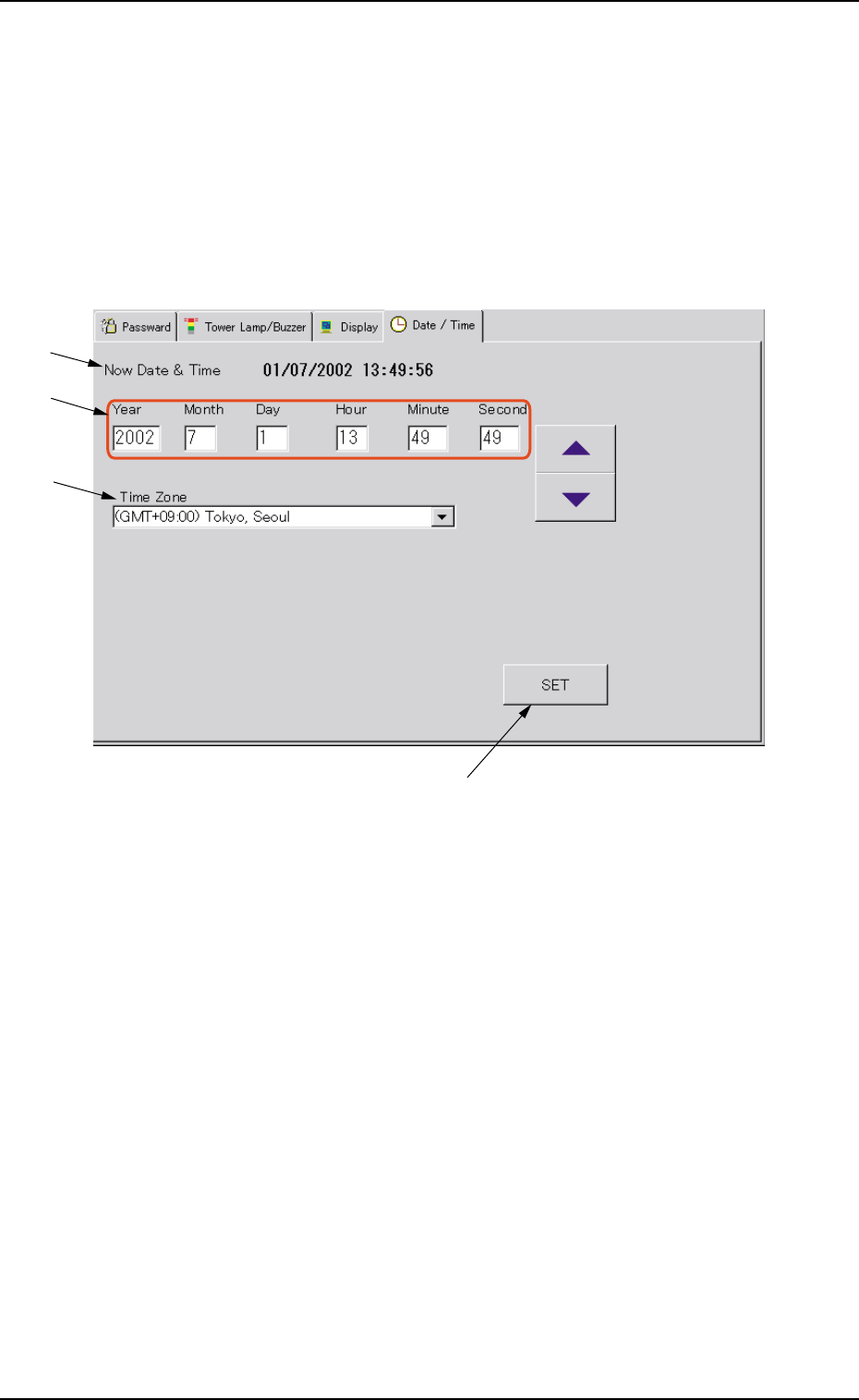
Fig. 3D11 "Date/Time" Tab Sheet
••
••
• Sheet Composition
*1 Now Date & Time
Displayed are the current date and time.
*2 Year, Month, Day, Hour, Minute, Second
Set the date and time in each text box.
*3 Time Zone
Set the time zone in the text box.
Example : When the machine is used in Japan, select
"(GMT+09:00) Tokyo, Seoul" from the drop-down list
of the combo box.
Tg0699-PM-D2
0207-001 Chapter 1 4-17
2.4 "Date/Time" Tab
*4 [SET] Button
When pressed, the current date and time are updated to the
specified date and time.
Setting Method
Touch the desired text box and select the [ ] or the [ ] button
to change the value. After that, press the [SET] button.
Be sure to press the [SET] button after selecting the
time difference between the local time and GMT.