2OM-1088-002.pdf - 第161页
Tg0699-PM-D2 0207-001 Chapter 1 4-14 2.3 "Display" T ab *1 *2 *3 2.3 "Display" T ab When no operation on the touch screen is needed for a long period of time, the monitor protection function can be ac…
Tg0699-PM-D2
0207-001 Chapter 1 4-13
2.2 "Tower Lamp/Buzzer" Tab
*2 Tower Light Mode Buttons
These buttons can be classified by colors, indicating that the
tower lights can illuminate in the specified colors in accordance
with each machine status.
Every time a button is pressed, it is set in the order - "OFF" →
"ON" → "ON and OFF".
When "ON and OFF" is set, the light flashes in the cycle
of 1 second (ON and OFF each for 0.5 seconds).
*3 Alarm Mode Buttons
These buttons are used to set alarm modes in accordance with
each machine status.
Every time a button is pressed, the label changes in the order -
"SILENT" → "CONTINUOUS" → "ON AND OFF". The back-
ground color also changes in the order - "Gray" → "Red" →
"Yellow".
*4 [Standard] Button
When this button is pressed, the standard modes are set for
each tower light and buzzer sound.
*5 [Setup Mode Tower Lamp] Button
This button specifies the lighting mode of the tower lamps when
the [OPERATION/SET UP] switch set to the "SET UP" side.
Every time this button is pressed, the label "ALL ON" is changed
to "ALL OFF" or vice versa.
ALL ON : All lamps are turned ON.
ALL OFF : All lamps are turned OFF.
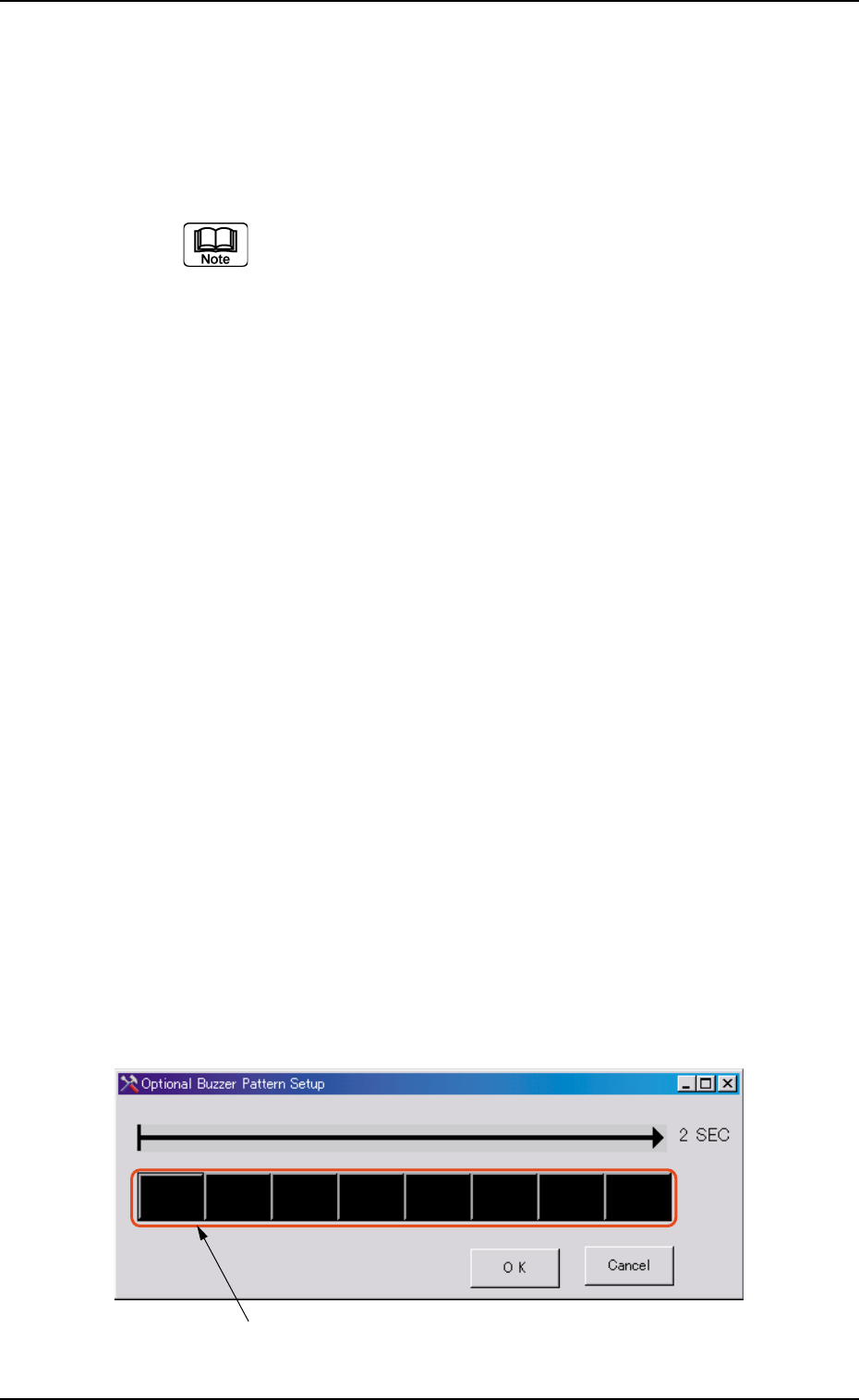
*6 [Opt. Buz.] Button
When pressed, this button opens the window for designation of
optional buzzer sounds.
"ON" and "OFF" can be specified in a cycle of two seconds as a
buzzer sound.
"ON" can be changed over to "OFF" or vice versa by pressing
one block (unit: 0.25 seconds).
Block
Fig. 3D9 "Optional Buzzer Pattern Setup" Window
Tg0699-PM-D2
0207-001 Chapter 1 4-14
2.3 "Display" Tab
*1
*2
*3
2.3 "Display" Tab
When no operation on the touch screen is needed for a long period
of time, the monitor protection function can be activated to avoid
burning the screen.
(a) When you touch the surface of the touch screen or
press the [POWER OFF] button on the front operation
panel, the monitor protection mode is canceled and a
window appears on the screen.
(b) When an error occurs or a management information
message should be issued, the monitor protection mode
is automatically canceled and a window appears on the
screen.
••
••
• Sheet Layout
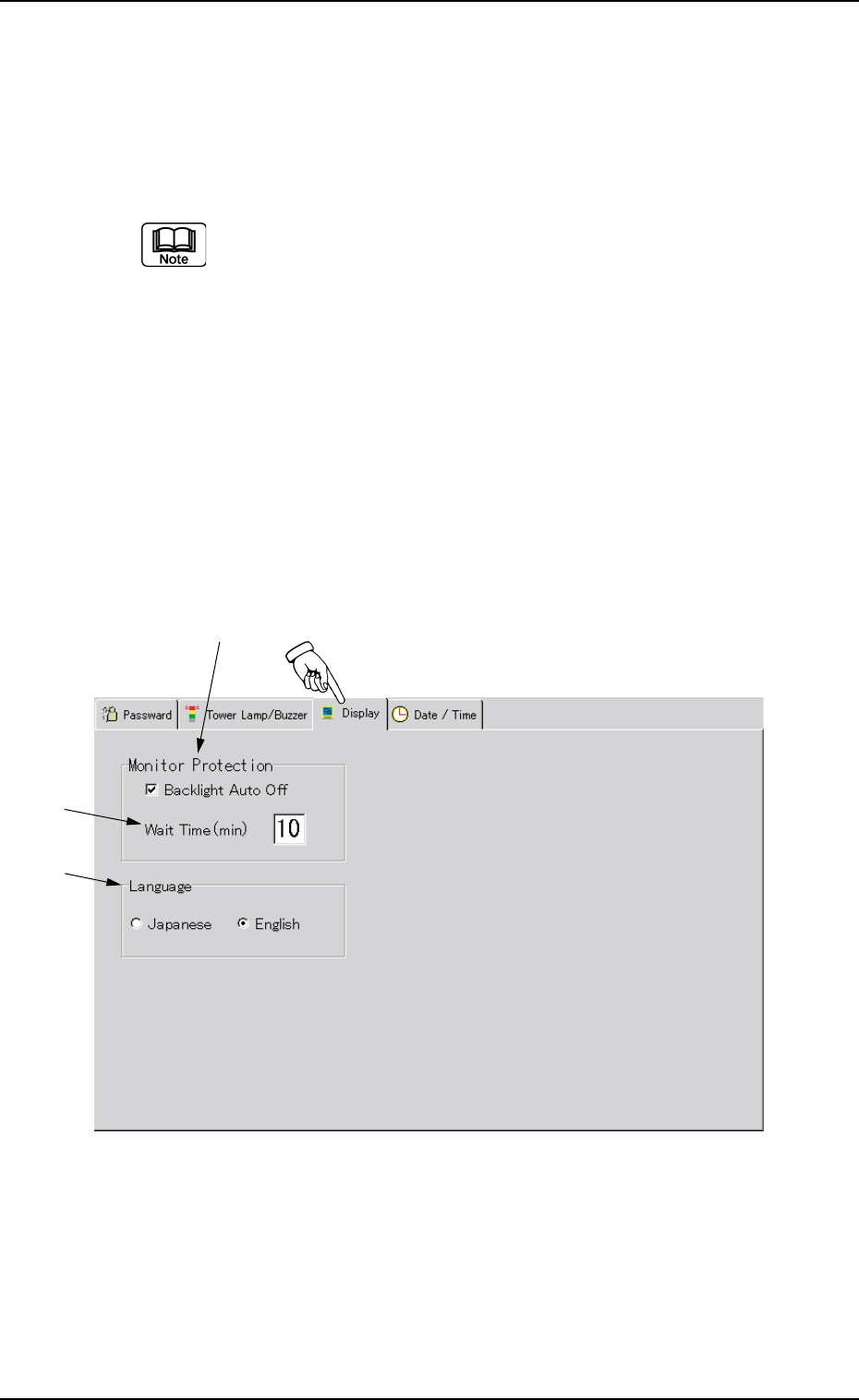
When the "Display" tab is pressed in the "MAC. SET-UP" window
(submenu), the following tab sheet appears.
Fig. 3D10 "Display" Tab Sheet

Tg0699-PM-D2
0207-001 Chapter 1 4-15
2.3 "Display" Tab
••
••
• Sheet Composition
*1 Monitor Protection
The monitor protection function can be activated to avoid burn-
ing the screen. The screen is automatically blanked.
When you turn on the check box, the check mark (;) appears
inside the box, indicating that the touch screen is set in the
monitor protection mode.
*2 Wait Time (min)
When the touch screen is set in the monitor protection mode,
enter the period of time during which the ten-key window or the
virtual keyboard is made visible and the touch screen is auto-
matically blanked after the last touch on the touch screen.
The input range is "01 to 99 minutes" in increments of 1 minute.
*3 Language
Either "Japanese" or "English" can be selected as a language of
touch screen.
Turn on the desired option button. A dot appears inside the
circle, indicating that the desired language is selected. After that,
press the [Save] button on the toolbar.
All labels are expressed in the selected language.
Language changes take time (about 10 seconds).
During the change, do not touch the window.