GL541操作手册.pdf - 第201页
Part 5 5 - 1 V ersion 2.0 Chapter 1 Buf fer Image Display 1. Buffer Image Display Use the vision processing command sequence [SET] -> [MANUAL] -> [VISION] -> [BUFFER IMG] to access functions which can be used to…

Part Five
Vision Processing
Part 5
5 - 1
Version 2.0
Chapter 1 Buffer Image Display
1. Buffer Image Display
Use the vision processing command sequence [SET] -> [MANUAL] -> [VISION] -> [BUFFER
IMG] to access functions which can be used to manipulate the buffer image stored in the
vision processing memory.
The ID code must be input in order to enter the [BUFFER IMG] command.
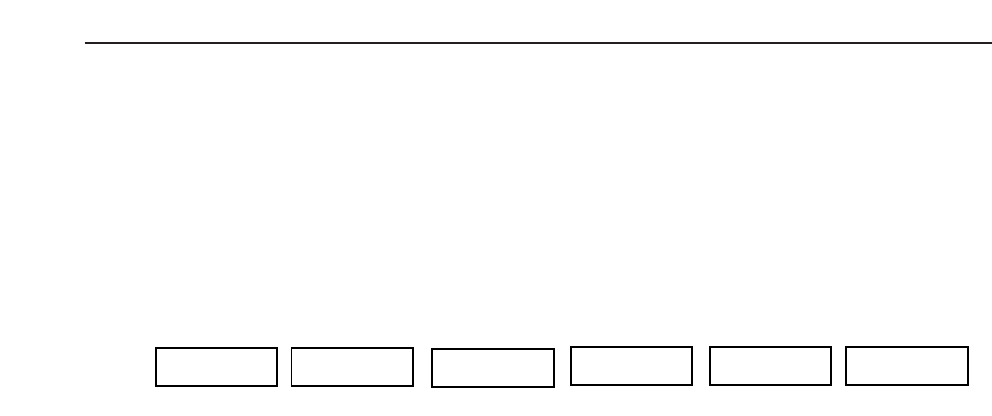
The function keys (F1~F6) shown below display when the [BUFFER IMG] command is selected.
Note: Refer to chapter 2 for details of the trace command section.
If the [RETURN] key is pressed the screen will return to the previous page.
For additional details refer to the SMD3 Operation Manual.
1.1 Buffer Image Selection
The buffer image that is to be displayed is selected using the [SEL BUF IMG] command
section.
Note: The vision processing board in this machine can hold one image in its buffer.
TRACE REINSPECT DISPLAY RETURN
F1 F2 F4 F5 F6
SEL BUF IMG
F3
GL-541E Operation
Chapter 1 Buffer Image Display
Part 5
1.2 Buffer Image Display
The buffer image display is a display of the fiducial mark image which is held in the
buffer of the vision processing board. When a vision processing error occurs during
production, this function can be used to check the image in order to help find the cause
of the error.
The [DISPLAY] command is used to display the selected buffer image on the vision
processing monitor.
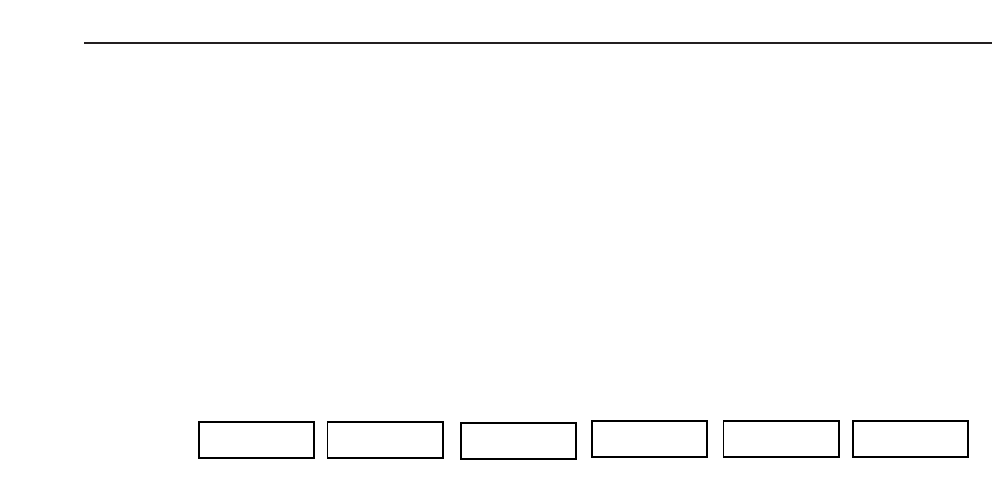
The function keys (F1~F6) shown below display when the [DISPLAY] command is
selected.
ZOOM IN: Enlarges the displayed image.
ZOOM OUT: Reduces an image that has been enlarged.
The image acquired by the mark camera cannot be reduced to a size
smaller than the size of the image when it was acquired.
SCROLL: The image can be scrolled up and down or left and right using the
scroll commands.
<<<<< Moves the image to the left.
>>>>> Moves the image to the right.
▲ Moves the image up.
▼ Moves the image down.
STEP Specifies the number of pixels the image moves each
time one of the scroll commands is pressed.
10 -> 25 -> 50 -> 100 ->10 [Pixel]
RETURN: Returns to the previous page.
ZOOM IN ZOOM OUT SCROLL RETURN
F1 F2 F4 F5 F6
F3
5 - 2
Version 2.0
GL-541E Operation