GL541操作手册.pdf - 第62页
Part 2 (4) Input the number of the block to be skipped from the numeric keypad. Example: If block number 3 is input, the green display (B 3P) changes to a yellow display (B 3S). (5) A red display (e.g. B 3S), indicates t…
Part 2
2 – 28
4.2 Setting the Block Skip Function
The block skip function can be set at the GL-541E operation panel or by reading block
skip marks on the board with the fiducial camera.
These methods are described below using simple examples.
4.2.1 Setting the Block Skip Function at the Machine
Procedure:
(1) Create a multi-block program in F4G and transmit the program to the
GL-541E.
Refer to the F4G Tutorial Manual for details about creating a production
program.
(2) Specify this program as the current production program using the
[CHANGE] function key in the [PROGRAM] menu or by transmitting the
program to the machine foreground using F4G.
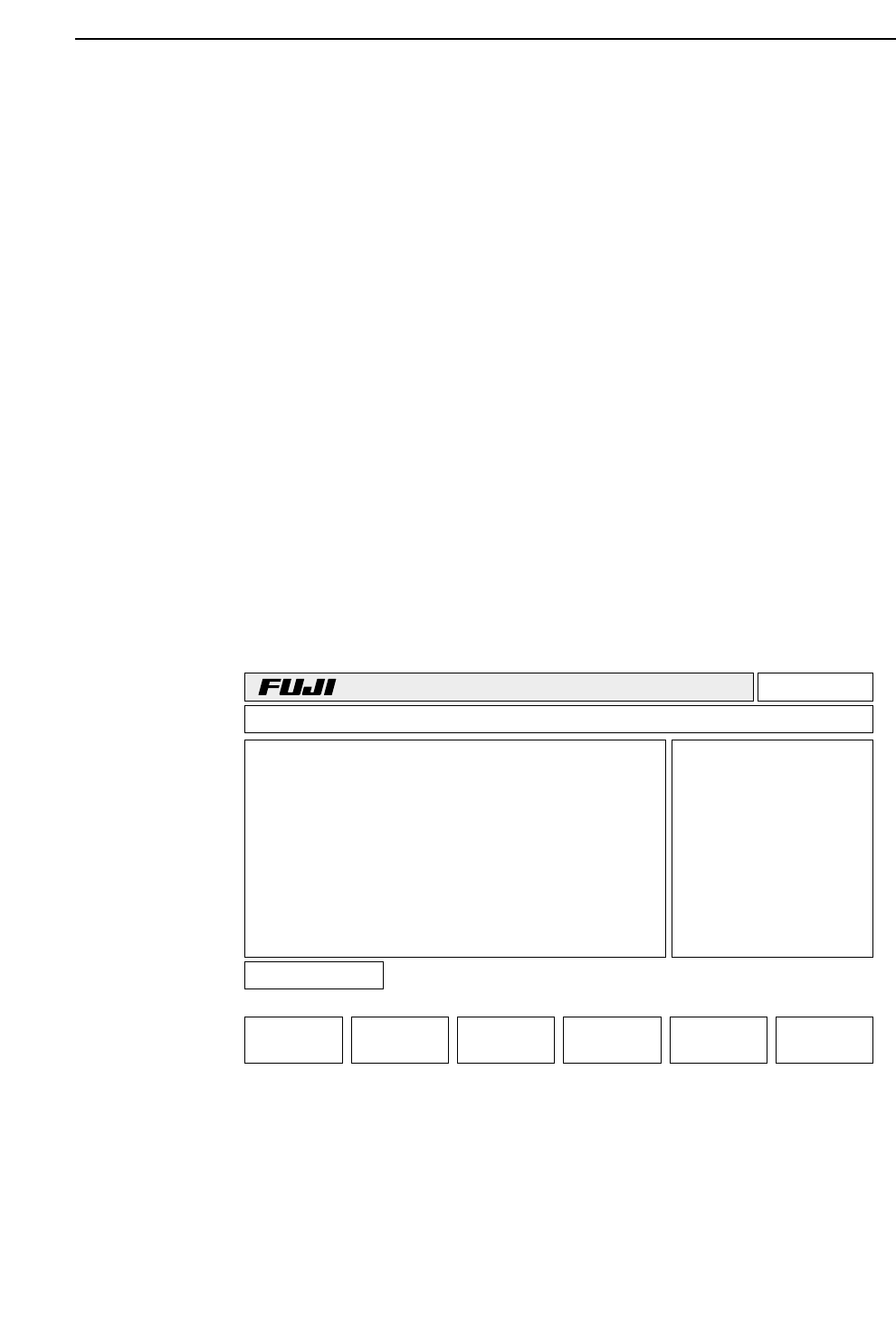
(3) Press [PROGRAM] -> [SKIP] -> [BLOCK]
The display appears as shown below.
The example in the display shows a five-block program with block 5 already
set to be skipped.
v3.00
Off line
+PAGE -PAGE
Block No.
RETURN
TEXT Prod 00000 Sche 00000 Block
B
B
B
B
B
1P
2P
3P
4P
5S
GL-541E Operation
Version 2.0
Chapter 4 Block Skip Function

Part 2
(4) Input the number of the block to be skipped from the numeric keypad.
Example: If block number 3 is input, the green display (B 3P) changes
to a yellow display (B 3S).
(5) A red display (e.g. B 3S), indicates that the block is already skipped in the
production program transmitted from the F4G. This cannot be cleared at
the machine.
(6) Input the number of a skipped block (displayed in yellow) once more to
clear the block skip function and change the display of the block number
back to its original state.
Example: Input block number 3 again to change the yellow display (B
3S) back to a green display (B 3P).
(7) When the block skip function has been set correctly, press the [RETURN]
key to return to the original display.
Key to the Block Skip Function Display
B 1P (green):
Indicates that components will be placed normally on block 1.
B 2S (yellow):
Indicates that block 2 has been set at the machine to be skipped. This can be
cleared from the machine.
B 3S (red):
Indicates that block 3 has been set to be skipped in the production program
transmitted from F4G. This cannot be cleared at the machine. In order to
clear the skip setting, transmit the program again from F4G after clearing
the block skip settings.
2 – 29
GL-541E Operation
Chapter 4 Block Skip Function
Version 2.0
Part 2
2 – 30
4.2.2 Setting the Block Skip Function with Block Skip Marks
The fiducial camera reads the block skip marks on the board and automatically
sets the block skip function.
Setting the block skip marks
Procedure:
(1) Enter the block skip mark information in the [Mark Edit] window in the
Program Editor.
Type:
Select “B” (Block Skip Mark) from the drop-down list box.
Pattern:
Input is not required.
Read Level:
Input is not required.
Scanning Level:
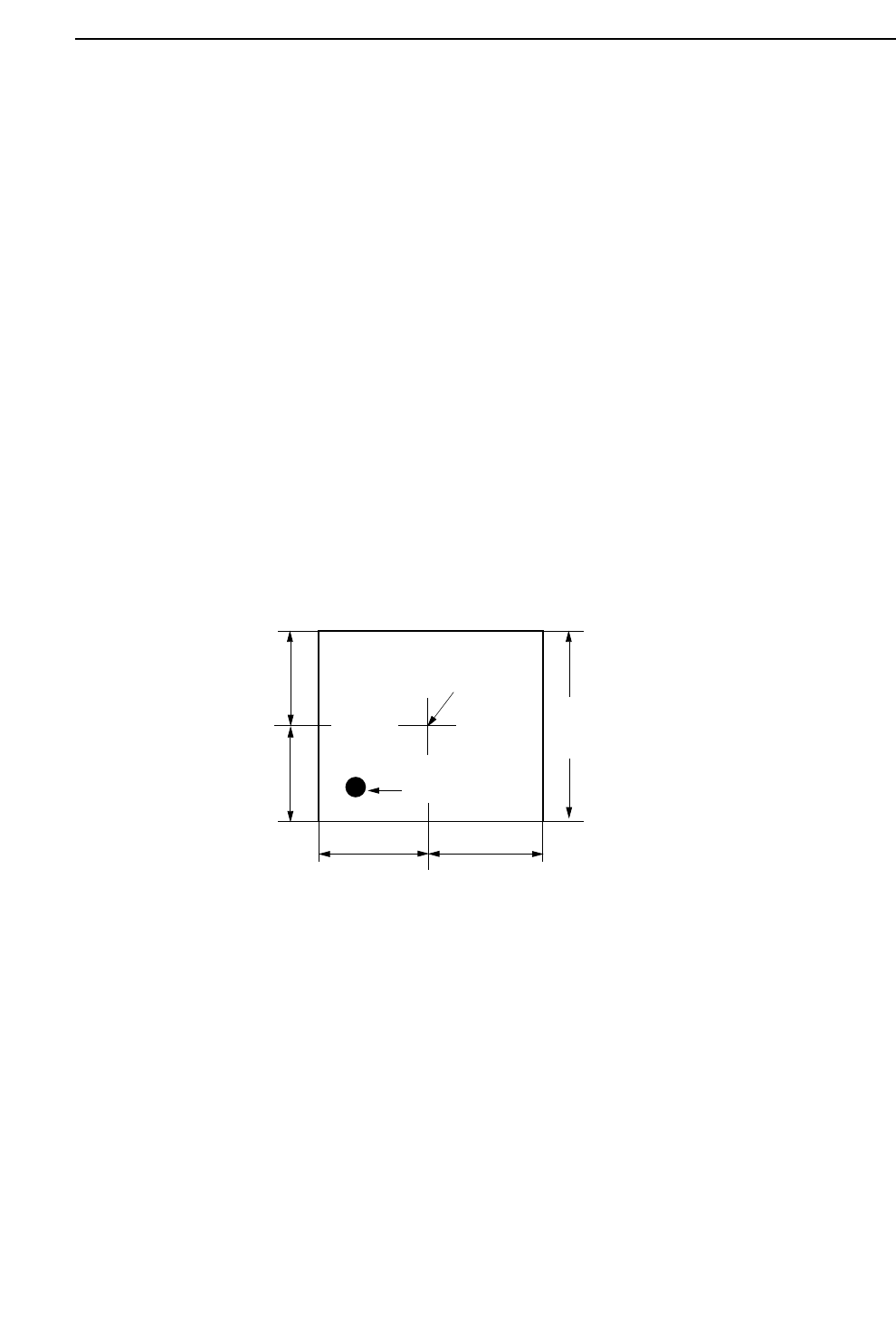
Specifies the area in which a search is made for the block skip mark. Refer
to the following figure.
Size A, B, C:
Input is not required.
Size X, Y:
Input is not required.
Inspection Method:
Input is not required.
Mark Color:
Set the block skip mark color as seen by the camera to black (Dark) or white
(Bright).
Area specified in "Scan".
(Length of one side of a square)
Camera Center
Application Point
A
B
C
D
Note: A=B=C=D
GL-541E Operation
Version 2.0
Chapter 4 Block Skip Function