GL541操作手册.pdf - 第61页
Part 2 2 – 28 4.2 Setting the Block Skip Function The block skip function can be set at the GL-541E operation panel or by reading block skip marks on the board with the fiducial camera. These methods are described below …

Part 2
4. Block Skip Function
A multi-block board is a board which has the same pattern printed on it several times.
It is possible that one or more of these patterns on a multi-block board may be defective. If this
happens, the defective blocks must be skipped so that no glue is dispensed on them.
Fuji machines have a special ‘block skip’ function to enable the operator to specify which blocks
of a multi-block board should be skipped.
4.1 How to Use the Block Skip Function
The block skip function can be used in the following three ways. Choose the best
method to suit the operating situation.
• Use the F4G block skip setting in sequence data in the program editor.
This is the best method to use when skipping the same block on every board.
Refer to the F4G Tutorial Manual for details about setting a block skip in the
production program.
• Use the [Skip] command on the machine.
This is the best method for skipping a particular block in a small lot of boards.
Refer to Section 4.2.1 for details about setting the block skip function at the machine.
• Use block skip marks on the board.
The fiducial camera reads the block skip marks on the board (marks used for
identification with the block skip function) and automatically skips all blocks which
are marked to be skipped.
This makes it easy to skip blocks at random.
Refer to section 4.2.2 for details about skipping blocks using the mark camera.
2 – 27
GL-541E Operation
Chapter 4 Block Skip Function
Version 2.0
Part 2
2 – 28
4.2 Setting the Block Skip Function
The block skip function can be set at the GL-541E operation panel or by reading block
skip marks on the board with the fiducial camera.
These methods are described below using simple examples.
4.2.1 Setting the Block Skip Function at the Machine
Procedure:
(1) Create a multi-block program in F4G and transmit the program to the
GL-541E.
Refer to the F4G Tutorial Manual for details about creating a production
program.
(2) Specify this program as the current production program using the
[CHANGE] function key in the [PROGRAM] menu or by transmitting the
program to the machine foreground using F4G.
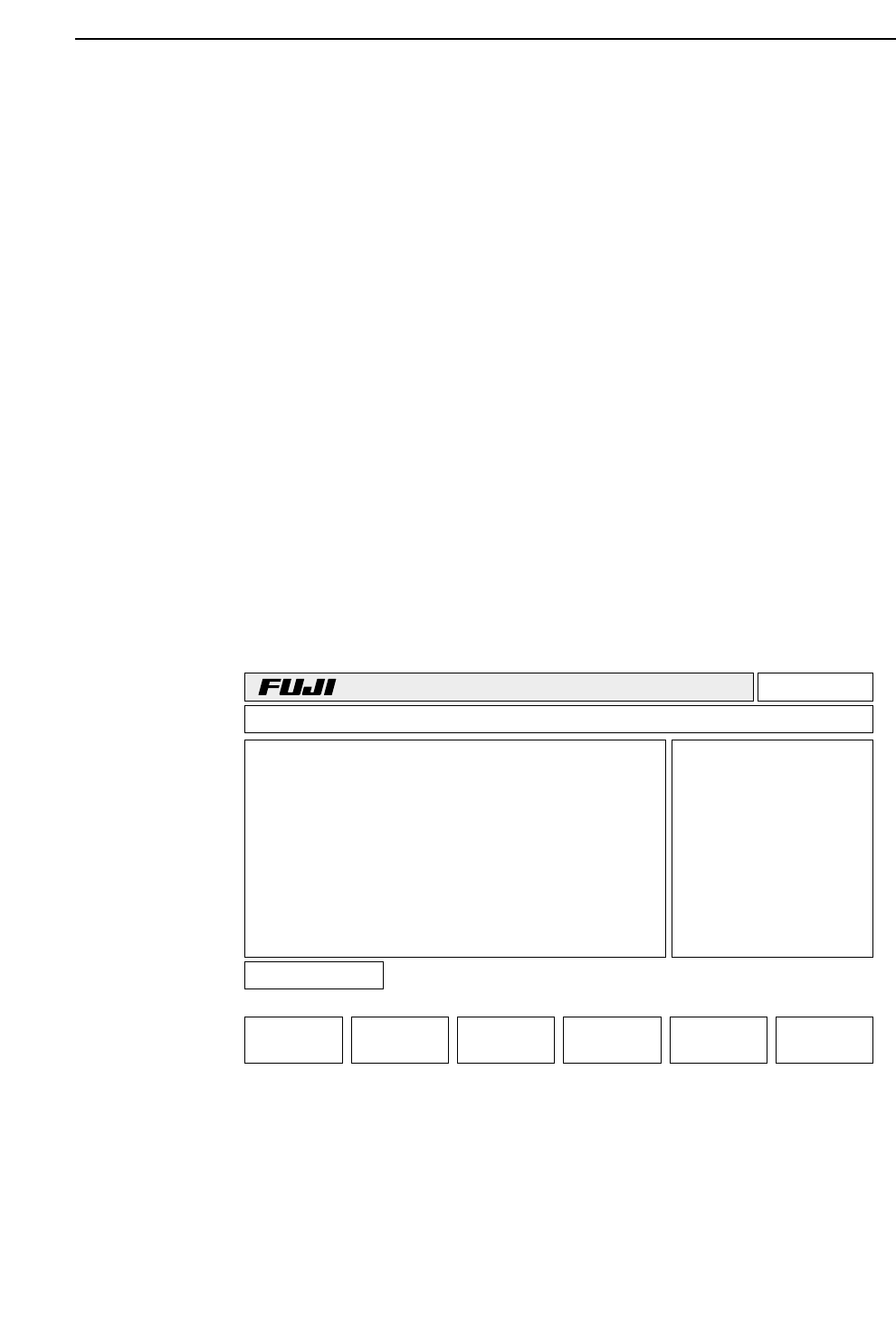
(3) Press [PROGRAM] -> [SKIP] -> [BLOCK]
The display appears as shown below.
The example in the display shows a five-block program with block 5 already
set to be skipped.
v3.00
Off line
+PAGE -PAGE
Block No.
RETURN
TEXT Prod 00000 Sche 00000 Block
B
B
B
B
B
1P
2P
3P
4P
5S
GL-541E Operation
Version 2.0
Chapter 4 Block Skip Function

Part 2
(4) Input the number of the block to be skipped from the numeric keypad.
Example: If block number 3 is input, the green display (B 3P) changes
to a yellow display (B 3S).
(5) A red display (e.g. B 3S), indicates that the block is already skipped in the
production program transmitted from the F4G. This cannot be cleared at
the machine.
(6) Input the number of a skipped block (displayed in yellow) once more to
clear the block skip function and change the display of the block number
back to its original state.
Example: Input block number 3 again to change the yellow display (B
3S) back to a green display (B 3P).
(7) When the block skip function has been set correctly, press the [RETURN]
key to return to the original display.
Key to the Block Skip Function Display
B 1P (green):
Indicates that components will be placed normally on block 1.
B 2S (yellow):
Indicates that block 2 has been set at the machine to be skipped. This can be
cleared from the machine.
B 3S (red):
Indicates that block 3 has been set to be skipped in the production program
transmitted from F4G. This cannot be cleared at the machine. In order to
clear the skip setting, transmit the program again from F4G after clearing
the block skip settings.
2 – 29
GL-541E Operation
Chapter 4 Block Skip Function
Version 2.0