GL541操作手册.pdf - 第206页
Chapter 2 Trace Mode Part 5 Note: The [TRACE] command section is used to specify the trace mode. The display at the vision processing monitor differs depending on the combination of the trace settings. The settings carri…
Part 5
5 - 5
Version 2.0
Chapter 2 Trace Mode
2. Trace Mode
The trace mode settings can be used to graphically display the course of vision processing on
the vision processing monitor.
For additional details refer to the SMD3 Operation Manual.
2.1 Trace Mode
The trace mode settings can be accessed by selecting the [SET] -> [MANUAL]
-> [VISION] -> [TRACE] command sequence.
The ID code must be input to enter the trace mode settings.
In addition the trace mode settings can also be selected in the following ways.
(1) Select [TRACE] from the [BUFFER IMG] command section.
(2) Select [TRACE] from the [VISION TEST] and [F MARK] command sections.
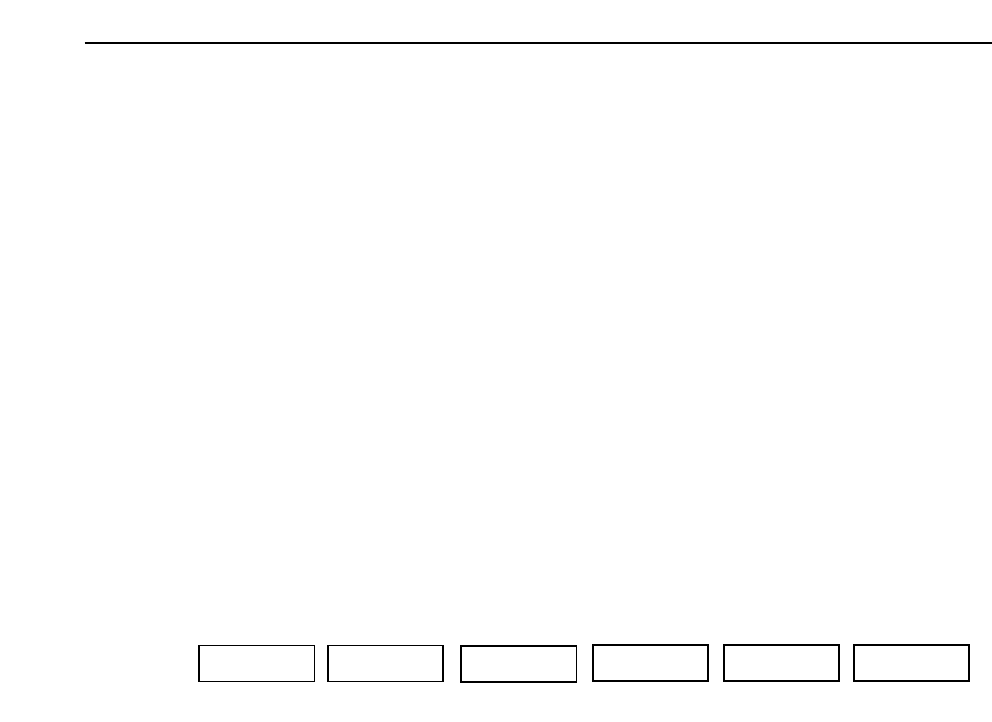
The function keys (F1~F6) shown below display when the [TRACE] command is
selected.
▲: Moves the cursor up.
▼: Moves the cursor down.
ON/OFF: Toggle the selected trace mode setting between ON and OFF.
ON The selected setting is enabled.
OFF The selected setting is cleared.
CLEAR: All items are set to OFF.
RETURN: Returns to the previous page.
Note also that if the item number is input using the numeric keypad, the cursor will
move to the item corresponding to the number that has been input.
RETURN
F1 F2 F4 F5 F6
F3
▲ ON/OFF▼ CLEAR
GL-541E Operation

Chapter 2 Trace Mode
Part 5
Note: The [TRACE] command section is used to specify the trace mode. The display at the
vision processing monitor differs depending on the combination of the trace settings.
The settings carried out here may affect automatic or step operation. Depending on the
mode settings, the speed of vision processing may be decreased. Remember that this
function is only for debugging and not for use during production.
2.2 Descriptions of the Trace Settings
A description is given below of each item that can be set in the trace mode.
For additional information refer to the SMD3 Operation Manual.
No.0 Result
This carries out the graphic display of the vision processing results.
No.1 Tole
This displays a tolerance graph overlapping the vision processing results.
No.2 Window
This is utilized when vision processing is checked using calipers.
No.3 Point
During the inspection of all processes, if there is a designated window for the algorithm
the position and size of the window will display.
No.4 Line
This carries out the display of the designated points.
No.5 RS232C
The vision processing data is output to the terminal via an RS232C cable.
No.13 Color
This is used to change the color of the graphical display to black. Normally when this is
not set, graphs will display in white.
5 - 6
Version 2.0
GL-541E Operation

Part 5
5 - 7
Version 2.0
Chapter 2 Trace Mode
No.14 Detail
This displays all of the graphic functions along with the detailed data for each respective
function. A trackball must be used if this setting is utilized.
No.15 Pause
Set flags when the trackball is used. This is used in combination with other functions.
No.24 Clp
This is used to verify the processing of the algorithm that is utilized with the caliper
function.
No.25 Blob
This is used to verify the processing of the algorithm that is utilized with blob analysis
processing.
No.26 Agf
This is used when a detailed check of the angle finder is carried out.
No.27 BT
This displays the results of boundary tracking on the vision processing monitor.
No.30 AcqTime
This is used when the vision processing acquisition time is output from the parallel I/O.
(Normally this is not used.)
No.31 InsTime
This is used when the vision processing time is output from the parallel I/O. (Normally
this is not used.)
GL-541E Operation