CP45-英文版培训教材.pdf - 第58页
Operating Manual MODEL Reference Figure CP-45/55 Operation Process V <8. Parameter> Area ^<Score> Edit Box Score refers to a numerical for inspecting how Fiducial Mark inspected corresponds to the set data. T…
Operating Manual
MODEL
Reference Figure
CP-45/55 Operation Process
Width Y
Width X
Y
x
V
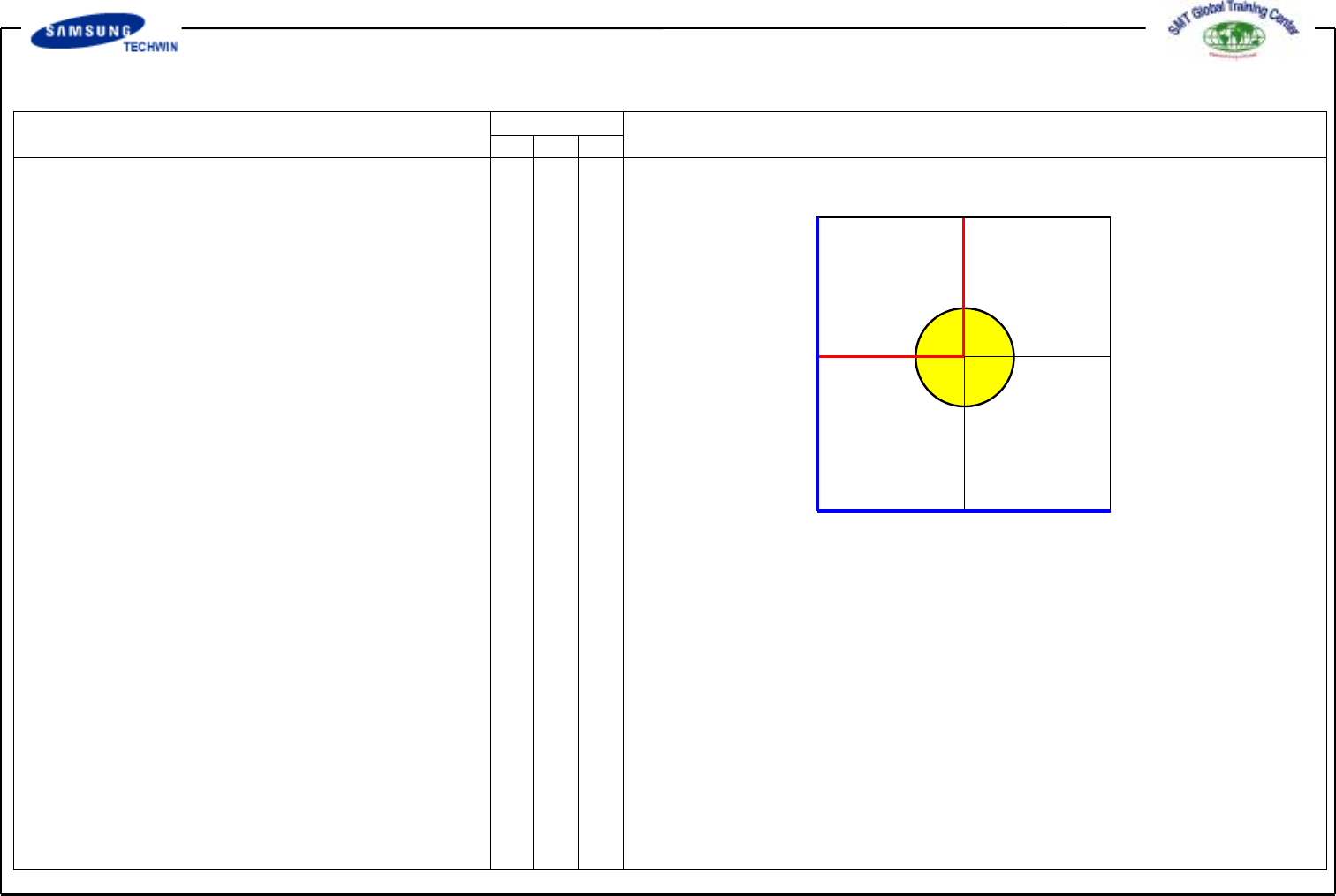
<7. Search Area> Area
This sets the area to inspect the
Fiducial Mark. The purpose of
this is to limit the range to inspect
Mark in case that interference for
acknowledgement caused by shape
similar to Mark exists around Mark
on certain PCB.
<X> Edit Box (Symbol is (-))
This sets the start position for
inspecting the Fiducial Mark at
the direction of X-axis.
Input the size of 1~1.5 times of Mark
size to ensure that the center of
Vision Monitor Screen is 0.
<Y> Edit Box (Symbol is (-))
This sets the start position for
inspecting the Fiducial Mark at
the direction of Y-axis.
Input the size of 1~1.5 times of Mark
size to ensure that the center of
Vision Monitor Screen is 0.
<Width X> Edit Box
This sets range to inspect Fiducial
Mark to X-axis direction. In general,
set the value of 6mm. Input values
of 2 times as much as X and Y
axes.
<Width Y> Edit Box
This sets range to inspect Fiducial
Mark to Y-axis direction. In general,
set the value of 6mm.
Operating Manual
MODEL
Reference Figure
CP-45/55 Operation Process
V
<8. Parameter> Area
^<Score> Edit Box
Score refers to a numerical for
inspecting how Fiducial Mark
inspected corresponds to the set data.
This "score" has a value between 0
and 1000 scores. Values set in
<Score> indicate the min. value for
the set data. Commonly values more
than 600(Basic Value) are to be
set for compensation.
At the worst, values more than 300
is to be set. Use this based upon
600 scores.
^<Light> Area
This set the Light value when
inspecting the Fiducial Mark.
Commonly this value is to be set at
7, however, adjust the value properly
according to conditions of Board
and Fiducial Mark.
Operating Manual
MODEL
Reference Figure
CP-45/55 Operation Process
V
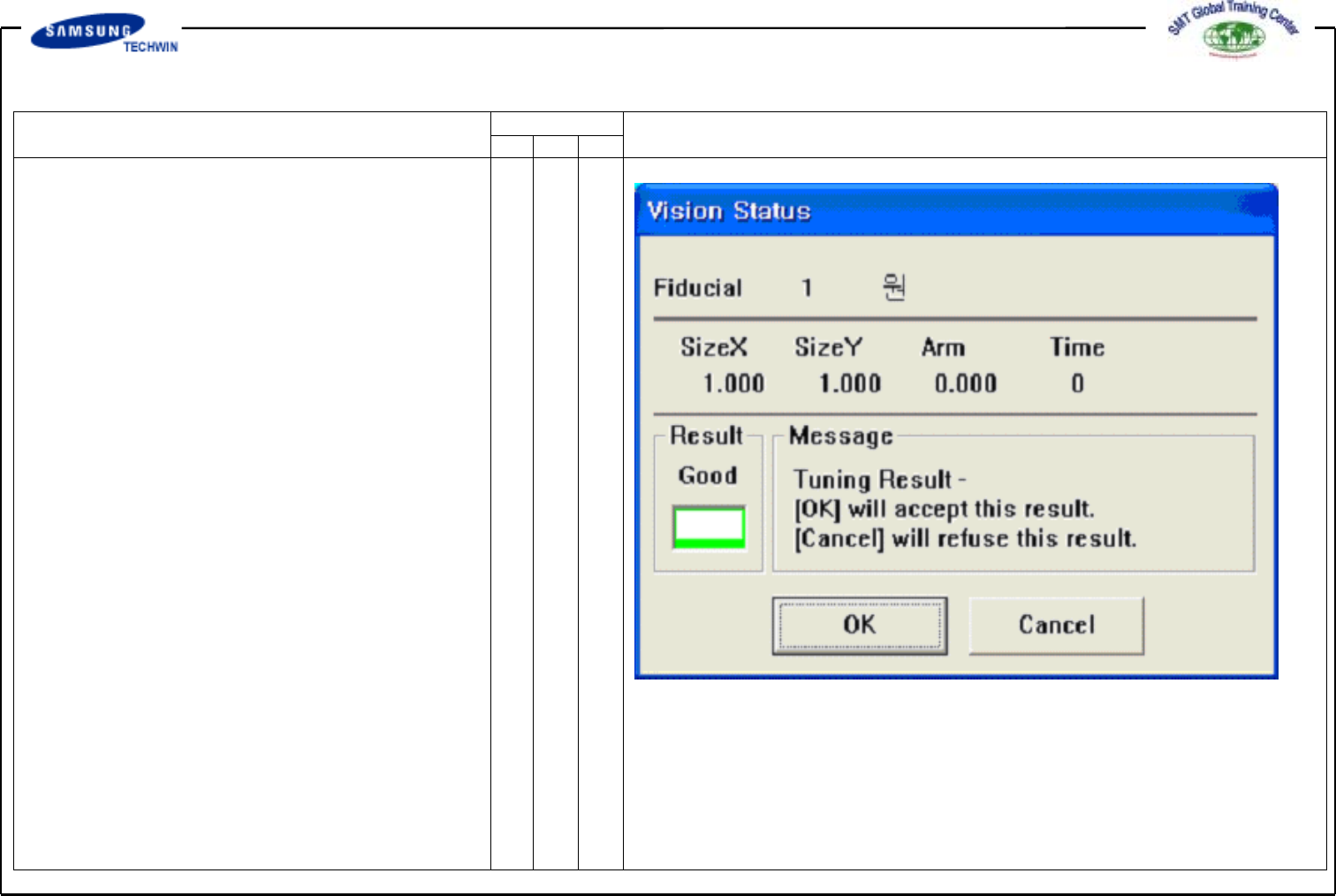
<Tuning> Button
This calculates the size of actual
Mark by using the set Mark Data.
After searching for the size of actual
Mark, Message Box as follows will
be shown. Click <Yes> button to
update with data searched, if not
so, click <No> button.
Carry out the process 1 time or
more for inputting the correct size.