SiplaceX4_en.pdf - 第540页
1 - 35 S tudent Guide SIPLACE X Edition 09/2005 1 1 Sitest 35 1 1.2.17.2 Function Firmware download Choose "Setti ngs"of the m enu- bar in Si test and afterwards "F irmware Download". Fig. 1 1.2 - 20 …
1 - 34
Student Guide SIPLACE X
11 Sitest Edition 09/2005
34
11.2.17 New function in the Sitest program
11.2.17.1 Menu of transport
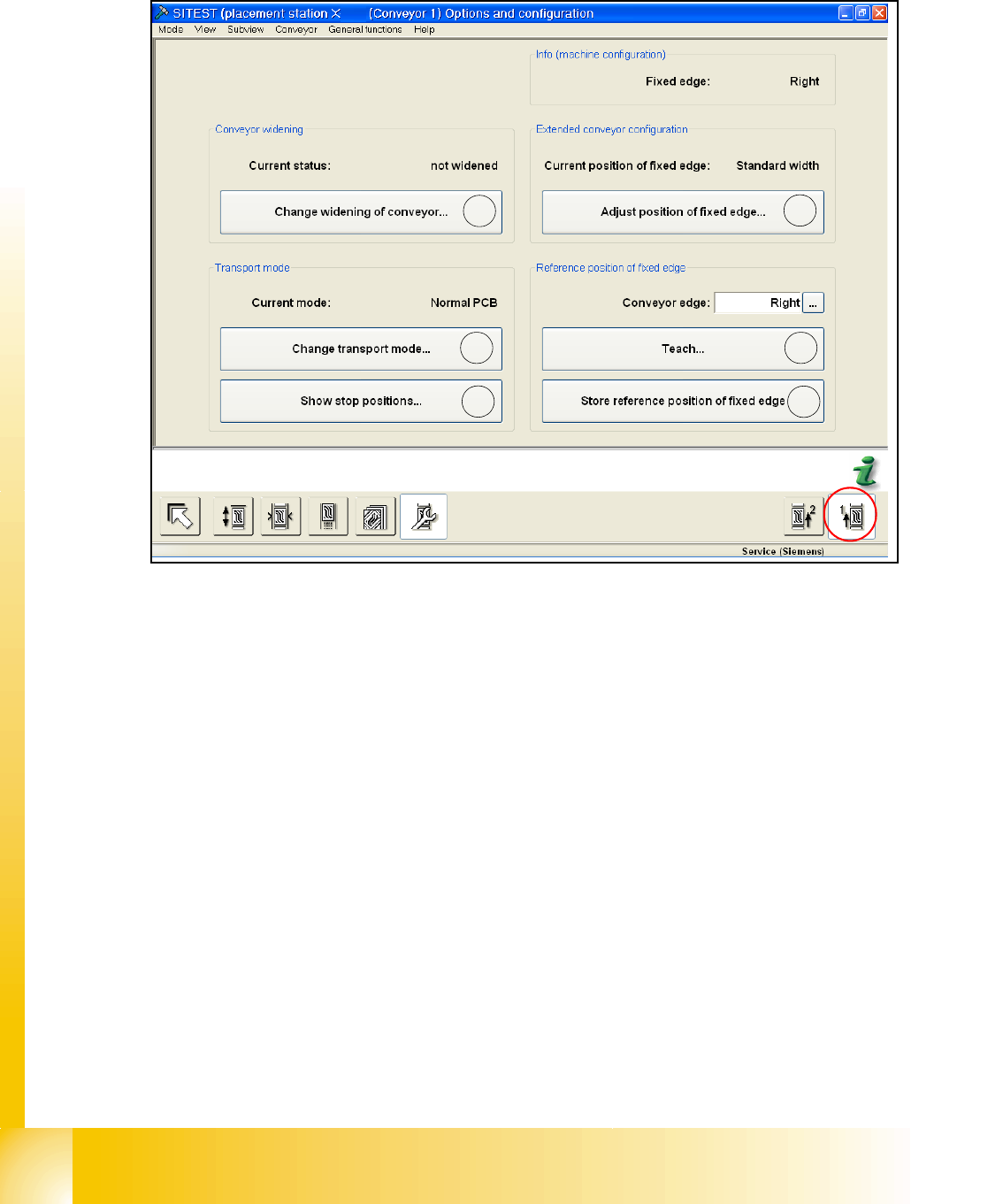
Fig. 11.2 - 19 Transport - option and configuration
a Change widening of conveyor (only track 1 for dual conveyor):
It appears a next menu, in which you can choose "widened" or "not widened" (Standard width).
Widened that means, you configure your dual conveyor as an single conveyor. Track 2 will be
move together (limit switch). The fixed conveyor rail (Track1) has the same position like before.
If you choose the point 4 at first (Excess width) a max. width of 450 mm is possible.
s Change Transport mode:
This function do you need to configure the long board option.
Next menu: normal PCB/ long PCB
d Show Stop positions:
shows the number of position in PA 1 and PA2, additional the offset depend on the standard
position (PCB Reference- corner). The offset of the long board option will be send by Siplace
Pro.
f Here you can move the fixed conveyor rail in his standard positon for standard width and Ex-
cess width (Values are from the Machinendata of the transport control board). Excess width
that means, the fixed conveyor rail will be move 34mm more outside (Dual conveyor Track1
and 2= 250mm, flexible dual conveyor Track1= 450mm, Single conveyor =508mm).
g Point 5 and 6 only with Siemens Service Passwort active! You can teach the fixed conveyor
rail (left, right).
h Save the teach data from point 5.
1
2
3
4
5
6
1 - 35
Student Guide SIPLACE X
Edition 09/2005 11 Sitest
35
11.2.17.2 Function Firmware download
Choose "Settings"of the menu- bar in Sitest and afterwards "Firmware Download".
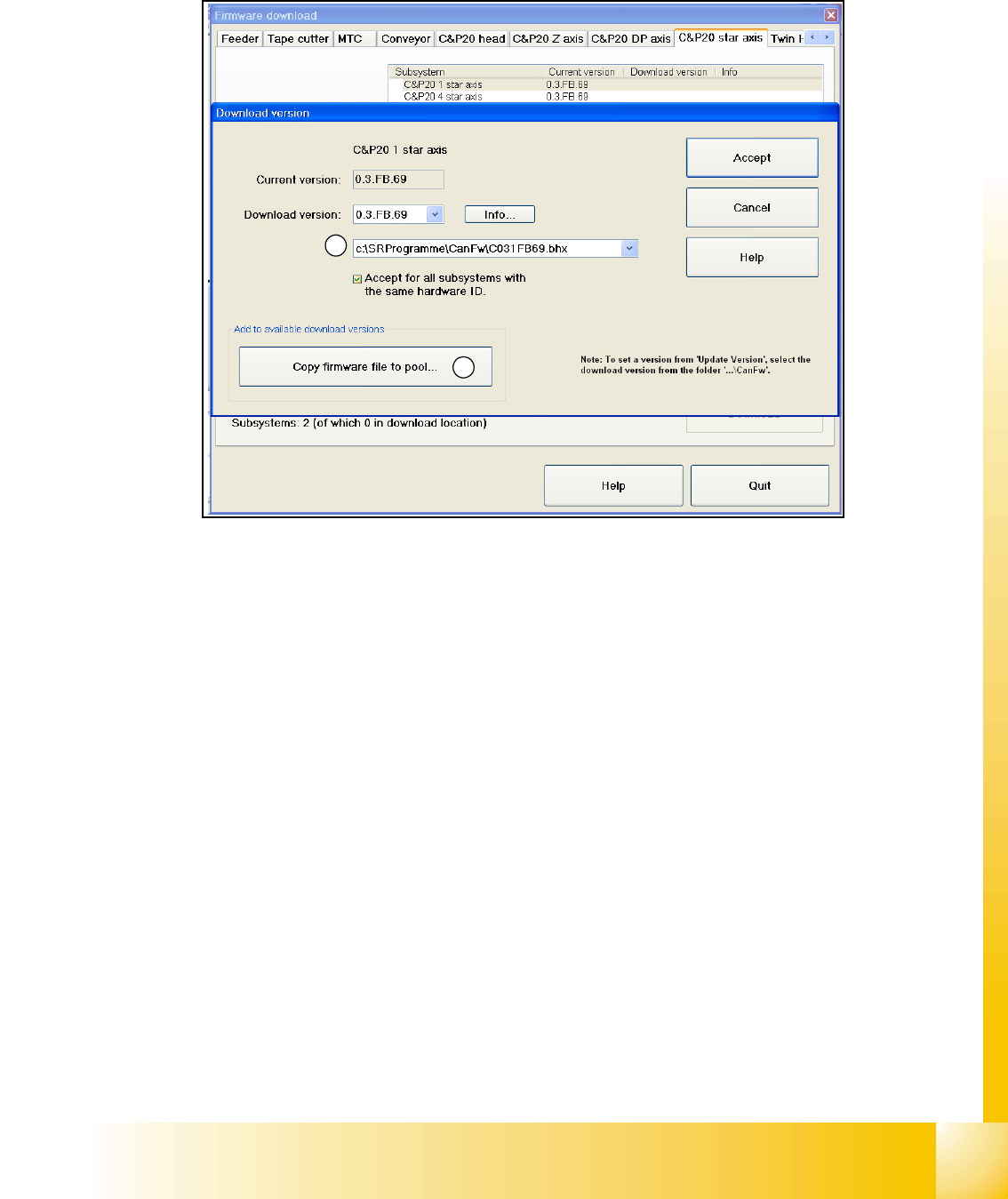
Fig. 11.2 - 20 Firmware Download
In the Can FW folder there are all current Firmware versions of all axes, tables etc.
(1) In this directory will be automatically checked up if there exist a newly firmware version of the
seperate axes,tables etc. compared to the already existing version. If there exist a new firmware
version, this new version will be offered and could be downloaded for example to the star- axis.
(2) It is also possible that you can manually copy a new firmware version in the Can FW folder.
Therefore just click on the button "Copy firmware file to pool...". A Explorer menu will appear,
where you can copy the firmware version from disk or USB-Stick into the Can FW folder. This one
inserted by you is now present in the selection menu (see
(1)).
1
2
1 - 36
Student Guide SIPLACE X
11 Sitest Edition 09/2005
36
11.2.17.3 Head modularity Siplace X
– Choose "Settings" from the Sitest- menu bar, afterwards "Head exchange"
Head data 11
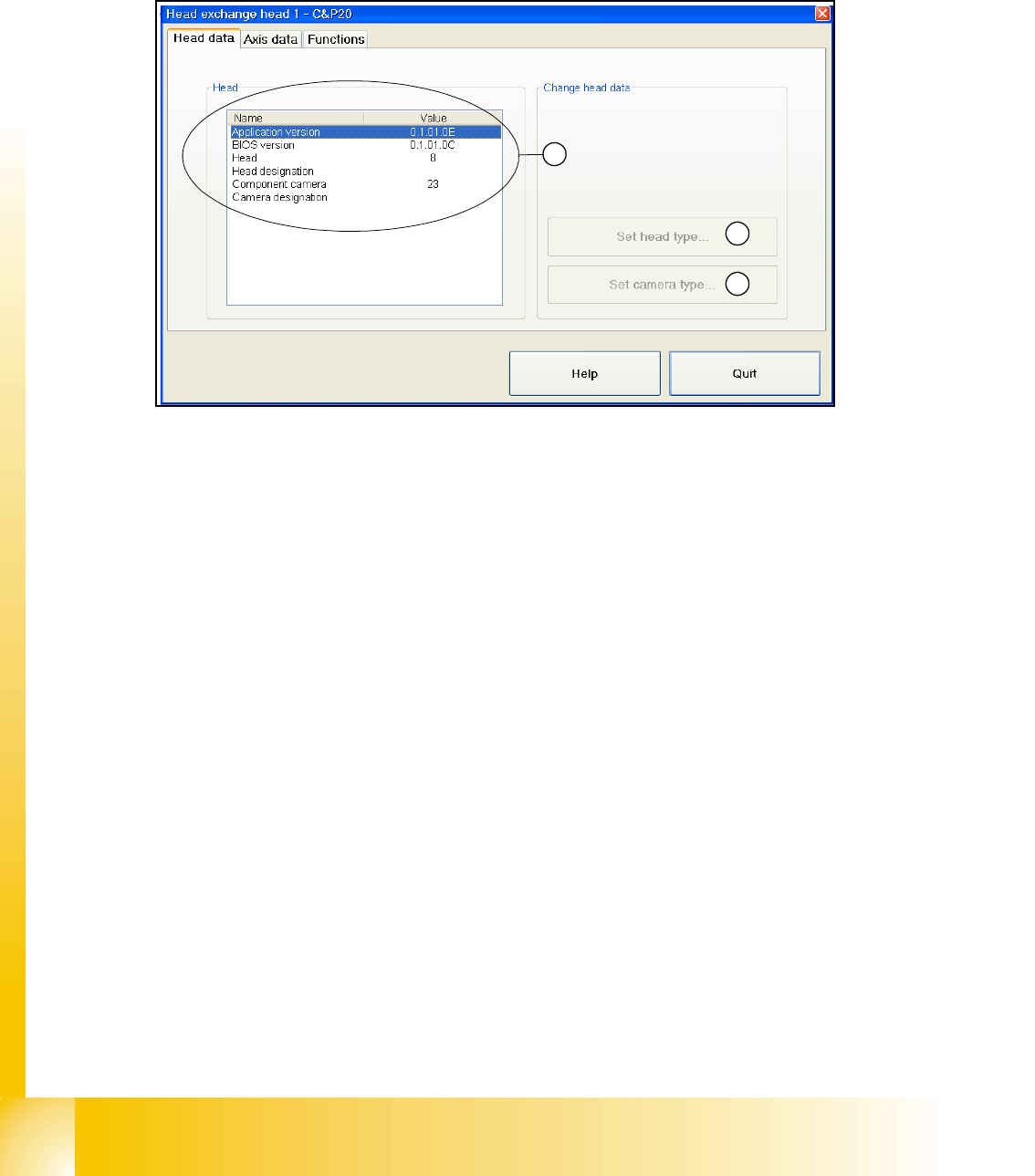
Fig. 11.2 - 21 head modularity - head data
(1) At the head exchange the corresponding head type gets select and set here.
(2) At the head exchange the corresponding camera type of the head type gets select and set
here.
(3) Here are shown the head data of the installed head. The current BIOS and application version,
the head type and the camera type of the installed head.
1
2
3