SiplaceX4_en.pdf - 第649页
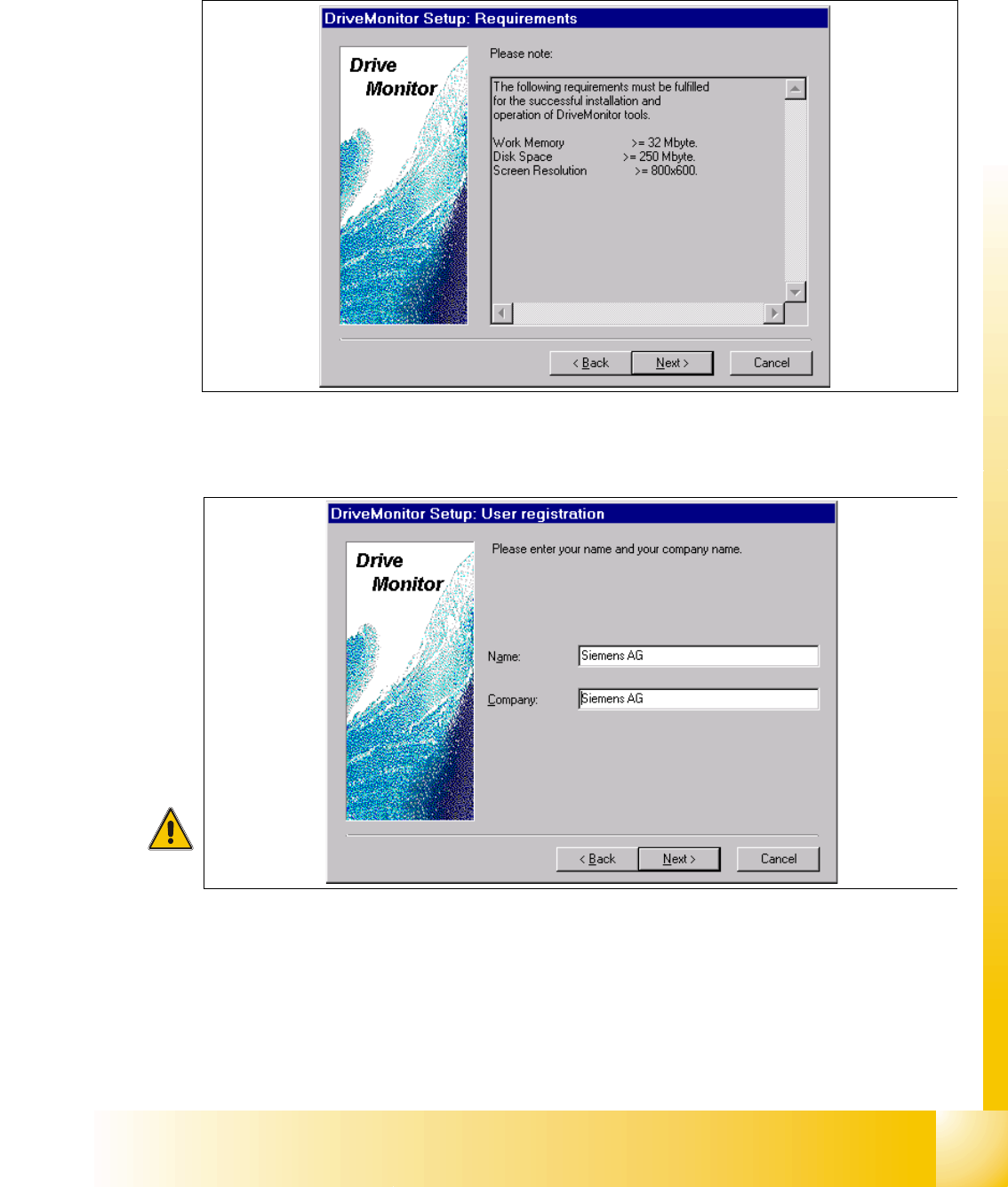
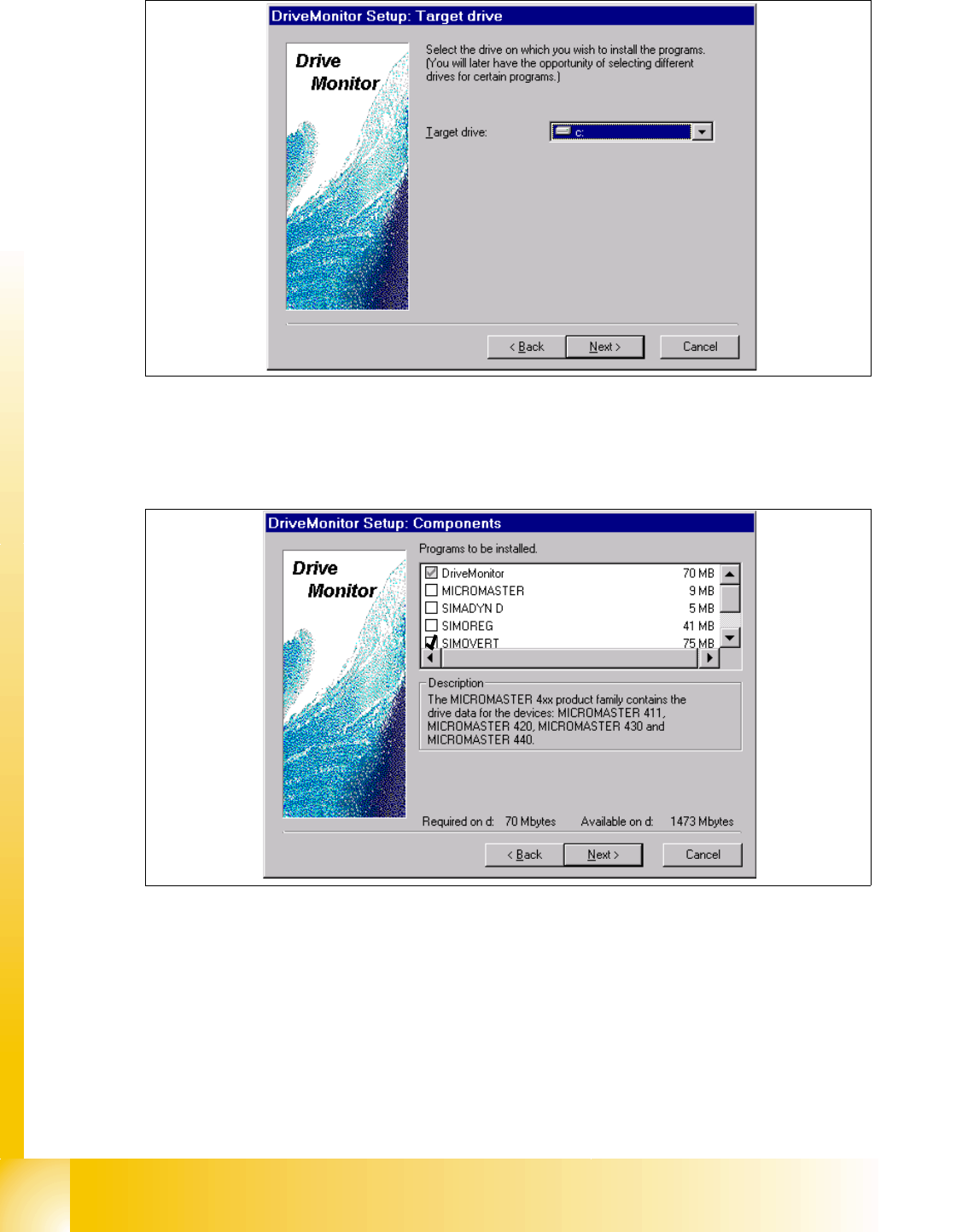
1 - 79 S tudent Guide SIPLACE X Edition 09/2005 13 MTC 2 79 ➠ Click the button "Next". ➠ Click the button "Next"again. ➠ agree the software licence "YES" . Fig. 13.4 - 7 Computer requirement…
1 - 78
Student Guide SIPLACE X
13 MTC 2 Edition 09/2005
78
Prior to installation, it may be necessary to create a directory with the name "Parameter sets".
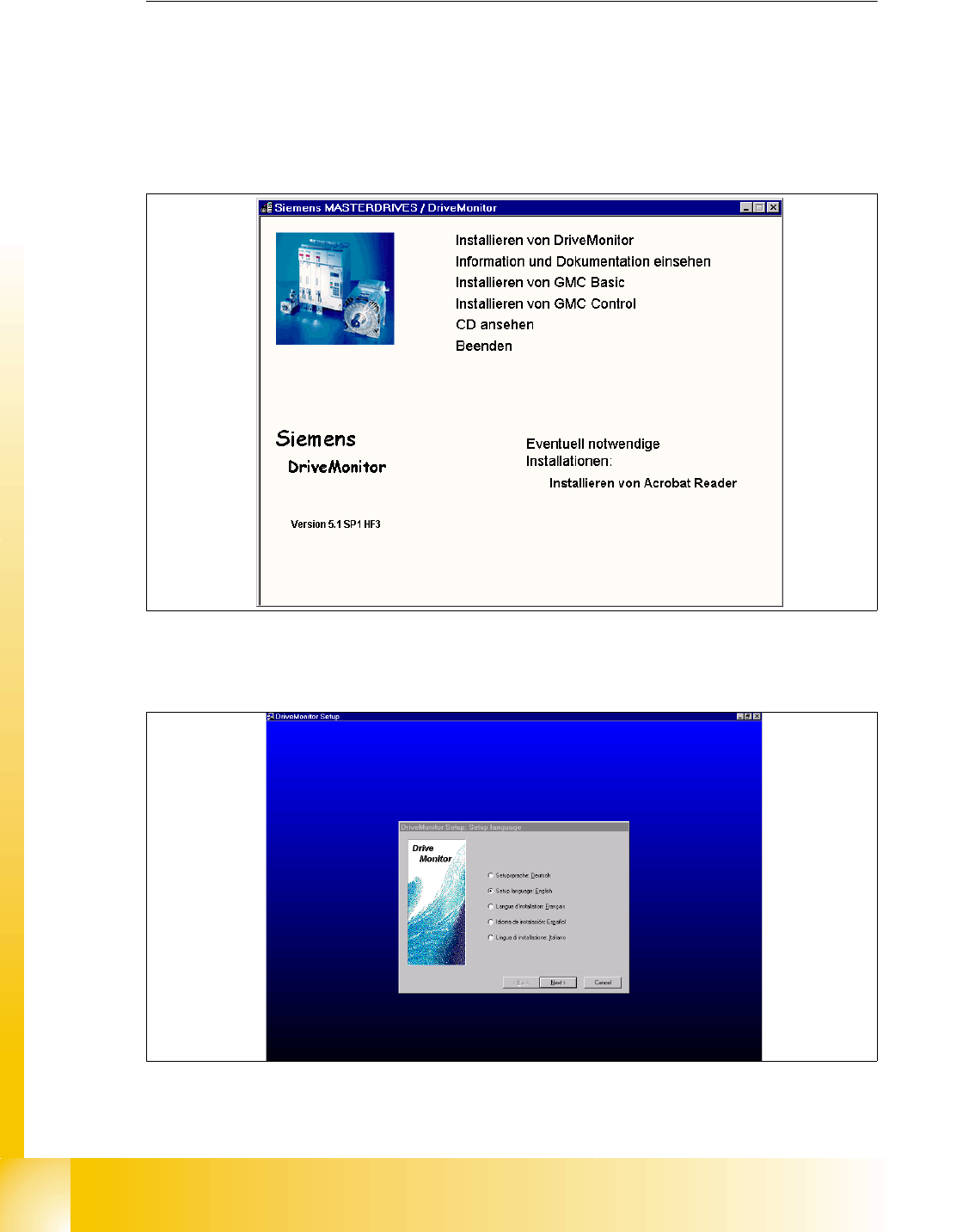
➠ The Installation window opens automatically when the CD ROM is inserted
or start the install.bat file under the folder Drive Monitor.
➠ Choose Install Drive Monitor.
➠ After installation has been completed successfully, a shortcut appears on the desktop.
Fig. 13.4 - 5 Installation Drive Monitor
➠ Select language (D, E, F, I, S)
r
Fig. 13.4 - 6 select language
1 - 80
Student Guide SIPLACE X
13 MTC 2 Edition 09/2005
80
➠ choose your target drive, on which your wish to install the program.
➠ Click button "Next".
➠ Choose the program Drive Monitor and Simovert.
➠ Clicken the button "Next".
➠ Software installation will be started.
➠ Shutdown the computer and start again.