SiplaceX4_en.pdf - 第653页
1 - 83 S tudent Guide SIPLACE X Edition 09/2005 13 MTC 2 83 Upload Parameter set: (S torage the p arameter set) 13 ➠ Choose "File" --> "UPLOAD" --> "BASIC DEVICE COMPLETE" ➠ Save the p…
1 - 82
Student Guide SIPLACE X
13 MTC 2 Edition 09/2005
82
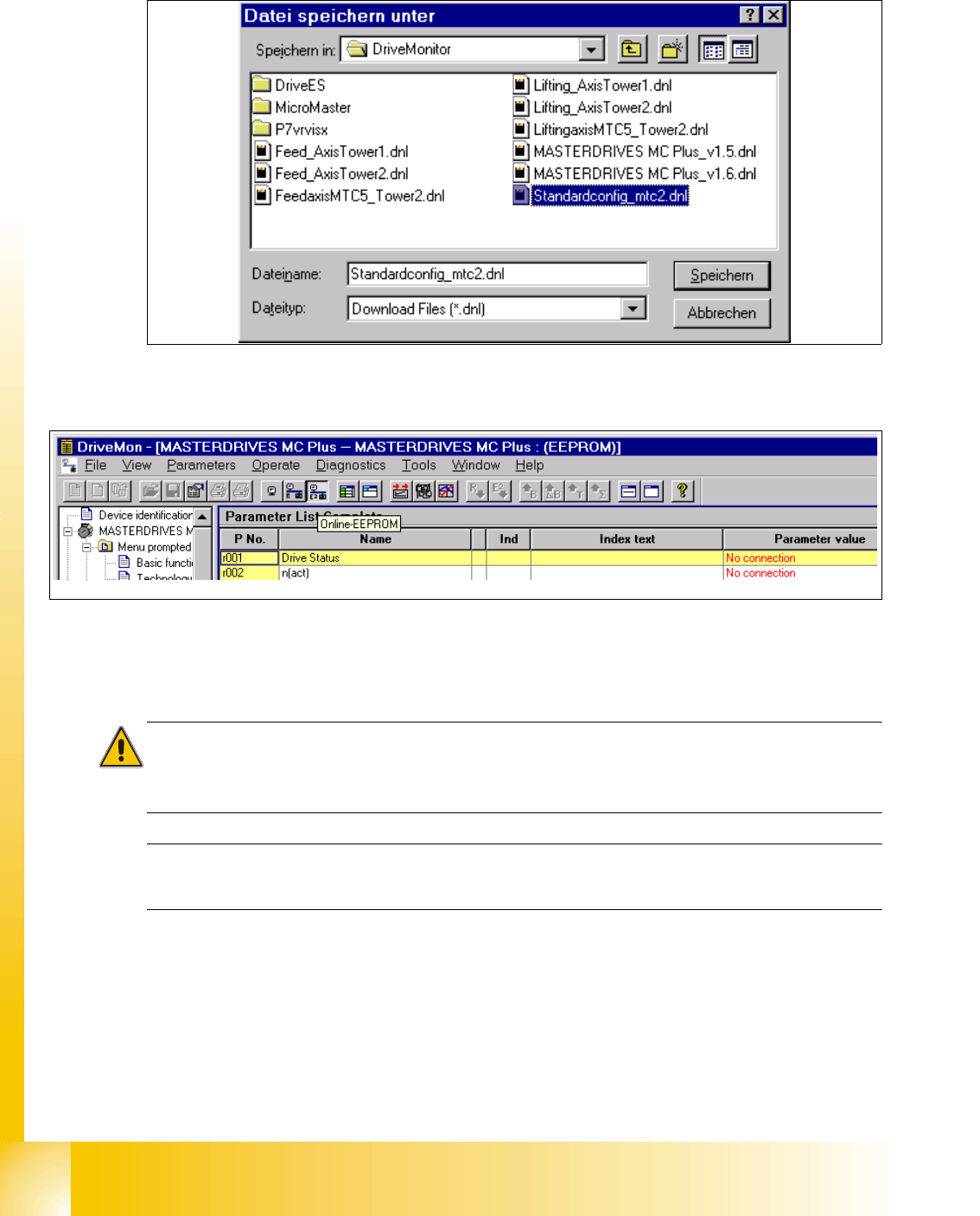
➠ Click the button "OK".
➠ Click the button "SAVE"
➠ Select "Online EEPROM"
When the settings for the serial interface correct you are connected directly with the drive now.
Caution:
All parameters which you change now will be send to the drive directly and they are immediately
active.
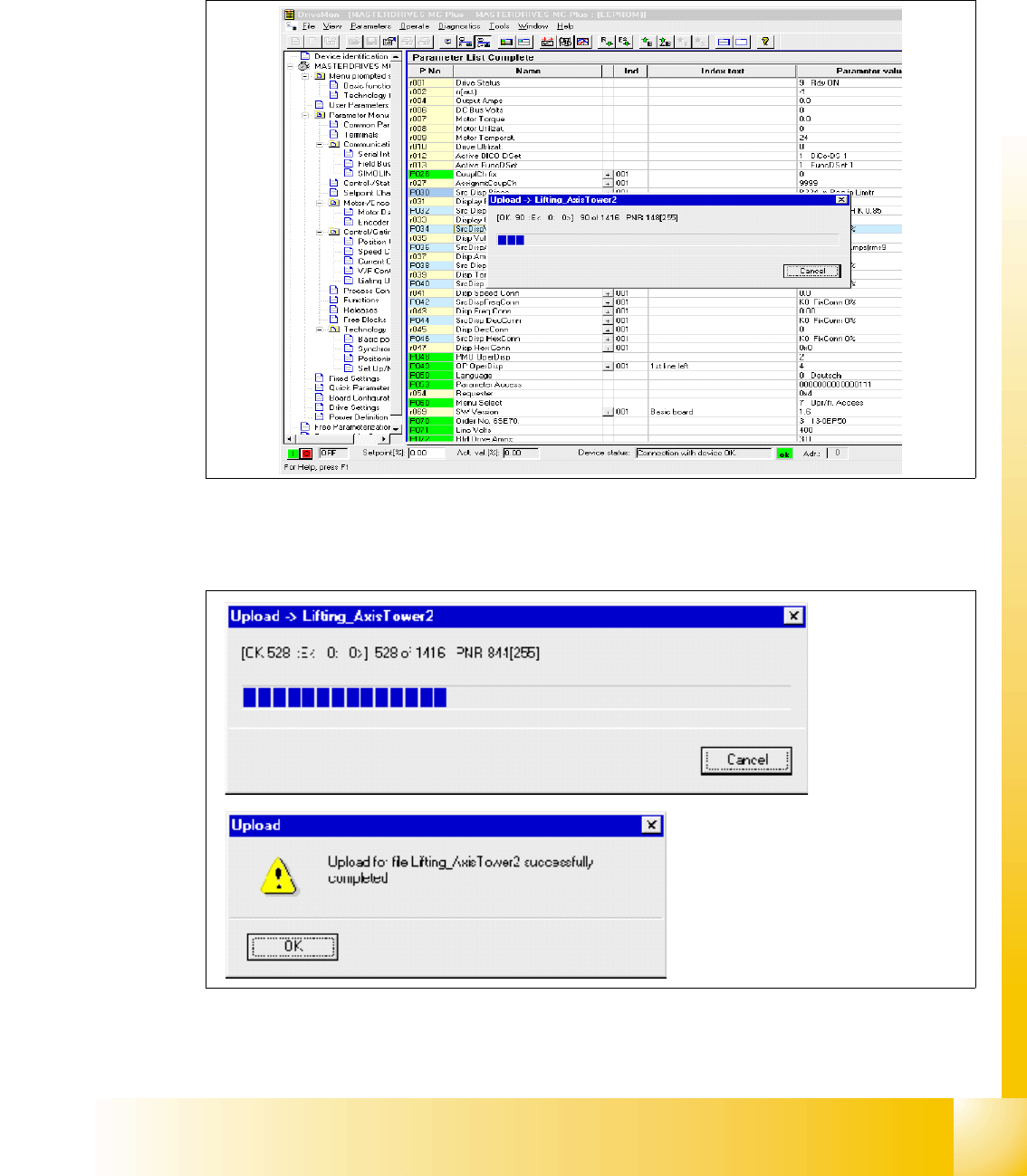
The serial interface could you check in the SW drive monitor under
"TOOLS" --> "ONLINE SETTINGS".
1 - 83
Student Guide SIPLACE X
Edition 09/2005 13 MTC 2
83
Upload Parameter set: (Storage the parameter set) 13
➠ Choose "File" --> "UPLOAD" --> "BASIC DEVICE COMPLETE"
➠ Save the parameter set under a name which make sense, for example feed axis tower 1 and
additionally the serial number of the MTC2.
Fig. 13.4 - 8 Upload parameter set
1 - 84
Student Guide SIPLACE X
13 MTC 2 Edition 09/2005
84
Download parameter set: 13
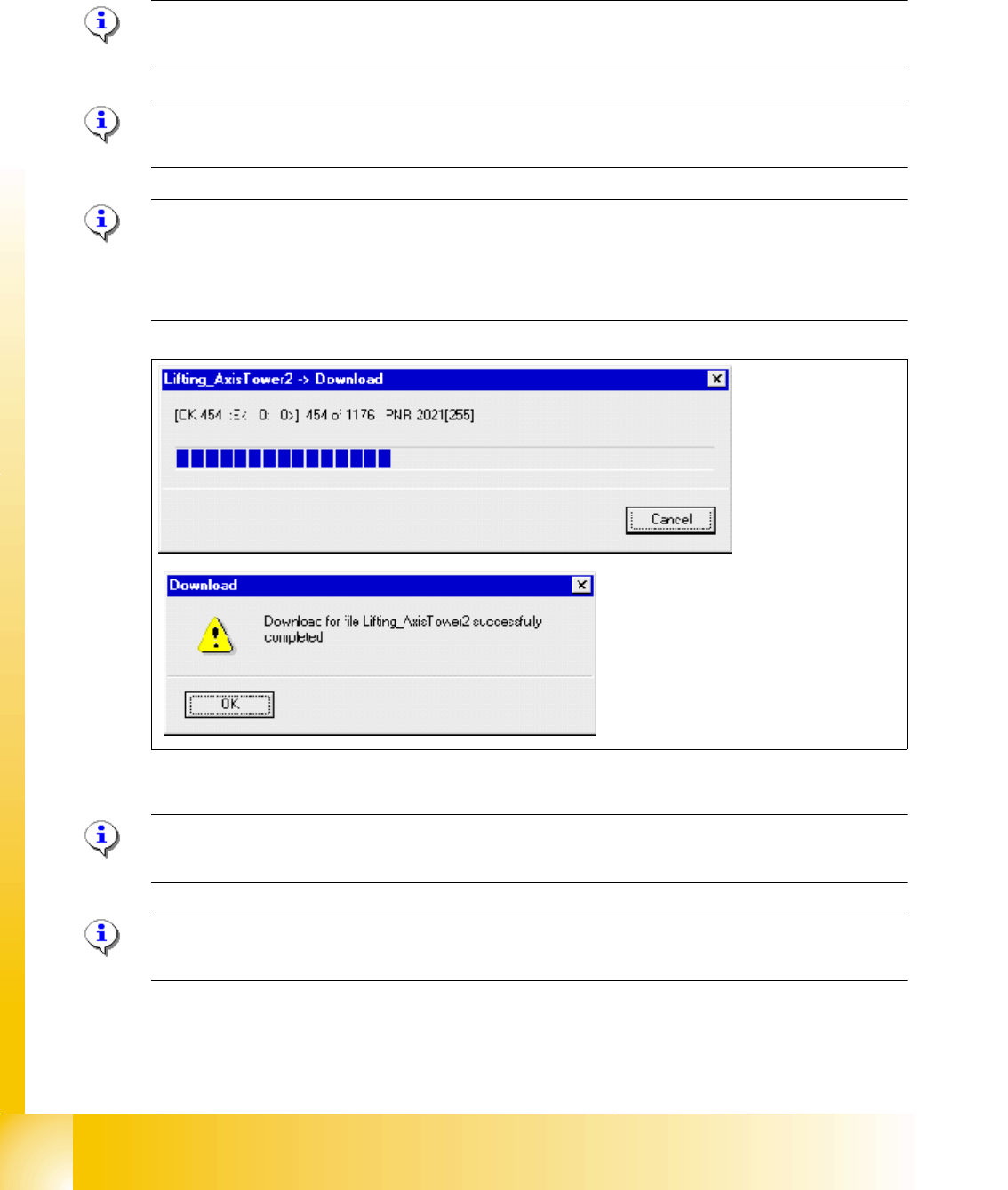
➠ Select "File" --> "DOWNLOAD" --> "Save (EEPROM)"
➠ Switch OFF and ON the MTC and start the reference run.
Note:
Before you start the download, the master drive should be reset to factory defaults (see 13.4.3)
Note:
The axis concerned must not be subject to position control!
TIP
There are two ways of deactivating position control:
- Open the door of the MTC.
- Switch the MTC on and do not perform a reference run.
Fig. 13.4 - 9 Download Parametersatz
Note:
Save om EEPROM!
Note:
When errors are counted in the field E:(Error), abort the download immediately and try again.