FUJI NXT Programming Manual QD004-18.pdf - 第174页
6. Editing Jobs on the Machine (MEdit) QD004-18 164 NXT Programming Manual 11. Click [Start Test] and the results of the test display in red. 12. If skip marks are misidentified, check the re sult number and then click […
QD004-18 6. Editing Jobs on the Machine (MEdit)
NXT Programming Manual 163
6.5 Testing Skip Mark Data
It is possible to test the skip mark data in a job for board skip marks and global skip marks.
It is important to test the data because the skip mark read level that is used to determine if
a skip mark is present or not must be manually set. Due to color and reflective differences
between panels for jobs, a level that is good for one job might not be good for another job.
Thus it is important to test the data to ensure that the marks are correctly detected and there
are no false detections.
1. Click [Start] and then point to [Programs] - [Fuji Accessory Software] and then click
[MEdit]. MEdit is started and the MEdit window displays.
2. Select [Open Current Job] from the [File] menu. The [Acquire current production job]
dialog box displays.
3. Double-click the line with the machine for the job to be edited and then double-click the
machine name to display the modules. Select the module on which the job is to be
edited. The name of the job in the module is automatically displayed in the [Job] group
box.
4. If necessary, select the lane on the module with the job to be edited.
5. Click [OK] and the specified data from the job is opened.
6. Load the panel to be tested into the module to be used.
7. Push MANUAL on the operation panel of the module to be tested to change to manual
mode. The module must be in manual mode or the following steps cannot be performed.
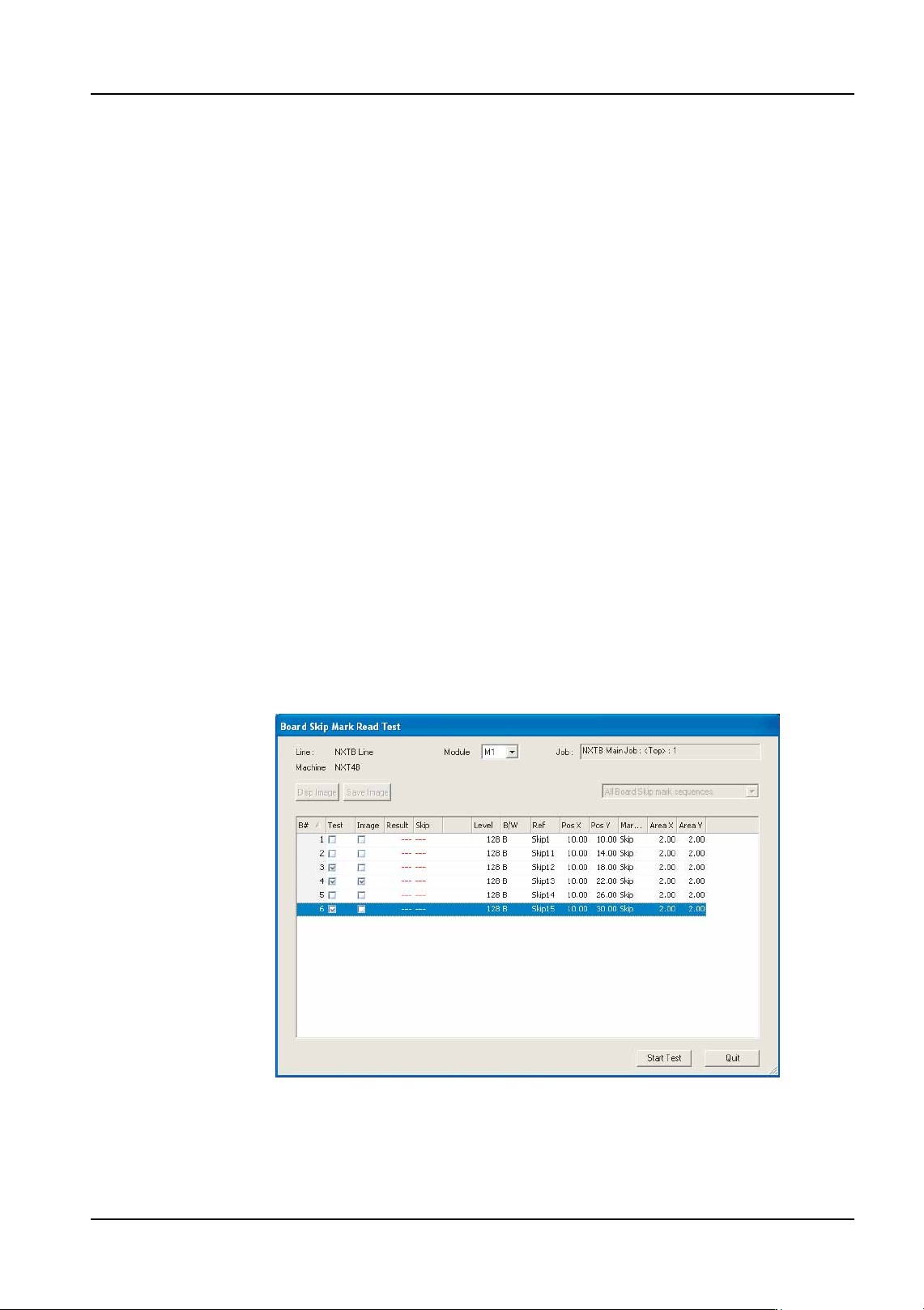
8. Select [Board Skip Mark Check] from the [Tools] menu. The [Board Skip Mark Read
Test] dialog box opens and the skip mark data in the job is displayed
9. Specify the module to perform the the read test on from the drop-down list.
10.Change the [Test] setting to "Yes" for the data that is to be tested. If an image is also to
be displayed, change the [Image] setting to "Yes".
NXTEJM002Ea

6. Editing Jobs on the Machine (MEdit) QD004-18
164 NXT Programming Manual
11.Click [Start Test] and the results of the test display in red.
12.If skip marks are misidentified, check the result number and then click [Quit] to close the
dialog box and then edit the data in MEdit based on the test results.
13.Retransmit the job back to the machine and then run the test read again. Repeat until
the skip marks are correctly identified.

QD004-18 6. Editing Jobs on the Machine (MEdit)
NXT Programming Manual 165
6.6 Skipping Items on the NXT
6.6.1 Skipping boards (from NXT V3.10)
If always a particular board in a panel production lot needs to be skipped for some reason,
it is easy to specify a skip for this board for the production lot. There are a few important
points that should be addressed when using this function.
• When the board to be skipped is specified for the first module, that board is
skipped in all modules after the first module.
• The skip setting is only applied to new panels which means that the setting is
not applied to any panels already loaded.
• Job board skip settings and board skips due to skip marks cannot be overridden
by this function.
• Enable the machine configuration settings related to the skip function (the
procedure is listed below.) Panel conveyance time is lengthened by around 300
ms when these configuration settings are enabled.
• If a certain board is to always be skipped for all production lots, then skip the
board in the job with Fuji Flexa.
• If the boards to be skipped are not set (changes from panel to panel), then use
skip marks to skip the required boards.
Specifying the machine configuration setting to enable this function.
1. Start Accessory Software and click the name of the machine for which to change the
setting in Floor Monitor.
2. If necessary, specify a user ID from the drop-down list and enter a password for the
specified user and click [Log on]. The machine accessories page is displayed.
3. Click [Machine Configuration] in the [Menu] pane. Accessory Software connects to the
machine and receives the machine information. When completed, the settings page is
displayed.
4. Select [Skip boards at the machine setting] from the [Category] drop-down list. The
settings for this category are then displayed.
5. Select the [ON] option for the [Skip boards at the machine] setting.
6. Click [Send to Machine] to send the new setting to the machine. The setting is enabled
once the completed message is displayed.
Skipping a board at the machine.
1. Before loading the panel belonging to the lot for which board skipping is to be performed,
verify that no panels exist inside the first module, and push CYCLE STOP to stop
production.
2. Start MEdit and select [Board skip] from the [Tool] menu. The [Board skip] dialog box
is displayed.