FUJI NXT Programming Manual QD004-18.pdf - 第74页
3. Job Builder QD004-18 64 NXT Programming Manual Specifying in MEdit 1. Open the job in MEdit. (Refer to "5. Editing Jobs on the Machine (MEdit)" fo r details.) 2. Select the [Pa nel] tab. Input th e maximum w…
QD004-18 3. Job Builder
NXT Programming Manual 63
How to specify settings
Specify the value for the maximum panel warpage for a job with either soft placement,
simple pressure control, or Package-on-Package placement. This section explains two
methods for specifying the value, one in Fuji Flexa Job Builder and one in MEdit.
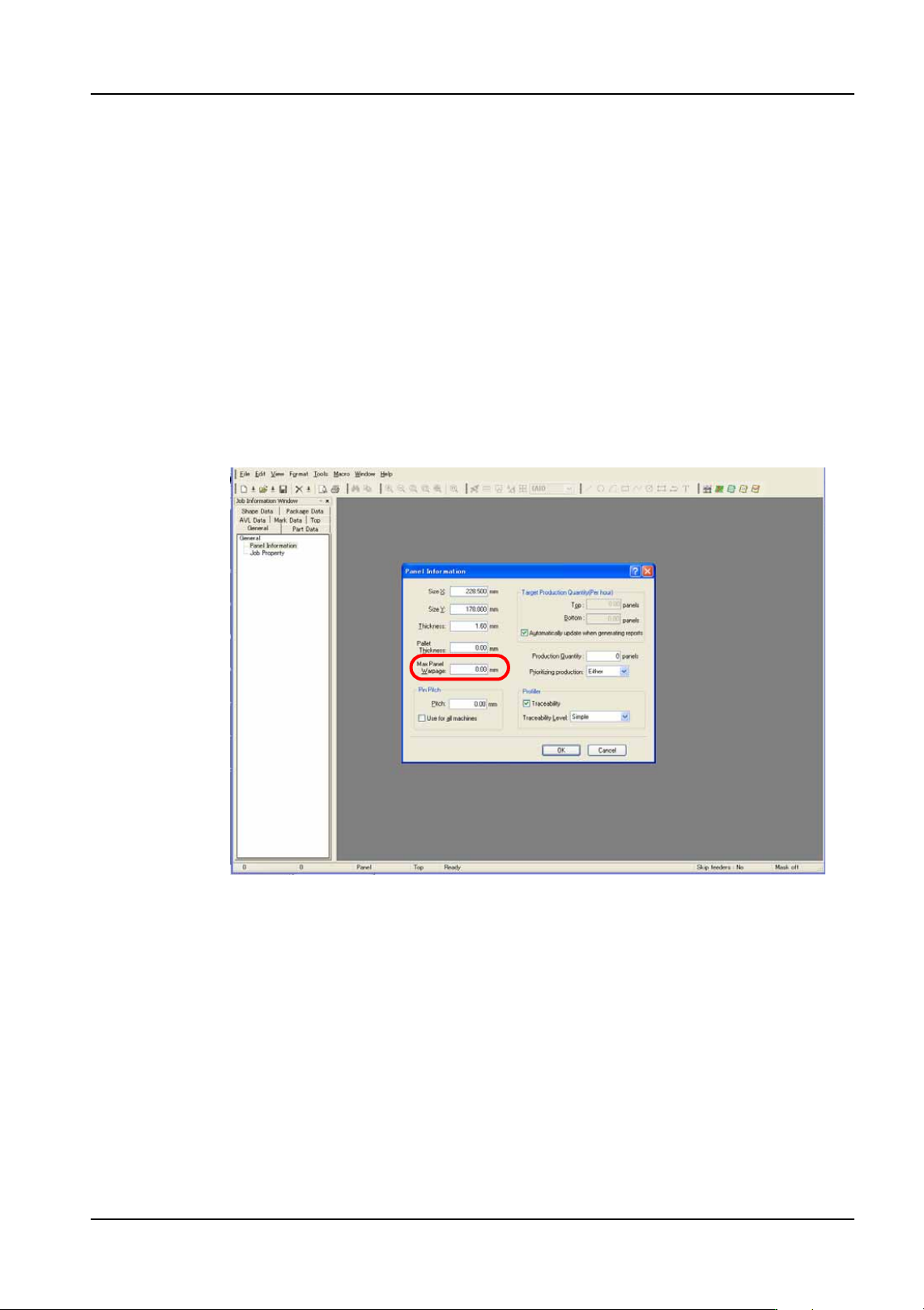
Specifying in Fuji Flexa Job Builder
1. Open the job in Fuji Flexa.
2. Select the [General] tab, on the job information bar in Job Builder.
3. Double click [Panel Information].
4. Enter the value for maximum panel warpage in the [Max. Panel Warpage] field of the
[Panel Information] dialog box.
• Setting range: 0.00 to 2.00 mm, default value: 0.00 mm (placement movement is not
changed)
01PRG-0116E
3. Job Builder QD004-18
64 NXT Programming Manual
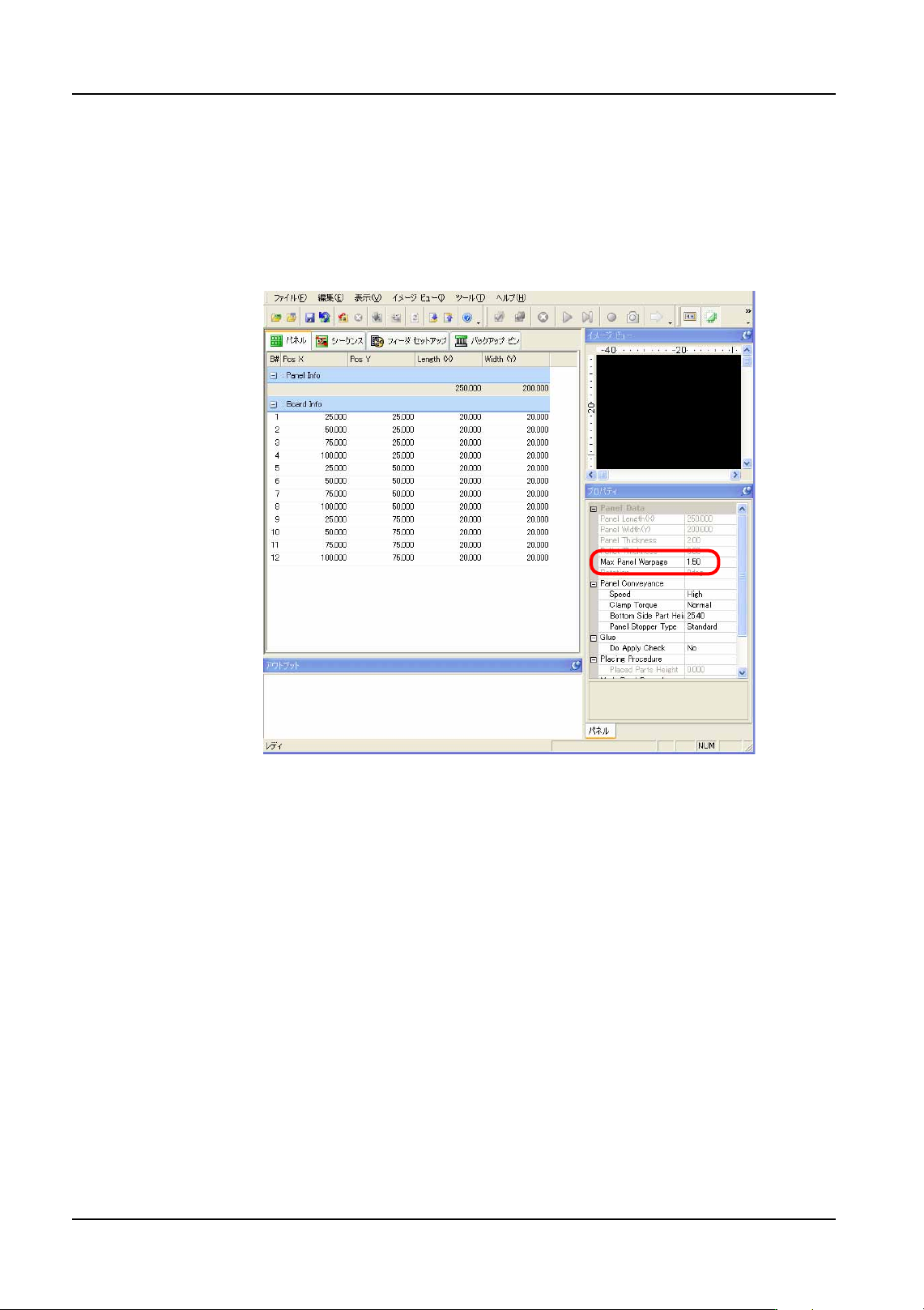
Specifying in MEdit
1. Open the job in MEdit. (Refer to "5. Editing Jobs on the Machine (MEdit)" for details.)
2. Select the [Panel] tab. Input the maximum warpage in the [Max Panel Warpage] field of
the [Properties] pane.
• Setting range: 0.00 to 2.00 mm, default value: 0.00 mm (placement movement is not
changed)
Important points
• There are cases in which placement may not occur properly if the warpage set
in the job is less than the actual warpage.
• Even when also using the panel height detection function, the result from that
function does not influence head speed change height here.
01PRG-0117J
QD004-18 3. Job Builder
NXT Programming Manual 65
3.5 Line Balancing
Line balance is performed to balance the workload of each machine as much as possible.
Due to the unique nature of putting multiple NXT bases together to create one large NXT
machine, the concept of line balancing has greatly changed for lines with only NXT bases.
For line with only NXT bases made up into one NXT machine, all parts will be simply
assigned to the NXT machine. This will still be an important step for lines with multiple
machines though. However, there is a special outside line balancer/optimizer available for
multi-machine NXT lines called NXT Multi Machine Optimizer. Refer to the Optimizing
section for procedures on using this software to line balance/optimize.
Note: This means that if a NXT machine is the only machine in a line then the assign part
command can be used to simply assign all of the parts to the NXT machine.
3.5.1 Line balancing in Job Builder
Follow the procedures below to line balance using the function in Job Builder.
1. Select [Line Balance] from the [Tools] menu and the [Line Balancer Options] dialog box
displays.
2. Select the appropriate option and click [Start] to start the line balancing process and the
[Line Balancer] dialog box displays with the current status of the balancing process. If
the option “Do not use current feeder allocation” is used, then all of the parts are
assigned to the different machine without considering any parts already set in the feeder
setups. If the option “Use current feeder allocation” is selected, then parts are assigned
to machines while considering any parts already present in the feeder setup. This
means that if a part is already in the feeder setup for a machine, then the matching part
is possibly assigned to that machine.
3. If there are any errors, click [Error Details] to view the errors. Once completed, click
[Close] to close the dialog box. If there were errors, note what the errors were and
correct them and then rebalance the line again.
3.5.2 NXT Multi Job Line Balancer (option)
The NXT Multi Job Line Balancer is exclusively for creating feeder setups that contribute to
the reduction of feeder changeover time for NXT machines. This software is an option and
requires a license in order to use it.
Important points to note before using the NXT Multi Job Line Balancer.
Be sure to note the following points.
• Part data on the part data server is used by this software. Therefore, copy the
part data to be used from the jobs to the server if they are not already on the part
data server.
• Select a line that includes an NXT machine type for all jobs being used in the
NXT Multi Job Line Balancer.
• The NXT Multi Job Line Balancer does not change parts assignments. If
necessary, make these settings before processing.
Procedure
1. Click the [Start] button, point to [Programs] > [Fuji Flexa] > [Multi Job Line Balancer] and
then click [NXT MultiJob LineBalancer]. The wizard starts and the first step displays.