FUJI NXT Programming Manual QD004-18.pdf - 第79页
QD004-18 3. Job Builder NXT Programming Manual 69 26. Click [Next] to start the NXT Multi J ob Line Balancer using the current settings. To review the s ettings, click [ Back]. The lin e balancing process is started and …
3. Job Builder QD004-18
68 NXT Programming Manual
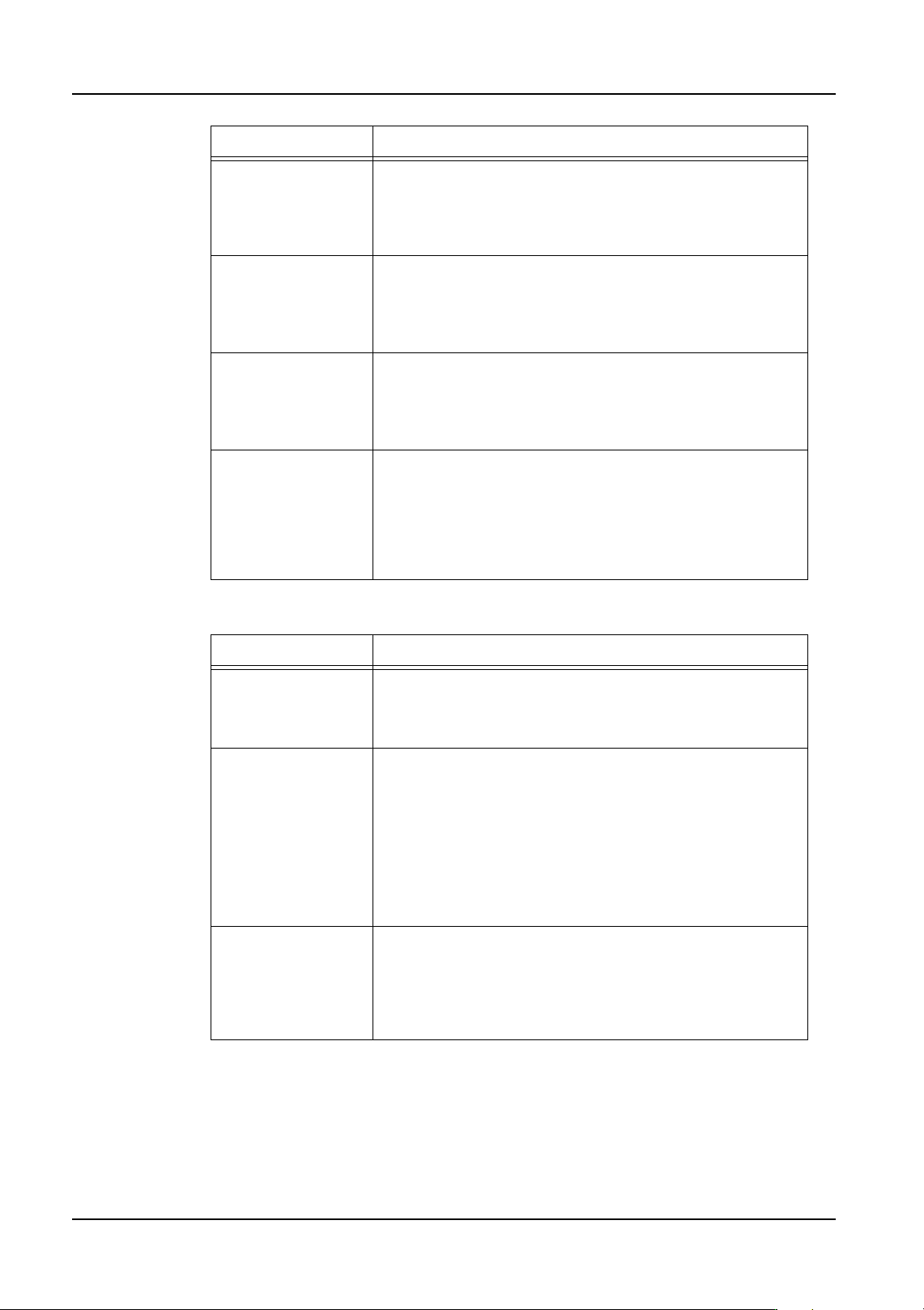
22.If performing paired module production, then specify the settings you want to use below.
23.Click [Next] to display the next step.
24.Select the check boxes next to feeders and nozzles that are available. Clear the check
boxes next to any feeders or nozzles that are not available.
25.Click [Next] to display the final step.
Allocate parts with
excessive
sequences to
multiple modules
This specifies whether or not parts with many placements
will be broken up into multiple feeders and set into different
modules. If this is selected, parts with many placements
will be set in multiple feeders and placed on multiple
modules if possible.
Divide parts on
fixed feeders
Specify whether to reallocate parts on fixed feeders when
[Allocate parts with excessive sequences to multiple
modules] is selected. When this is selected, parts on fixed
feeders can be allocated to other modules to reduce cycle
time.
Optimize nozzle
station
This specifies whether the nozzle allocation should be
optimized or not. If this is selected, the nozzles in the
nozzle station will be changed to be "optimized" for
production. If this is not selected, then optimization is
performed without changing the nozzle setup.
Used feeder type Specify the whether of not reel holders are on the feeders.
If set to "Reel holder", the optimizer positions feeders in the
feeder setup considering that the feeders have reel
holders. If this is set to "Reel holder-E", the optimizer
positions feeders in the feeder setup considering that
feeders have no reel holders and a bucket type feeder
pallet is used.
Setting Description
Optimize panel
stopping position
This specifies whether or not the panel stopping position is
optimized for paired module production. This is only for M3
modules when they are performing paired module
production.
Optimize for single
module production
This specifies whether or not paired module production is
used for panels between 250 and 305 in length. This
setting has no bearing for panels outside of this range. If
this is not selected and the panel size is within the range,
the M3 modules are automatically paired for paired
production. If this is selected and the panel size is within
the range, the M3 modules are not paired. For panels
smaller than the range, M3 modules are never paired. For
panels larger than the range, M3 modules are always
paired.
Allocate parts in the
interference area to
M6 modules
This specifies whether or not to allocate parts that are in
the head interference area during paired module
production to M6 modules if possible. By selecting this
option, head waiting time during paired module production
is reduced. However, more parts are assigned to the M6
module.
Setting Description

QD004-18 3. Job Builder
NXT Programming Manual 69
26.Click [Next] to start the NXT Multi Job Line Balancer using the current settings. To
review the settings, click [Back]. The line balancing process is started and the results
are displayed. Line balancing continues until the Line Balancer decides on the best
scenario.
27.Click [Save] to save the result of the line balancing back to the job. If this step is not
performed, then none of the results of the line balancing are reflected in the job.
28.After saving the results, then click [Exit] to close the wizard.

3. Job Builder QD004-18
70 NXT Programming Manual
3.6 Optimizing
After balancing the line, the parts need to be distributed to the different modules and the
sequences for each module need to be arranged in the optimum order to minimize cycle
time. The optimizer is used to arrange the sequences in the best order. In addition to the
optimizer within Job Builder, there is another optional optimizer for optimizing different jobs
or sides. NXT Dual Production Optimizer is capable of optimizing two different jobs to run
on different lanes or two sides of a panel using two different lanes. For procedures on using
this optimizer, refer to the section Dual job optimizing.
3.6.1 Optimizing in Job Builder
The following procedures are used for optimizing one job only.
1. Select [Optimize] from the [Tools] menu to display the [Optimize Options] dialog box.
2. To optimize the feeder arrangement, select the [Allocate feeders] option. After
specifying the desired settings, click [OK] to display the [Select Machine] dialog box.
3. Select the desired machines, and click [OK].
4. Click [Yes] in the confirmation dialog box to confirm that optimization is to be performed
for the selected machines.
5. The [Optimize] dialog box displays. In this dialog box, the status of the optimization
process displays along with any errors. If any errors occur, click [Error Details] to display
further details. Click [Close] when the optimization process is complete.
Note: Once the job has been optimized, it can be transmitted to the NXT machine. It is not
necessary to generate recipes for the NXT.
3.6.2 NXT Multi Machine Optimizer
Generally, an NXT line consists of "one" NXT machine (made up of multiple bases). With
this configuration, line balancing is very simple and all of the parts are simply assigned to
the NXT machine. The parts assigned to the various modules is optimized and rearranged
during the optimization process. However, if the NXT line is comprised of multiple NXT
"machines", then use this software to line balance and optimize the job.
Job condition before using NXT Multi Machine Optimizer
The job must be in the condition below before using this software.
• The line must be already selected in the job.
• The basic configuration of the line must already be set (number and type of
modules and if not doing head or nozzle optimization, the heads and nozzles for
each module).
• All of the marks to be used must be assigned to the machines.
• All of the parts to be placed must be assigned to at least one machine. (This
software does not assign unassigned parts; it just moves assigned parts from
one machine to another.)
Procedure
1. Click the [Start] button, point to [Programs] > [Fuji Flexa] > [Optimizer] and then click
[NXT Multi Machine Optimizer]. The wizard starts and the first step displays.