FUJI NXT Programming Manual QD004-18.pdf - 第68页
3. Job Builder QD004-18 58 NXT Programming Manual The function to limit the number of reels for pa rts number is then enabled. It is necessa ry to then specify the part numbers to limit in the Excel sheet by following th…
QD004-18 3. Job Builder
NXT Programming Manual 57
3.4.7 Limiting the number of reels used in a job
There is a method for limiting the number of reels used for a part number when the job is
optimized by using a special function available from Fuji Flexa V4.3.0.
Normally, when the [Allow] Multiple Slots] setting for a part number is set to Yes, there is
no limit on the number of reels that the optimizer can set on the machine for that part
number (other than the number of available feeders if that setting has been specified). By
using this function, it is possible to limit the number of reels that can be allocated to feeders
for specific part numbers during optimization.
Important points
• This function is used in the optimizer in Job Builder, NXT Multi Machine
Optimizer, NXT Dual Production Optimizer, and NXT MultiJob LineBalancer.
• When there are multiple NXT machines in a line, processing is performed so that
the number of reels for each specified part is not exceeded for each individual
NXT machine. So if one reel is specified for a part number, then it is determined
that one reel can be used at each NXT machine.
• There is no limit to the number of reels available for part numbers that not
specified in the Excel sheet.
• This setting applies for all jobs that are optimized on the computer that this
setting has been specified.
• If a different set of part numbers are to be specified for a different job, then those
part numbers must be specified in the Excel sheet and then the Excel sheet
saved and exported before optimizing.
• This limit is only used when optimizing on the computer that the limit settings are
made. If the job is optimized on a computer that the limit settings have not been
specified (or limit settings for other parts have been specified), then there is no
limit on the number of reels that the optimizer can use.
Enabling/disabling the reel limit setting
Normally, this function is not enabled and must be enabled by following the procedures
below. Once enabled, this function is used until it is disabled.
1. Copy the "LimitFeederDuplication" folder from the "Tools" folder on the Fuji Flexa
installation CD-ROM and paste it in the location from which you want to use it.
2. Open the pasted "LimitFeederDuplication" folder.
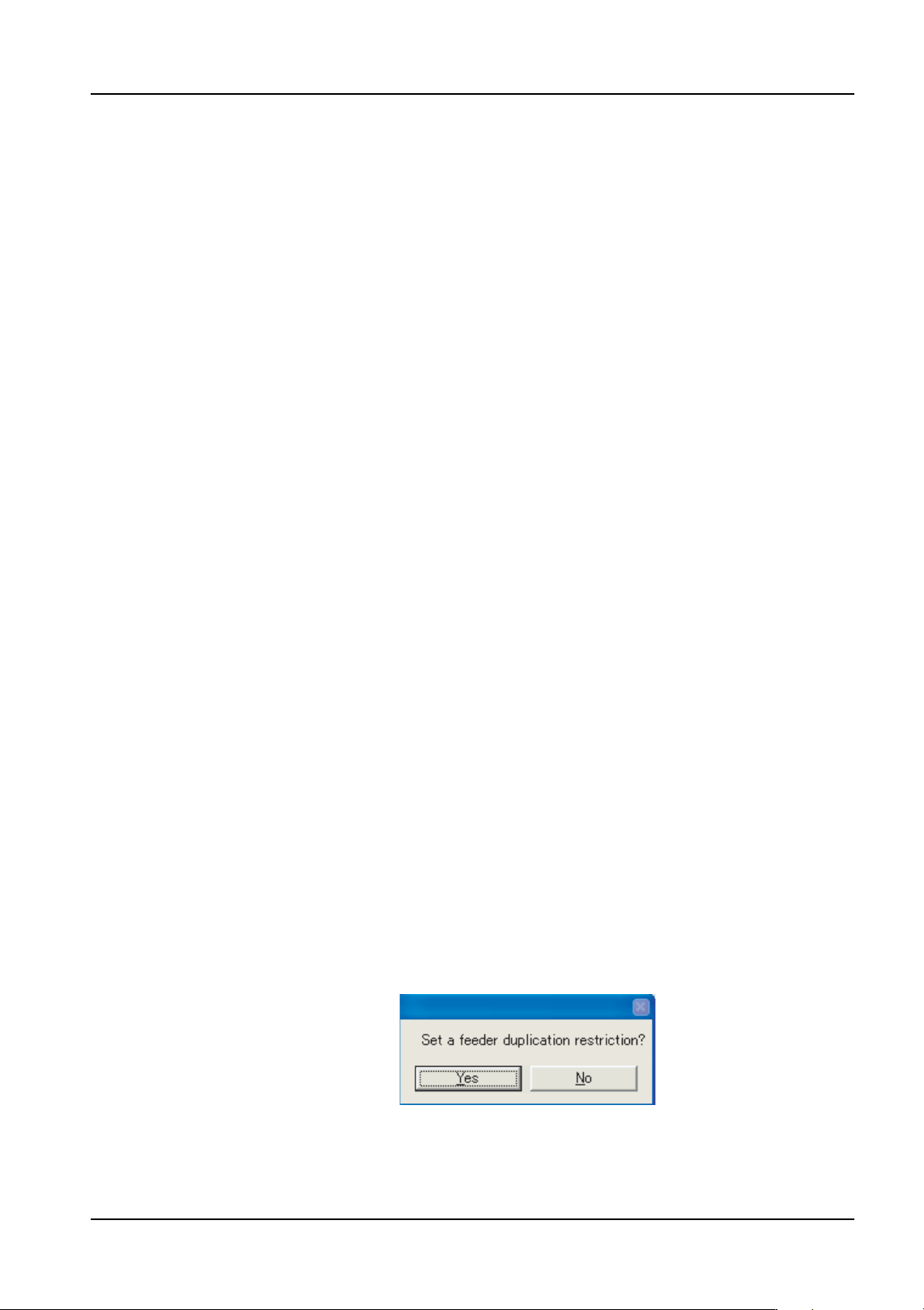
3. Double-click "LimitFeederDuplication.exe" from this folder and a dialog box is displayed.
4. Click [Yes] in this dialog box to enable limiting the number of reels for part numbers.
Note: If you want to remove the limit on the number of reels, then click [No] in this dialog box.
01PRG102E

3. Job Builder QD004-18
58 NXT Programming Manual
The function to limit the number of reels for parts number is then enabled. It is necessary
to then specify the part numbers to limit in the Excel sheet by following the procedures in
the next section.
Specifying the part number reel limits
When the function to limit the number of reels for parts numbers is enabled, the part
numbers and quantity of reels that is to be limited need to be specified by following the
procedures below. These settings are only for the computer they are specified on and are
for all jobs that are optimized on that computer (they are not job specific).
1. Create the job as usual.
2. If the "LimitFeederDuplication" folder has not already been copied to the computer, then
copy the "LimitFeederDuplication" folder from the "Tools" folder on the Fuji Flexa
installation CD-ROM and paste it in the location from which you want to use it.
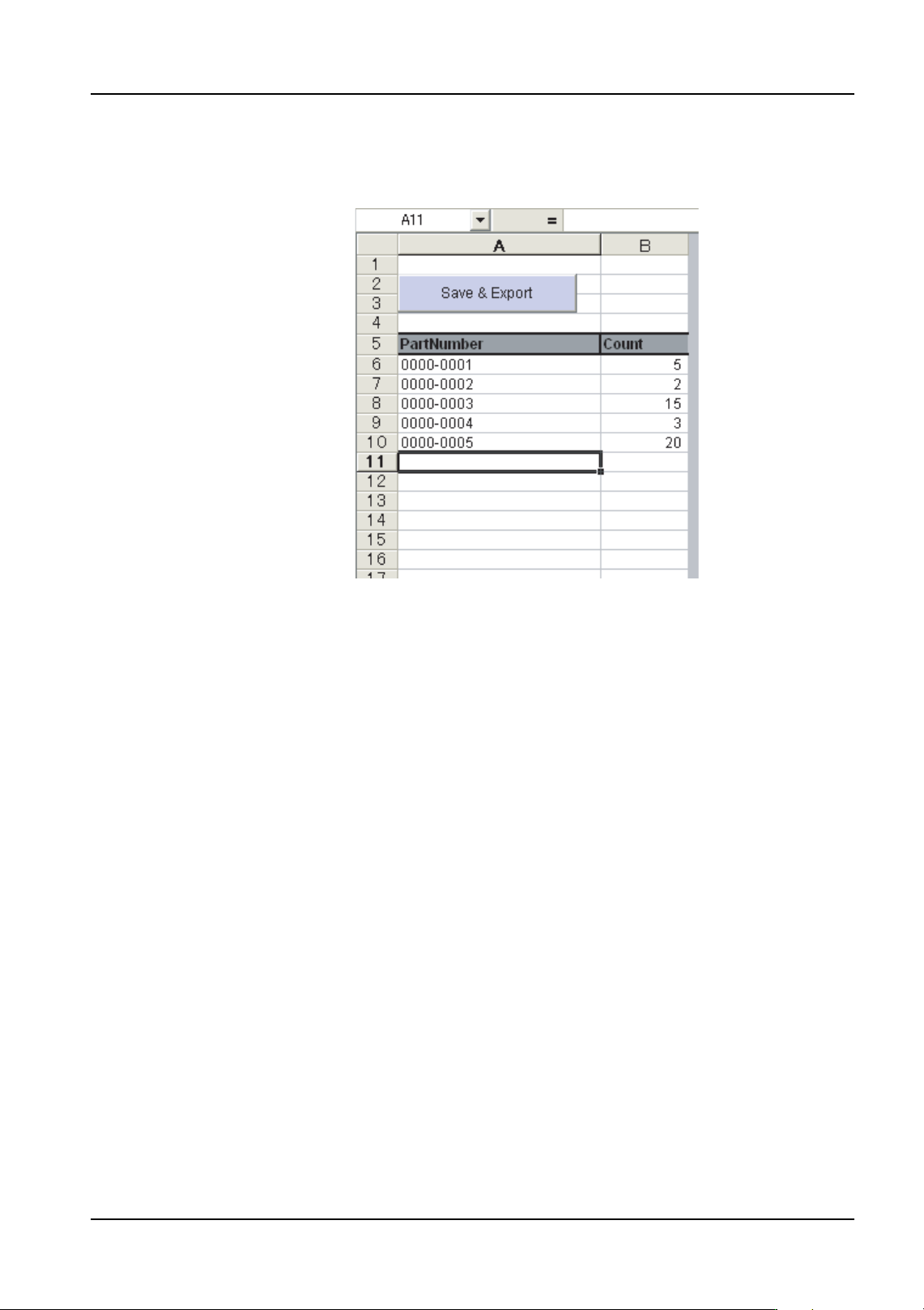
3. Open this folder and then double-click the "FeederDuplicate.xls" file to open it.
QD004-18 3. Job Builder
NXT Programming Manual 59
4. If a security warning is displayed asking if macros should be enabled (if macro security
is set to "medium"), click [Enable Marcos].
Note: Macros must be enabled for this Excel sheet to function properly.
5. Specify the part numbers for the parts that you want to limit the reel quantity in the
[PartNumber] column and then specify the number of reels possible for each part
number in the [Count] column.
6. Ensure that the entered settings are correct and then click [Save & Export].
7. Optimize the job.
Note: If you want to change the limit settings, then change the Excel sheet, save and export and
then optimize again. The limit settings are used the next time optimization is performed
after the data is saved and exported.
That completes specifying a limit on the number of available reels for part numbers. If you
open a new job and want to limit the number of reels for different part numbers in that job,
you must specify the different part numbers in the Excel sheet and then save and export it.
01PRG103E