FUJI NXT Programming Manual QD004-18.pdf - 第87页
QD004-18 4. Part Data Settings NXT Programming Manual 77 4. Part Data Settings 4.1 Introduction The NXT-series requires part data the same as other Fu ji machines and the most of part data settings are the sa me as other…

3. Job Builder QD004-18
76 NXT Programming Manual
3.7 Generating Reports
With the NXT, it is not necessary to generate recipes in order to transmit the job to the
machine. Reports are only generated during the recipe generation process. Therefore, in
order to view reports, it is necessary to generate recipes. If data in the job has been
changed that needs to be reflected in a report, then recipes need to be regenerated for the
change to be reflected (e.g., feeder position has been moved, part has been added).
3.7.1 Manually generating reports
1. Select [Generate Recipes/Reports] from the [Tools] menu to display the [Select
Machine] dialog box.
2. Select the NXT machine, and click [OK] to generate recipes.
3. Click [Yes] in the message to confirm that recipes for the selected machines are to be
generated.
4. The [Generate Recipes/Reports] dialog box displays. In this dialog box, the status of
the recipe generation process displays along with any errors. If any errors occur, click
[Error Details] to display further details. Click [Close] when all of the recipes have been
generated.
Note: Reports for the selected machines are automatically generated when recipes are
generated. To display the available reports, double-click [Report] found in the page for the
[Top] or [Bottom] tab.
3.7.2 Automatically generating reports when the job is saved
When this option is used, reports and recipes for all machines are automatically generated
every time the job is saved. This does increase the amount of time it takes to save a job.
1. Select [Options] from the [Tools] menu and the [Options] dialog box displays.
2. Select the [Recipe Creation] tab.
3. To generate recipes and reports every time a job is saved, select the check box for
[Generate recipes on save] and click [OK]
Note: To display the available reports, double-click [Report] found in the page for the [Top] or
[Bottom] tab.
To stop Fuji Flexa from generating recipes and reports every time a job is saved, perform
the above procedures, but clear the check box for [Generate recipes on save].

QD004-18 4. Part Data Settings
NXT Programming Manual 77
4. Part Data Settings
4.1 Introduction
The NXT-series requires part data the same as other Fuji machines and the most of part
data settings are the same as other Fuji machines. One of the major areas where part data
settings are different for the NXT-series versus other Fuji machines is the vision related
settings. This chapter lists the part data settings used by the NXT and provides details on
the settings that are different from other Fuji machines. The part data settings in this
chapter are broken down into three groups that correspond to the way the settings are
grouped when using relational mode for part data in Fuji Flexa.
Part data is created and edited with Part Editor or if the part data is using relational mode,
Part Number Editor, Shape Editor, and Package Editor. In addition, part templates are
created and edited with Template Editor. Part data can be created manually, by importing
data, or by using the New Part Wizard. For procedures on using these items, refer to the
Fuji Flexa User Manual.
4. Part Data Settings QD004-18
78 NXT Programming Manual
4.2 Part Data
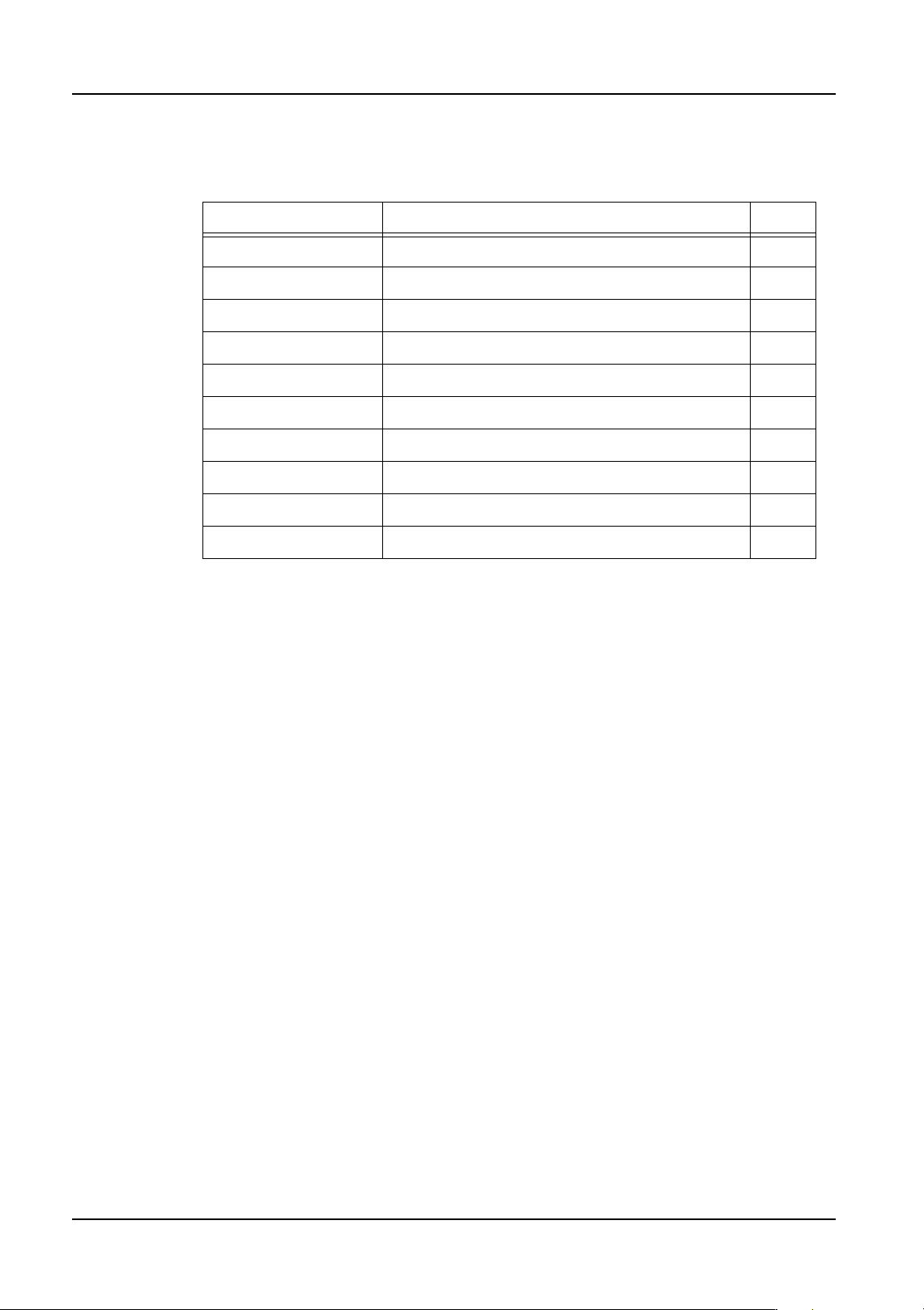
The following list is the part data settings used by the NXT for part data.
The settings for items with an O in the “Chg” column can be changed in MEdit. The settings
for items with an X in this column cannot be changed in MEdit.
4.2.1 Part data details
Part shape
Specify the shape data that is used for the part.
Package Name
Specify the package data that is used for the part.
Polarized
Specify whether or not the part has polarity. A part is considered to have polarity when the
part is not symmetrical, electrically and/or physically. If the part has no polarity, then a
placement of 180 degrees opposite to the specified angle does not affect the board.
Direction
Specify how the part is oriented in the package compared to the direction the part was
created in the shape library and zero orientation.
This is used by the placing machines for vision processing and placement.
Barcode Label
Specify the barcode label for the feeder verification check if Fujitrax Verifier is used. If this
is left blank and Fujitrax Verifier is being used, then the part data name is used for the
barcode.
Part Comment
Enter a part comment.
Name Comments Chg
Part Shape X
Package Name X
Polarized X
Direction This is a vision related setting. O
Barcode Label This setting is used with Fujitrax Verifier. X
Part Comment X
Allow Multiple Slots Used during line balancing and optimization only. X
Limit Target Machines Used during line balancing only. X
Target Machine List Only displays if [Limit Target Machine] is “Yes”. X
User Fields 1 to 5 X