FUJI NXT Programming Manual QD004-18.pdf - 第40页
3. Job Builder QD004-18 30 NXT Programming Manual Specifying the available feeders for a machine By setting which feeder s are available for the NXT machin e, an unavailabl e feeder will not be selected when opti mizatio…
QD004-18 3. Job Builder
NXT Programming Manual 29
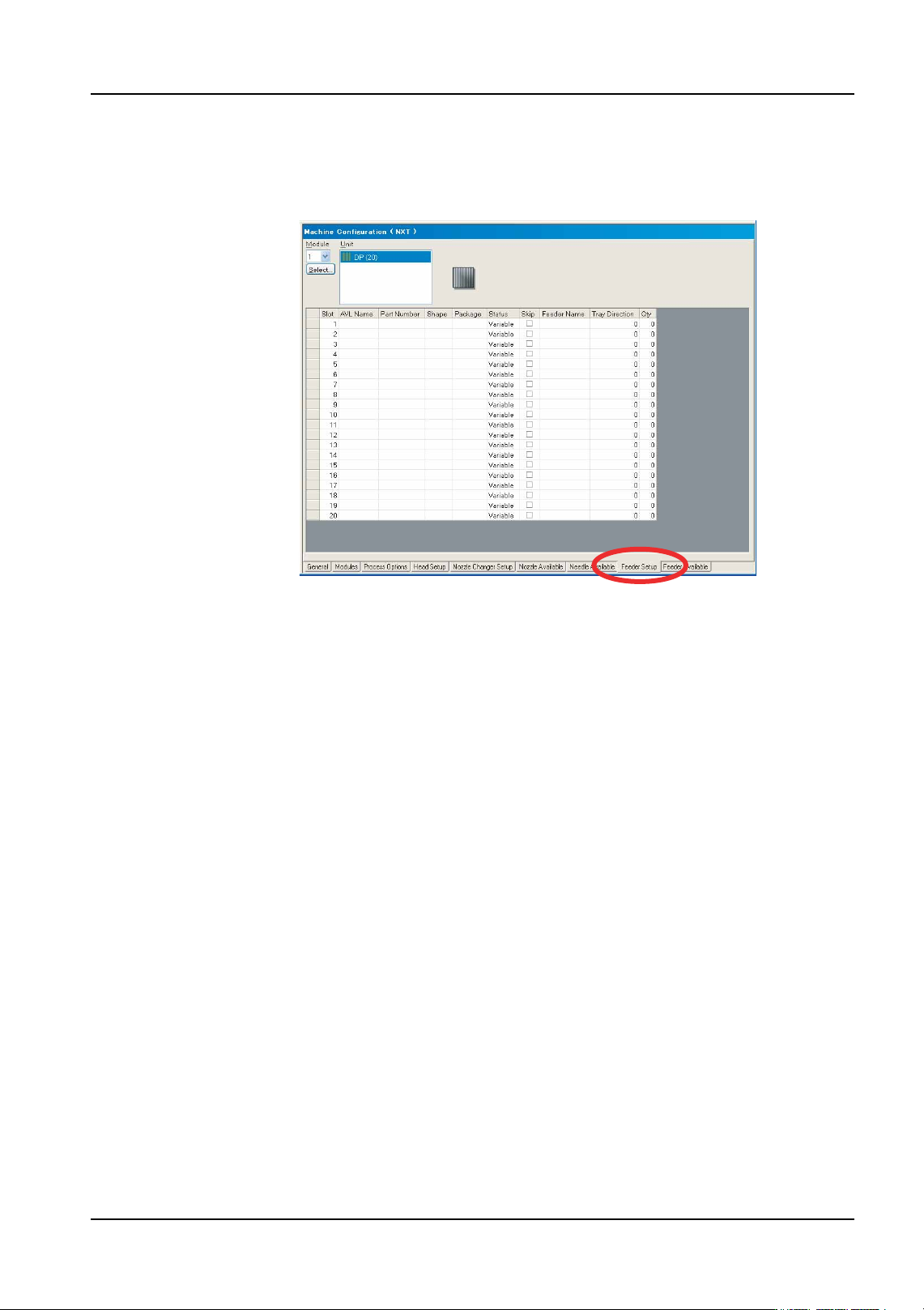
Specifying the feeder setup for an NXT
Making settings in the [Feeder Setup] tab is not normally necessary. The feeder setup will
be automatically reconfigured based upon the available feeders during optimization.
01PRG-0059E
3. Job Builder QD004-18
30 NXT Programming Manual
Specifying the available feeders for a machine
By setting which feeders are available for the NXT machine, an unavailable feeder will not
be selected when optimization is performed. In addition, it is possible to specify the quantity
of each feeder type available so the optimizer will not use more feeders of a certain type
than that is available.
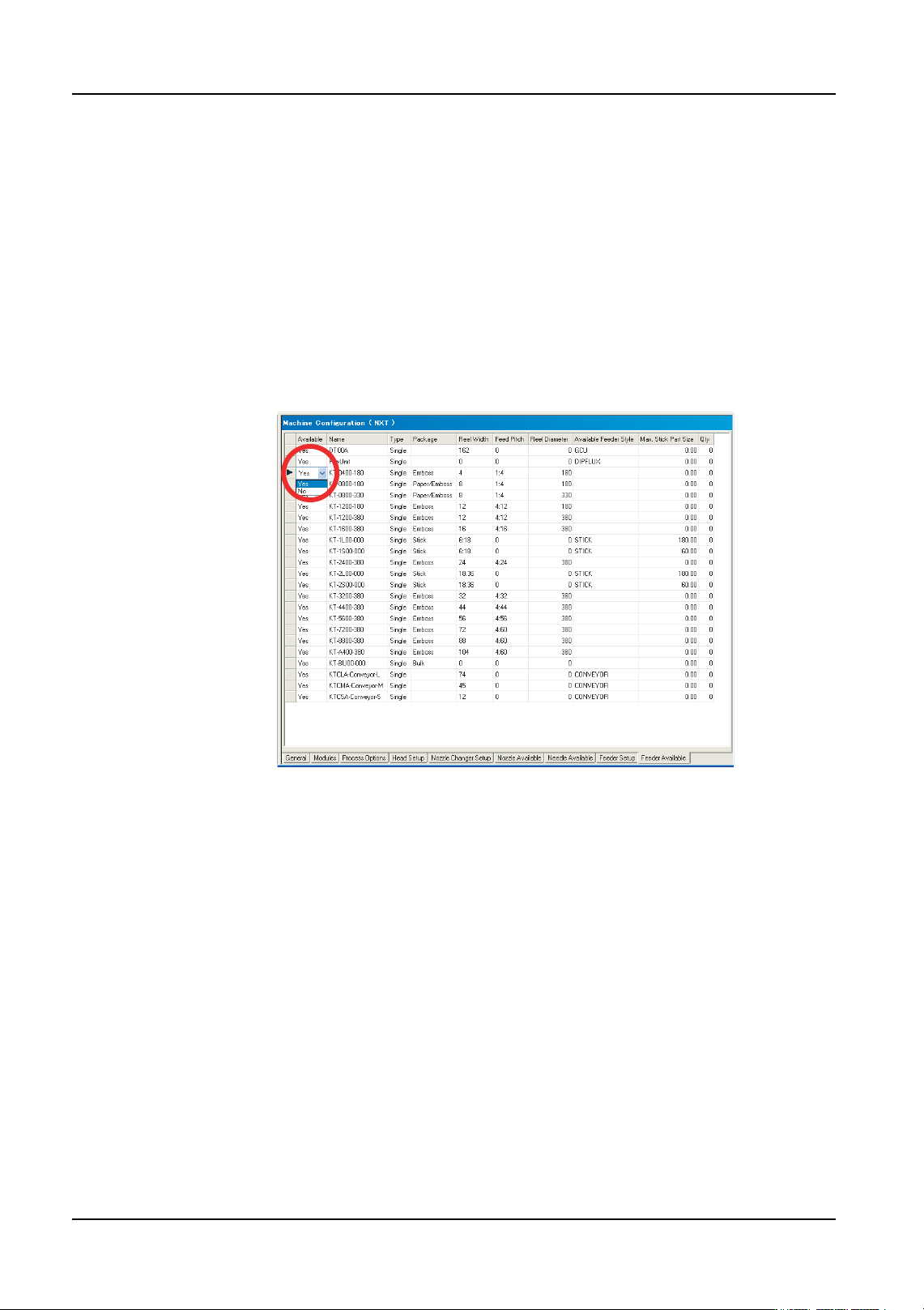
1. There are several tabs at the bottom of the [Machine Configuration] pane. Select the
[Feeder Available] tab and the available feeders for the machine display.
2. Double-click in the data cell under [Available] that is on the row for the desired feeder
and a drop-down list displays. Select the “Yes” if that feeder is available for that
machine, or “No” if the feeder is not available for that machine. Repeat until all of the
available and unavailable feeders have been specified.
3. If you want to specify the quantity of feeders present, then scroll the window to the right
and then specify the quantity of feeders available in the [Qty] column. If left at 0 and the
feeder available setting is “Yes”, then it is considered that there is no limit on the feeder
quantity.
The new settings will take effect the next time optimization is performed.
01PRG-0060E
QD004-18 3. Job Builder
NXT Programming Manual 31
3.3.4 Distributing the same part to multiple modules
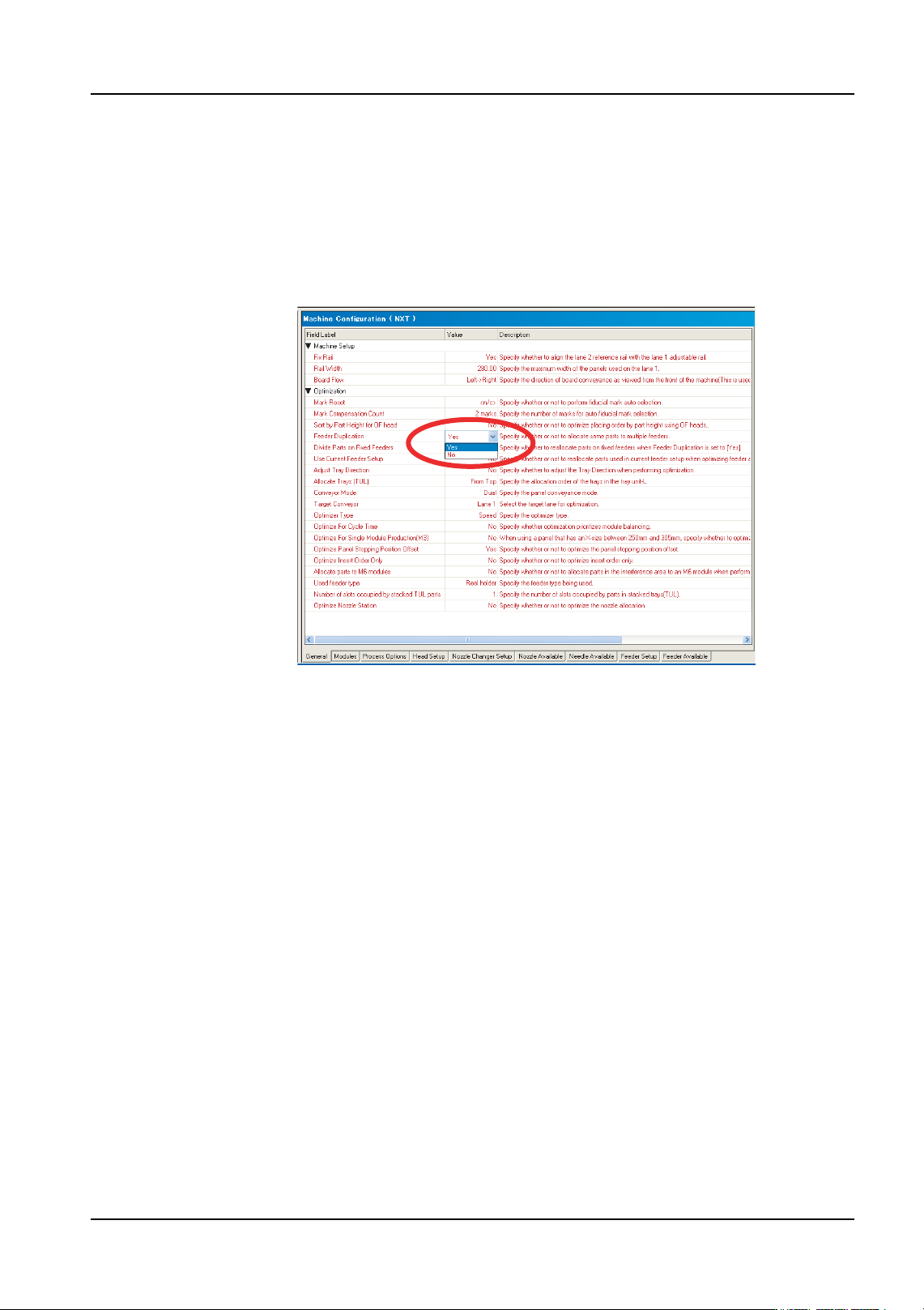
1. There are several tabs at the bottom of the [Machine Configuration] pane. Select the
[General] tab.
2. Click the data cell for [Feeder Duplication] in the [Optimization] to display a drop-down
list.
3. Select “Yes” to distribute high part count parts to multiple modules.
4. Optimize the job for the changes to take effect. Parts that have “Yes” specified for [Allow
Multiple Slots] in their part data settings and can be placed on more than one module
are possibly distributed to modules with a compatible configuration by the optimizer.
01PRG-0061E