00197498-03_UM_SiplaceCA-Serie_EN.pdf - 第355页
User Manual SIPLACE CA-Series 6 Working with the Machine From software version SC.708.0 Edition 12/20 14 EN -DRAFT 6.3 A lert Information and Online Help 355 6.3 Alert Information and Online Help 6.3.1 Error Messages Eac…
6 Working with the Machine User Manual SIPLACE CA-Series
6.2 The User Interface From software version SC.708.0 Edition 12/2014 EN -DRAFT
354
6.2.5 Settings
The "Settings" view allows you to change the various user settings, software options and machine
options.
Click on "Settings" in the toolbar .
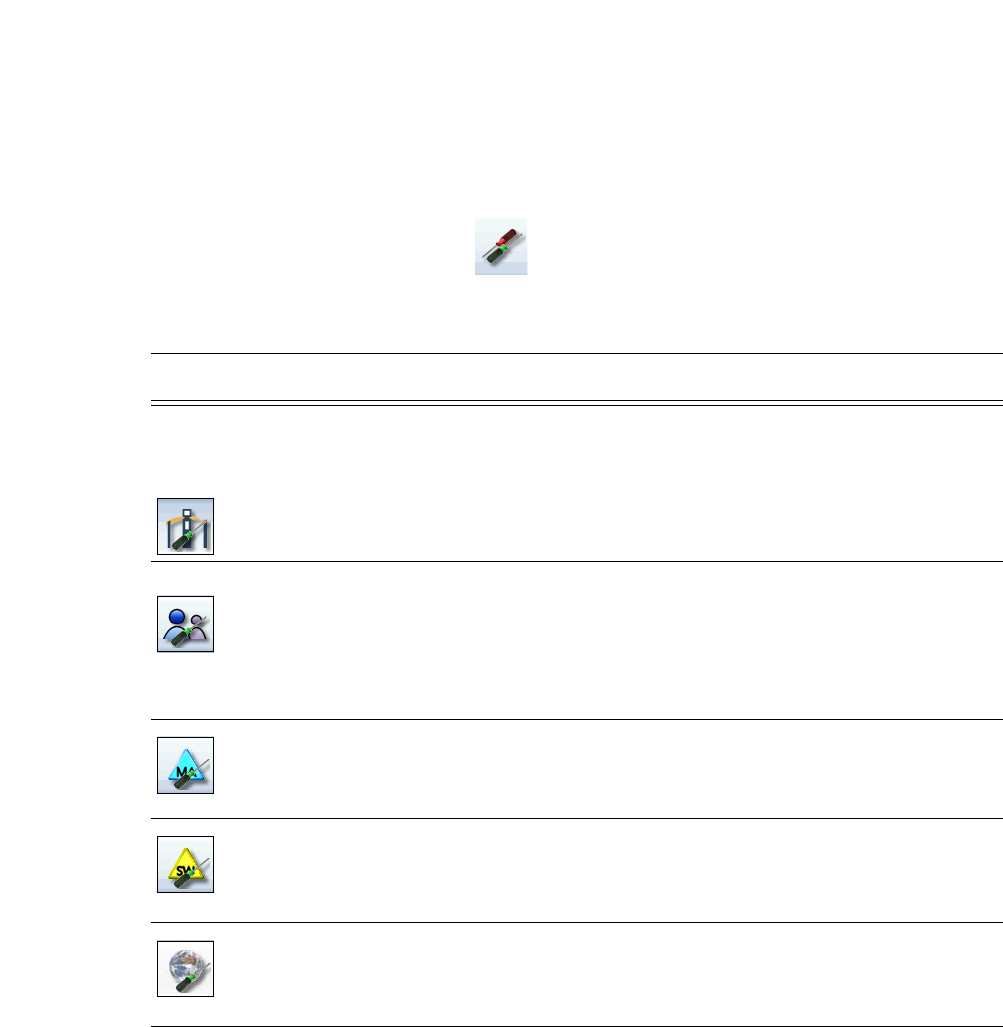
The right-hand side shows an additional toolbar. The following table briefly describes the icons
and settings.
Icon Settings Description
Machine settings Only for "Advanced production", "Service customer" or "Service
SIPLACE".
Allows you to set the operating mode and options (e.g. running
options).
Allows you to shut down the machine
Allows you to change over to the operating system.
User settings Setting the operator level.
Allows you to set the language. As a default, English or German
can be selected. A language CD is provided for installation of other
languages.
Further options can be set from the "Advanced production" operator
level.
Machine options No options can be changed in the "Production" level.
Configuration of machine options.
Software options Only for "Advanced production", "Service customer" or "Service
SIPLACE".
Allows you to activate various test functions.
Overview of con-
nected external
systems
Shows all connected external systems (e.g. OIS, SetupCenter).
Shows the connection status and the memory used or deletes the
connected systems.

User Manual SIPLACE CA-Series 6 Working with the Machine
From software version SC.708.0 Edition 12/2014 EN -DRAFT 6.3 Alert Information and Online Help
355
6.3 Alert Information and Online Help
6.3.1 Error Messages
Each error message identified by a 5-digit number. This error number helps you to locate individ-
ual error messages in the lost of contents for the help system.
To access this, open the context-sensitive help tool in the user interface by clicking on the icon for
Information in the Help System for the station computer. The help text for the current error
message will be shown.
The text highlighted in green contains suggestions for solving the problem.
However, if the error message is based on a chain of faults, you will need to take the error mes-
sages in the whole chain in order to limit the number of possible causes.
6.3.2 Context-Sensitive Online Help
To see information about the current view, click on the icon to start the help system for the
station computer. Use the list of contents, index and the search function to view the contents of
the Online Help.

6 Working with the Machine User Manual SIPLACE CA-Series
6.4 SWS Tasks From software version SC.708.0 Edition 12/2014 EN -DRAFT
356
6.4 SWS Tasks
6.4.1 Switching on the SIPLACE CA
First switch on all SWSs of the SIPLACE CA.
The modules are starting up. As long as the placement machine is not yet switched on, an error
message will be displayed on the screen of the SWS module, which points out that the safety cir-
cuit is not closed.
Switch the placement machine on.
Station computer and machine controller are starting up.
As soon as the placement machine has been started up and the start button has been pressed,
the error message regarding the not-closed safety circuit vanishes from the SWS monitors. Initial-
ize the SWS module.
When the initializing process is completed, the SWSs are ready to operate and in standby.
6.4.2 Switching off the SIPLACE CA
Switching off the SWS
Complete all processes running at the SWS modules.
In the SWS computer GUI switch over to the Production -> Other view and click on the red
switch-off button there.
SWS GUI and Linux are shut down properly. 6
Switch off the SWS at the main switch.
Repeat this, if necessary, for each other SWS module.
Switching off the Placement Machine
Close all current processes in the placement machine.
Shut down the station computer.
Switch the placement machine off at the main power switch.
6.4.3 Filling the Magazine
Refill the magazine with the wafer frames.The centering notches of the wafers frames must
point to the opening of the magazine.
6
PLEASE NOTE
When using frame adapters for 5, 6 or 7 inch wafers, make sure that you only use
every second slot.