00197498-03_UM_SiplaceCA-Serie_EN.pdf - 第387页
User Manual SIPLACE CA-Series 6 Working with the Machine From software version SC.708.0 Edition 12/20 14 EN -DRAFT 6.14 Docking/Undocking the Compo nent Trolley 387 6.14 Docking/Undocking the Component T rolley 6.14.1 Sa…

6 Working with the Machine User Manual SIPLACE CA-Series
6.12 Refilling Components on the Changeover Table From software version SC.708.0 Edition 12/2014 EN -DRAFT
386
6.12 Refilling Components on the Changeover Table
The online help contains information on refilling components with and without barcodes.
With tape feeder modules, make sure that you always splice on a new tape early enough so
that the feeder modules do not run out of components.
However, do not splice the tapes too early because if you wind the tape onto the new reel
after splicing the end of the old tape, the reel with the new tape may be overfilled. The tape
could then slip off the reel and become tangled. Under certain circumstances, this could
cause pickup errors and prolonged down times.
When using tape reels of 15" (381 mm) and higher, always use spindles (see fig. 6.6 - 4) and
make sure that the separating plates have been inserted correctly (see fig. 6.6 - 3
).
6.13 Refilling the SWS with the Wafer Changer System
As soon as all the wafers of a certain die types have been processed (notification on the user
interface), remove the magazine from the magazine lift and replace the processed wafer.
Alternatively, you can also replace a processed wafer magazine with another magazine which
has already been prepared with new wafers.
User Manual SIPLACE CA-Series 6 Working with the Machine
From software version SC.708.0 Edition 12/2014 EN -DRAFT 6.14 Docking/Undocking the Component Trolley
387
6.14 Docking/Undocking the Component Trolley
6.14.1 Safety instructions for Docking and Undocking Component Trolleys
6
6
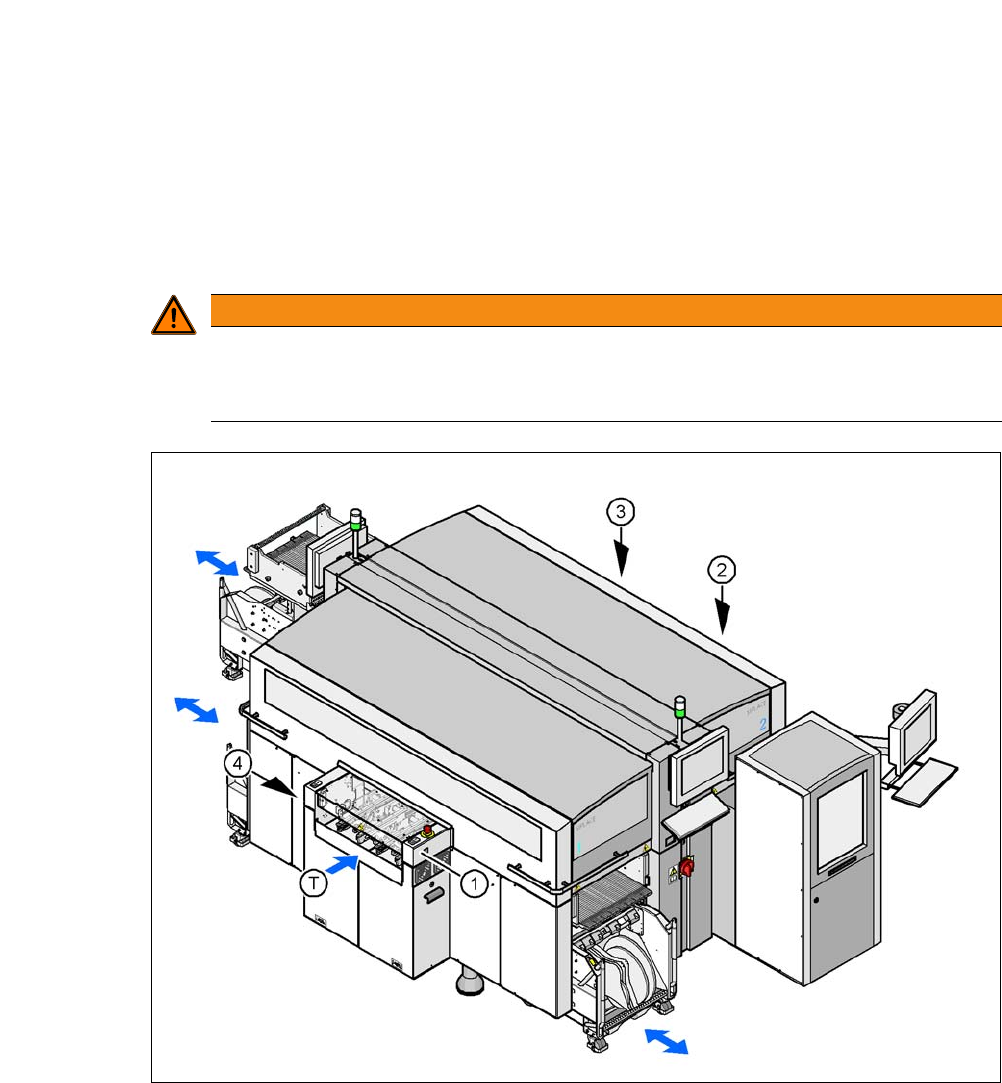
Fig. 6.14 - 1 Safety instructions for docking the component trolley in or out
(1) Button for docking the component trolley in or out, location 1
(2) Button for docking and undocking the component trolley, location 2 (without function here, as
the location is occupied with an SWS)
(3) Button for docking the component trolley in or out, location 3
(4) Button for docking the component trolley in or out, location 4
(T) Direction of PCB transport
WARNING
DANGER OF CRUSHING!
Risk of crushing limbs when docking and undocking the component trolley.
Always dock/undock the component trolley alone.
6 Working with the Machine User Manual SIPLACE CA-Series
6.14 Docking/Undocking the Component Trolley From software version SC.708.0 Edition 12/2014 EN -DRAFT
388
The safety concept for the component trolley changeover prescribes that the user presses a but-
ton (item 1, 2, 3 or 4 in fig. 6.14 - 1
) on the input or output side of the machine, in order to dock or
undock the component trolley. This ensures that the operator is always standing to the side of the
placement machine. In addition, the component trolley can only be docked in if the protective cov-
ers are closed.
6.14.2 Undocking the Component Trolley
Click on the STOP PROCESSING PCB icon in the MAIN VIEW menu.
The PCB in progress will be completed. The icons of the SINGLE FUNCTIONS menu will
then be activated. 6
Click on the desired icon SINGLE FUNCTIONS GANTRY.
Select GANTRY FUNCTIONS.
From this menu, click on the GO TO SET-UP POSITION button.
All the placement heads will move across the PCB conveyor to prevent them being damaged
when the component trolley is changed. 6
Press the appropriate button on the input or output side of the machine (item 1, 2, 3 or 4 in
fig. 6.14 - 1
) until the component trolley has been undocked.
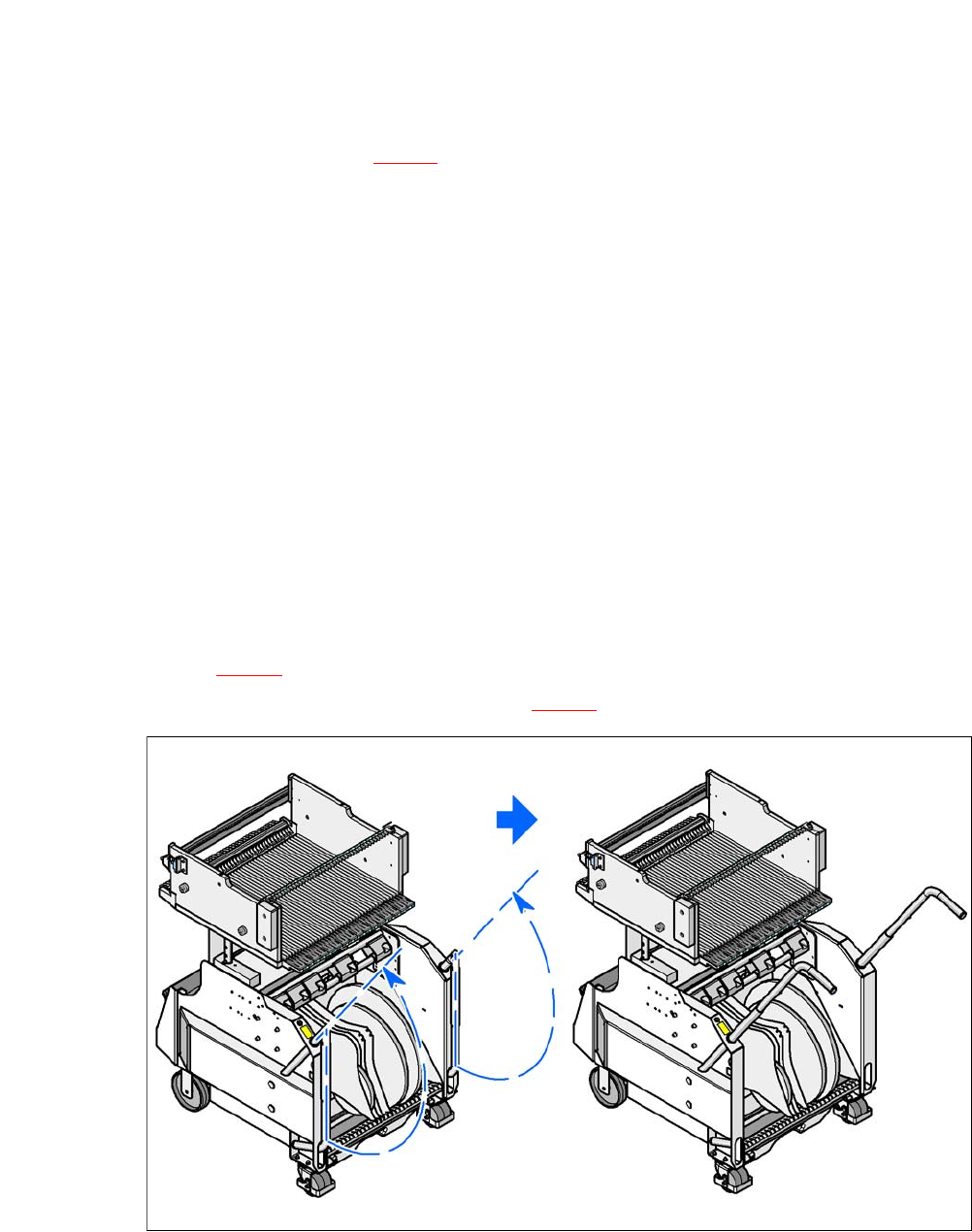
Swivel the two handles up (item 1 in fig. 6.14 - 2).
6
Fig. 6.14 - 2 Component trolley - swivel handles up to push
6
With both hands on the handles, pull the component trolley out of the machine.