YRM20_Ope_E.pdf - 第105页
1. Before operation 2-8 Chapter 2 Basic operation 1.4 Switching the display language YRM20 supports English (EN)/ Japanese (J A) as its display languages. Moreo ver , it ma y support German (DE), Chinese (ZH), K orean (K…
1. Before operation
2-7
Chapter 2 Basic operation
█
Others
Code Error name and description
Ea00109
EMERGENCY STOP FUNCTION DURING MOUNT
State
EMERGENCY STOP FUNCTION is executed during mounting sequence. So, there is danger that mount
sequence finished under the unusual condition. (Can it stop automatically after it installs it when an automatic
driving is restarted, and the image at the installation position be confirmed.)
Cause Emergency stop was triggered during component placement.
Action Use "trace" to check whether the component is placed at the specified point.
Ea00818
QUICK STOP ACTIVE
State QUICK STOP FUNCTION is now active.
Cause Emergency stop was triggered by the "conveyor width safety check sensor".
Action Check the status of the conveyor width safety check sensor.
Ea02722
DON'T YOU NEED HALFWAY CONTINUE?
State
A board that is not finished to mount exist on the mounting position. If you continue auto running, a halfway
board may be transferred. Please confirm the board condition and execute halfway continue command if
necessary.
Cause
A board for which component mounting is not completed is left in the component placement position. If
automatic operation continues as is, then the unfinished board may be transferred downstream.
Action
Check the board in the component placement position. When it is not finished, run "Halfway Continue"
command to resume component mounting on that board.
Ea02889
EMERGENCY STOP FUNCTION DURING PICK
State
EMERGENCY STOP FUNCTION is executed during picking sequence. There is a chance that the picking
sequence finished under suspicious conditions. Please check condition of the component.
Cause
Emergency stop was triggered during component pickup. Component pickup operation might have been
unstable.
Action Check how the component is being picked up.
Ea07871
CAN NOT EXECUTE COMMAND
State
Can not execute this command , because RESET is not finished completely. Please try the RESET command
again, and finish it.
Cause Unable to run commands since reset is not complete.
Action Perform a reset again.
Ea01277
X1 Axis 2nd LIMIT OVER
State Move the axis until error message disappears. The "EMERGENCY STOP" light will go off.
Cause X1-axis secondary limit was exceeded.
Action Move the X1 axis by hand to a safe position.
Ea01278
Y1 Axis 2nd LIMIT OVER
State Move the axis until error message disappears. The "EMERGENCY STOP" light will go off.
Cause Y1-axis secondary limit was exceeded.
Action Move the Y1 axis by hand to a safe position.
1. Before operation
2-8
Chapter 2 Basic operation
1.4 Switching the display language
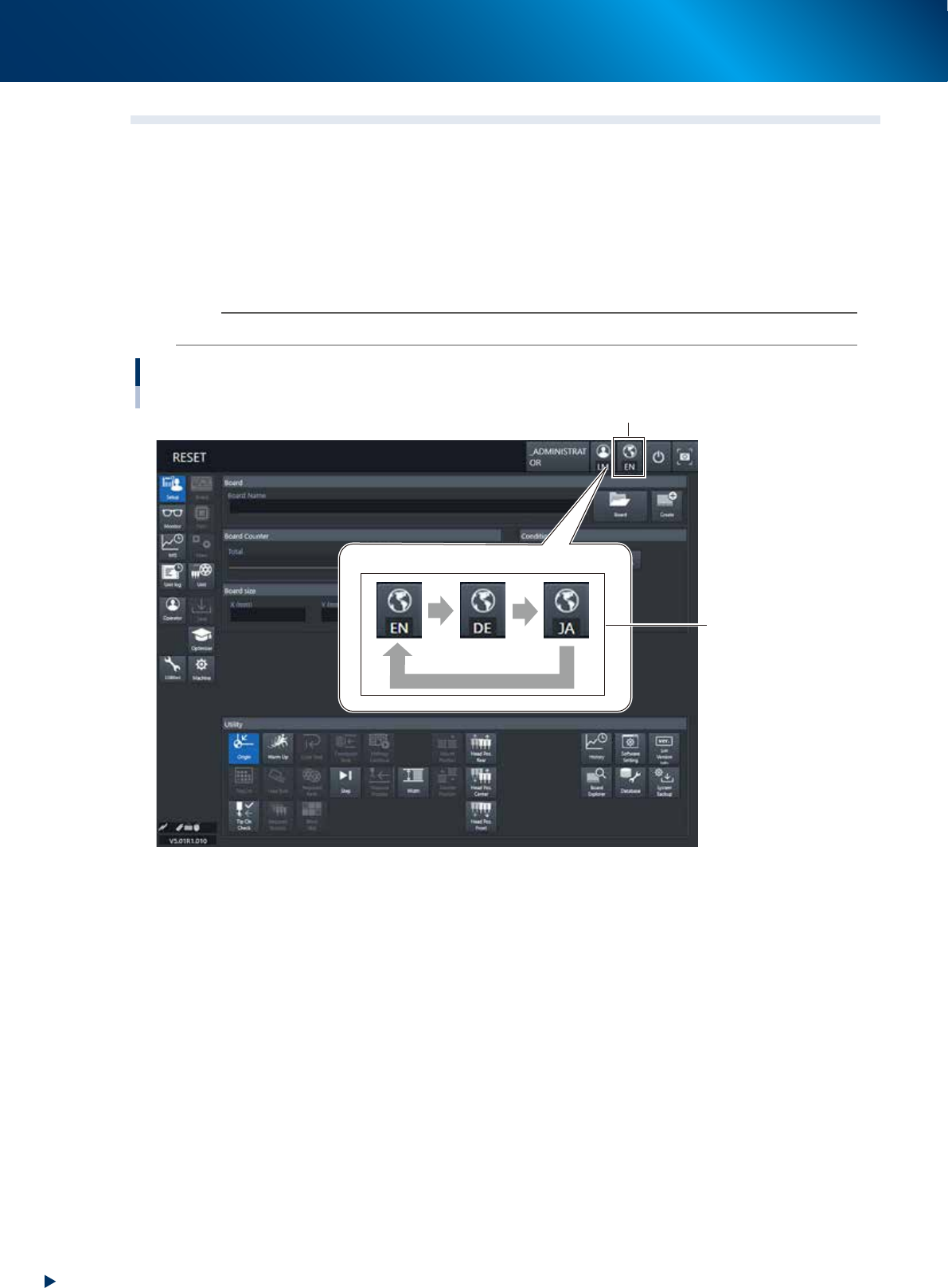
YRM20 supports English (EN)/ Japanese (JA) as its display languages. Moreover, it may support German (DE),
Chinese (ZH), Korean (KO) and Vietnamese (VI) in future.
The display language switches by pressing the [Language Switch] button located at the top right of screen,
according to the contents of "Language switch setting" set in advance. For example, when "Japanese",
"English" and "German" are set in this sequence for the [Language Switch setting], the displayed language is
switched as following by each pressing the [Language Switch] button; Japanese (JA) -> English (EN) ->
German (DE) -> Japanese (JA) ...
n
NOTE
The "Language Switch" can be performed at any time regardless of operator level, machine status or displayed screen.
Switching the display language
[Language Switch] button
Language switch
setting
Ex. of language switch
Push Push
Push
24226-KMX-00
1. Before operation
2-9
Chapter 2 Basic operation
█
Language switch setting
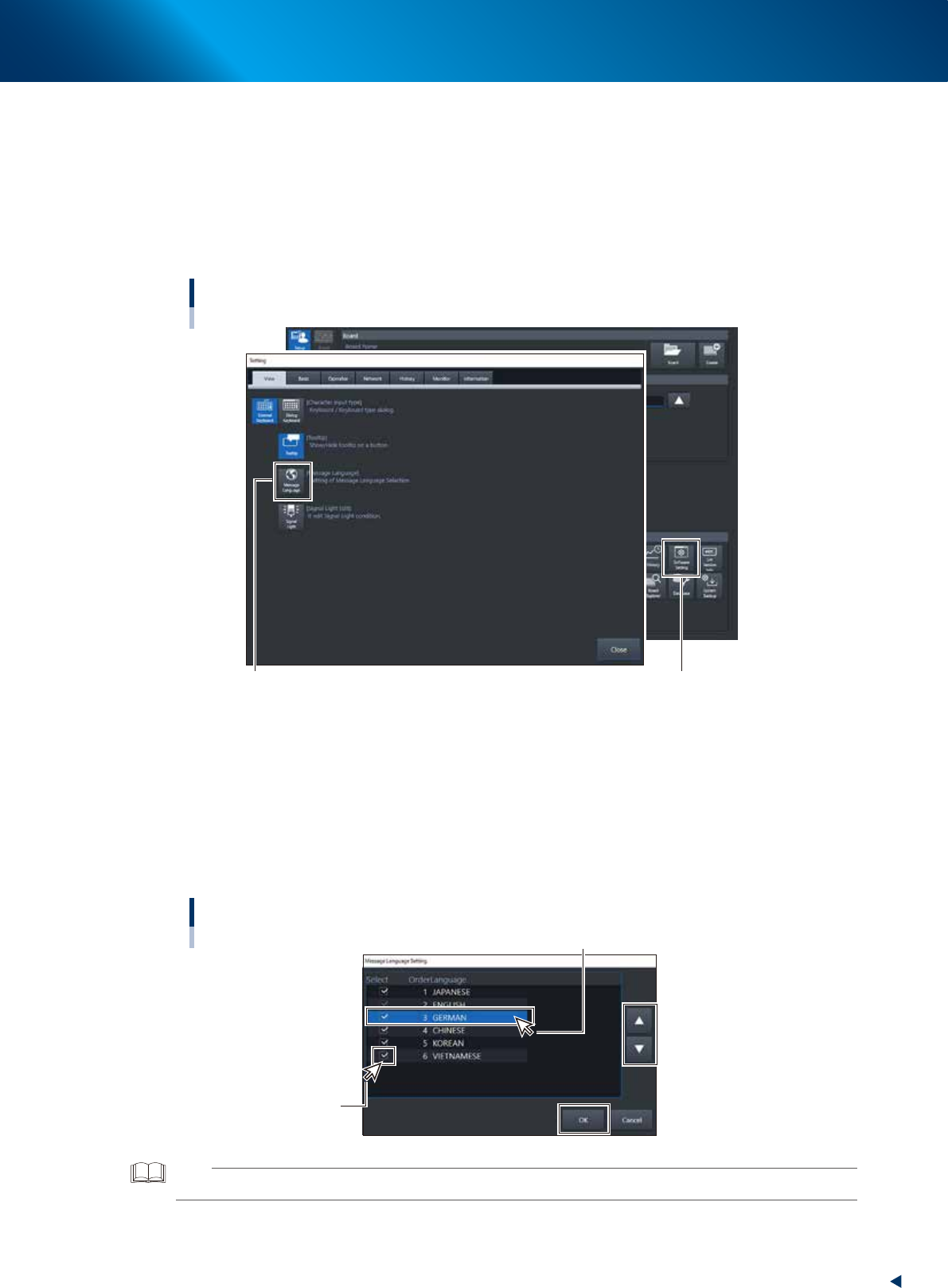
The "Language switch setting" can be set by the following procedure.
1
Press the [Software Setting] button at bottom right of "Setup" screen.
2
Display the ”Massage Language setting” screen.
Select Display tab of "Software Setting" screen and press the [Message Language] button to display
the "Message Language setting" screen.
Displaying the "Message Language setting" screen
[Software Setting] button
[Message Language] button
24227-KMS-00
3
Specify the languages to be used and their order.
The "1. Languages to be used" and "2. Order of languages to be used" can be set at the "Message
Language setting" screen.
1. Tick the checkbox left to the language to be used.
2. Change the order of languages by selecting language and pressing the arrow buttons
displayed at right.
3. Press the [OK] button. Then the "Message Language setting" screen is closed, and the changed
setting is reflected.
Selecting the Message languages and setting their order
1. Selection of languages
to be used
2. Change the order of Message languages
24228-KMX-00
TIP
Though the procedure is illustrated with cursor, the keyboard with touch pad is optional item.
4
Press the [Close] button to close the "Software Setting" screen.