YRM20_Ope_E.pdf - 第106页
1. Before operation 2-9 Chapter 2 Basic operation █ Language switch setting The "Language switch setting" can be set by the following procedure. 1 Press the [Sof tware Sett ing ] butt on at bottom rig ht of &qu…
1. Before operation
2-8
Chapter 2 Basic operation
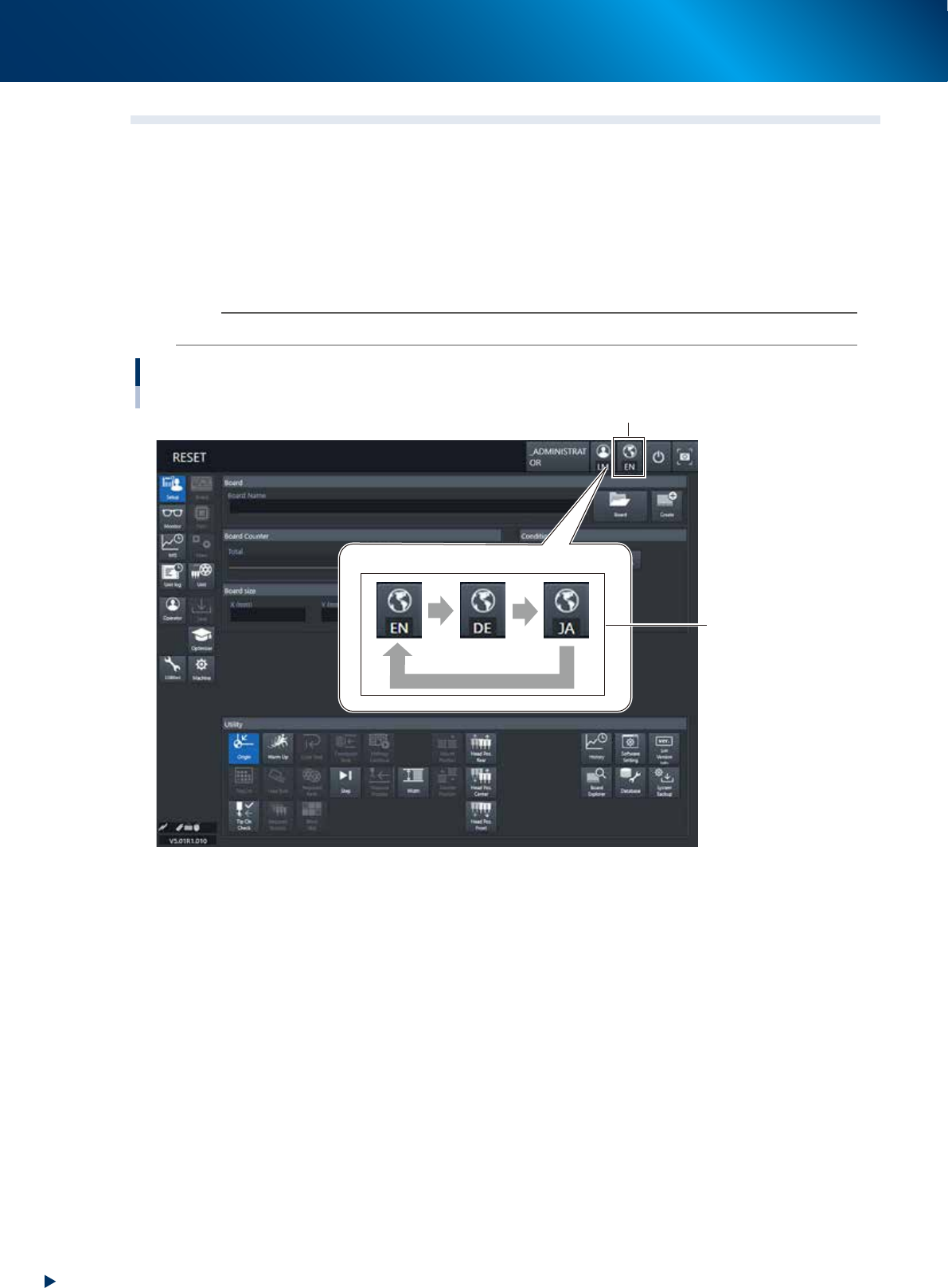
1.4 Switching the display language
YRM20 supports English (EN)/ Japanese (JA) as its display languages. Moreover, it may support German (DE),
Chinese (ZH), Korean (KO) and Vietnamese (VI) in future.
The display language switches by pressing the [Language Switch] button located at the top right of screen,
according to the contents of "Language switch setting" set in advance. For example, when "Japanese",
"English" and "German" are set in this sequence for the [Language Switch setting], the displayed language is
switched as following by each pressing the [Language Switch] button; Japanese (JA) -> English (EN) ->
German (DE) -> Japanese (JA) ...
n
NOTE
The "Language Switch" can be performed at any time regardless of operator level, machine status or displayed screen.
Switching the display language
[Language Switch] button
Language switch
setting
Ex. of language switch
Push Push
Push
24226-KMX-00
1. Before operation
2-9
Chapter 2 Basic operation
█
Language switch setting
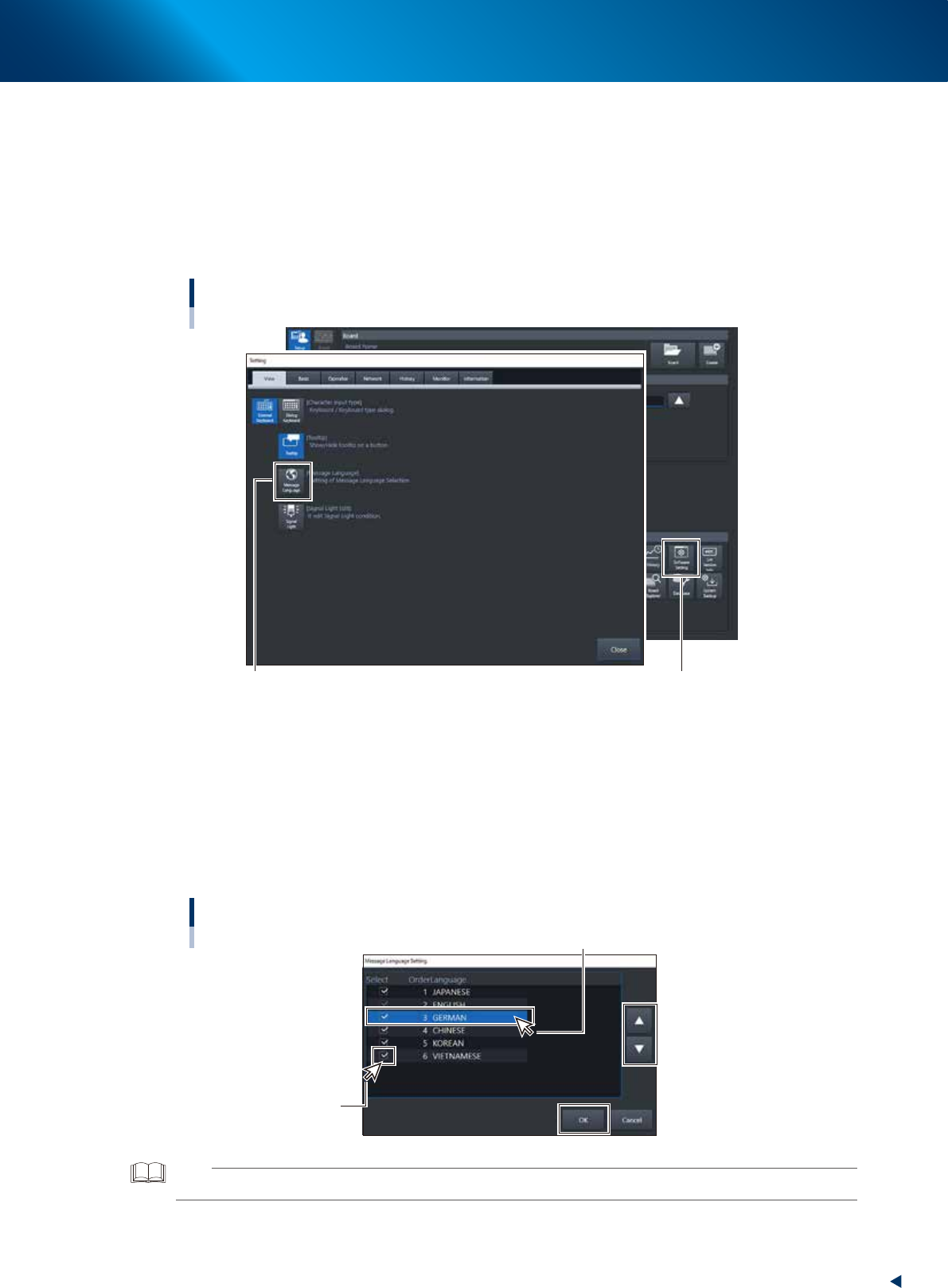
The "Language switch setting" can be set by the following procedure.
1
Press the [Software Setting] button at bottom right of "Setup" screen.
2
Display the ”Massage Language setting” screen.
Select Display tab of "Software Setting" screen and press the [Message Language] button to display
the "Message Language setting" screen.
Displaying the "Message Language setting" screen
[Software Setting] button
[Message Language] button
24227-KMS-00
3
Specify the languages to be used and their order.
The "1. Languages to be used" and "2. Order of languages to be used" can be set at the "Message
Language setting" screen.
1. Tick the checkbox left to the language to be used.
2. Change the order of languages by selecting language and pressing the arrow buttons
displayed at right.
3. Press the [OK] button. Then the "Message Language setting" screen is closed, and the changed
setting is reflected.
Selecting the Message languages and setting their order
1. Selection of languages
to be used
2. Change the order of Message languages
24228-KMX-00
TIP
Though the procedure is illustrated with cursor, the keyboard with touch pad is optional item.
4
Press the [Close] button to close the "Software Setting" screen.
2. Operation screen and buttons
2-10
Chapter 2 Basic operation
2. Operation screen and buttons
The basic configuration and operation methods of the operation screens are explained in this section.
n
NOTE
Because standard specification systems have no keyboard or touchpad, all operations are performed using the touch-panel.
A dialog box displays at parameter input operations, and the desired operations and inputs can then be performed with
the touch-pen.
2.1 Basic configuration of operation screen
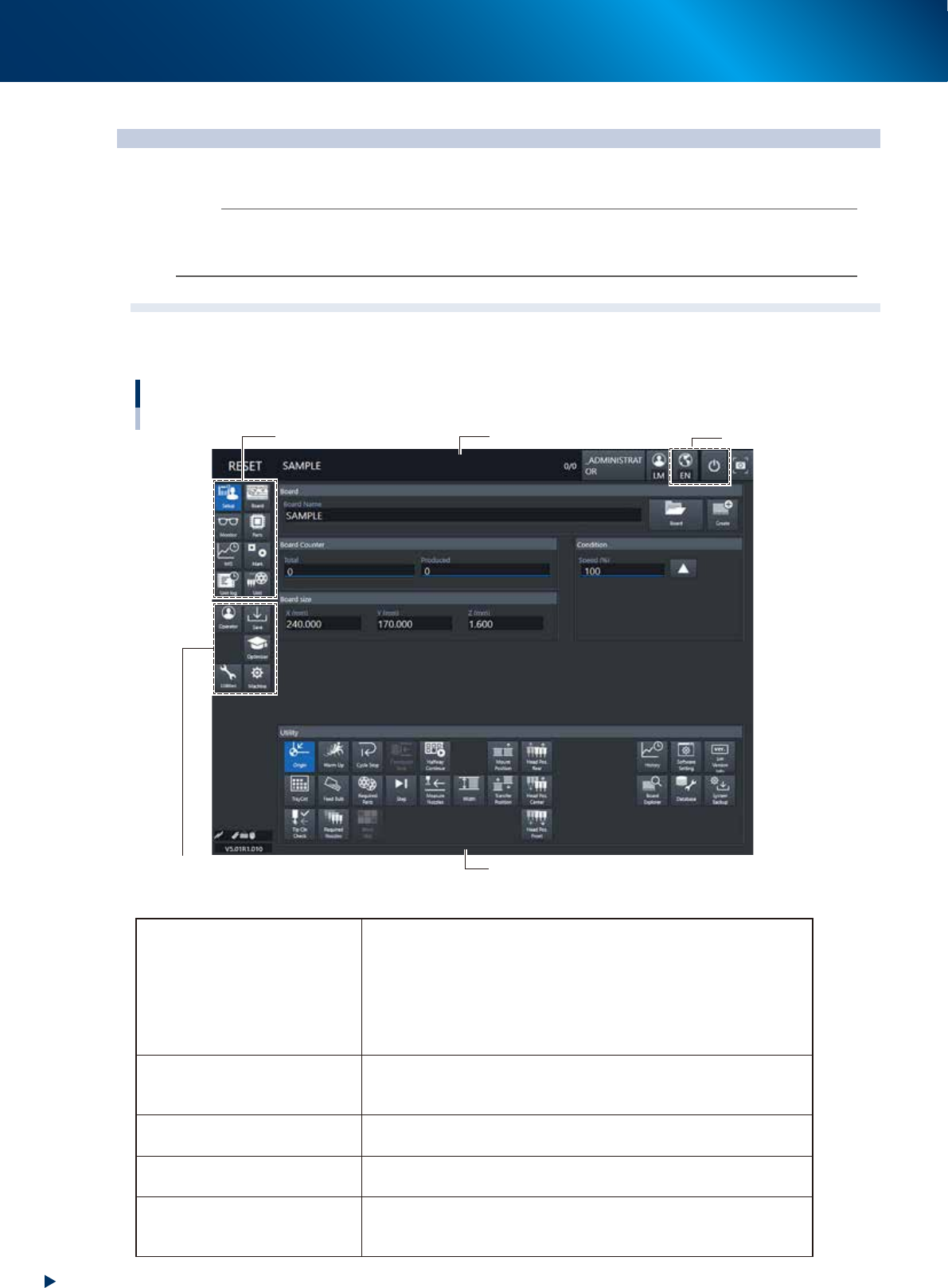
The operation screen consists of "Status area", "Main menu button area" and "Submenu button and parameter
area" as shown below.
Main menu button area 1
Main menu button area 2
Main menu button area
3
Status area
Operation screen basic configuration
Submenu button and parameter area
24201-KMX-00
►
Area on screen
Status area
Displays the current machine status (such as automatic operation,
error, emergency stop) on the left end, the selected board name in the
middle, next to it, the number of boards that have been produced, and
at the rightmost, operator's name who is logging-in.
Moreover, the mount compilation rate per each mounting table is
displayed in graph form at the background. See next section "Status
area details".
Main menu button area 1
Shows the main menu buttons used to operate the machine. The
submenu button and parameter area will change according to the
selected main menu button.
Main menu button area 2
Shows the menu buttons used to call up auxiliary functions of the
machine.
Main menu button area 3
Shows the [Off] button to turn off the machine and the [Language
Switch] button to switch display languages.
Submenu button and parameter
area
Displays the submenu buttons and parameters for machine operation
and data setting. This area will change according to the selected main
menu button.