YRM20_Ope_E.pdf - 第39页
2. Operation panel and data input unit 1-8 Chapter 1 Unit names and functions 2.2 Keyboar d (option) An optional keyboard for operation and data editing, etc., can be added to the mac hine's configuration if desired…
2. Operation panel and data input unit
1-7
Chapter 1 Unit names and functions
►
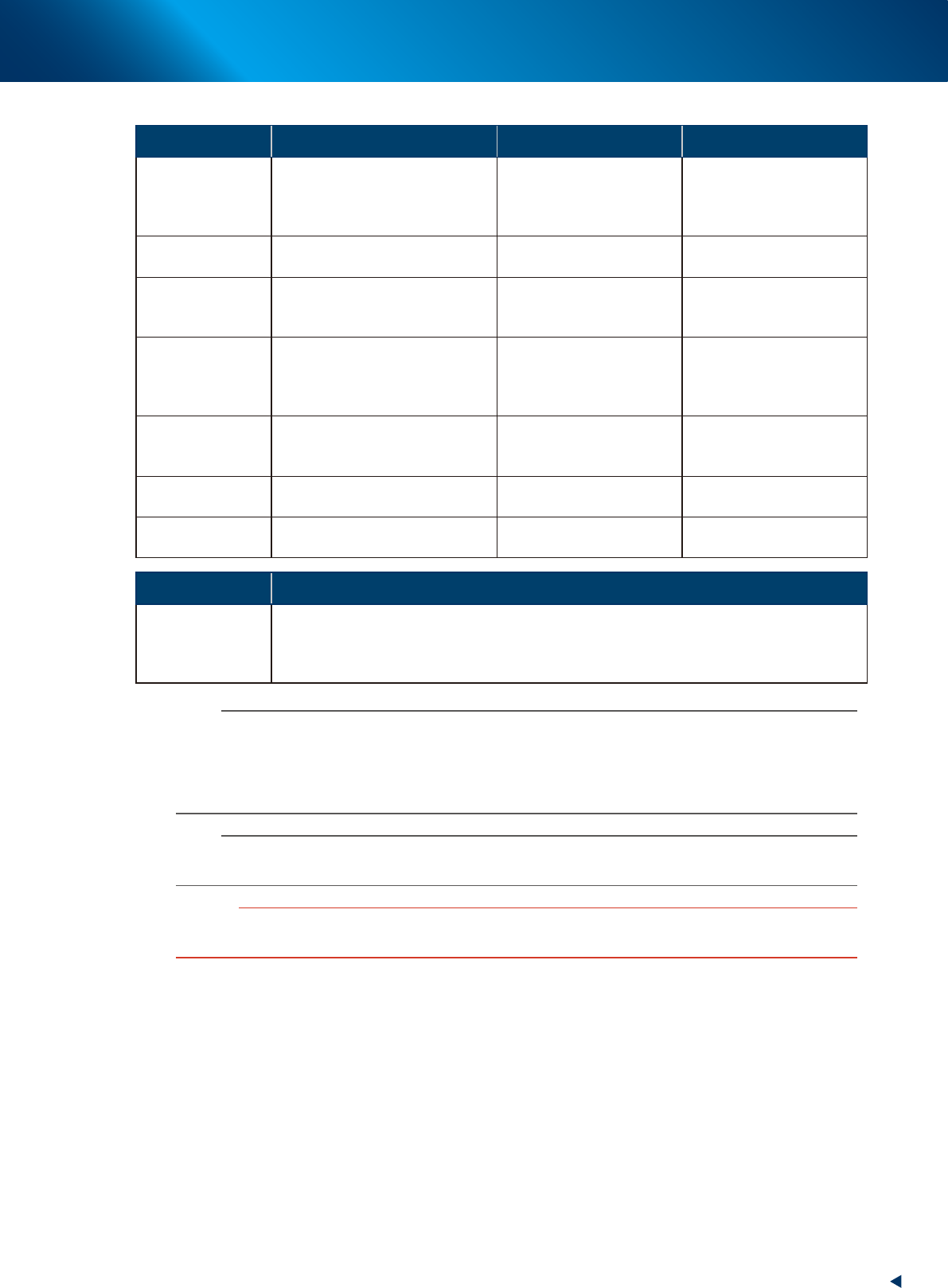
Functions and status of operation button/ emergency stop button
Button name Application OFF ON
ACTIVE
Enable other operation buttons and
touch panel on the side in use.
(The front and rear [ACTIVE] keys
cannot be enabled simultaneously.)
• After machine has started.
• The other side has access
rights to operate machine.
• Has access rights to
operate machine.
READY
Release emergency stop and turn
the servo on.
• SERVO OFF
(Motor power OFF)
• SERVO ON
(Motor power ON)
RESET
Stop automatic operation and
return to standby for board
production.
• Machine is in normal
operation or stopped.
• Machine has been reset.
START (green)
Perform component placement
according to board data.
• Machine is stopped.
• Machine is in normal
operation.
[Flash]
Pause or step operation
STOP (Red/White)
Interrupt automatic operation.
(Press START to resume
operation.)
• Machine is in normal
operation.
• Error occurred.
ERROR CLEAR
(Yellow/Blue)
Stop buzzer sound and clear error
screen.
• Machine is in normal
operation.
• Error occurred.
EMERGENCY
STOP
Trigger emergency stop. Turn to
the right to release it.
Switch Name Application
Feeder exchage
carriage clamp
switch
Clamps and fixes the feeder exchange carriage. This switch should be ON by turning to left
upon setting the carriage (clamp) in position, and OFF by turning to right when detaching it.
The LED of switch lights during the feeder exchange carriage is clamped, and flashes during
clamping or unclamping.
n
NOTE
The [ACTIVE] button is provided on both front and rear (option) panels, but cannot be turned on simultaneously.
This means that the [READY], [START], [ERROR CLEAR] and [RESET] buttons are enabled only when the [ACTIVE] key on
the same panel is turned on.
Moreover, the [STOP] button and emergency stop button can be used when the [ACTIVE] button is either on or off.
The keyboard (option) is enabled only when the [ACTIVE] key on the front panel is on.
n
NOTE
The clamping of feeder exchange carriage is performed only when the machine safety cover is closed.
Moreover, the unclamping the feeder exchange carriage is performed only when the machine is under emergency stop.
c
CAUTION
Remove the feeder exchange carriage after the flashing of the clamp switch has stopped. If the feeder exchange carriage
is removed forcibly while the switch is flashing, this may cause malfunction.
2. Operation panel and data input unit
1-8
Chapter 1 Unit names and functions
2.2 Keyboard (option)
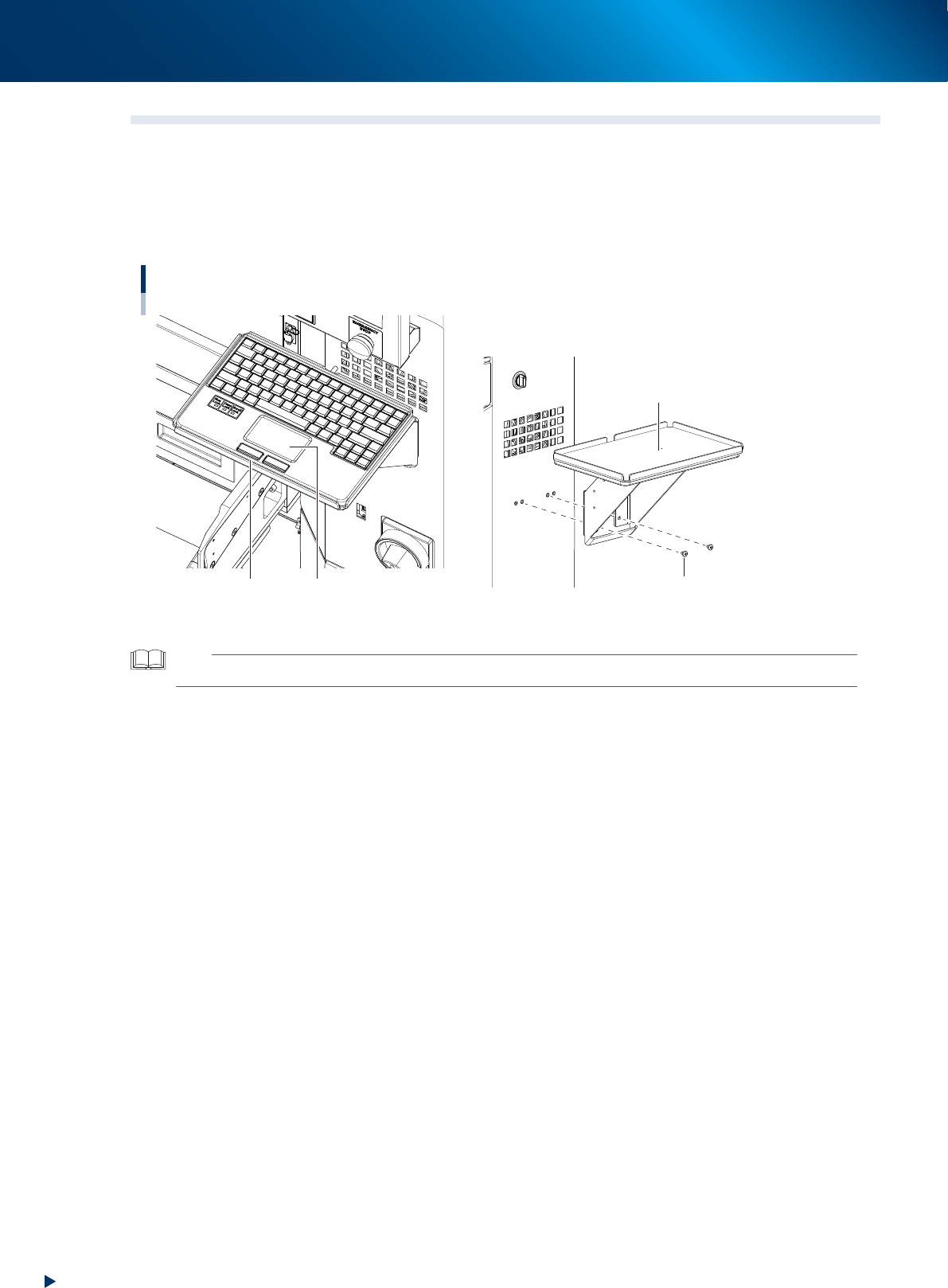
An optional keyboard for operation and data editing, etc., can be added to the machine's configuration if
desired. The touchpad is used to move the cursor to the desired onscreen buttons and parameter items
which are then selected by pressing the left-click button (right-clicking is not available).
The keyboard is installed by mounting it on the keyboard bracket, which can be attached with accessory
screws, and then connecting its USB terminal of keyboard to the machine's USB port.
Keyboard
Left/right button Touchpad
Keyboard bracket
Keyboard bracket
mounting screws
23106-KMX-00
TIP
The keyboard cannot be installed on machine rear side.
2. Operation panel and data input unit
1-9
Chapter 1 Unit names and functions
2.3 Other connection ports
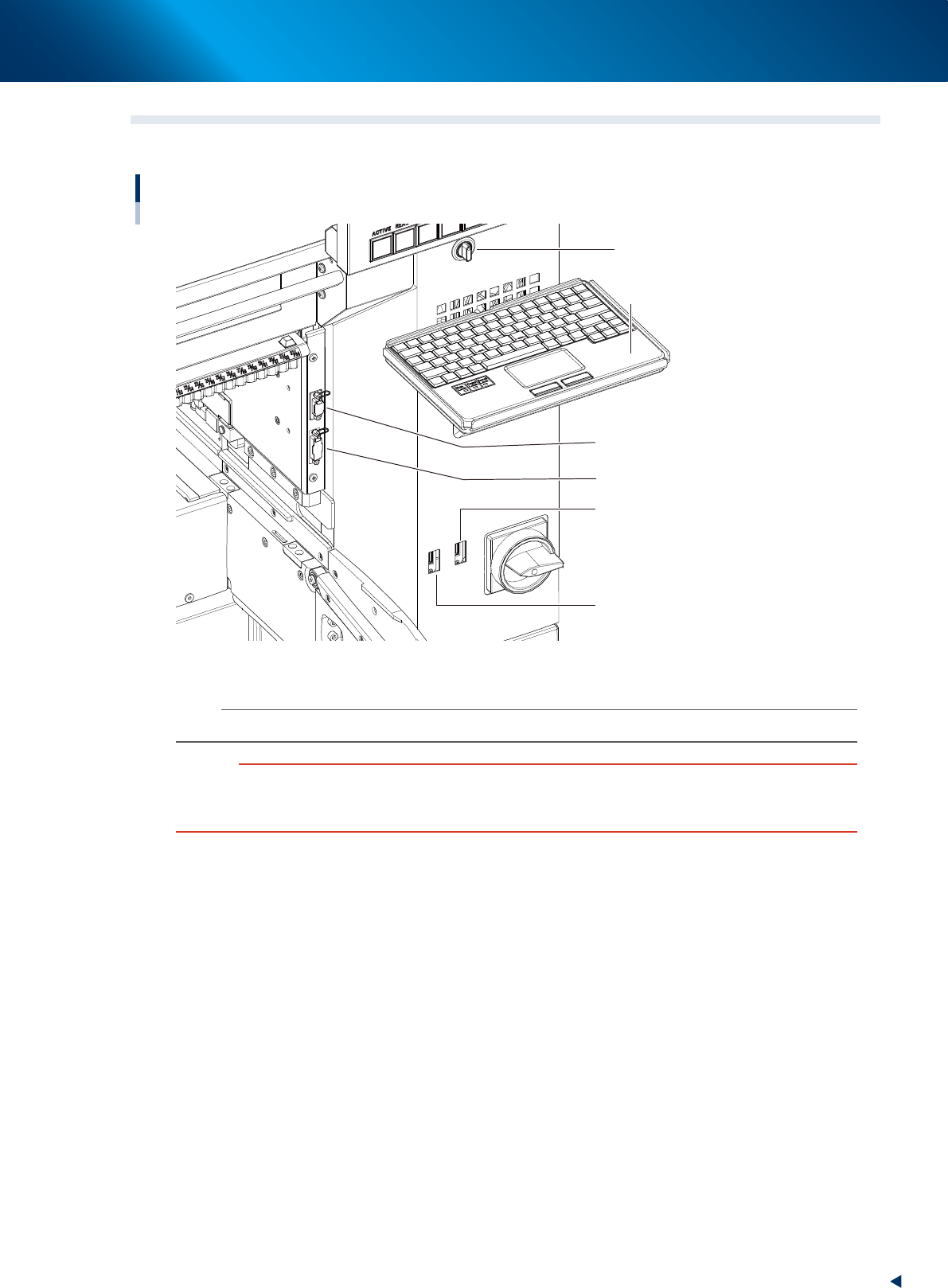
The machine has some other connection ports such as for USB flash drive, for keyboard, etc.
USB flash drive port and other connection ports
USB flash drive port
Keyboard port
Keyboard (option)
Connector for FM head load
calibration
Connector
for dipping station (option)
Feeder exchage carriage
clamp switch
23107-KMX-00
n
NOTE
The air joint is installed at the feeder exchange carriage side for this machine.
c
CAUTION
The USB port for the keyboard connection shown in the figure above is dedicated to the keyboard. (Only keyboards which
do not require a -101 dedicated driver are supported.) Do not connect other USB devices to this port.
Moreover, connecting 2 or more keyboards will disable exclusive access control, and therefore stop keyboard operation.
■
USB flash drive port
Use this USB flash drive port when making a data backup or upgrading the software version.
■
Other connection ports
The machine also has other connection port for maintenance work of FM head unit.
Other connectors installed on the feeder exchange carriage side are described at "4.2.1 Feeder
exchange carriage" in this chapter.