YRM20_Ope_E.pdf - 第201页
1. Flow from starting up machine to production 3-21 Chapter 3 Flow from starting up machine to production 1.7 Pr eparing component tape (T ape feeder) When the convey or gets read y for operation, prepare the component t…

1. Flow from starting up machine to production
3-20
Chapter 3 Flow from starting up machine to production
3
Check the board is clamped on the mounting stage 2.
1. Close the upper cover and safety cover.
2. Attach the carriage to machine.
3. Release the [EMERGENCY STOP] button.
4. Press the [Convey Board] button on [Unit] - [Conveyor] screen.
5. The "Convey Boards" check screen appears. Confirm that "All position" and "Board Fix" are
ticked, and then press the [OK] button.
6. The "CONVEYOR AND FIX" message appears, then press the [OK] button twice. The board is
conveyed from the mounting stage1 of upstream to the mounting stage 2 of downstream, and
the board is fixed at its mounting position of mounting stage 2.
7. See step 2 to check the conveyor clamped condition on the downstream stage.
4
Remove the board.
1. Close the upper cover and machine safety cover.
2. Attach the carriage to machine.
3. Release the [EMERGENCY STOP] button.
4. Press the [Convey Board] button on [Unit] - [Conveyor] screen.
5. The "Convey Boards" check screen appears. Confirm that "All position" is ticked, and then
press the [OK] button.
6. The "CONVEY AND FIX" screen appears and press the [OK] button. The board is transferred
from the mounting position (mounting stage 2) to exit conveyor.
7. Remove the board manually.
1. Flow from starting up machine to production
3-21
Chapter 3 Flow from starting up machine to production
1.7 Preparing component tape (Tape feeder)
When the conveyor gets ready for operation, prepare the component tape. This procedure description in this
section assumes that the board data to be used for production has been read out.
1
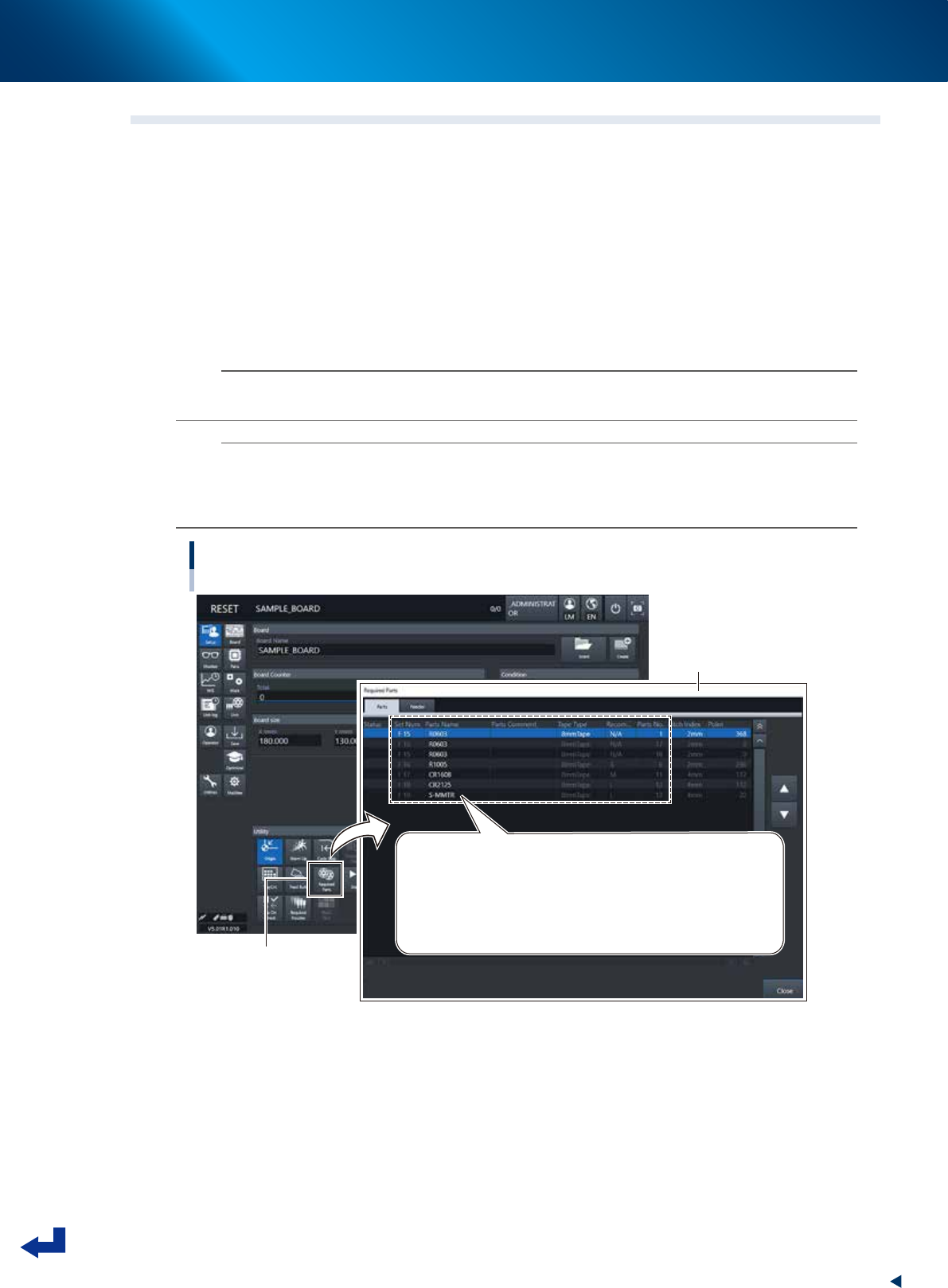
Open the “Required Parts” screen.
Press the [Required Parts] button and the “Required Parts” screen appears.
2
Set the feeders loaded with component tape.
The “Required Parts” screen lists the “Set Num.”, “Parts Name”, “Parts No.” and other parameters.
While observing this list, attach the feeders loaded with component tape in each corresponding
feeder set location, or attach the feeder exchange carriage to which the feeders are set, to machine.
n
NOTE
See chapter 2,"4. Preparing component tape" for the procedure to set component tape into the feeder and attach the
feeder to main machine.
n
NOTE
The component set positions (Set Num.) F1 through F64 are of the feeder exchange carriage at front side, and the F101
through F164 of the feeder exchange carriage at rear side.
P1 to P30 are the pallet numbers for the tray component supply unit at front side, P101 to P130 are the pallet numbers for
the tray component supply unit at rear side.
Preparing component tape
[Setup] screen - “Required Parts” screen
[Required Parts] button
“Required Parts” screen
Set Num. / Parts Name / Tape Type / Parts No. and other parameters appear.
Set Num. : F1 to F64 are set in the front feeder exchange carriage
F101 to F164 are set in the rear feeder exchange carriage
P1 to P30 are set in the front tray component supply unit
P101 to P130 are set in the rear tray component supply unit
24312-KMX-00
1. Flow from starting up machine to production
3-22
Chapter 3 Flow from starting up machine to production
1.8 Confirming nozzles
Confirm the nozzles before starting the production. This procedure description in this section assumes that
the board data to be used for production has been read out. Note that Steps 1 and 2 are not necessary where
the setting is such that all the heads go through the automatic nozzle changing process.
1
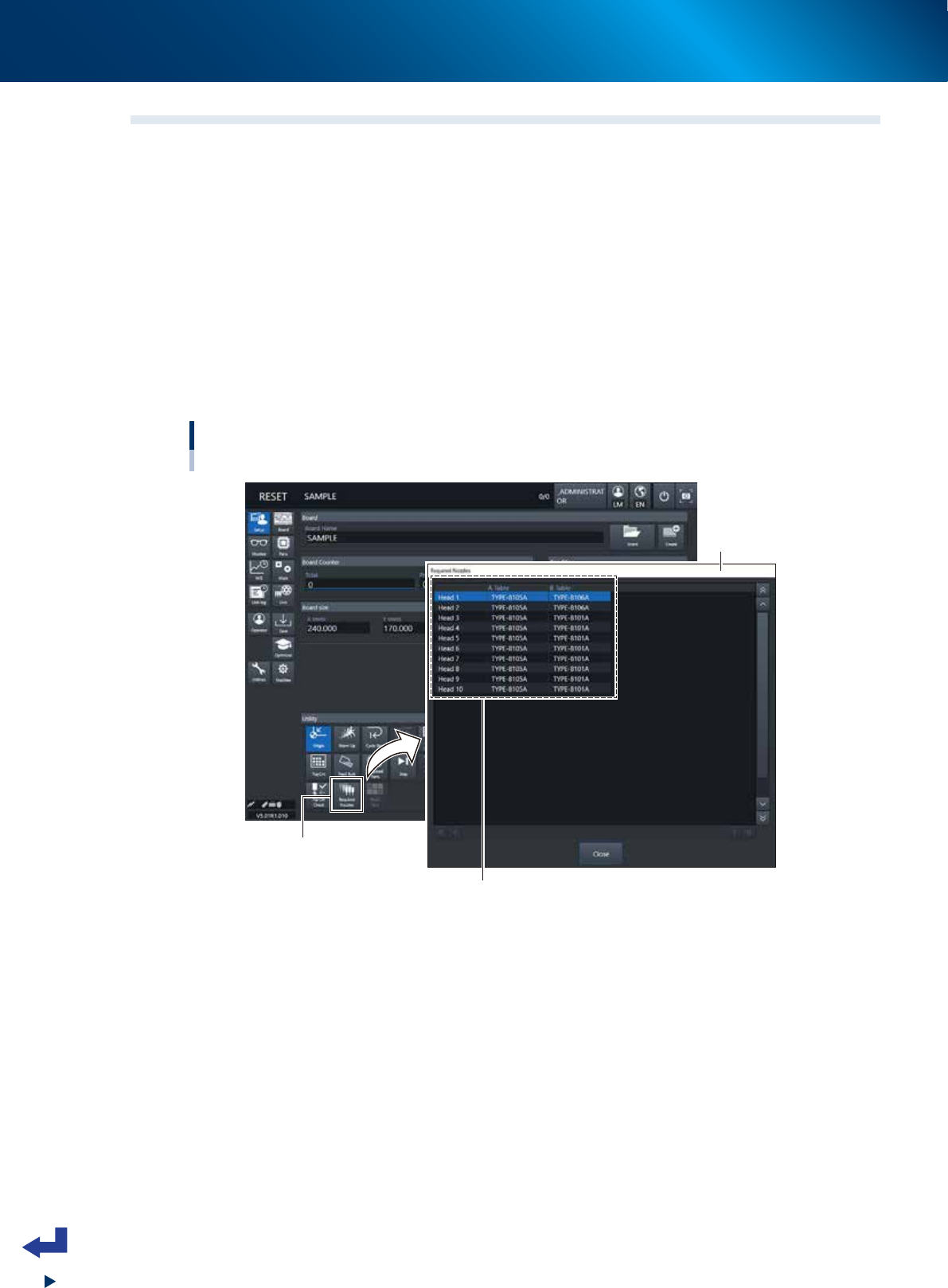
Open the “Required Nozzles” screen.
Press the [Required Nozzles] button on the “Setup” screen, then the “Required Nozzles” screen
appears.
2
Confirm the nozzle types.
If the machine is not equipped with the nozzle station or the machine has a head that does not go
through the automatic nozzle changing process, the types of nozzles appear on the “Nozzle Type”
list. Confirm that these nozzles in the list match the nozzles that are currently attached on the heads.
Note that this process is not necessary if set to “AUTO”.
Confirming the nozzle types
[Setup] screen - “Required Nozzles” screen
[Required Nozzles] button
Confirm that these nozzles in the list match the nozzles
that are currently attached on the heads.
* This process can be skipped if set to “AUTO”.
“Required Nozzles”
screen
24313-KMX-00