YRM20_Ope_E.pdf - 第143页
3. Displaying the production monitors 2-46 Chapter 2 Basic operation 3.12 Gap of pick-up position Displa ys the gap between the component center calculated by component recognition and the center of camera field angle, f…
3. Displaying the production monitors
2-45
Chapter 2 Basic operation
• Nozzle Type
Indicates the type of nozzle.
• Nozzle Stn No
Indicates the setup position of that particular nozzle on the nozzle station.
• Vacuum Check, Tip Cleanliness Check, Buffing Check, Shape Check, Alignment Check
These indicate the results of the schedule tasks individually.
• [Result Detail] button
Selecting a row with an NG result and pressing the [Result Detail] button shows the details of NG item.
TIP
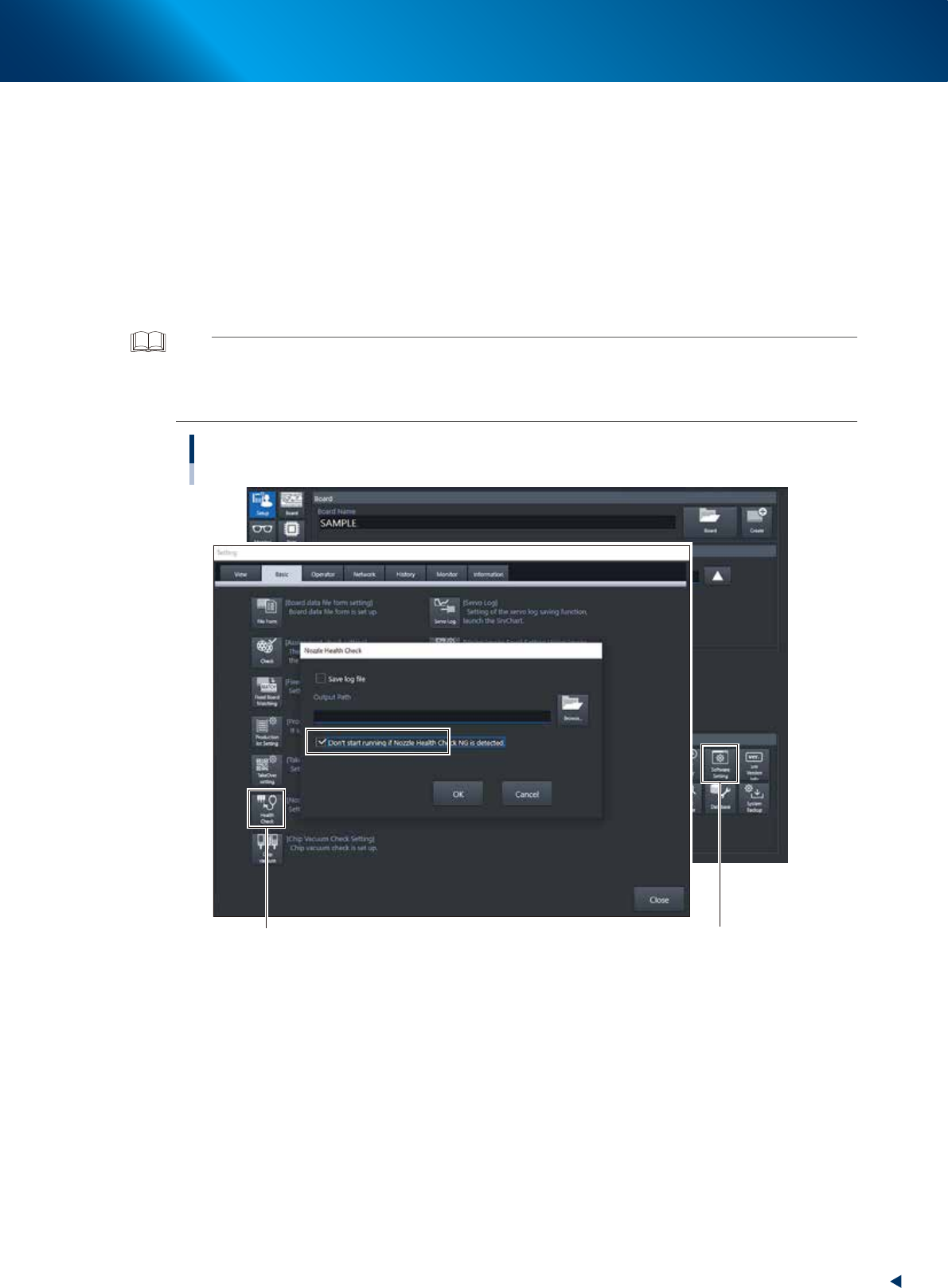
If ticking the checkbox of “Don’t start running if Nozzle Health Check NG is detected” on “Setup” screen – “Software
Setting” – “Basic” tab – “Nozzle health check”, an error message appears at the time of starting the operation so as not to
use the “NG” nozzle for the production. If providing this parameter with a check mark, it is necessary to clean or replace
the failed nozzle and once again go through the nozzle health check.
“Nozzle Health Check” setup screen
[Health Check] button [Software Setting] button
24224-KMX-00
3. Displaying the production monitors
2-46
Chapter 2 Basic operation
3.12 Gap of pick-up position
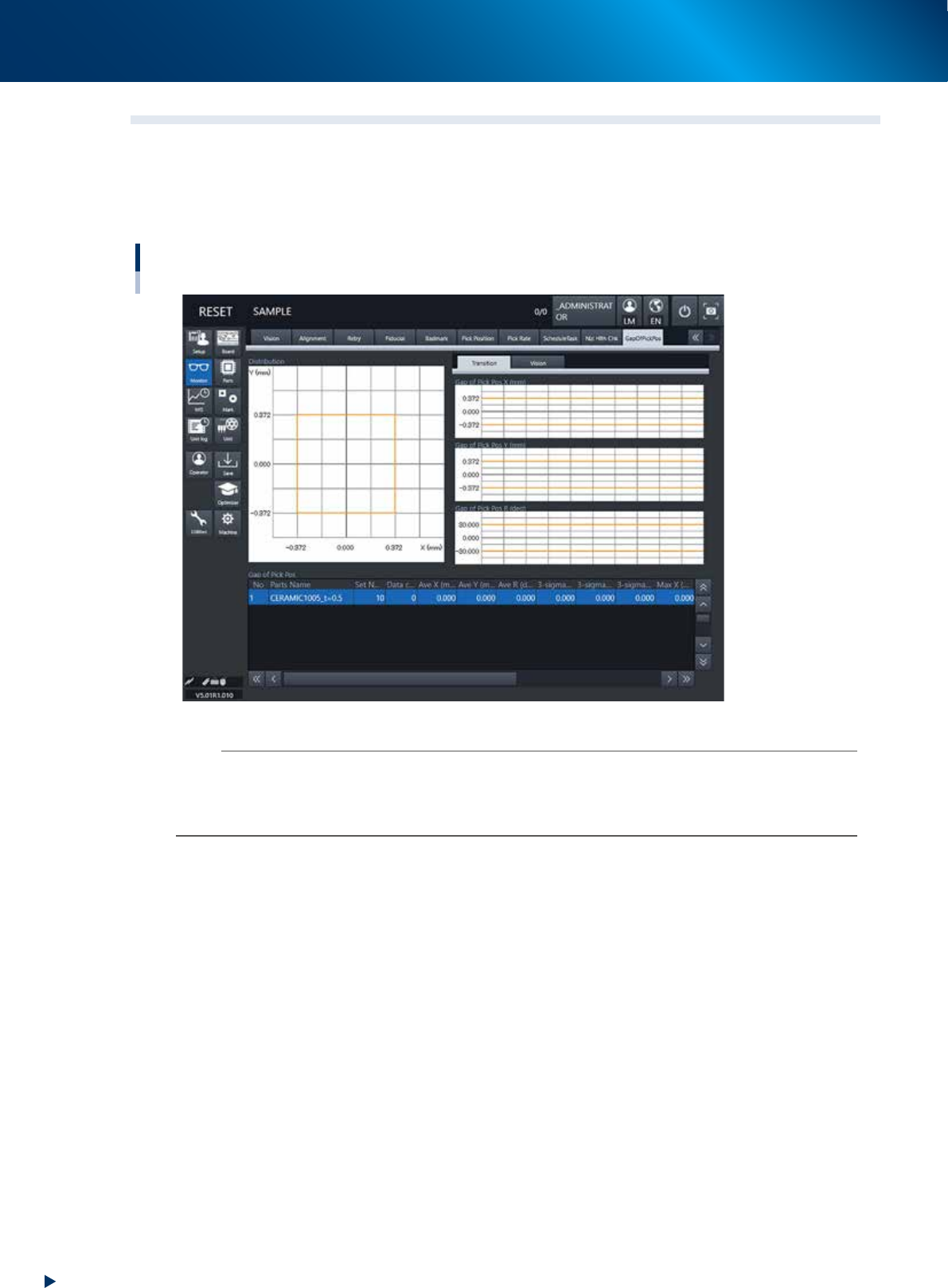
Displays the gap between the component center calculated by component recognition and the center of
camera field angle, for each component specified in board data, in graph form.
The re-examining of pick-up position or pick-up nozzle may be required for the component with large value
variability or biased recognition results in this graph.
Monitor: GapOfPickPos (Gap of pick-up position)
24225-KMX-00
n
NOTE
The displayed threshold of the gap of pick-up position amount can be specify to any value by selecting "Set" from [Parts]
- [Option] - [Pick Pos Check].
When [Normal] is selected for [Pick Pos Check], one-third of an opposite side of part size XY is specified automatically as
threshold of the gap of pick-up position amount.
4. Preparing component tape
2-47
Chapter 2 Basic operation
4. Preparing component tape
4.1 Tape feeders
4.1.1 Setting component tape on the feeder
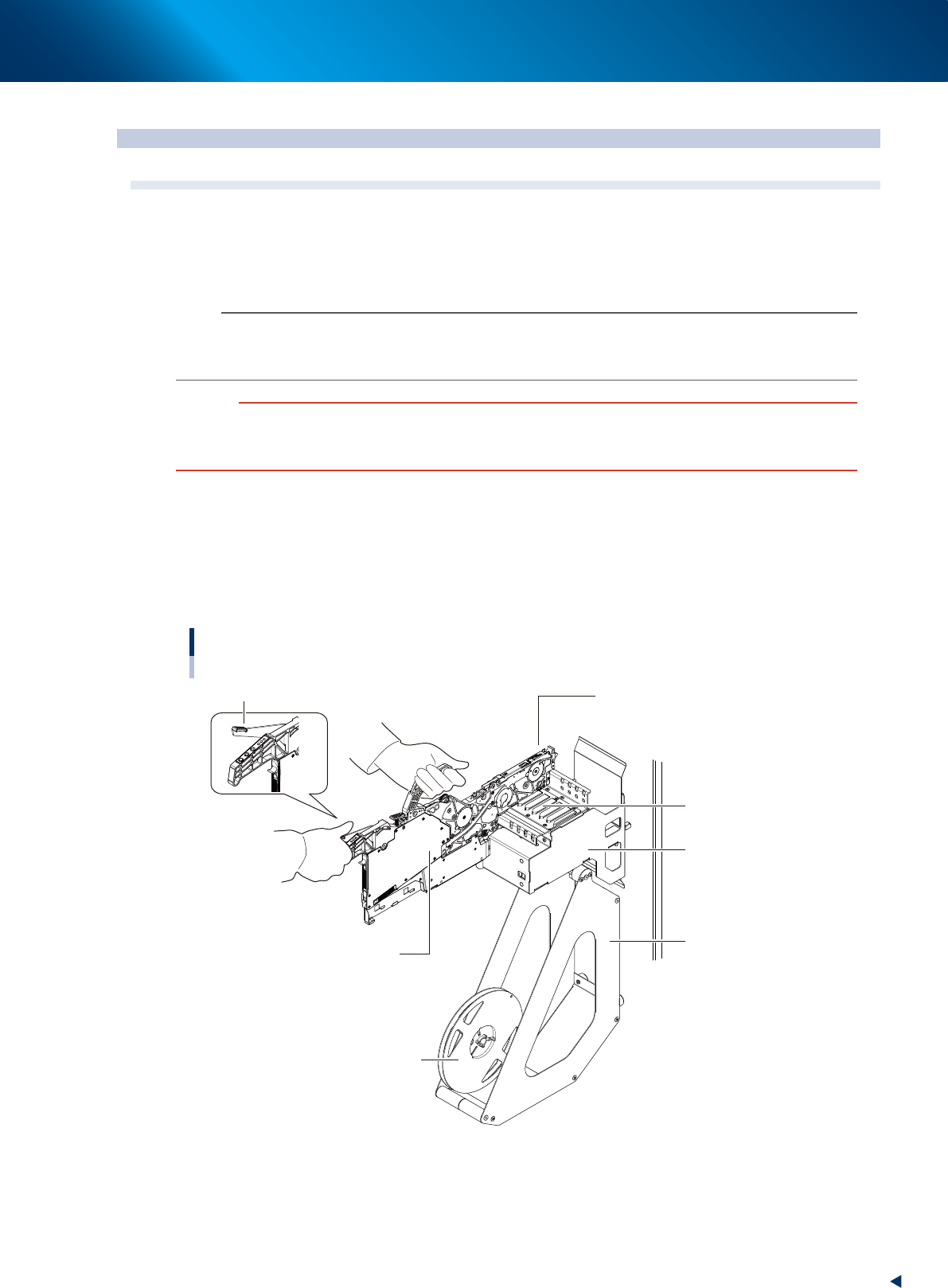
Taking up ZSR feeder and 12mm ZS feeder as examples, this section describes how to set component tape
on the feeder.
n
NOTE
The 4 types of tape feeder are provided and applicable for YRM20; ZSR feeder, ZS feeder, auto loading feeder, and SS
feeder. Though some limitation occur upon using SS feeder.
See "4.2 SS Feeder" for details.
c
CAUTION
Always use a temporary tape set station or a power station for the off-line setup to set the tape. Make sure to prevent
essentially to set tape on tape feeder on feeder exchange carriage already attached to mounter, as a component tape may
fall inside of mounter upon working.
1
Set the feeder and tape reel on the temporary tape set station.
1. Place the feeder in the temporary tape set station or power station for the off-line setup.
While keeping gripping the unclamping lever of the feeder, set it to the leftmost set position (the
point where the feeder connector is located) by running the feeder along the feeder guide rail
of temporary tape set station.
2. Set the tape reel for operation to the reel holder of the temporary tape set station.
Setting the feeder
Set to the leftmost position.
Feeder
Feeder guide rail
Unclamp lever
Temporary tape set
station
Reel holder
Reel
23202-KMX-00