YRM20_Ope_E.pdf - 第121页
2. Operation screen and buttons 2-24 Chapter 2 Basic operation ► Manual I/O operation [Unit] – [I/O] screen 1 2 3 5 4 2421 1-KMX-00 Button name Function 1 Select output display group Select the output group for display i…
2. Operation screen and buttons
2-23
Chapter 2 Basic operation
►
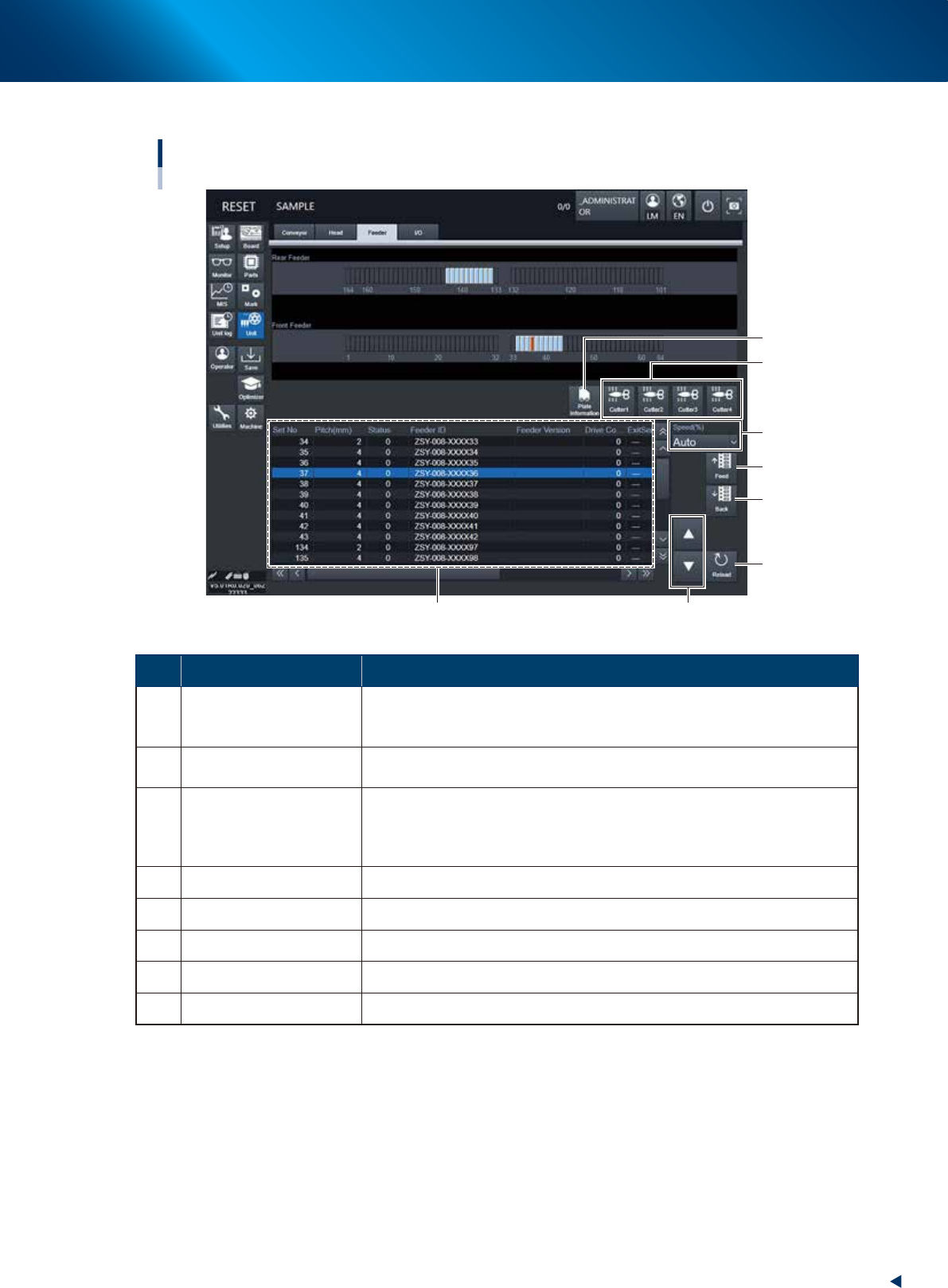
Manual feeder operation
[Unit] – [Feeder] screen
2
4
7
8
3
5
1
6
24210-KMX-00
Button name Function
1 Feeder Information
Displays the information of the feeders set on the feeder plate.
The No. displayed in the "Status" column indicates the error code No. For
error details, refer to "ZS/ZSR FEEDER User's Manual".
2 Feed
Feeds the tape on the feeder selected by the feeder information to one pitch.
Each time pressing this button advances the tape at the specified pitch.
3 Back
Moves the tape backwards by one pitch on the feeder selected by the feeder
information.
Each time pressing this button moves the tape backward at the specified
pitch.
4 Speed Select the feed speed from the drop-down list with "Normal", 90,80, to 10%.
5 Reload Clears the feeder condition (memory) and reloads the setting.
6 Up/down arrows Moves the selected row up or down.
7 Cutter Opens or closes the tape cutter.
8 Plate Information Allows you to check the version of the plate board in the feeder plate.
2. Operation screen and buttons
2-24
Chapter 2 Basic operation
►
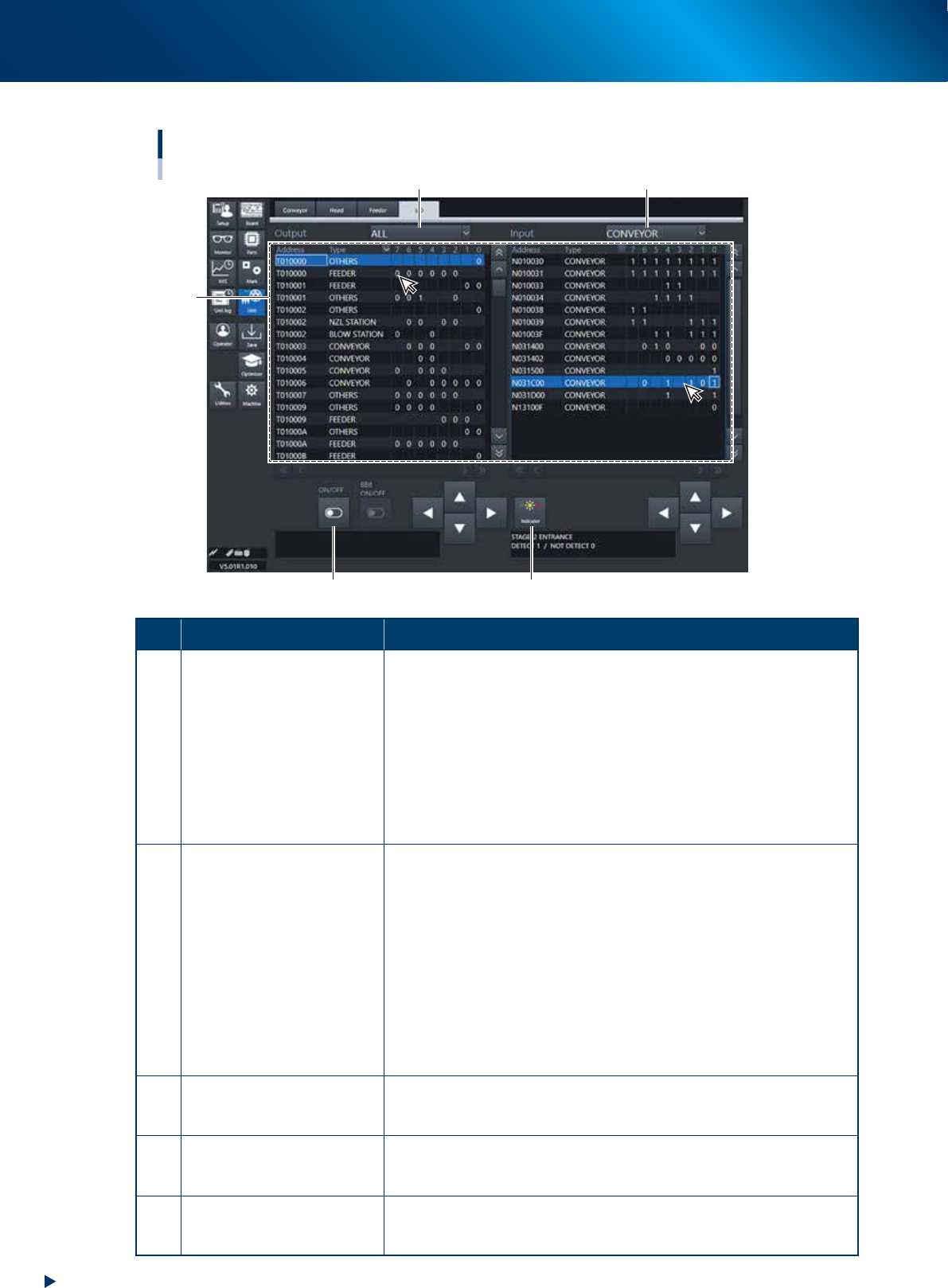
Manual I/O operation
[Unit] – [I/O] screen
1 2
3
5
4
24211-KMX-00
Button name Function
1 Select output display group
Select the output group for display in the "Output" status list. The following
groups can be selected:
• FEEDER
• NZL STATION (Nozzle station)
• DUMP STATION
• BLOW STATION
• CONVEYOR
• HEAD
• ATS
• OTHERS
2 Select input display group
Select the input group for display in the "Input" status list. The following
groups can be selected:
• INTERLOCK
• ORIGIN & LIMIT
• FEEDER
• NZL STATION (Nozzle station)
• DUMP STATION
• BLOW STATION
• CONVEYOR
• HEAD
• ATS
• OTHERS
3 ON/OFF
As for the output signals, the valve actuation etc can be output forcibly as
needed. Click to select arbitrary signal and press the [ON/OFF] button.
The selected output signal turns ON or OFF.
4 Indicator
Lights up each unit of indicator such as a feeder, a carriage and a tray
changer. The mode of indication can be selected from “All”, “Individual” or
“Sequence”.
5 Input/Output
Indicates the current status of sensors and valves.
I/O contents are displayed at the bottom of the screen with selecting by a
cursor.
3. Displaying the production monitors
2-25
Chapter 2 Basic operation
3. Displaying the production monitors
Press the [Monitor] button and check each monitor screen that appears to confirm the operation status
during the production. The monitor screens includes the [Main], [Vision], [Alignment], [Retry] etc. Select
the corresponding tab to check the ongoing mounting information.
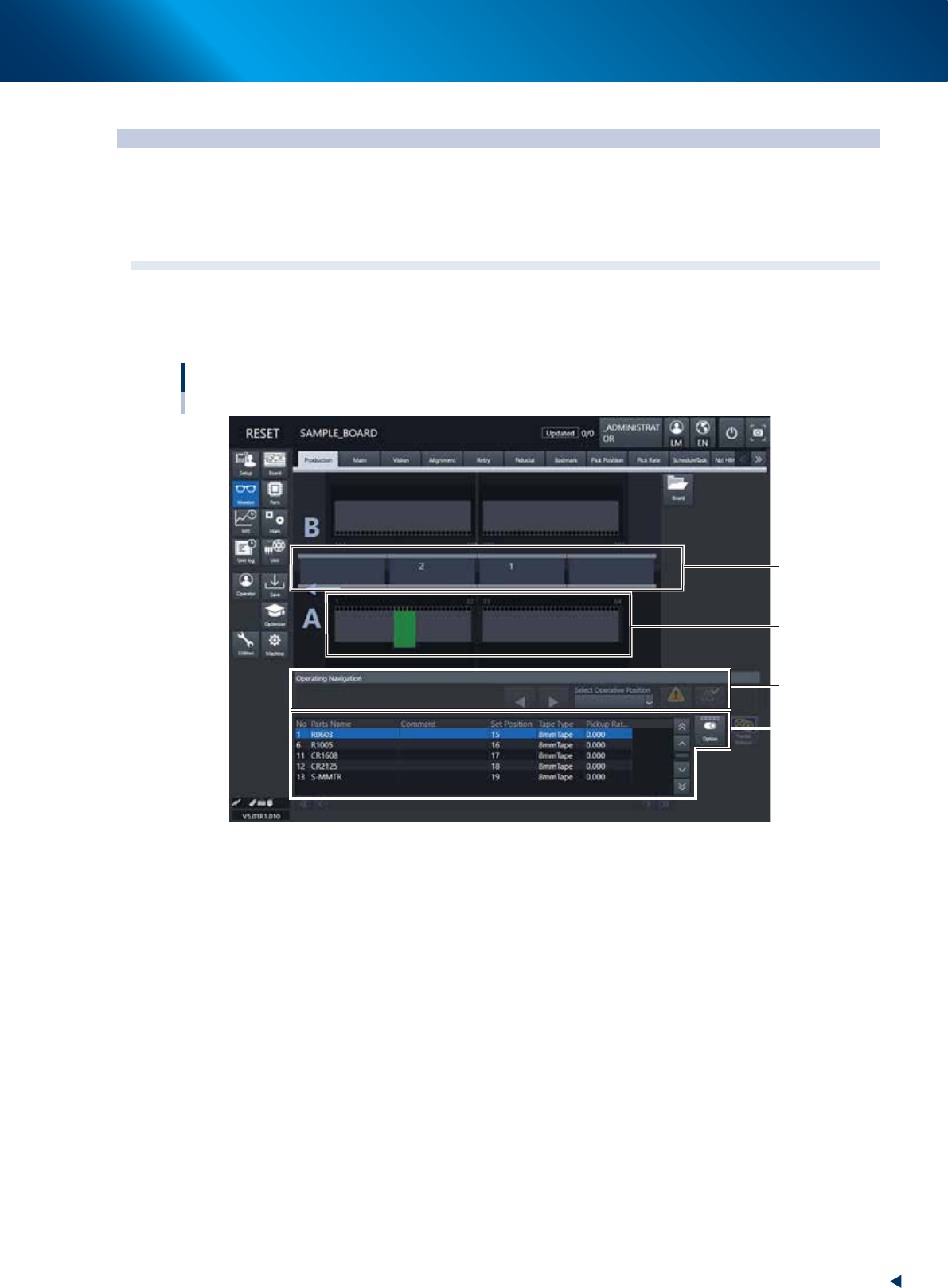
3.1 Production
This screen graphically shows the information of machines currently producing boards. The machine status
information such as errors that the machine is currently experiencing or work instructions appears on the
lower part of the screens.
Monitor: Production
1
2
3
4
24212-KMX-00
1. Transfer status area
The board that the machine is currently working on is displayed in green.
If an error related to transfer has occurred or if a hazard prediction sensor is activating, the board is
displayed in red.
2. Feeder status area
This area displays the feeder at the feeder set position that is registered on [Parts] - [Pick] tab - A:
Feeder Set No. of the board that the machine is currently working on. Nothing appears at the feeder set
position where no components are registered. The feeder is displayed in green where the feeder is
correctly set up and ready for process. It is displayed in red if the feeder is incorrectly set up or
experiencing an error.