YRM20_Ope_E.pdf - 第125页
3. Displaying the production monitors 2-28 Chapter 2 Basic operation • Cycle Time (sec/board) The cycle time shows the average (seconds/board) of the mounting time per board. The data is updated when the mounting is comp…
3. Displaying the production monitors
2-27
Chapter 2 Basic operation
3.2 Main
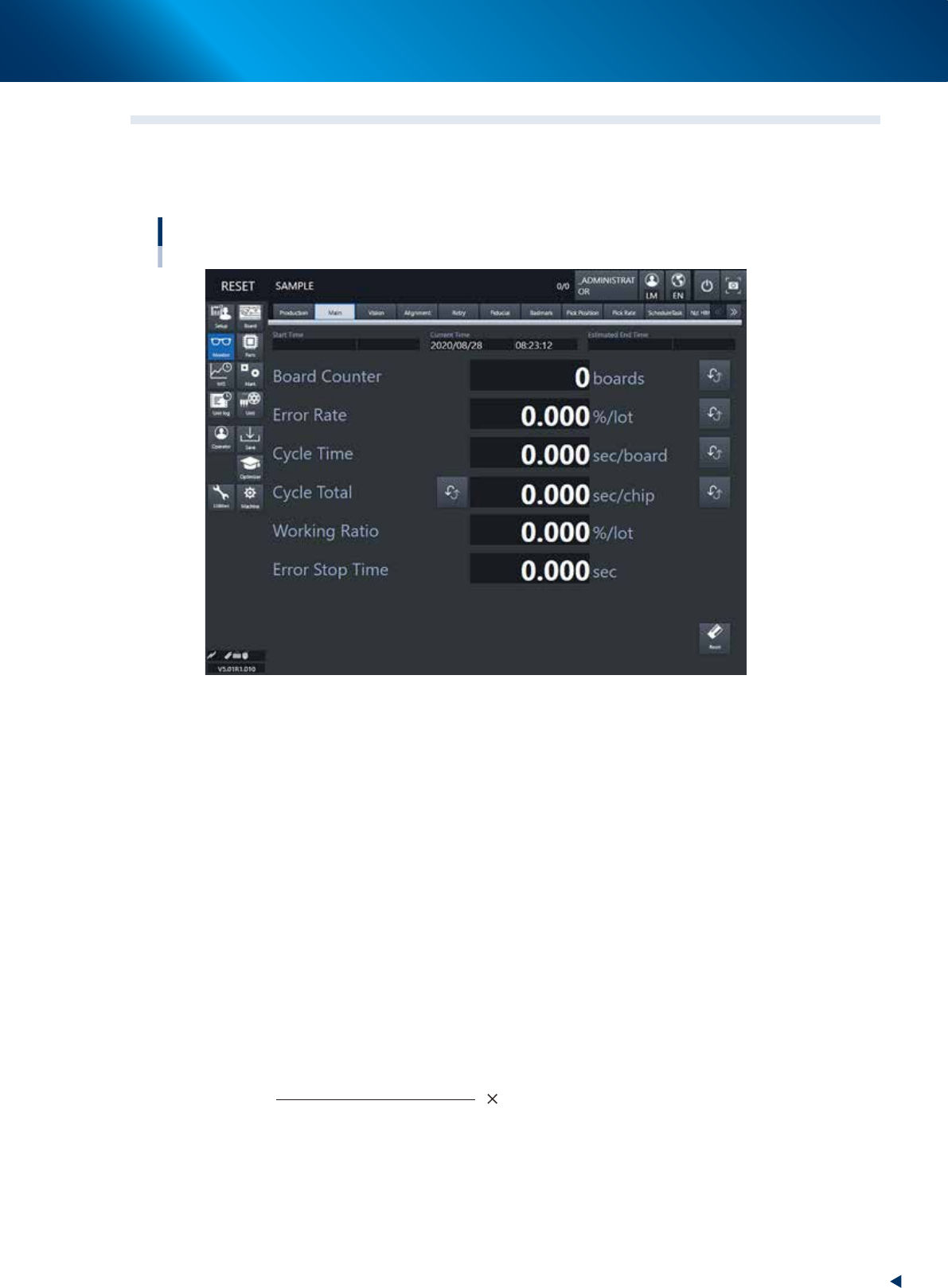
The [Monitor] - [Main] tab screen shows you the real-time production status such as the board count and
cycle time. Displaying this screen during production is handy. All information will be cleared when the
board type is changed.
Monitor: Main
24213-KMX-00
• Start Time
Displays the date and time that the board data currently being produced was changed.
• Estimated End Time
Displays the estimated time of finishing the production.
• Current Time
Displays the current date and time of the system clock time built-in the machine.
• Board Counter
The board counter displays the number of boards produced after changing to the current production
board data. The board counter counts only the boards completed the mounting. Pressing the button on
the right side allows to switch between “Board Counter” and “Block Counter”.
• Error Rate
The ratio of components discarded due to the pick up error or recognition error occurred from the time
of changing to the board data currently producing to present to all the consumed components. This data
is updated when changing the production board.
Number of discarded components
Total component consumption
Error rate (%) = 100
Pressing the button on the right allows to switch between “Error Rate” and “Pickup Rate (= 100% - Error
Rate)”.

3. Displaying the production monitors
2-28
Chapter 2 Basic operation
• Cycle Time (sec/board)
The cycle time shows the average (seconds/board) of the mounting time per board. The data is updated
when the mounting is completed.
Pressing the button on the right allows to switch among “Cycle time”, “Mount CT (cycle time)” and
“Transfer CT (cycle time)”. The Cycle Time = Mount CT + Transfer CT.
The Mount CT (cycle time) includes the board mark recognition time such as fiducial bad marks,
component recognition time, mounting time, retry operation time, component discarding time and
nozzle changing times. The stopping time due to an error and the [Stop] button is not included.
• Cycle Time (sec/chip)
Shows the time (seconds) to mount one component on the board. This is the time obtained by dividing
the time for one sequence from pickup to mounting by the number of components mounted in that
sequence.
Pressing the button on the right switches the indications among “Cycle time (sec/chip)”, “Cycle time
(sec/block)”, “Cycle time (chip/hour)”, “Cycle time (block/hour)” and “Cycle time (board/hour)”.
• Working Ratio
This is the machine's independent working ratio that is not affected by the status of the upstream and
downstream machines. The following expression calculates the working ratio.
Cumulative mounting time + cumulative transfer time
(Production completion time - setup completion time) - cumulative standby time
×
100
Working ratio (%)
=
• Cumulative mounting time : Total time that head unit is operating
• Cumulative transfer time : Total transfer time (board loading/unloading)
• Cumulative standby time : Total standby time due to upstream or downstream machine
• Production completion time : Time changed to next production board
• Setup completion time : Time [START] button was pressed and operation started
• Error Stop Time
Shows the machine stop time by error. This is a period of time until the [CLEAR] button is pressed from
the error occurrence.
• [Reset] button
This resets the production control information of the production data. It resets each piece of data
displayed on the screen, current production quantity and scheduled production quantity. The "Board
Counter" value on the Setup screen is also reset when this production data is reset.
3. Displaying the production monitors
2-29
Chapter 2 Basic operation
3.3 Vision
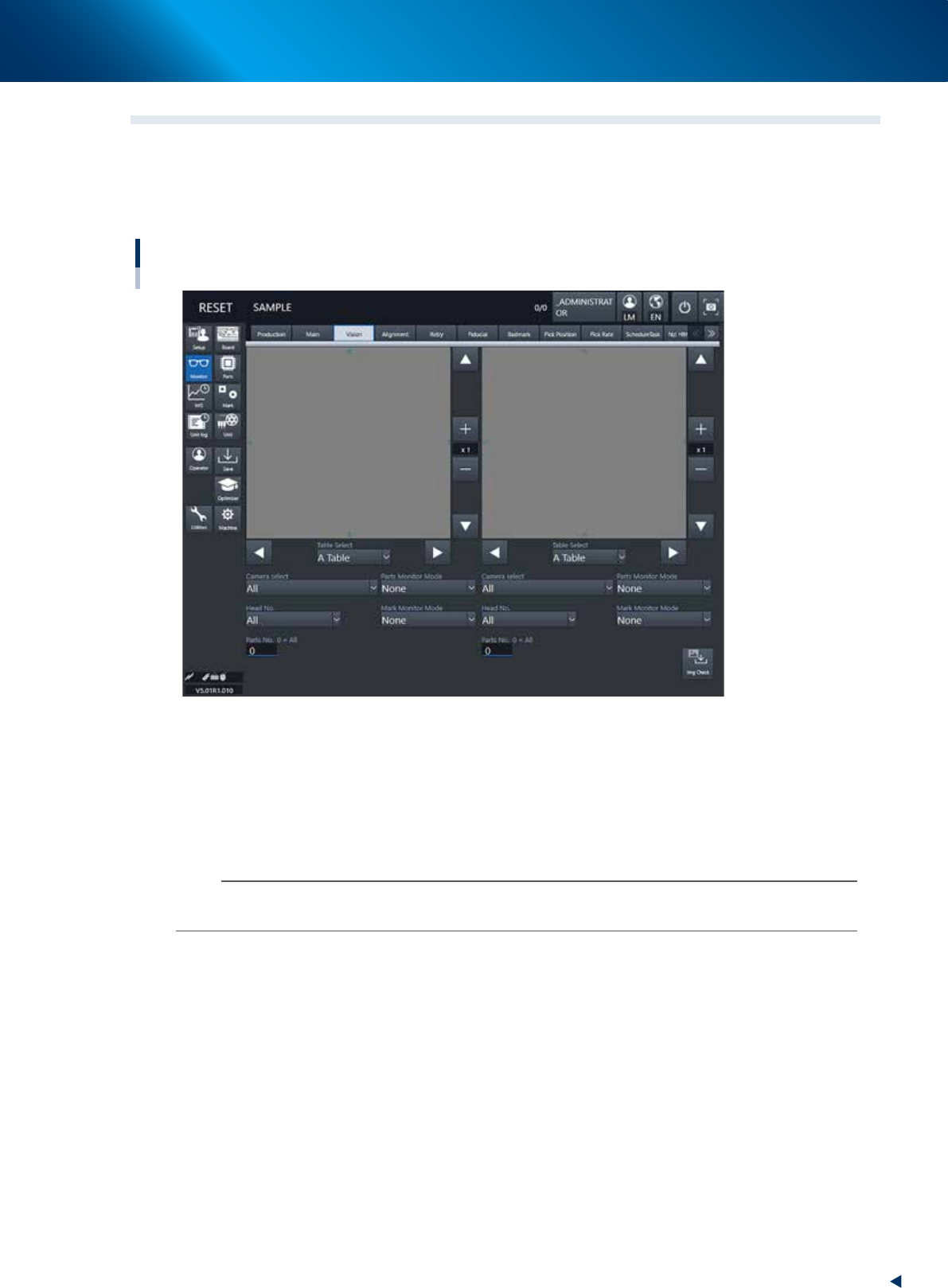
The recognized image area on the screen shows the image when the machine recognizes a board mark, bad
mark or component during the automatic operation. However, the area shows only the image of the lastly
recognized component when the high speed, continuous component recognition are performed such as by
the multi camera.
Monitor: Vision
24214-KMX-00
• Table select/ Camera select / Head No.
A desired head unit, a camera number and a head number can be selected.
• Parts number
Inputting a desired part number makes the list display only its part image. Inputting "0" shows all the
part images.
n
NOTE
An image is displayed on each left and right of the vision monitor. Select a table, a camera, a head and a part number for
each monitor so that the images can be compared with each other.
• Enlarge/reduce buttons
The recognition result image can be enlarged from 1 to 16 times by pressing the enlarge (+) button. The
image can be reduced to 1/16 by pressing the reduce (-) button. Note that when the image is enlarged,
the smooth component edges may appear jagged, and when reduced, gray sections may appear
around the edges. But this is not a fault.
• Up/down/left/right buttons
The arrow buttons on the upper right and lower right corners of the image screen move the image
vertically. The arrow buttons on the lower left and lower right of the image screen move the image left
to right or right to left. Use these arrow buttons to view a section of the image that is not displayed on
the screen.