YSP_Users_E.pdf - 第103页
Chapter 4 Creating and setting the data T his chapter describes how to create new data necessary for solder printing and how to edit the data and parameters, as well as the definitions of parameters. Contents 1. Creating…
3-22
3
Daily operation
7
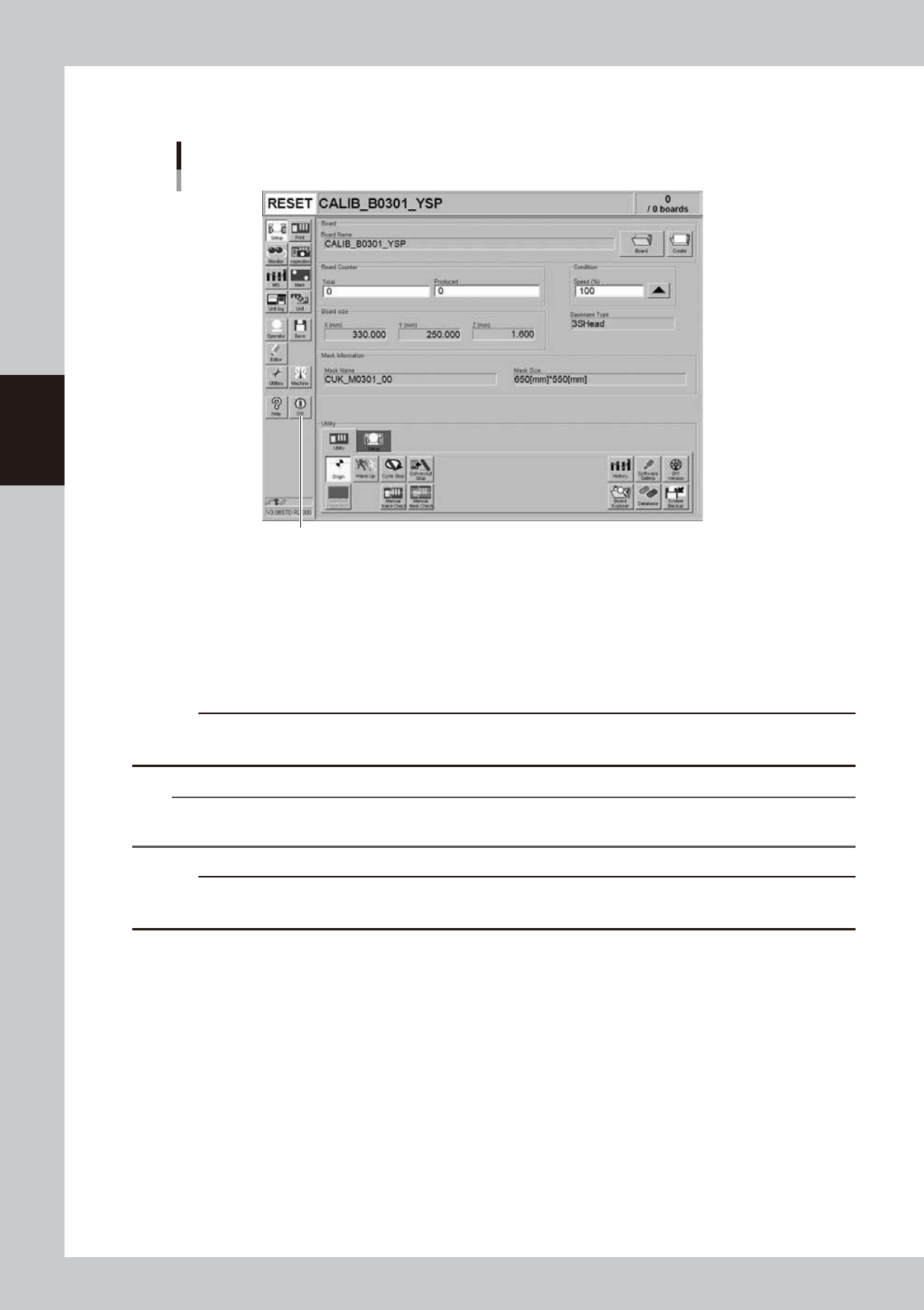
Quit the software.
Press the [Off] button on the operation display and follows the message that appears on the screen.
[Off] button
[Off] button
64322-L3-00
8
Turn off the power switch on the front right of the machine.
See "2.3 Turning off the machine" in Chapter 2.
9
Clean the squeegees and mask.
After detaching the squeegees and mask, wipe away the remaining solder on them with the
appropriate cleaner solvent and the cleaning wiper (option) to clean them.
c
CAUTION
Be careful to handle the solvents. See "1.9 Handling solvents (including solder, adhesive and flux)" in "Safety
instructions" for that.
n
NOTE
To find how to correctly handle the mask and solder, refer to the instruction manual of the mask or solder
manufacturer.
c
CAUTION
How well you clean the mask you detached after use will greatly affect the production yield the next time that same
mask is used. Also handle the squeegee and mask carefully to avoid dents and scratches.

Chapter 4 Creating and setting the data
This chapter describes how to create new data necessary for solder printing and how to edit the data and parameters, as well
as the definitions of parameters.
Contents
1. Creating new data 4-1
2. Basic data setting 4-3
2.1 Configuration of [Basics] tab screen 4-3
3. Board data setting 4-5
3.1 Board marks and parameter setting 4-5
3.2 Board data detail setting 4-10
4. Mask data setting 4-13
4.1 Mask marks and parameter setting 4-13
4.2 Mask data detail setting 4-17
5. Squeegee data setting 4-19
5.1 Squeegee detail setting 4-25
6. Cleaner data setting 4-25
7. Creating the mark data 4-29
7.1 Creating procedure 4-30
7.2 Basic parameters 4-31
7.3 Shape parameters 4-32
7.4 Vision parameters 4-34
7.5 Mark Adjust mode 4-36
8. Graphic alignment 4-39
9. Making a test print 4-45
4-1
4
Creating and setting the data
1. Creating new data
First, you must register a new board name to create new data. Register a new board name as follows.
1
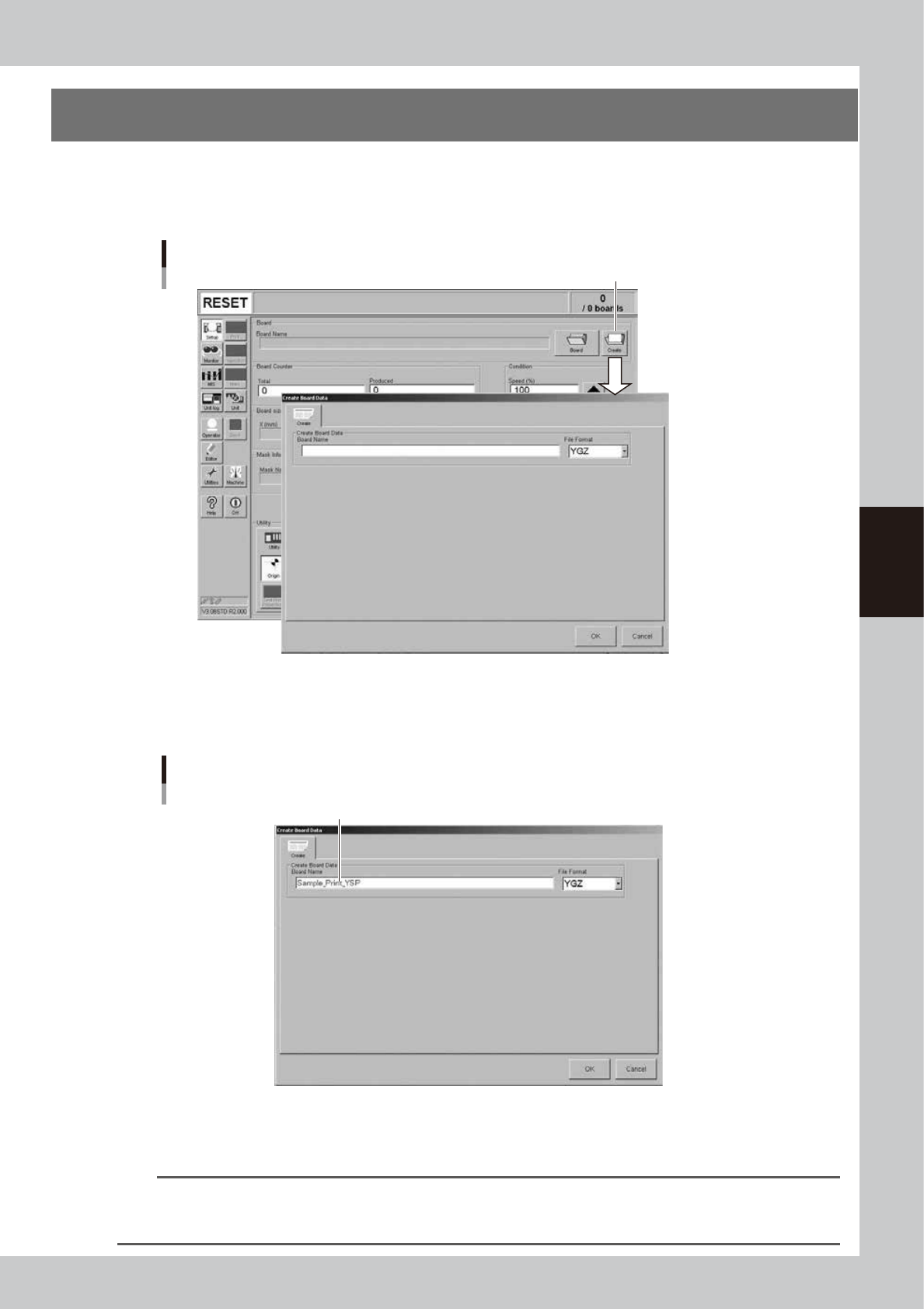
Press the [Create] button on the Setup screen.
The "Create Board Data" dialog box appears as shown below.
[Create] button
Create Board Data dialog box
64401-L3-00
2
Enter a board name in the "File name" box.
Enter a board name within 20 alphanumeric characters from the keyboard.
Do not use spaces and symbols other than underbars ( _ ) .
Entering a board name
Enter the board name and press [OK].
64402-L3-00
3
Press the [OK] button.
The display returns to the Setup screen.
TIP
An alert dialog box appears if a board data with the same name has already been registered. If this happens, press
the [Cancel button and reenter a different name. (If you register the same name by overwriting the previous data,
press the [OK] button.)