YSP_Users_E.pdf - 第47页
1-5 1 Part names and functions 2.1 Operation panel buttons T he following describes the operation panel buttons. Operation panel buttons 63105-L3-00 n Operation panel button functions and status Button name Function READ…
1-4
1
Part names and functions
2. Operation panels and data input units
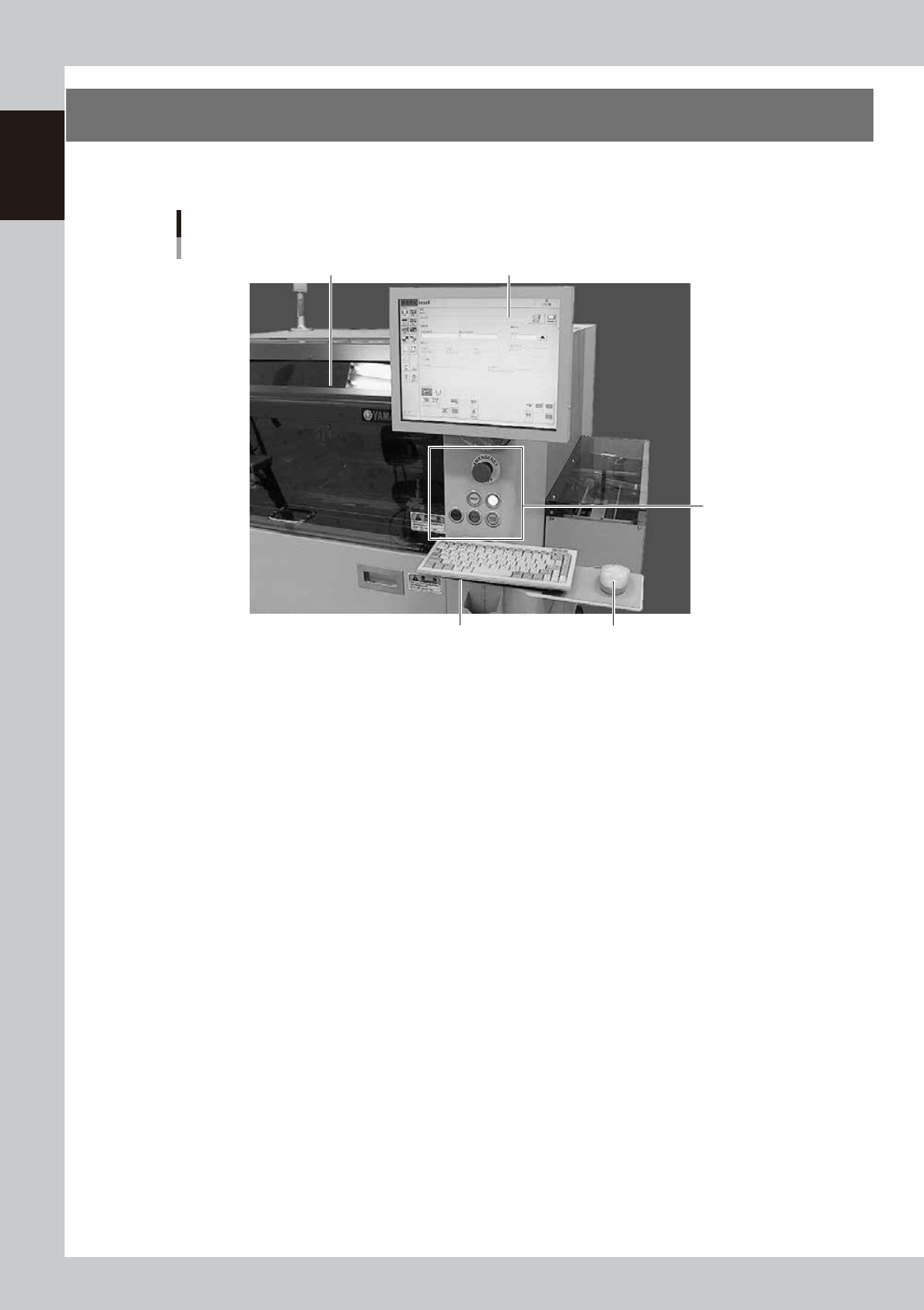
Standard machines are equipped with an operation display, operation panel buttons, keyboard and mouse
to operate the machine and make data settings.
Front operation panel and keyboard
Upper door (safety cover)
MouseKeyboard
Operation display
Operation panel
buttons
63103-L3-00
1-5
1
Part names and functions
2.1 Operation panel buttons
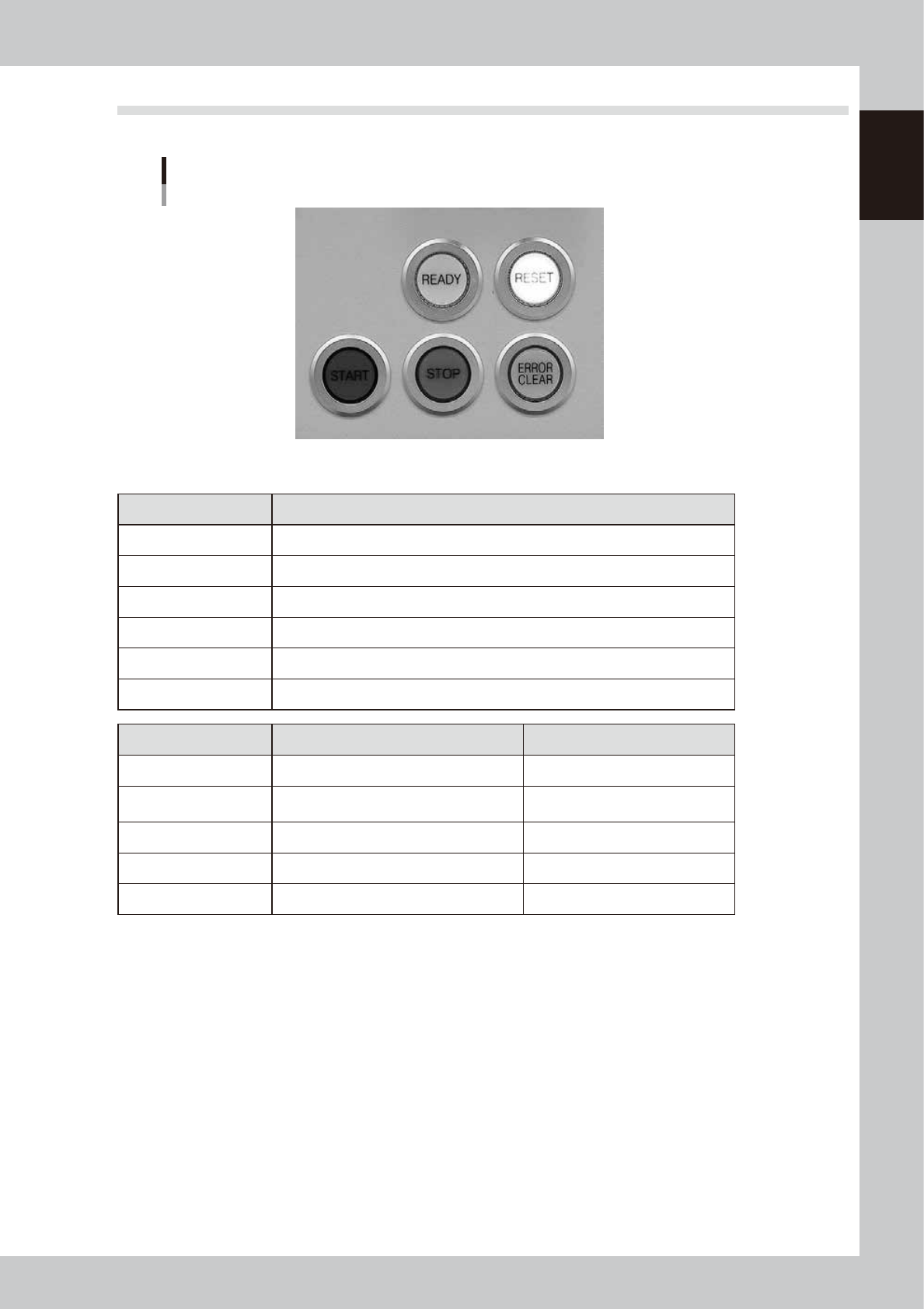
The following describes the operation panel buttons.
Operation panel buttons
63105-L3-00
n
Operation panel button functions and status
Button name Function
READY Releases emergency stop and turns the servo on.
RESET Stops automatic operation and returns to standby for board production.
START Starts automatic operation according to board data.
STOP Interrupts automatic operation. (Press the [START] button to resume operation.)
ERROR CLEAR Stops buzzer sound and clears error screen.
EMERGENCY STOP Triggers emergency stop. Turn to the right to release it.
Button name When button is OFF When button is ON
READY • SERVO OFF (Motor power OFF) • SERVO ON (Motor power ON)
RESET
• Machine is in normal operation or
stopped.
• Machine has been reset.
START • Machine is stopped. • Machine is in normal operation.
STOP • Machine is in normal operation. • Error occurred.
ERROR CLEAR • Machine is in normal operation. • Error occurred.
1-6
1
Part names and functions
2.2 Keyboard and mouse
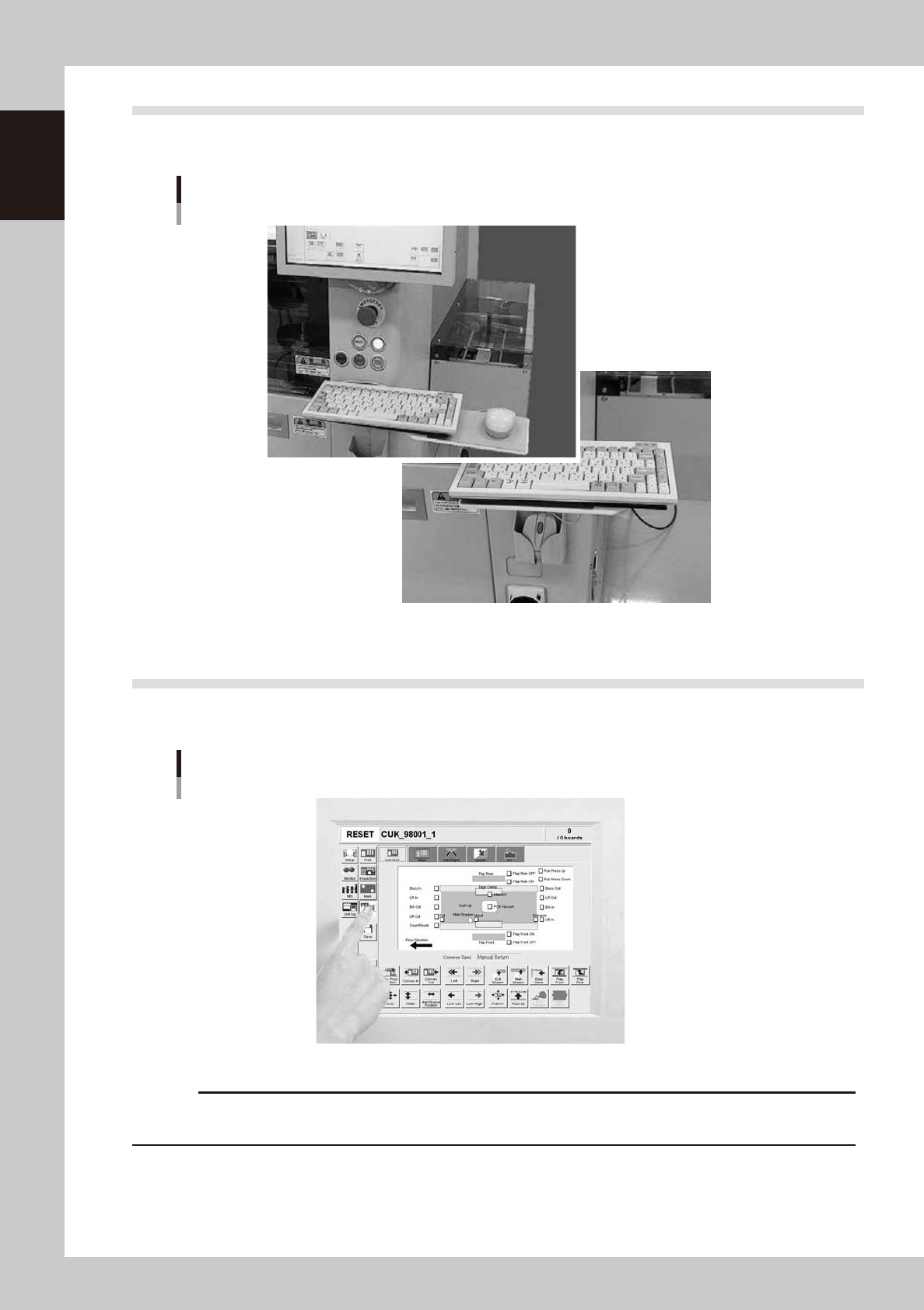
This machine is equipped with a keyboard and mouse as standard features to operate the machine or for data
editing. To select a menu button or parameter item on the operation screen, click it with the left mouse button.
Keyboard and mouse
Mouse and mouse pad can be retracted.
63107-L3-00
2.3 Liquid crystal touch screen (option)
Machines equipped with a touch screen (option) can be operated or data set by pressing icon buttons or
selecting parameter items on the screen without having to use the keyboard and mouse.
Touch screen (option)
63108-L3-00
c
CAUTION
Do not push or hit the touch screen surface with a pointed tool or hard object. The screen might otherwise crack or be
scratched. Use your finger to select icon buttons or parameter items on the touch screen.