YSP_Users_E.pdf - 第137页
4-34 4 Creating and setting the data 7.2 Basic parameters In the list on the [Basic] tab, set the "Mark T ype" parameter . Basic parameters 1 2 64429-L3-00 1. Mark T ype Select the mark type from the drop-down …
4-33
4
Creating and setting the data
7.1 Creating procedure
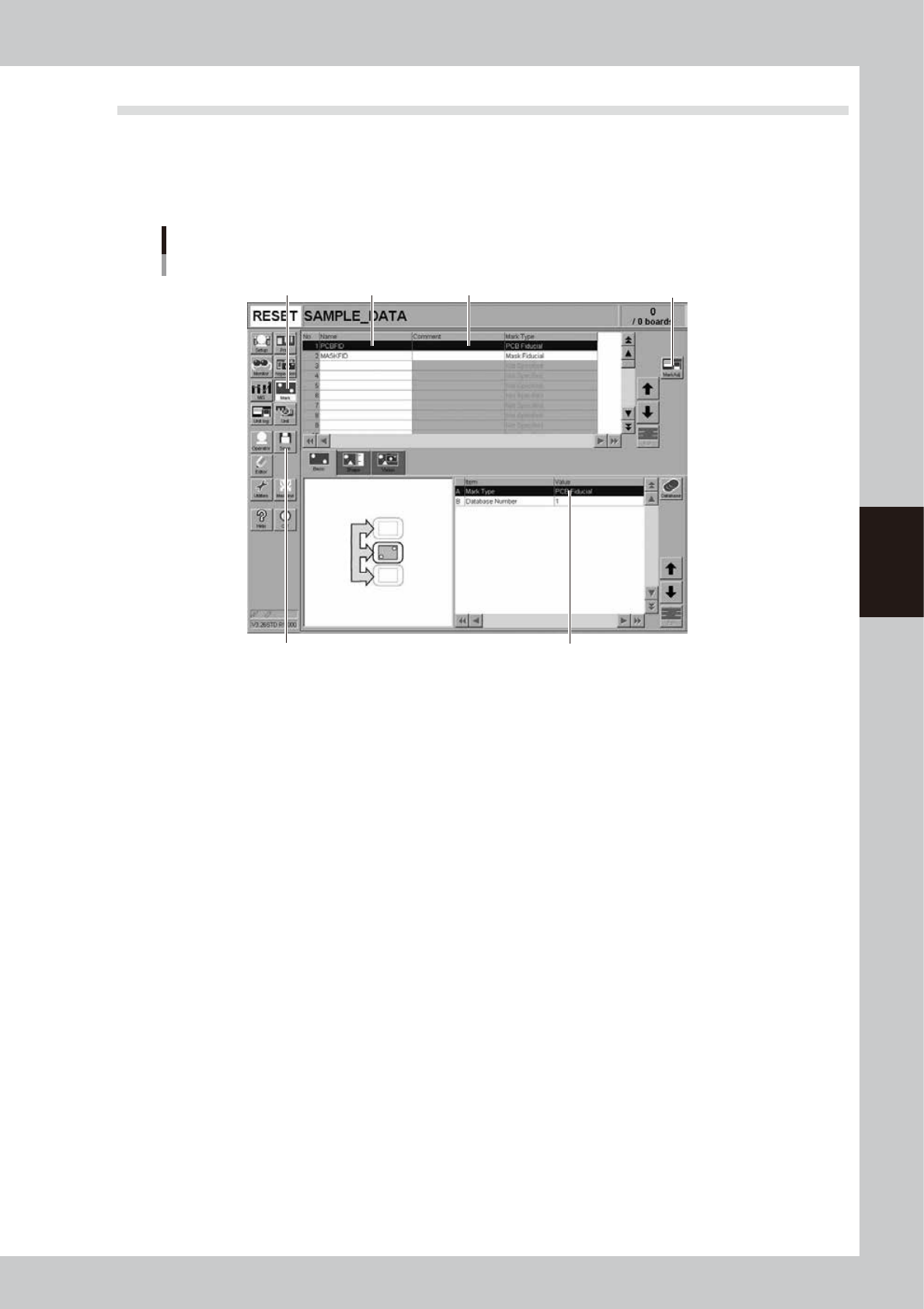
Pressing the Mark button in the menu button area opens the Mark screen as shown below. Enter the mark name
and comment in the data No. list on the upper part of the screen, and set the parameters in the right lower list
as explained below.
1
Press the [Mark] button to open the Mark screen.
Step 2 Step 1 Step 3
Step 5
Step 4Step 7
Mark screen
64427-L3-20
2
Enter the mark name in the Mark Name cell.
Enter a different name for each mark within 20 alphanumeric characters. A space cannot be included
in the name.
3
Enter a comment.
Type any desired comment in the Mark Comment cell as necessary. You can omit entering comments
here.
4
Set the various necessary parameters.
While selecting the [Basic], [Shape] and [Vision] tabs, set the necessary parameters in the right lower list.
You can also copy the parameter values from the database by pressing the [Database] button to open
the database list. In this case, the database No. of the copy source appears in the "Database Number"
field. (See "7.2" to "7.4" in this chapter.)
5
Adjust the parameters in the Mark Adjust mode.
Pressing the [Adjust] button opens the Mark Adjust screen that allows you to adjust or check the
parameters. (For more details, see "7.5 Mark Adjust mode" in this chapter.)
6
Repeat the above steps for other marks.
Repeat the same procedure to register all marks to be used.
7
Save the data.
Press the [Save] button to store the board data.
4-34
4
Creating and setting the data
7.2 Basic parameters
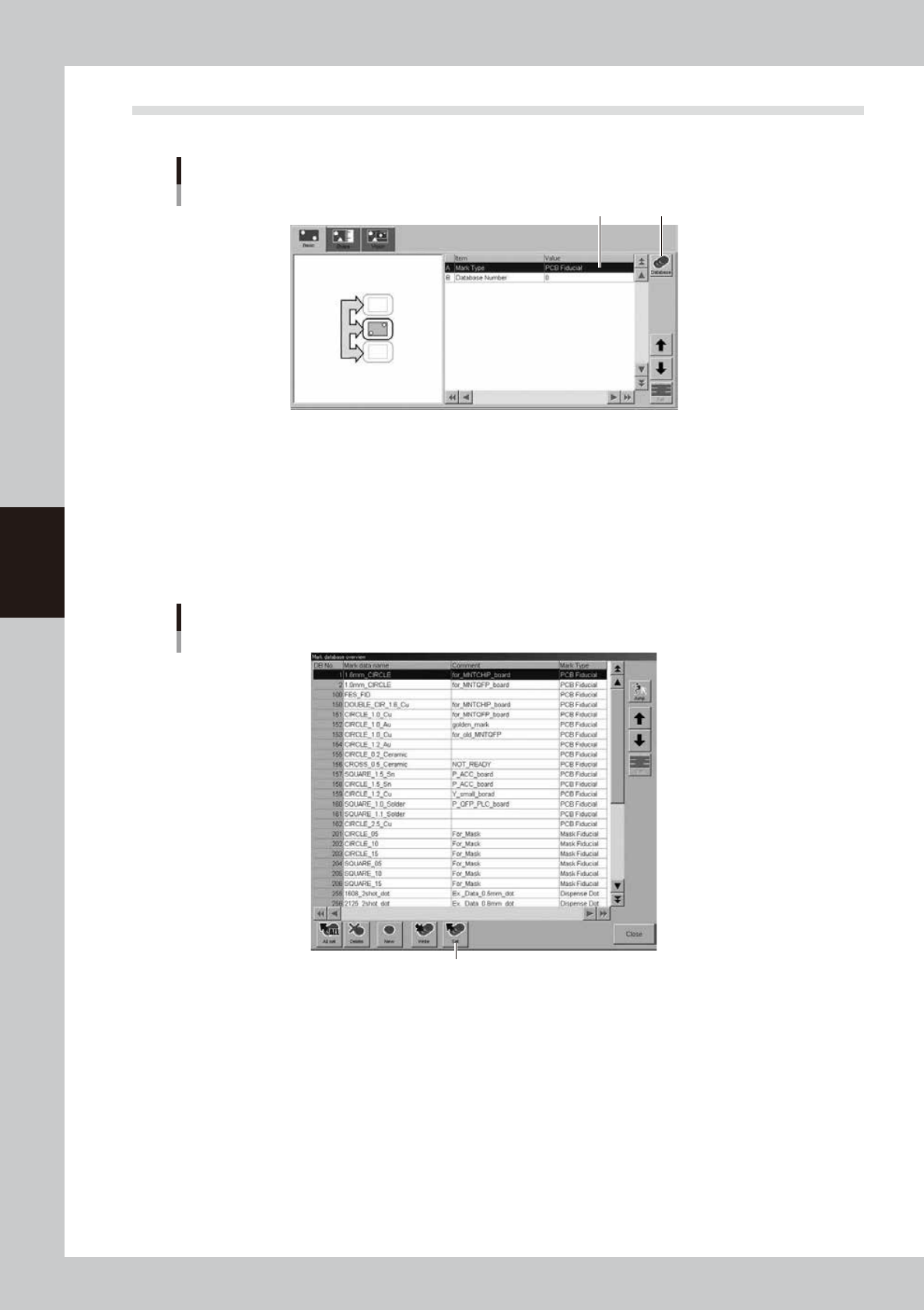
In the list on the [Basic] tab, set the "Mark Type" parameter.
Basic parameters
1 2
64429-L3-00
1. Mark Type
Select the mark type from the drop-down list. Select "PCB Fiducial" when creating a board fiducial mark, and select
"Mask Fiducial" when creating a mask fiducial mark.
2. Database Number
When you want to copy the parameter values from the database, press the [Database] button to open the database list.
Then select the copy source data and press the [Set] button to make a copy. The database No. of the copy source is
displayed in "Database Number" field.
Database list
[Set] button
[Set] button
64430-L3-10
4-35
4
Creating and setting the data
7.3 Shape parameters
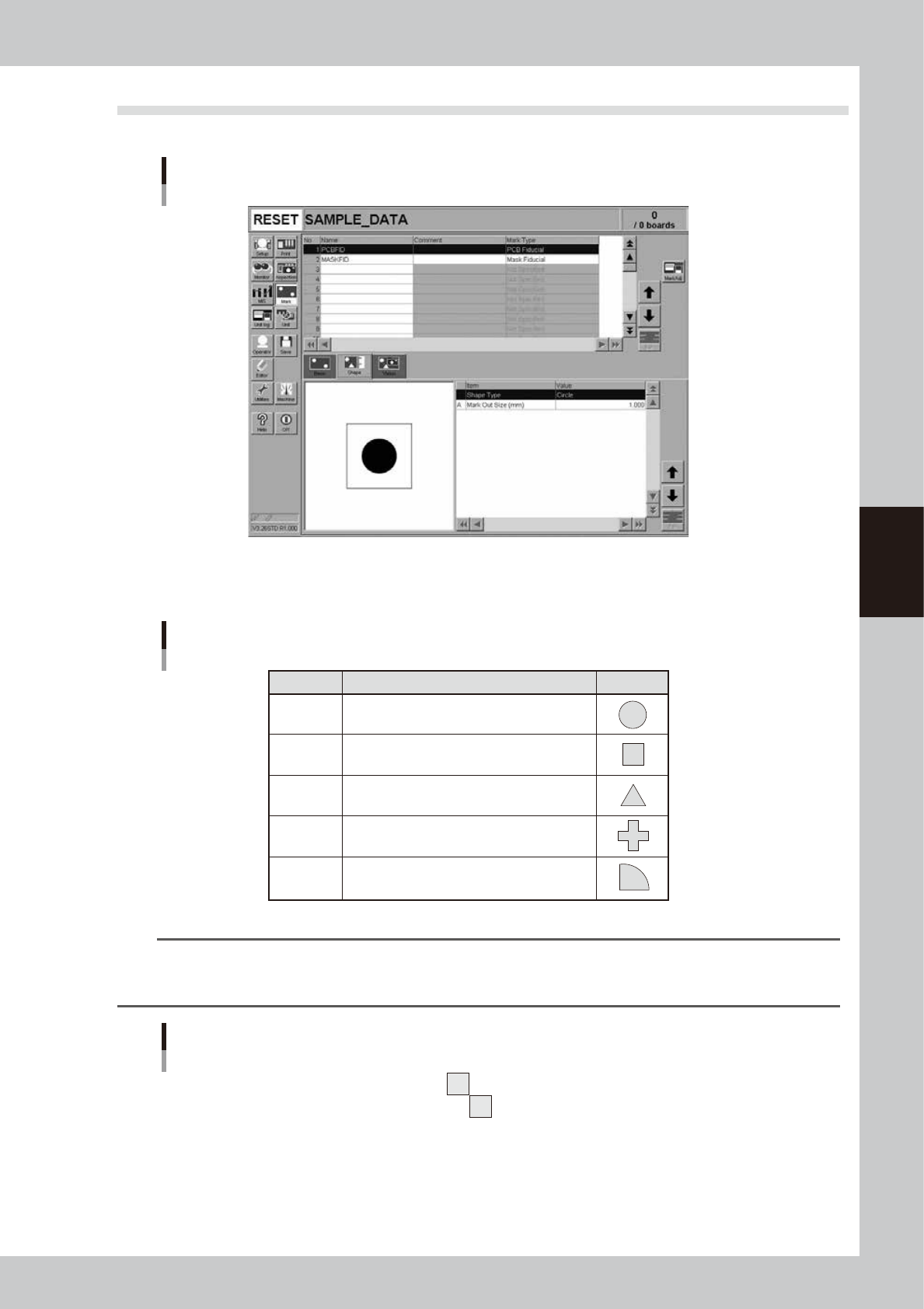
In the list on the [Mark]-[Shape] tab, set the following parameters relating to mark shape.
Shape parameters
64431-L3-20
Shape Type
The "Shape Type" can be selected from the following 5 types.
Shape Type settings
Setting Description
Example
Circle
Square
Triangle
Sp. Shape
Corner
Select to detect a circular mark.
Select to detect a square mark.
Select to detect an equilateral triangular mark.
Select to detect a special mark other than above.
Select to detect a corner of a pattern as a mark.
63419-L3-00
TIP
If using a special mark composed of two or more objects, set the Algorithm parameter (described later) to "Pattern".
In this case, the "Shape" parameter is ignored during mark recognition so you can set this parameter to any type. (For
more details, see "7.5 Pattern matching"
Example of special mark
63420-L3-00