YSP_Users_E.pdf - 第177页
5-21 5 Managing the data n Items displayed on the "Unit Log" screen Items to be display ed on each tab of the "Unit Log" screen can be viewed by pressing the [Option] button on the lower right of the …
5-20
5
Managing the data
3.1.2 Operation log (Unit Log)
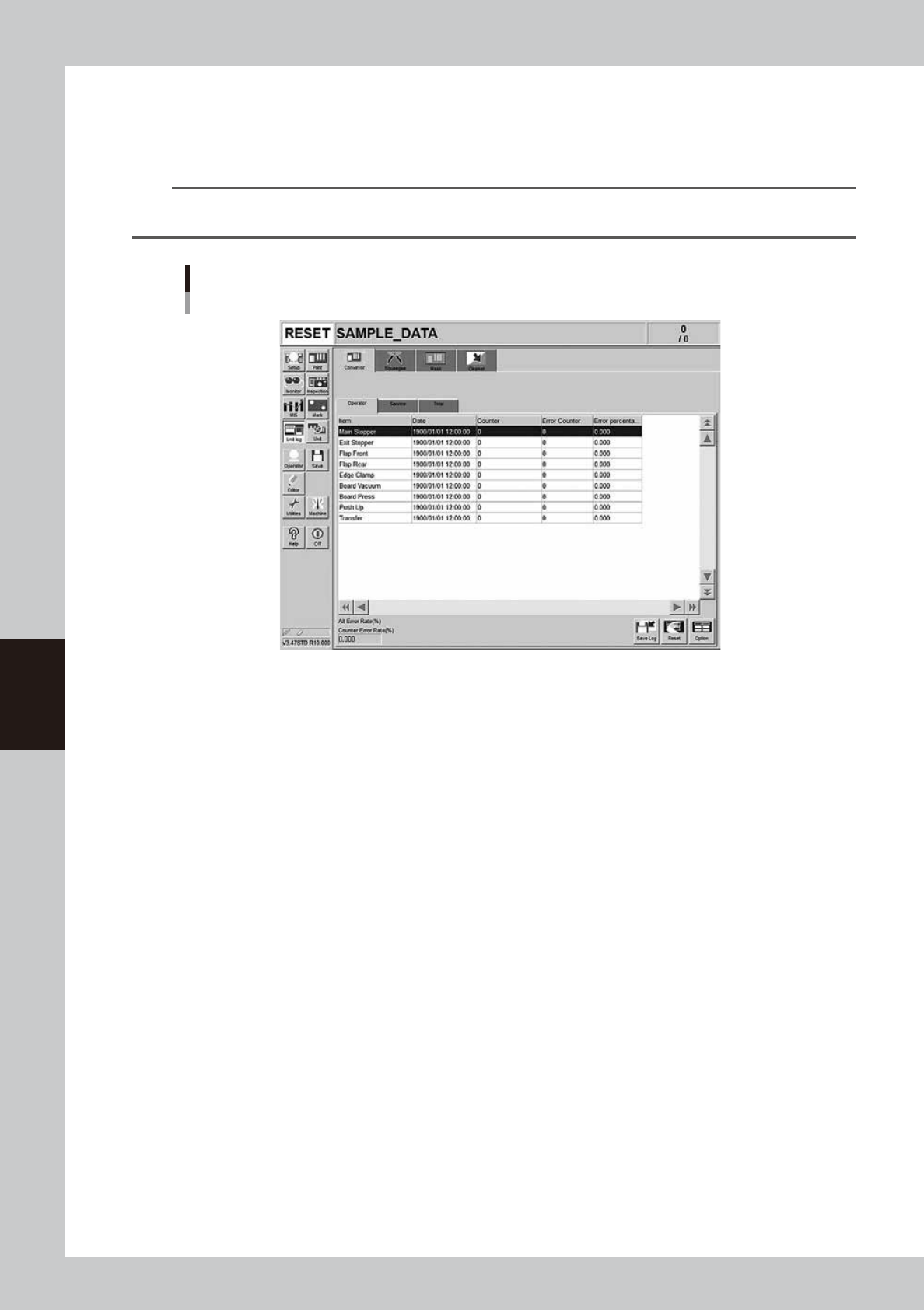
The operation logs of various units used in the machine are recorded. To check these operation logs, press the
[Unit log] button on the main menu button area. The operation logs relating to the conveyor, squeegee, mask
and cleaning unit are displayed by selecting the corresponding tab.
TIP
Three kinds of data, data that can be arbitrarily reset by the user, maintenance data, and total data, are displayed
on each tab screen.
Operation log (“Unit Log” screen)
[Conveyor] - [Operator] tab
64552-L3-00
Conveyor
The operation log of each conveyor unit, such as exit stopper, flap, board pickup, and push-up is displayed.
The operation log is separated by the [Operator], [Service], and [Total] tabs to display it according to the purpose that is
used. The log data on the [Operator] and [Service] tab screens can be reset, but the log data on the [Total] tab screen
cannot be reset.
Error percent
Number of operation errors divided by number of operations
×
100 (%).
Counter error rate
The "Counter error rate" box shows the total number of operation errors recorded on the tab divided by the total number
of operations
×
100 (%).
Squeegee
The operation status of the metal squeegee or urethane squeegee is displayed. The log is counted by double squeegee
type and it can be selected from the drop-down list at the upper left portion.
Contents of each item to be displayed and button functions are the same as the [Conveyor] tab screen.
Mask
The operation log of the mask clamp or mask vacuum and the mask operation counts are displayed. The mask operation
counts are displayed by the mask name. When the board is produced with the same mask name, one mask name is
counted even when the different board data is used.
Contents of each item to be displayed and button functions are the same as the [Conveyor] tab screen.
Cleaner
The operation log of the blower motor is displayed.
Contents of each item to be displayed and button functions are the same as the [Conveyor] tab screen.
5-21
5
Managing the data
n
Items displayed on the "Unit Log" screen
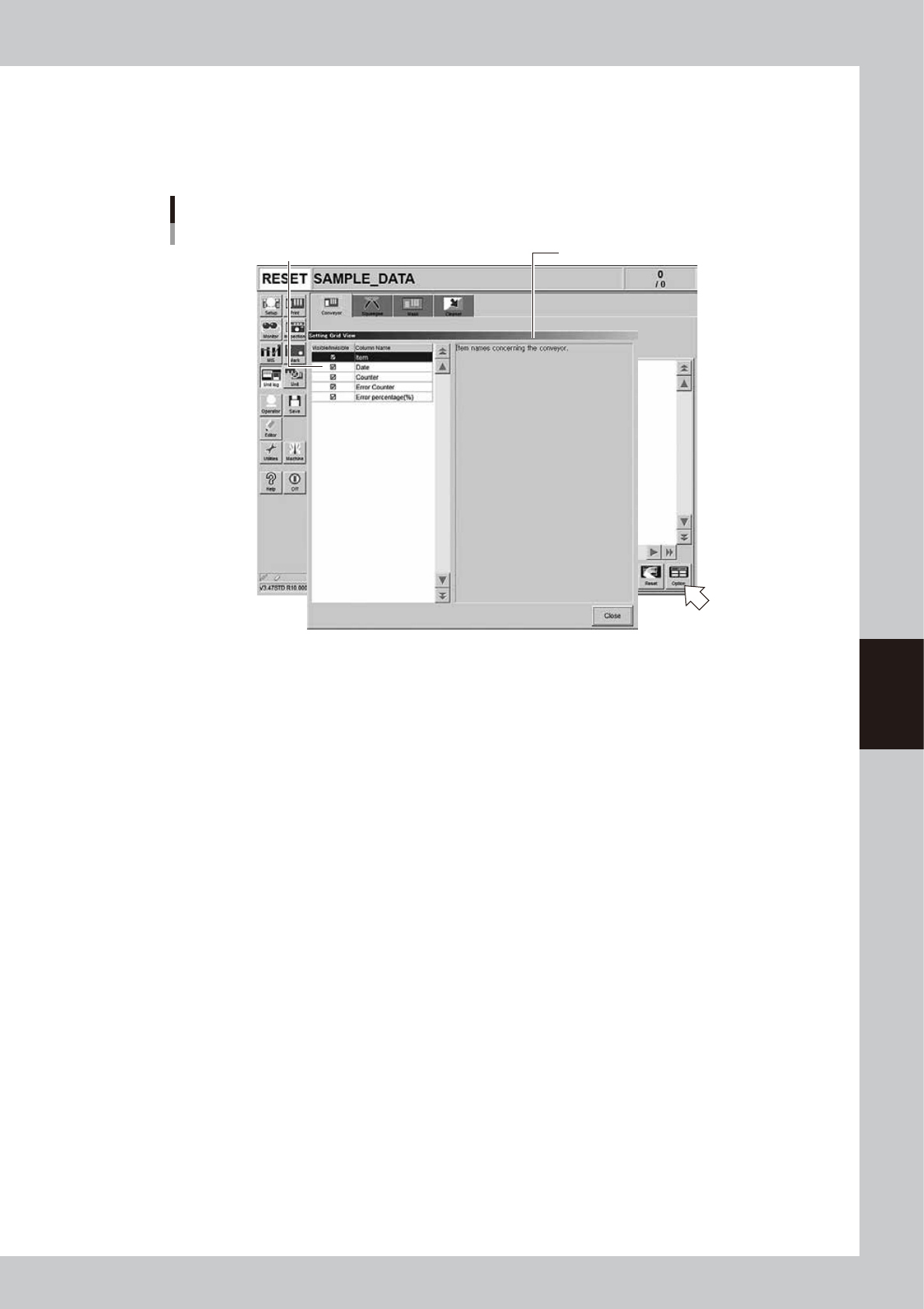
Items to be displayed on each tab of the "Unit Log" screen can be viewed by pressing the [Option] button on the lower
right of the "Unit Log" screen. Pressing the [Option] button opens the "Setting Grid View" screen as shown below.
Selecting each item in the left-hand list shows the contents of that item on the right side.
“Setting Grid View” screen
[Unit Log] - [Squeegee] tab
Select item. Description of the selected item is displayed.
64553-L3-00
5-22
5
Managing the data
3.1.3 Other operations
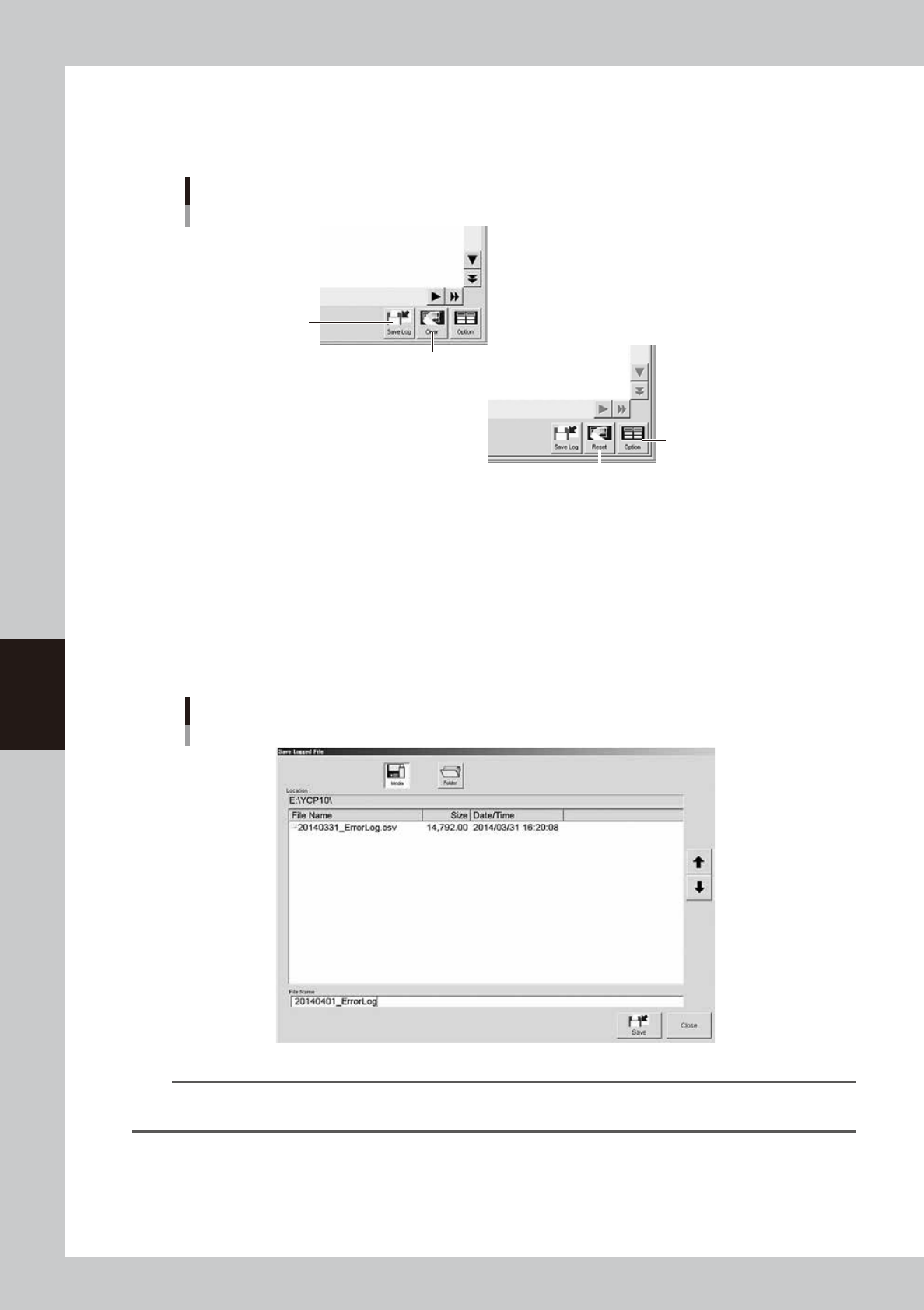
Production and operation log data can be saved or deleted, and each log data item hidden or re-displayed on
the screen as needed.
Log data operation and setting buttons
[Save Log] button
[Clear] button
[Option] button
[Reset] button
64554-L3-00
[Save Log] button
Pressing the [Save Log] button opens the "Save Logged File" dialog box. You can save the desired log data currently stored
in the system, into any location such as an external medium (USB memory and floppy disk) or network drive.
1. Press the [Save Log] button to open the "Save Logged File" dialog box.
2. Press the [Media] and [Folder] buttons, and set the location to save the log data.
3. Name the file and press the [Save] button.
The file of the log data will be saved in the specified location. A file extension (.csv) will be automatically assigned to
each file.
Saving the log data
64555-L3-00
TIP
If you want to save all production log data to an external medium at one time, make settings on the "History Utility"
screen. For information on the "History Utitiliy" screen, refer to "3.2.3 History Utility" described later on.