YSP_Users_E.pdf - 第120页
4-17 4 Creating and setting the data 4.2 Mask data detail setting l Mask check positions When you press the [Detail] bu tton on the [Print]-[Mask] tab, the following dialog box appea rs for setting the mask chec k positi…
4-16
4
Creating and setting the data
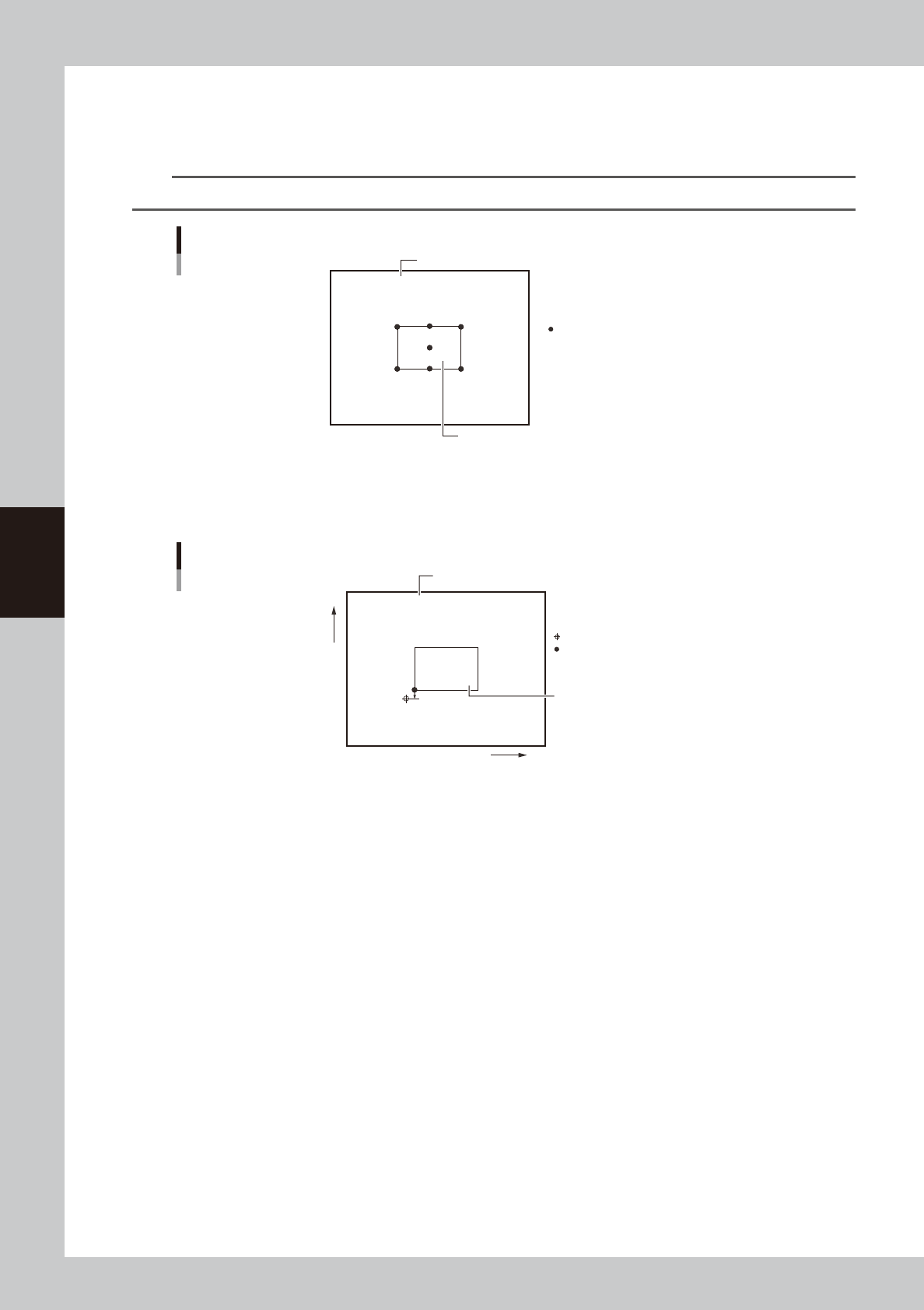
F: Mask Datum Position
Based on the Mask Standard Position and Standard Position Offset settings, select the position used as the reference
position on the mask from among "Center", "Front Center", Rear Center, "Front Left", "Front Right", "Rear Left" and "Rear
Right" as shown below. The defaut setting is "Front Left".
TIP
The mask has "Mask Origin", "Mask Fiducial (Mark)" and "Mask Inspection Position" parameters as its setting positions.
Mask Datum Position
Mask Datum Position
Board
Mask frame
63411-L3-00
G, H: Mask Origin X, Y (mm)
If the fiducial mark on a mask has an origin different from the Mask Datum Position, set the positional offset (mm) here
as the Mask Origin.
Mask Origin
Mask origin
Mask Datum Position
When Mask Datum Position is set to "Front Left":
Board
Mask frame
+Y
-Y
X+
X-
63412-L3-00
I: Mask Vacuum
Set this parameter to "Use" when you want to vacuum-grip the mask on the conveyor rails during solder printing. Set to
"NotUse" when not using this function.
Mask vacuum has the following functions:
• Prevents a positional shift in the Y direction between back and forth printing operations.
• Improves the surface contact between the board and the mask.
4-17
4
Creating and setting the data
4.2 Mask data detail setting
l
Mask check positions
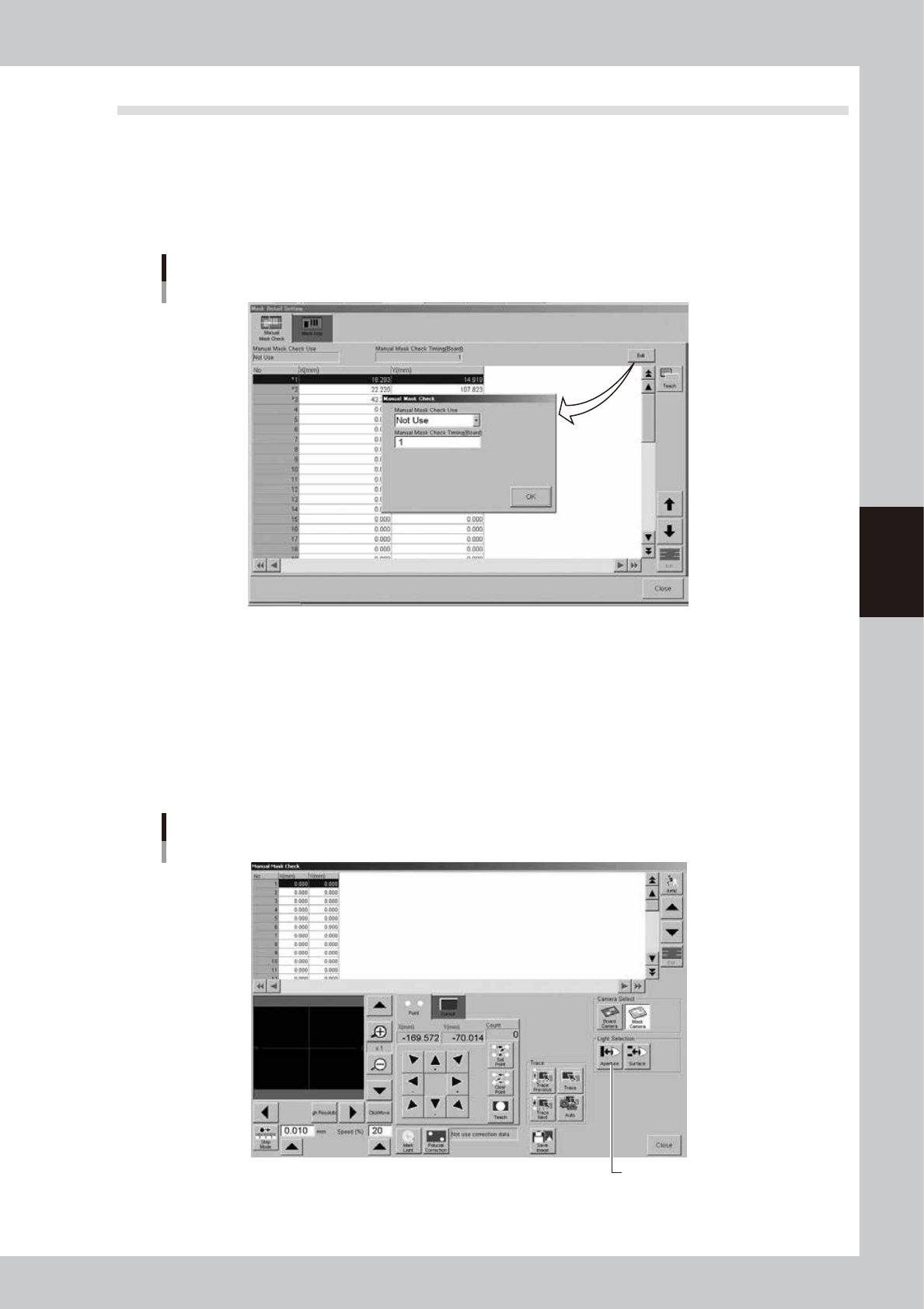
When you press the [Detail] button on the [Print]-[Mask] tab, the following dialog box appears for setting the mask check
positions. You can specify positions on the mask where you want make a visual check after solder printing. Pressing the
[Edit] button at the upper right opens the "Manual Mask Check" dialog box. Set whether to use this function or not. Also
set the board interval (number of boards) at which to make the visual check.
[Manual Mask Check] tab
64419-L3-20
l
Lighting setup for visual mask check
The lighting settings needed when making the mask aperture inspection (clogging inspection) and mask backside
inspection (inspection of excess solder spreading to backside) can be now separately set for each inspection and stored
as board data.
Pressing the [Teach] button after entering the mask inspection coordinates makes the following "Teach/Trace" window
appear. To set the lighting for the mask aperture clogging inspection, press the [Light] button while the [Aperture] button
is depressed. The lighting setup window then opens so you can change to a lighting level where you can easily check for
mask aperture clogging.
"Teach/Trace" window for visual mask check
[Aperture] button
[Aperture] button
64420-L3-00
4-18
4
Creating and setting the data
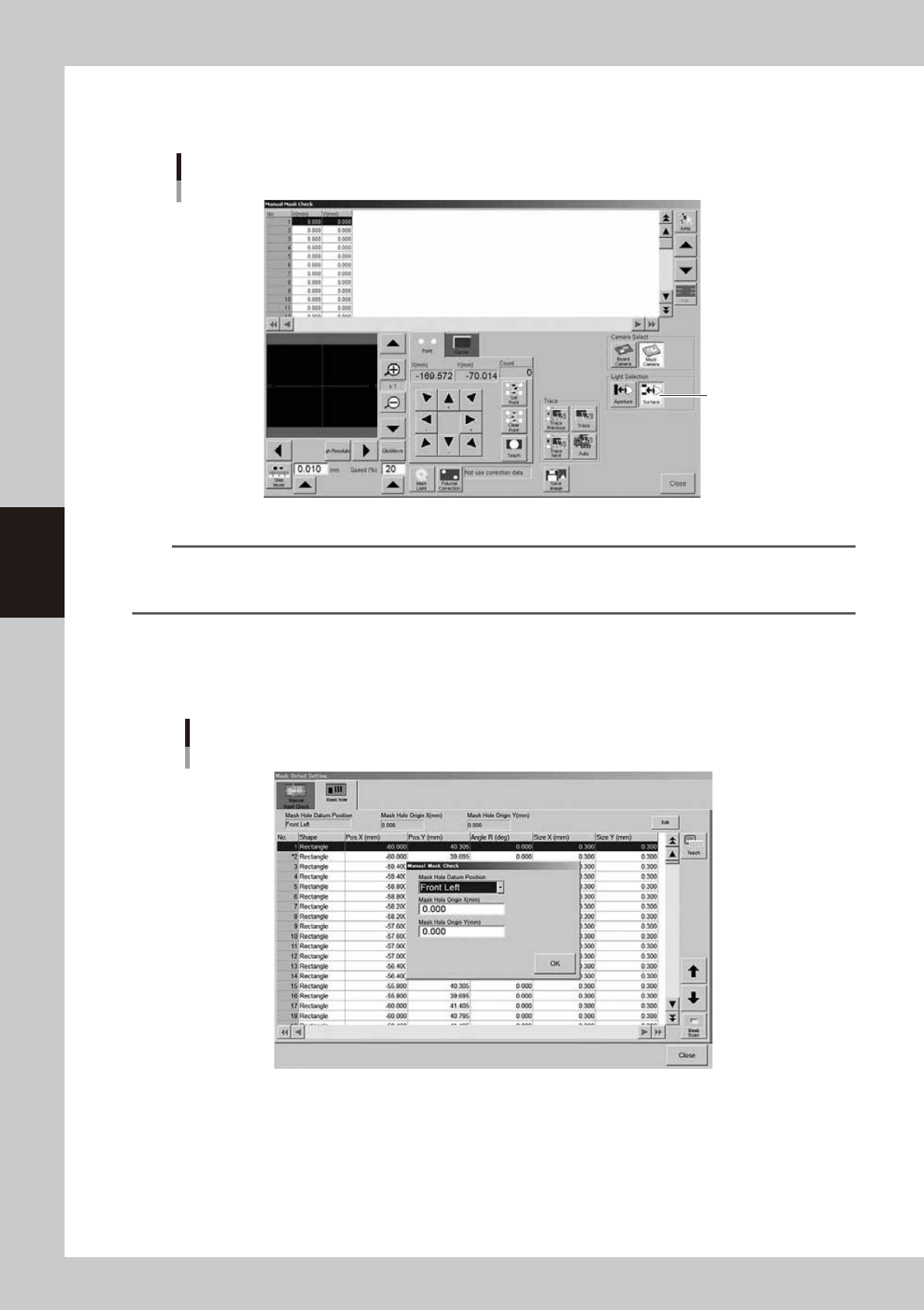
To set the lighting for inspecting excess solder and flux spreading to the backside of the mask, press the [Light] button
while the [Surface] button is depressed. You can then change to an optimum lighting level on the lighting setup window.
In either case, closing the window automatically stores the changes you made into the board data.
"Teach/Trace" window for visual mask check
[Surface] button
[Surface] button
64421-L3-00
n
NOTE
By storing the visual check lighting levels for the mask aperture and backside, you can switch to each lighting level by
just pressing the [Aperture] button for the mask aperture visual check or the [Surface] button for the mask backside
visual check.
l
Mask aperture (hole) coordinates setting
When you press the [Detail] button on the [Print]-[Mask] tab, the following dialog box appears for setting the mask
aperture coordinates.
[Mask hole] tab
64452-L3-00
This function is available only for machines equipped with an optional print inspection camera.
For details, see "2.3 Using the mask scan function" in the separate Option Manual.