YSP_Users_E.pdf - 第144页
4-41 4 Creating and setting the data 7 Pr ess the [Find Best] button to find an optimum thr eshold lev el. Pressing this button automatically finds an optimum threshold level fo r the mark, and the result is displayed. I…
4-40
4
Creating and setting the data
5
Check the trace position.
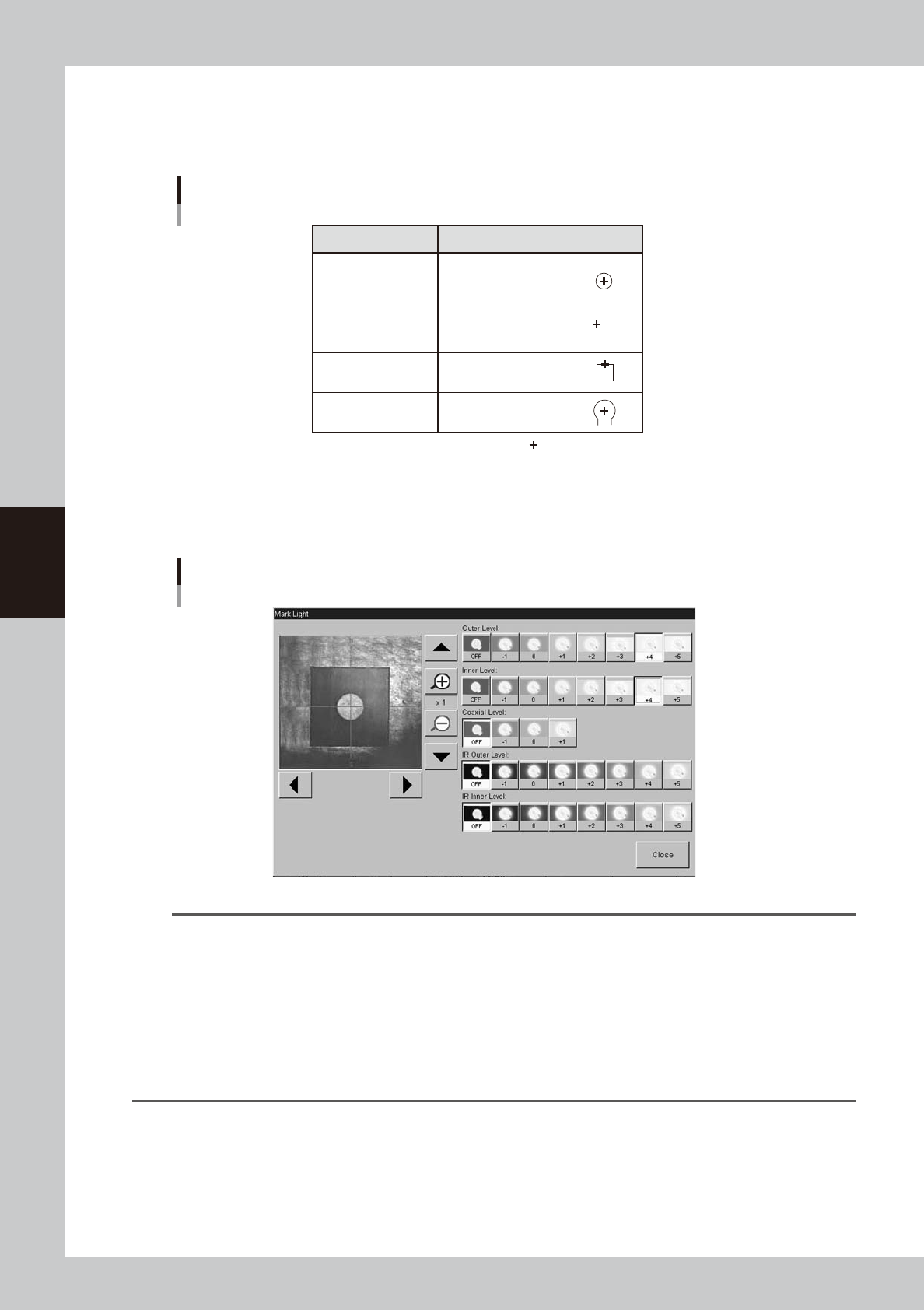
Check that the mark is aligned with the center of the vision monitor, at the point shown below. If the
position has shifted, open the [Print]-[Board] tab (or [Print]-[Mask] tab) and reteach the mark
coordinate.
Mark trace position
Shape Type Teaching point Example
Circle, Square
Triangle, Sp. Shape
Center of mark
Corner of mark
Center of a square
edge line
Center of a round edge
Corner
TopEdge
CirEdge
: Center of crosshairs
63425-L3-00
6
Adjust the light levels.
Press the [Light] button to open the light level adjustment screen, and adjust the light level in each
lighting zone so that the mark can be most clearly viewed on the vision monitor.
Light level adjustment
64435-L3-00
TIP
Optimum light levels depend on the materials of the board, mask frame and mark. Use the following method to find
optimum light levels.
1. Turn off all light units.
2. Turn on, one at a time, "Outer Light", "Inner Light", "Coaxial Light, "IR Outer Light" and "IR Inner Light" at the
maximum level, to see how clearly the mark can be seen.
3. Combine the light units that were effective, and adjust their light levels.
As a general guide for adjusting board mark lighting, try these suggestions.
• Flat surface marks reflecting light : "Coaxial Light" is effective.
• Flat surface marks made of copper oxide : "IR Inner Light" is effective.
• Marks with uneven surface diffusing light : "IR Outer Light" is effective.
4-41
4
Creating and setting the data
7
Press the [Find Best] button to find an optimum threshold level.
Pressing this button automatically finds an optimum threshold level for the mark, and the result is
displayed. If an error occurs, check the following points.
1. Press the [Cancel] button to return to the Mark screen, and then check whether parameters such as
"Mark Type", "Shape Type" and "Algorithm Type" are correct.
2. Recheck the light levels and make adjustments as needed.
3. Press the [Find Best] button again to find an optimum threshold level.
8
Press the [Test] button to perform the vision test.
When the result is successful, the adjustment is now complete.
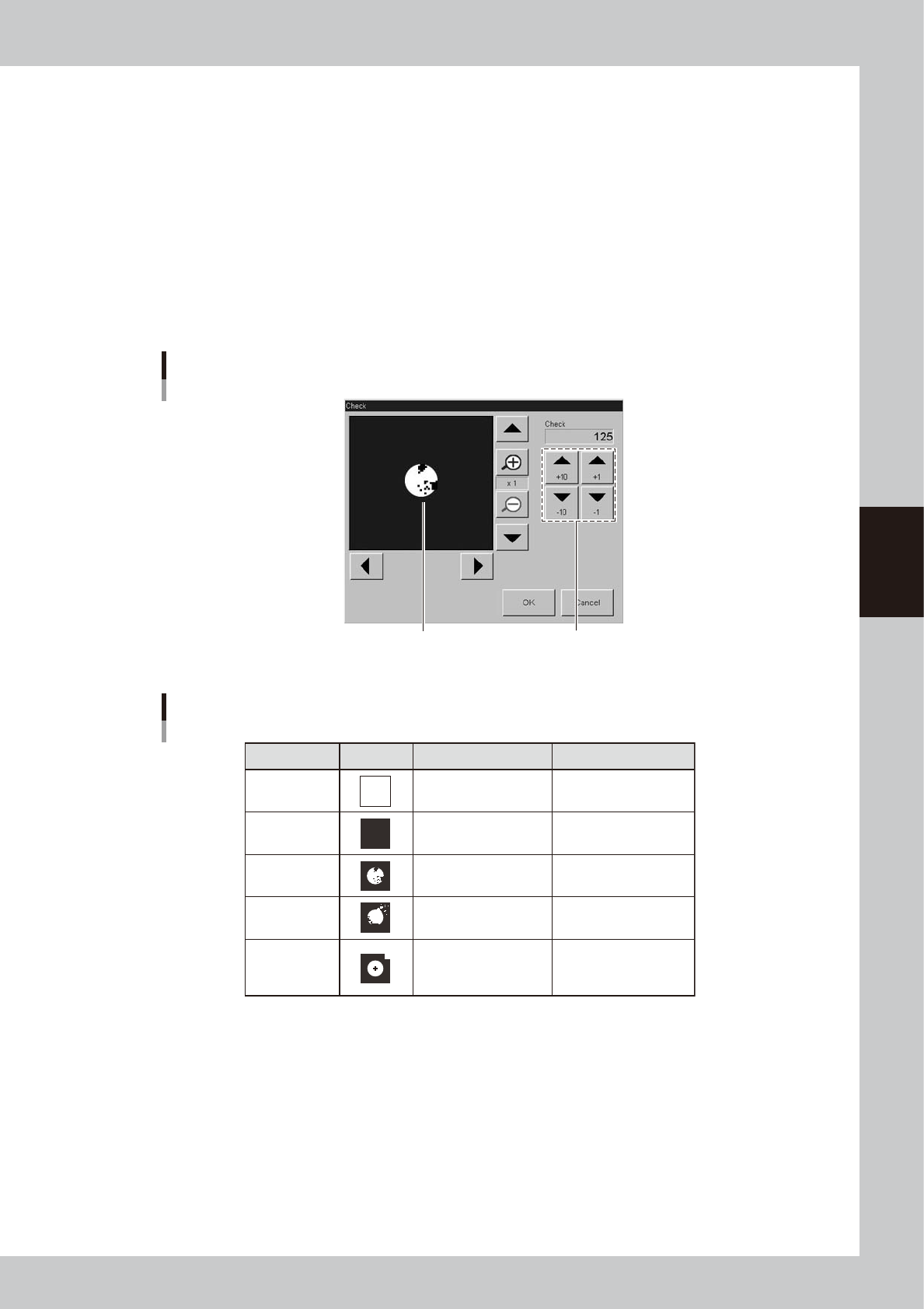
If the vision test result is a fail, press the [Result] button to display the binary image of the mark and
adjust the threshold level manually by referring the table below, so that the binary image is most clearly
displayed.
Binary mark image
Binary mark image and threshold level adjustment
Use these arrow buttons to adjust
the threshold level.
64436-L3-00
Binary image check and adjustment
State
All white
All black
Noise within
mark
Noise outside
of mark
Other than
mark in
search area
Image Countermeasure
Increase the threshold
level with the arrow
buttons.
Decrease the threshold
with the arrow buttons.
Increase the Cut Inner
Noise level.
Increase the Cut Outer
Noise level.
Reduce the Search
Area size.
Remarks
Adjust it till the mark is
displayed.
Adjust it till the mark is
displayed.
Refer to "Search Area"
explained previously.
Recognition time becomes
longer as the Cut Inner
Noise level is increased.
Recognition time becomes
longer as the Cut Outer
Noise level is increased.
63426-L3-00
9
Press the [Test] button to perform the vision test again.
Repeat this test several times. If no error is detected, each parameter is appropriate so the adjustment
is now complete.
0
Press the [OK] button to save the adjusted data.
The Mark Adjust screen closes and returns to the Mark screen.
q
Use the same procedure when adjusting other marks.
4-42
4
Creating and setting the data
8. Graphic alignment
When finished creating board data and necessary mark data, you should check to see whether the mask
apertures are aligned with the land patterns on the board, and correct any offsets (positional shifts) as
needed.
n
NOTE
When fiducial marks on the board and mask frame are used, their positions are automatically aligned by vision
recognition, so you can omit "graphic alignment". However, when the fiducial mark positions were defined by
teaching or when the mask aperture shapes are not identical with the land pattern shapes, then position alignment
may not be accurate if only using vision recognition. In those cases, the graphic alignment function allows you to
make position alignment easily and accurately.
l
Coordinates used for graphic alignment
For graphic alignment, select the coordinates where the center of the pad meets the center of the solder.
Select the mask hole and the pad
The center of the pad doesn't meet
the center of the solder
Center aligned place
Deviated place
Aligning a place to the center may effect to align
the other place wrong.
The center of the pad meets
the center of the solder
Solder
Pad
OK
NG
63436-L3-00
c
CAUTION
If the coordinates where the center of the pad doesn't meet the center of the solder are selected, the graphic
alignment results wrong offset.
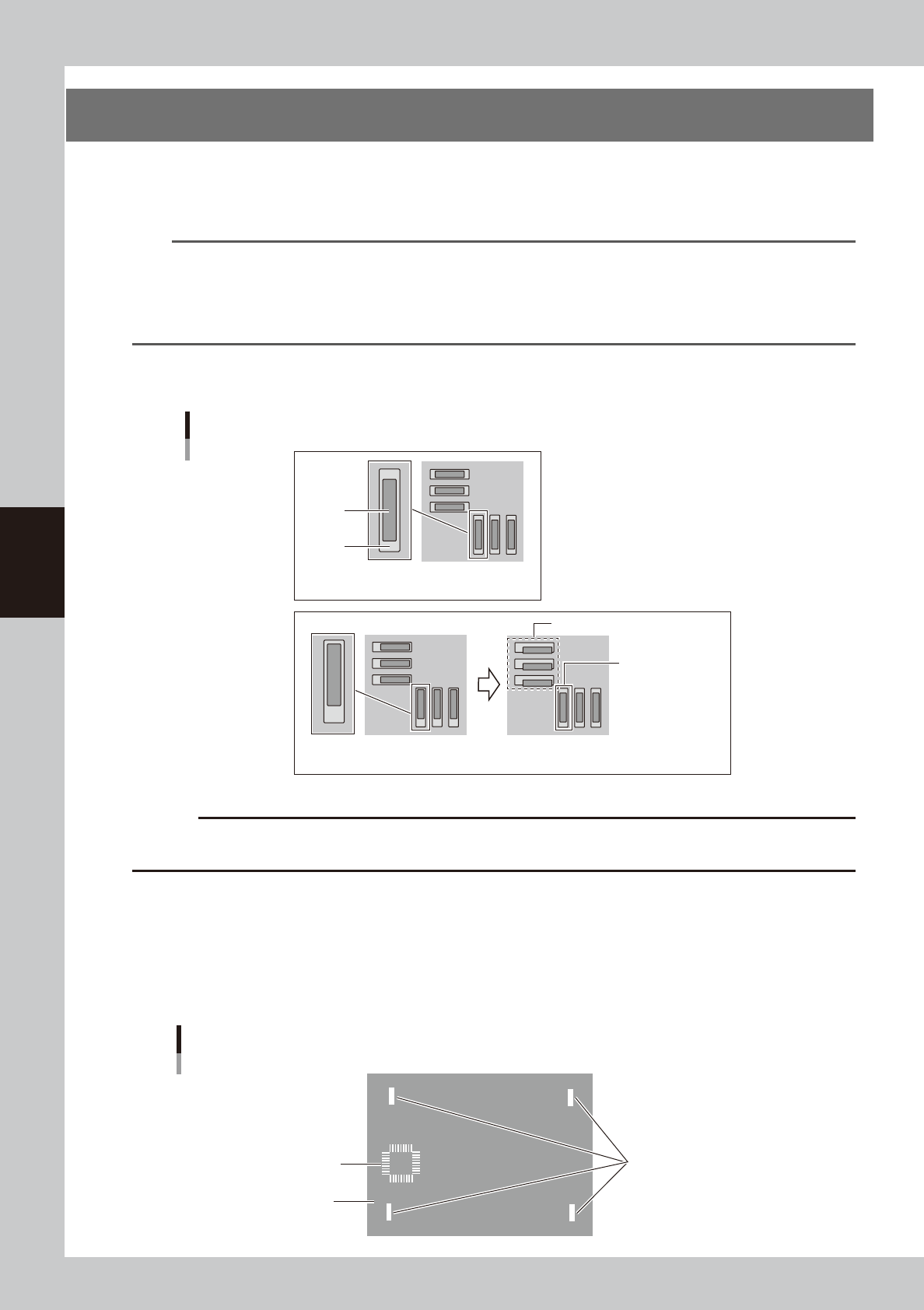
1. If the center deviation and rotational deviation exist, specify four diagonal points as shown below.
2. If you want to make alignments at a particular point other than the above four diagonal points, then specify only that
one point after adjusting the rotational deviation of the entire board by specifying the two diagonal points. If two
particular points are specified in this case, the rotational component that has already been adjusted will change, so use
caution.
The coordinates to be specified for graphic alignment should be measured in advance, or if the coordinate data (design
data) is available, make a note of the coordinates in advance.
Specify four corners diagonally
(for correction center and
rotational deviation.)
Alignment coordinates number
2
3
4
1
5
The specified position to be aligned
(Specify only one point)
Specified coordinates for graphic alignment
63428-L3-10