YSP_Users_E.pdf - 第205页
6-21 6 Other functions 4.3 [Unit] - [Mask] tab screen T he [Unit] - [Mask] tab screen allows you to manually operate the mask v acuum gripper and check the status of the mask sensors on the graphic view . T he function o…
6-20
6
Other functions
4.2 [Unit] - [Conveyor] tab screen
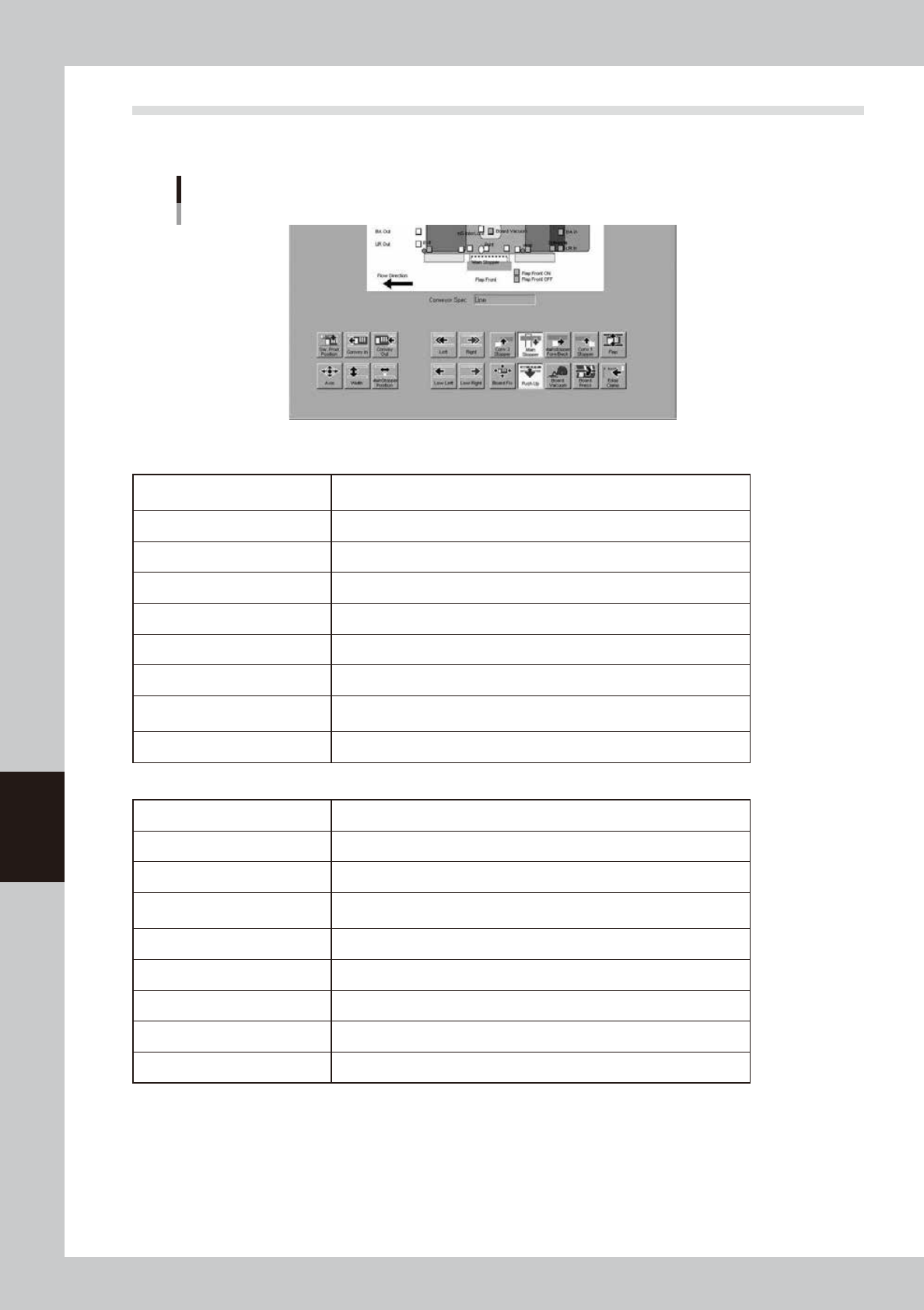
The [Unit] - [Conveyor] tab screen allows you to manually operate each conveyor unit and check the status of
the conveyor sensors and I/O signals on the graphic view. The function of each button is described below.
[Unit]-[Conveyor] tab screen
64619-L3-10
n
Operation buttons in upper row (from left)
[SW. Prod. Position] button
Moves the board clamp table to the front and the squeegee head to the
inner side.
[Convey-in] button Carries a board in on the board clamp table.
[Convey-out] button Carries the board out from the board clamp table.
[Left], [right] buttons Switches on the conveyor motor so the conveyor moves to the left or right.
[Conv. 3 Stopper] button Raises or lowers the left stopper when viewed from the front of the machine.
[Main Stopper] button Raises or lowers the main stopper.
[Main Stopper Fore/Back] button Moves the main stopper forward or backward in the Y direction.
[Conv. 1 Stopper] button
Raises or lowers the right stopper when viewed from the front of the
machine.
[Flap] button Actuates the board flap.
n
Operation buttons in lower row (from left)
[Axis] button Opens the "Move Axis" screen. (See "4.1" in this chapter.)
[Width] button Changes the conveyor width.
[Main Stopper Position] button Moves the main stopper according to the board length.
[Low Left], [low Right] buttons
Switches on the conveyor motor so the conveyor moves at slow speed to
the left or right.
[Board Fix] button Actuates the effective board clamp units to clamp a board in print position.
[Push Up] button Raises or lowers the push-up plate.
[Board Vacuum] button Turns the vacuum board gripper on or off. (option)
[Board Press] button Turns the board press unit on or off. (option)
[Edge Clamp] button Turns the edge clamp on or off.
6-21
6
Other functions
4.3 [Unit] - [Mask] tab screen
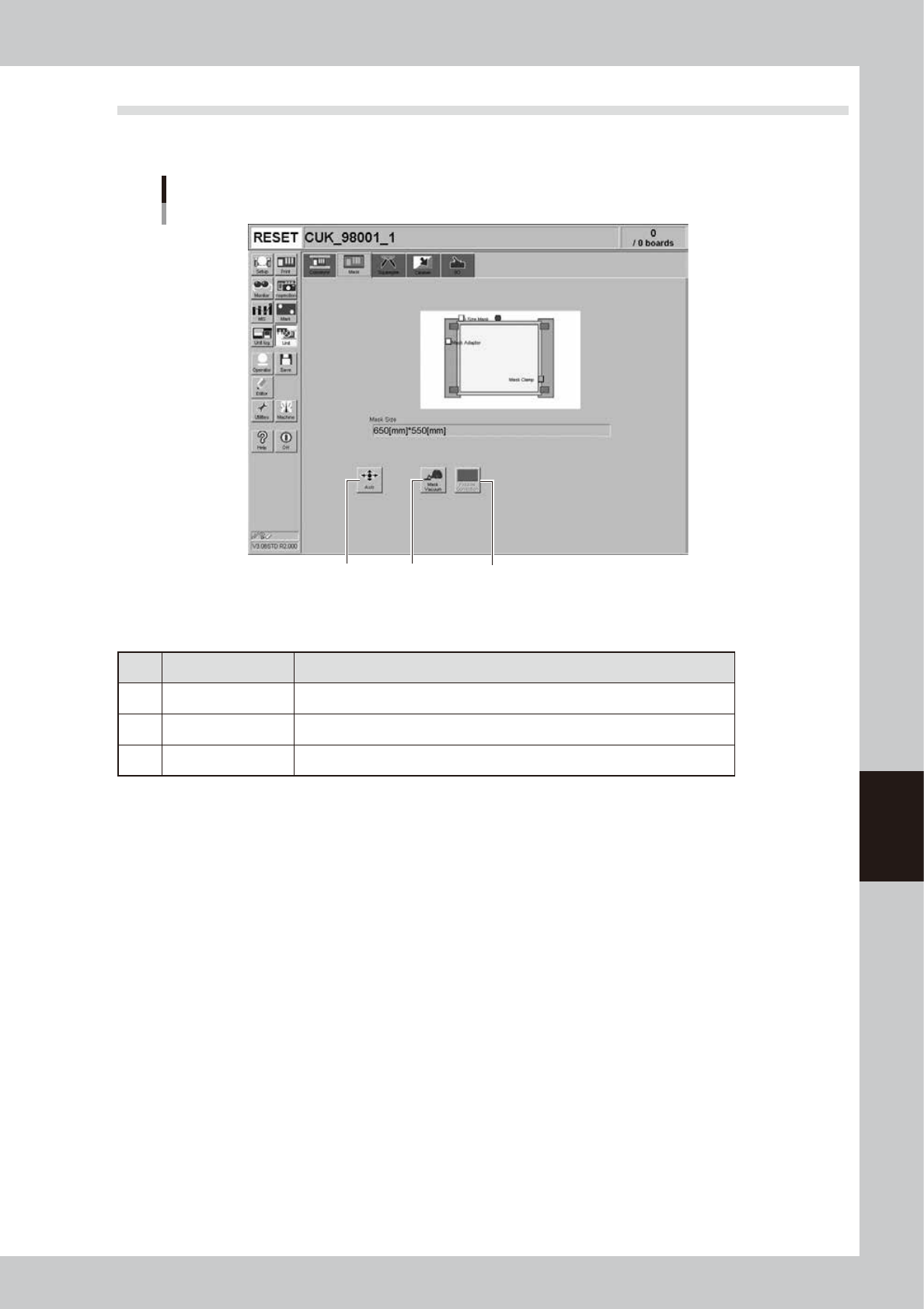
The [Unit] - [Mask] tab screen allows you to manually operate the mask vacuum gripper and check the status
of the mask sensors on the graphic view. The function of each button is described below.
[Unit]-[Mask] tab screen
1 3
2
64620-L3-00
n
Operation buttons
Button name Function
1 Axis Opens the "Move Axis" screen. (See "4.1" in this chapter.)
2 Mask Vacuum Turns the mask vacuum gripper on or off.
3 Fiducial Correction Moves the vision camera to recognize mask fiducial marks.
6-22
6
Other functions
4.4 [Unit] - [Squeegee] tab screen
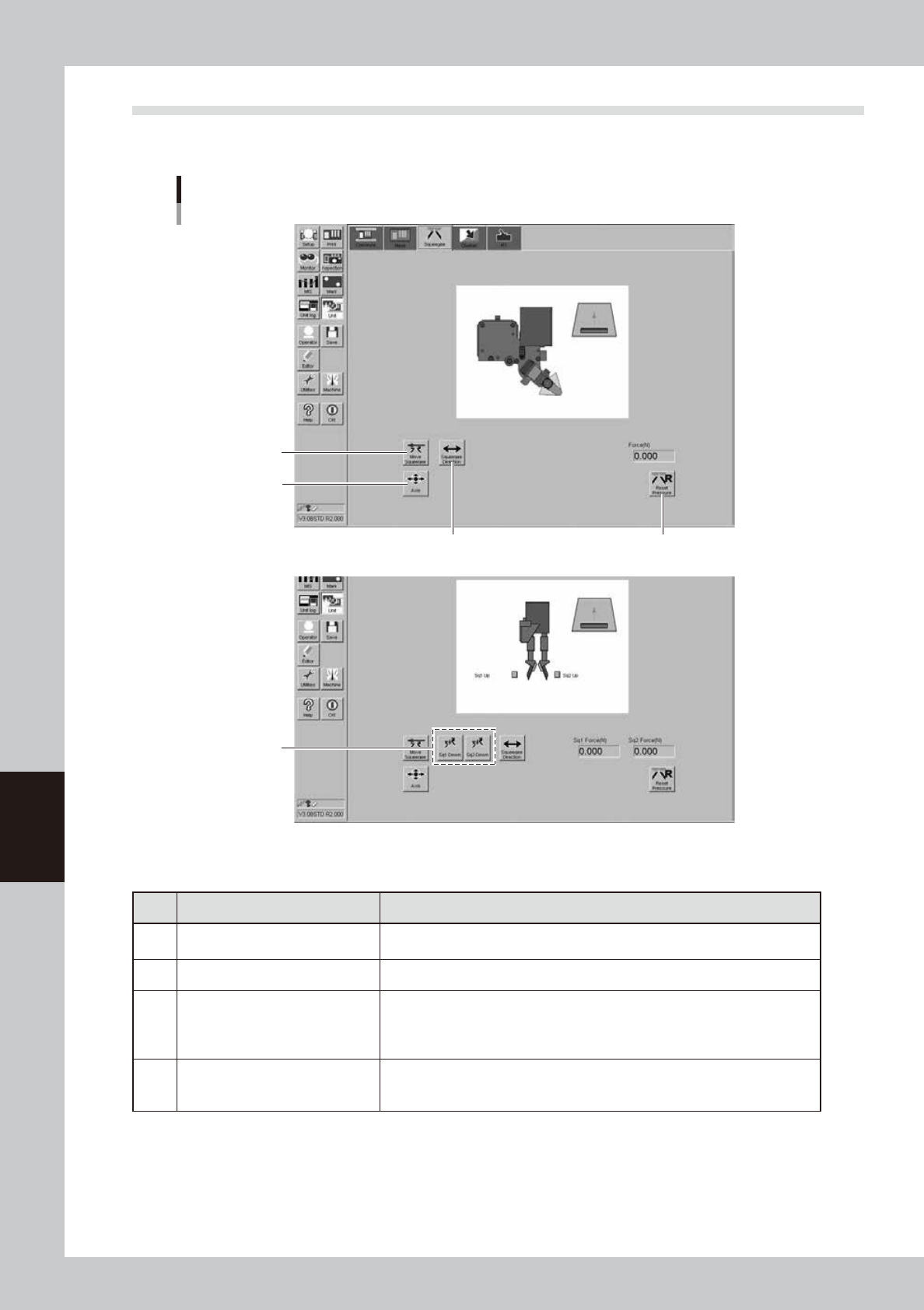
The [Unit] - [Squeegee] tab screen allows you to manually operate the squeegee head and check the status of
the squeegee sensors on the graphic view. The function of each button is described below.
[Unit]-[Squeegee] tab screen
<3S squeegee>
<Double squeegee>
5
4
2
3
1
64621-L3-00
n
Operation buttons
Button name Function
1 Move Squeegee
Moves the squeegee head to the squeegee attach/detach position (front side) or
to the escape position (rear side).
2 Axis Opens the "Move Axis" screen. (See "4.1" in this chapter.)
3 Squeegee Direction
Switches the squeegee printing direction.
The squeegee printing direction is from front to rear just after board data is
loaded or the [RESET] button is pressed. Then, the printing direction will be
switched alternately.
4
Squeegee 1 Down
Squeegee 2 Down
(Only for double-squeegee type)
Moves up and down the squeegee 1 or 2.